
Introduction
This manual provides detailed instructions for the Voinap VN11 Wireless Camera Remote Control. This device is designed to enhance your smartphone photography and video recording experience by offering remote control over various camera functions, including zoom, shutter, and camera switching. It also supports video scrolling and page turning for compatible applications.
Product Overview
The Voinap VN11 is a versatile Bluetooth remote control compatible with most iPhone, iPad, iPod, and Android smartphones and tablets. It features dedicated buttons for zoom in/out, front/rear camera switching, and a multi-directional pad for navigation and shutter control.
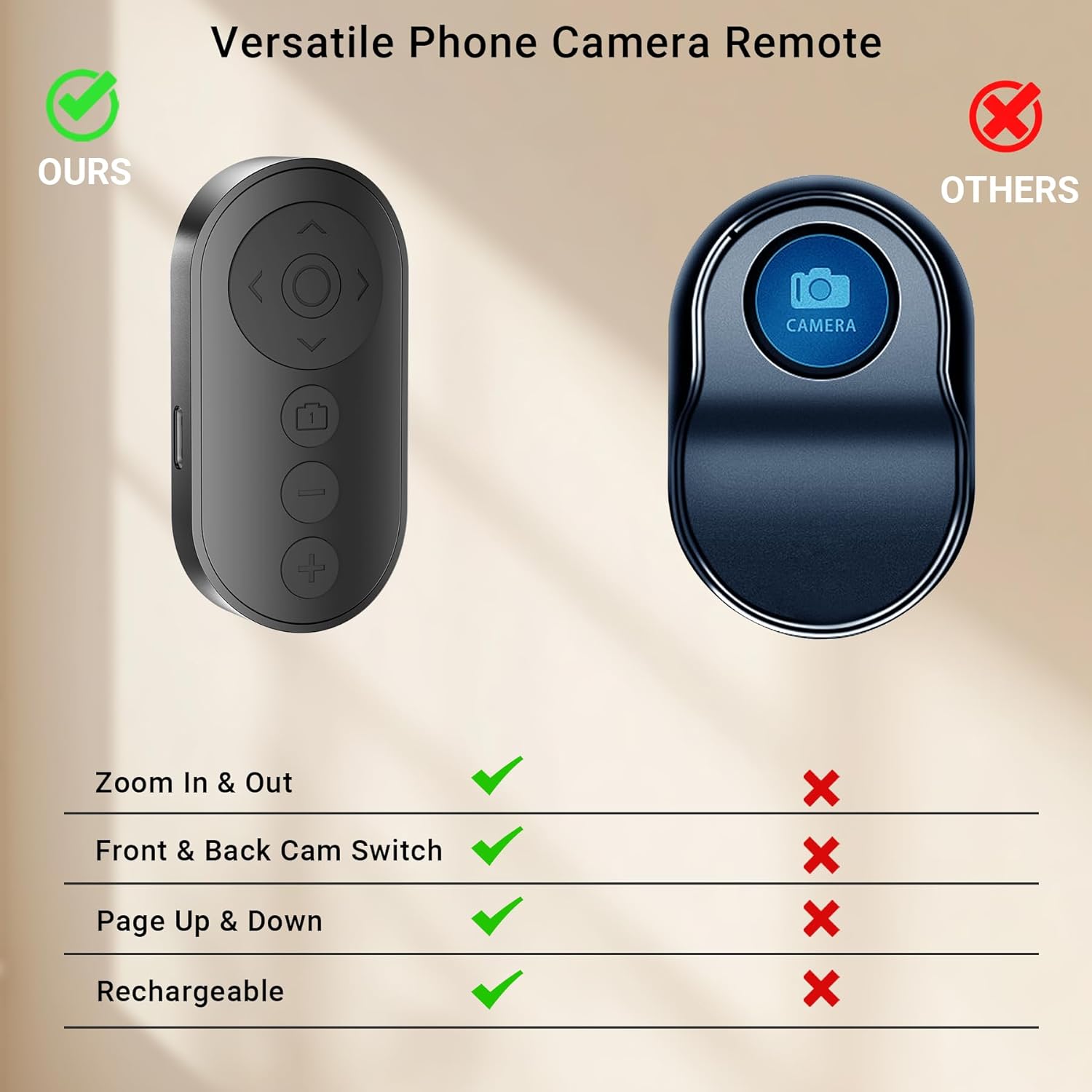
Image: The Voinap VN11 remote control shown alongside a simpler remote, illustrating its advanced features such as zoom in/out, front/back camera switch, page up/down, and rechargeable capability.
Setup
1. Charging the Remote
Before initial use, ensure the remote control is fully charged. Connect the included USB-C charging cable to the remote and a power source. A full charge takes approximately 1 hour and provides up to 30 days of standby time.

Image: The Voinap VN11 remote control connected via its USB-C port to a charging cable, emphasizing its long battery life and quick charging time.
2. Bluetooth Pairing
- Turn on the remote control using the ON/OFF switch located on the side.
- On your smartphone or tablet, navigate to the Bluetooth settings.
- Search for available devices and select "VN11" to pair. The remote's indicator light will confirm successful pairing.
3. iPhone/iPad Zoom Functionality Setup
For iPhone and iPad users, the zoom feature requires specific accessibility settings to be enabled:
- Go to Settings > Accessibility.
- Select Zoom.
- Toggle Zoom to the ON position.
- Ensure Bluetooth is enabled in your device's settings and the remote is connected.
If the screen zooms in unexpectedly, double-tap with three fingers to restore the original view.

Image: A four-panel image detailing the steps to enable the Zoom accessibility feature on an iPhone/iPad and confirming Bluetooth connection for the VN11 remote.
Video: An unboxing and initial overview of the Voinap Wireless Smartphone Remote, demonstrating its physical features and what to expect upon receiving the product.
Operating Instructions
1. Shutter Control
Press the central button on the directional pad to trigger the camera shutter for photos or to start/stop video recording.
2. Zoom In & Out
Use the '+' and '-' buttons on the remote to zoom in and out when using your smartphone's native camera application. This feature is primarily supported by the original phone camera app and may require accessibility settings on iOS devices as described in the Setup section.

Image: A smartphone on a tripod, with the Voinap VN11 remote control in hand, illustrating the use of the zoom in and zoom out buttons for camera control. Note: Zoom functionality is primarily for original phone camera apps.
3. Front/Rear Camera Switch
A dedicated Bluetooth button on the side of the remote allows you to switch between the front and rear cameras. Click once to switch the system camera, and double-click to switch the camera within certain applications.

Image: A visual demonstration of the front and rear camera switching capability using the Voinap VN11 remote control, showing different perspectives captured by a smartphone.
4. Video Scrolling & Page Turner
The remote can also be used for scrolling through short videos (e.g., TikTok) and turning pages in e-books. Use the directional pad for navigation within these applications.

Image: The Voinap VN11 remote control being used for two distinct functions: as a page turner for reading on a tablet and for scrolling through videos on a smartphone.
Video: A demonstration of the Voinap Wireless Camera Remote Control's functionality, showing how it interacts with a smartphone camera for various operations.
Video: A user demonstrating how to take selfies and control the phone camera remotely using the Voinap device.
Video: A review highlighting the Voinap Wireless Remote Phone Camera Shutter as a useful tool for content creators, showcasing its features.
Video: A demonstration of the remote's page-turning and scrolling capabilities, particularly useful for reading on devices.
Maintenance
The Voinap VN11 remote control is designed for low maintenance. Keep the device clean and dry. Recharge the internal battery as needed using the provided USB-C cable. Avoid exposing the remote to extreme temperatures or moisture.
Video: A short clip demonstrating the rechargeable nature of the remote shutter, showing the USB-C charging port.
Troubleshooting
- Remote not pairing or disconnecting frequently:
Ensure the remote is charged. Turn off and on both the remote and your device's Bluetooth. Re-attempt pairing. Move closer to your device to ensure you are within the 10-meter range. - Zoom function not working on iPhone/iPad:
Verify that the 'Zoom' accessibility setting is enabled on your iOS device as described in the Setup section. Note that the zoom function is primarily designed for the native camera application and may not work with all third-party photography apps. - Buttons not responding as expected:
Confirm the remote is successfully paired. Some buttons may have different functionalities depending on the application (e.g., single click vs. double click for camera switch). - Short battery life:
Ensure the remote is fully charged for 1 hour. If the issue persists, contact customer support.
Specifications
| Brand | Voinap |
| Model Name | VN11 |
| Connectivity Technology | Wireless (Bluetooth) |
| Compatible Devices | Smartphone (iPhone, iPad, iPod, most Android systems) |
| Maximum Range | 10 Meters |
| Battery Type | Lithium-Ion Polymer |
| Charging Time | 1 Hour |
| Standby Time | 30 Days |
| Item Weight | 0.05 Kilograms (28 grams) |
| Color | Dark Black |

Image: A compatibility chart indicating that the zoom feature works with iPhone, iPad, Samsung, and Google Pixel smartphones. For other phones, contact support.

Image: Detailed dimensions of the Voinap VN11 remote control, showing its compact size (83mm x 42mm x 17mm) and light weight (28g).
Warranty and Support
Specific warranty information is not provided in the product details. For any product inquiries, technical support, or warranty claims, please contact Voinap customer service through the retailer where the product was purchased or visit the official Voinap brand store online.