
1. Introduction
The Oilsky M1 MP3 Player is a portable digital music player designed for high-quality audio playback. It features Bluetooth 5.4 for stable wireless connections, a 2.4-inch touchscreen for easy navigation, and a built-in speaker. With 128GB of internal storage and support for an additional 128GB Micro SD card, it can store a vast library of music, audiobooks, and other media. This manual provides detailed instructions on how to set up, operate, and maintain your device.
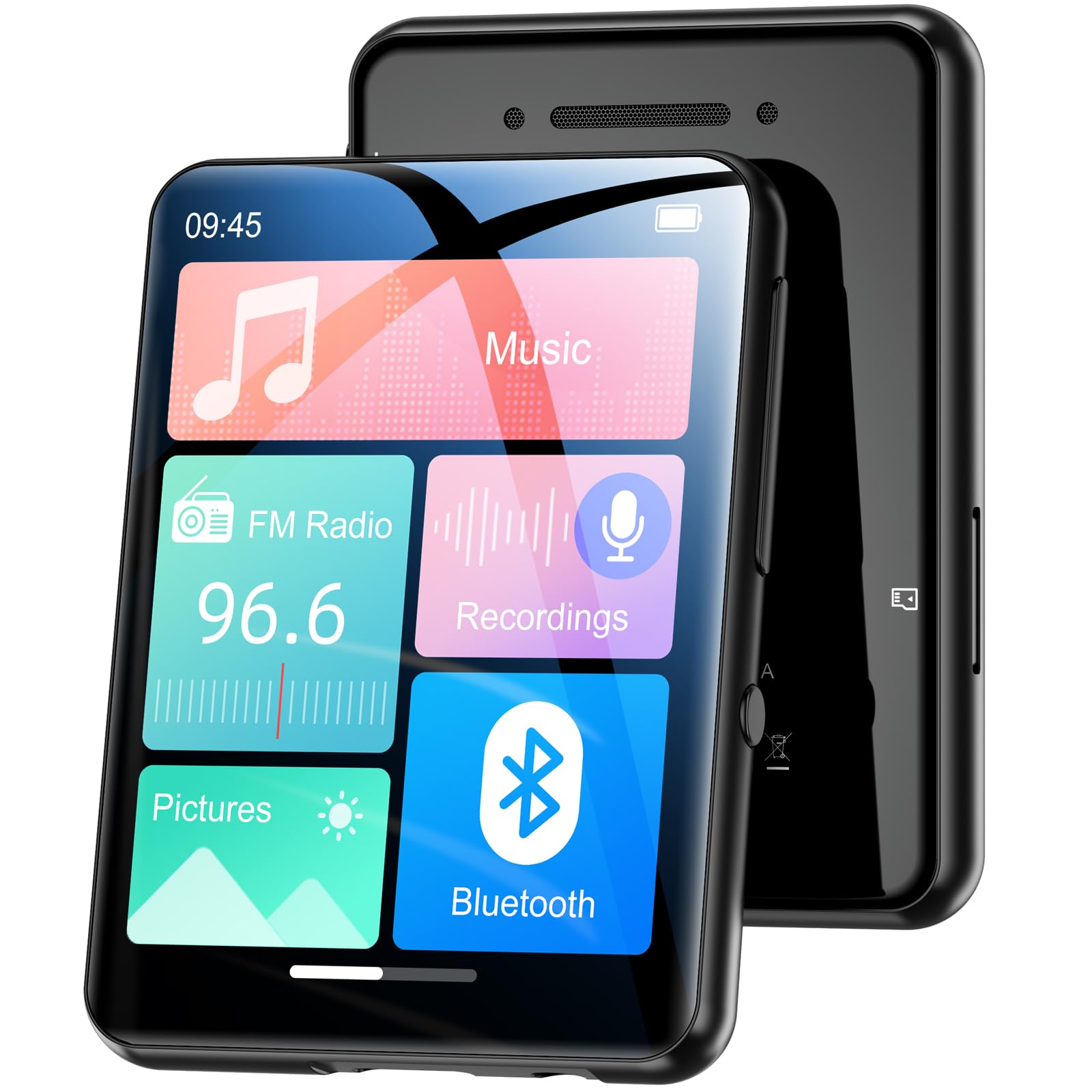
Image 1.1: Front view of the Oilsky M1 MP3 Player, showcasing its compact design and touchscreen interface.
2. What's in the Box
Please check the package contents upon unboxing to ensure all items are present:
- 1x Oilsky M1 MP3 Player
- 1x USB Charging Cable
- 1x Wired Headphones
- 1x User Manual (this document)
- 1x Protective Case
- 1x Lanyard

Image 2.1: All included accessories and the MP3 player laid out, including the USB cable, headphones, protective case, and lanyard.
3. Setup
3.1 Charging the Device
Before first use, fully charge the MP3 player. Connect the provided USB cable to the player's charging port and the other end to a USB power adapter (not included) or a computer's USB port. The device takes approximately 2 hours to fully charge, providing up to 50 hours of music playback.
3.2 Powering On/Off
- To Power On: Press and hold the power button until the screen lights up.
- To Power Off: Press and hold the power button until a power-off option appears on the screen, then confirm.
3.3 Inserting a Micro SD Card
The Oilsky M1 has 128GB of built-in memory and supports Micro SD cards up to an additional 128GB (not included). To expand storage:
- Locate the Micro SD card slot on the side of the player.
- Gently insert the Micro SD card into the slot with the gold contacts facing down until it clicks into place.
- To remove, push the card inward until it springs out.

Image 3.1: Visual representation of the 128GB internal memory and the option to expand storage with a Micro SD card.
3.4 Language Settings
The device supports English, German, French, Italian, Spanish, and 29 other languages. To change the language:
- Go to the 'Settings' menu.
- Select 'Language'.
- Choose your preferred language from the list.
4. Operating Instructions
The Oilsky M1 features a 2.4-inch full touchscreen for intuitive control. Navigate through menus by swiping and tapping.

Image 4.1: A hand interacting with the full touchscreen interface of the MP3 player, demonstrating ease of use.
4.1 Music Playback
The player supports various audio formats including MP3, WMA, APE, FLAC, WAV, and AAC, providing high-fidelity sound with digital noise reduction. You can organize music by title, folder, artist, or album.
- Transferring Music: Connect the player to your computer using the USB cable. The player will appear as a removable disk. Drag and drop your music files into the 'Music' folder on the device or Micro SD card.
- Playing Music: From the main menu, tap 'Music'. You can browse by 'All Songs', 'Artists', 'Albums', 'Folders', etc. Tap a song to begin playback.
- Controls: Use the on-screen controls for play/pause, next/previous track, and volume adjustment.

Image 4.2: A user enjoying music with headphones connected to the Oilsky M1 MP3 Player, highlighting the high-quality sound experience.

Image 4.3: Display illustrating the multiple audio formats supported by the MP3 player, including MP3, WMA, APE, FLAC, WAV, and AAC.
4.2 Bluetooth Connection
The player features Bluetooth 5.4 for connecting to Bluetooth headphones and speakers. It includes a memory function that automatically reconnects to previously paired devices. Note: The player cannot connect to mobile phones or car Bluetooth systems.
- From the main menu, tap 'Bluetooth'.
- Turn on Bluetooth. The player will scan for nearby devices.
- Select your desired Bluetooth headphones or speaker from the list to pair.

Image 4.4: The MP3 player screen showing the Bluetooth connection icon, indicating stable and fast Bluetooth 5.4 connectivity to external audio devices.
4.3 FM Radio
To use the FM radio function:
- Connect the wired headphones (they act as an antenna).
- From the main menu, tap 'FM Radio'.
- Use the on-screen controls to scan for stations or manually tune.
4.4 Voice Recorder
The player includes a built-in microphone for digital voice recording.
- From the main menu, tap 'Recordings'.
- Tap the record icon to start and stop recording.
- Recordings are saved and can be played back from this menu.

Image 4.5: The MP3 player displaying its voice recording interface, useful for capturing notes or conversations.
4.5 E-Book Reader
The player supports TXT format e-books.
- Transfer TXT files to the 'E-book' folder on the device.
- From the main menu, tap 'E-book' to access your library.
4.6 Photo Viewer
View JPEG/BMP image files on the 2.4-inch screen.
- Transfer image files to the 'Pictures' folder.
- From the main menu, tap 'Pictures' to browse your photos.
4.7 Alarm Function
Set alarms using your favorite music as the ringtone.
- From the main menu, tap 'Alarm'.
- Configure alarm time, repeat settings, and select a music file for the alarm sound.

Image 4.6: The MP3 player displaying an alarm clock icon, indicating its alarm function capability.
5. Maintenance
5.1 Cleaning
- Wipe the device with a soft, dry cloth.
- Do not use liquid cleaners or aerosols, as they may damage the device.
5.2 Battery Care
- Avoid exposing the device to extreme temperatures.
- Charge the device regularly, even if not in use, to maintain battery health.
5.3 Storage
When not in use for extended periods, store the player in a cool, dry place, away from direct sunlight and moisture.
6. Troubleshooting
| Problem | Possible Solution |
|---|---|
| Device does not turn on. | Ensure the device is fully charged. If the battery is depleted, it may take a few minutes of charging before it can power on. |
| Bluetooth headphones/speaker won't connect. | Ensure Bluetooth is enabled on both devices. Make sure the headphones/speaker are in pairing mode. Confirm the MP3 player is not attempting to connect to a mobile phone or car system, as this is not supported. |
| Cannot transfer files to the player. | Check the USB cable connection. Ensure the player is properly recognized by your computer. Try a different USB port or cable. |
| Music playback is distorted or silent. | Check headphone connection or Bluetooth connection. Ensure volume is not muted and is set to an audible level. Verify the audio file format is supported. |
| Screen is unresponsive. | Perform a soft reset by pressing and holding the power button for 10-15 seconds. If the issue persists, ensure the device is charged. |
7. Specifications
| Feature | Detail |
|---|---|
| Brand | Oilsky |
| Model Number | M1 |
| Special Features | Touchscreen, Built-in Speaker, Digital Noise Reduction |
| Connectivity Technology | Bluetooth 5.4, USB |
| Internal Storage | 128 GB |
| Expandable Storage | Micro SD card up to 128 GB |
| Color | Black |
| Screen Size | 2.4 Inches |
| Compatible Devices | Bluetooth Speakers, Bluetooth Headphones, Personal Computers |
| Supported Audio Formats | MP3, WMA, APE, FLAC, WAV, AAC |
| Supported E-book Format | TXT |
| Supported Image Formats | JPEG, BMP |
| Battery Life | Up to 50 Hours |
| Charging Time | Approximately 2 Hours |
| Item Weight | 65 Grams |
| Item Dimensions (D x W x H) | 1 cm x 5 cm x 7 cm |
8. Warranty and Support
8.1 Warranty Policy
Oilsky offers a one-year return policy for this product. This warranty covers manufacturing defects and issues arising from normal use.
8.2 Customer Support
Our team is dedicated to providing prompt, attentive, and high-quality support. We guarantee a response within 24 hours for any inquiries or issues you may have.
For assistance, please contact us through the platform where you purchased the product or refer to the contact information provided on the official Oilsky website.
We are committed to ensuring your satisfaction with your Oilsky M1 MP3 Player.