
Introduction
This manual provides comprehensive instructions for the installation, operation, maintenance, and troubleshooting of your Hodozzy 9-inch Android Car Stereo. This unit is designed for Toyota Vios and Yaris models from 2007 to 2014, featuring a 4G RAM and 64GB ROM configuration. Key functionalities include Wireless CarPlay, Android Auto, GPS navigation, Bluetooth 5.0, WiFi connectivity, Digital Sound Processor (DSP), and FM/RDS radio. Please read this manual thoroughly before use to ensure proper operation and to maximize your experience.
Package Contents
Verify that all items listed below are included in your package:
- Android Car Stereo Unit
- Power Cable
- RCA Cable
- GPS Antenna
- Rear Camera Input Cable
- Rear Camera
- USB Cable (Double USB interface)
- Installation Tool
- Users Manual (this document)
- Microphone (MIC)


Setup (Installation)
Before beginning the installation, ensure your car's power is cut off. Prepare necessary tools such as a plastic pry tool and a screwdriver.
Disassembly of Original Car Radio
- Use a pry bar to open the two trim panels on both sides of the original car radio. Remove the outer frame of the display. Use a screwdriver to remove the four screws securing the radio panel on both sides. Disconnect the wiring harness connected to the emergency button.
- Remove the original car radio panel and disconnect the wiring harness. Then remove the air vent from the radio panel and take off the clips.

Installation of New Car Stereo
- Install all the clips onto the new radio panel, then install the air vent onto the new radio panel. Connect the wiring harness between the new radio panel and the car. Reinstall the new radio panel into the car and tighten the four screws on both sides.
- Reinstall the outer frame of the display back into the car and attach the trim panels on both sides of the new radio. The new radio installation is complete.
Note: If the wiring harness does not match your vehicle, please contact customer service to request the correct wiring harness.


Operating Instructions
Wireless CarPlay & Android Auto & Mirror Link
The car stereo supports Wireless CarPlay and Android Auto, allowing seamless integration with your smartphone. Connect your phone via Bluetooth to access messaging, contacts, navigation, and music apps. Built-in voice assistants (SIRI, Google Voice) enable hands-free control. Mirror Link functionality allows you to display your phone's screen directly on the stereo.
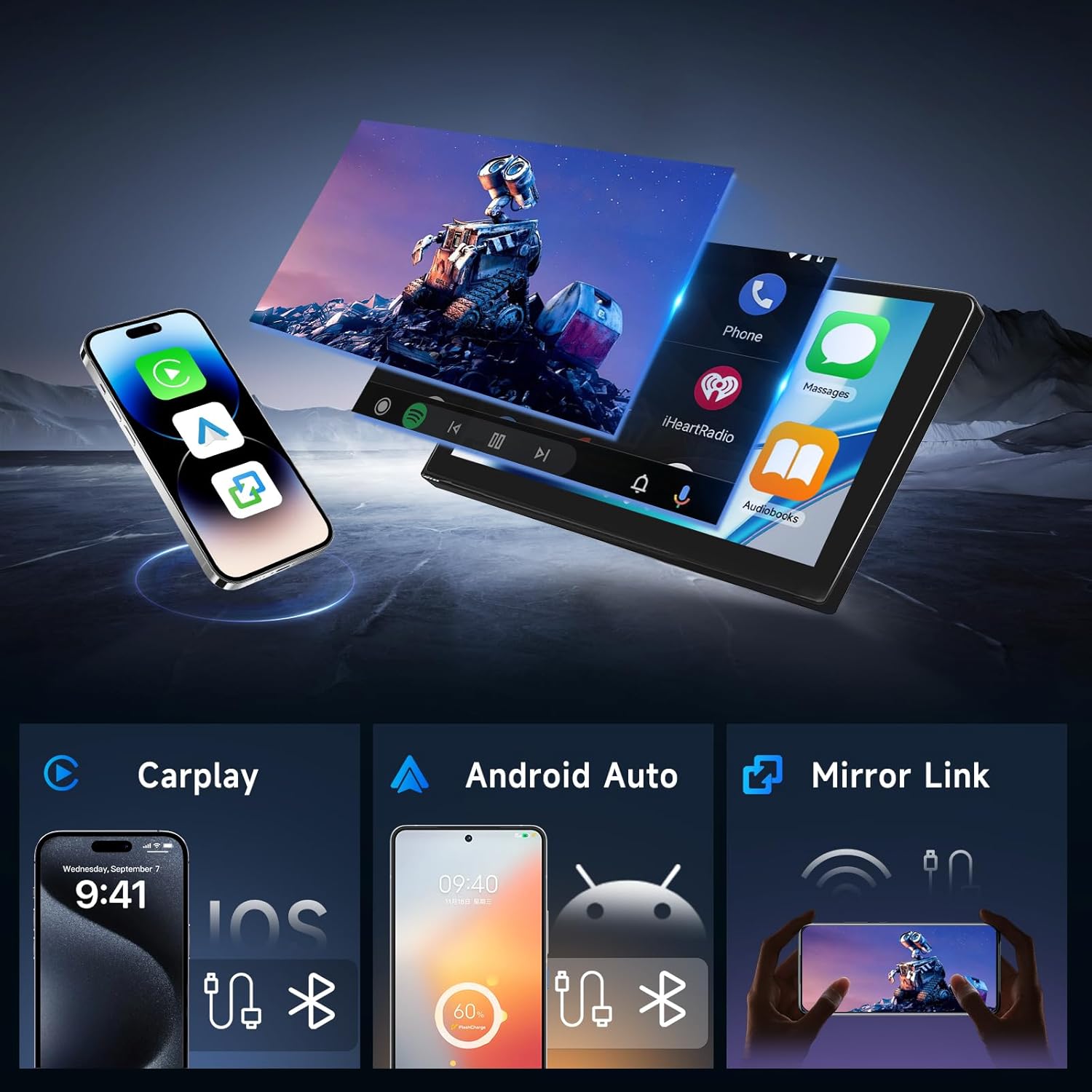


Video 1: UI Function & Carplay and Android Auto Connection. This video demonstrates the user interface, how to connect and use CarPlay and Android Auto, and navigate through various functions.
GPS Navigation
The unit includes a built-in GPS antenna for online navigation. You can also download offline maps for use without an internet connection, ensuring reliable navigation even in areas with poor signal.


WiFi Connection
Connect the car stereo to a WiFi hotspot to access online functions such as streaming movies, listening to music, browsing social media apps (Facebook, Instagram), and viewing online content (YouTube, Google webpages).

Bluetooth 5.0 & Hands-Free Calling
The integrated Bluetooth 5.0 module supports automatic connection for hands-free calling and music streaming. Connect an external microphone for high-quality call effects. You can dial numbers, access contacts, and view call history directly from the stereo screen.


Video 2: Hodozzy Android Car Stereo Product Feature Introduction. This video provides an overview of various features including Bluetooth connection, hands-free calling, radio, split screen, and steering wheel control setup.
DSP (Digital Sound Processor) & Audio Settings
Customize your audio experience with the 32-band equalizer and various preset sound styles (e.g., rock, jazz, classical). The DSP allows for precise sound field adjustments to optimize audio output within your vehicle.
FM/RDS Radio
The FM/RDS radio provides 18 preset radio stations across the 87.50-108.0 MHz frequency range. RDS (Radio Data System) displays station information and other data where available.

9-inch HD Touch Screen & Split Screen
The 9-inch high-definition screen features a resolution of 1280x720, offering clear visuals. The split-screen function allows you to run two applications simultaneously, such as navigation and music playback.

Multiple UI Designs
Personalize your car stereo's interface with various customizable homepage app layouts and theme switching options.

Steering Wheel Control
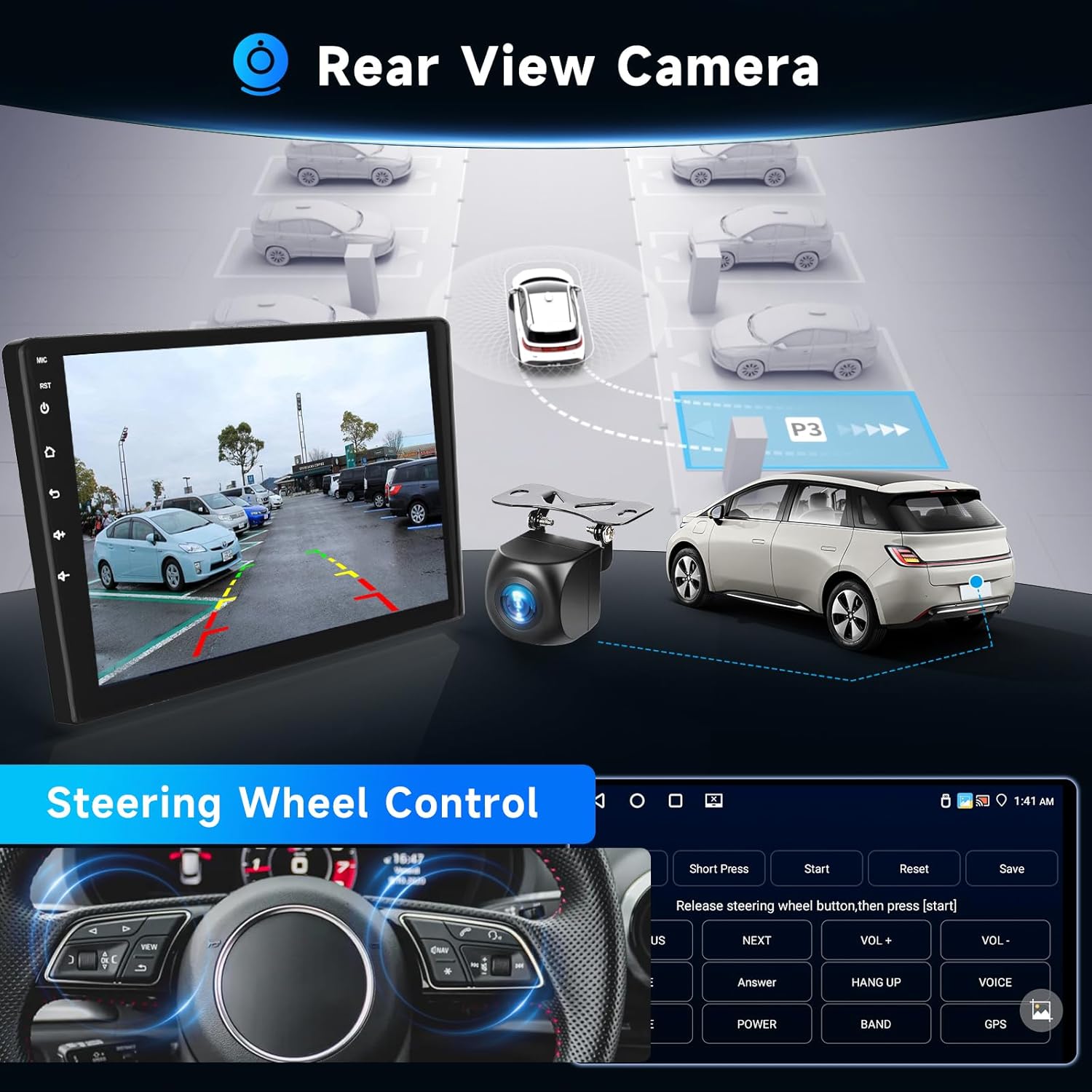
The unit supports steering wheel controls, allowing you to manage audio, calls, and other functions without taking your hands off the wheel. Follow the on-screen instructions to program your steering wheel buttons.

Rear View Camera Input
The car stereo supports a rear-view camera input, providing a clear display of the area behind your vehicle when reversing. This enhances safety and aids in parking maneuvers.
Maintenance
To ensure the longevity and optimal performance of your Hodozzy Android Car Stereo, follow these maintenance guidelines:
- Cleaning: Use a soft, dry cloth to clean the screen and exterior. Avoid abrasive cleaners or solvents that may damage the surface.
- Software Updates: Periodically check for and install software updates to ensure the system runs efficiently and has the latest features and security patches.
- Temperature: Avoid exposing the unit to extreme temperatures, both hot and cold, for extended periods.
- Connections: Ensure all cables and connections are secure and free from damage.
Troubleshooting
If you encounter issues with your car stereo, refer to the following common troubleshooting steps:
- No Power: Check all power connections and fuses. Ensure the car's ignition is on.
- No Sound: Verify speaker connections. Check volume levels and audio settings (DSP, equalizer). Ensure the mute function is not active.
- Bluetooth Connection Issues: Ensure Bluetooth is enabled on both the stereo and your phone. Delete previous pairings and try reconnecting. Check if the correct device is selected.
- GPS Not Working: Ensure the GPS antenna is properly connected and has a clear view of the sky. Check GPS settings in the system.
- Touch Screen Unresponsive: Try restarting the unit. If the issue persists, a factory reset might be necessary (refer to system settings).
- System Lag/Slow Performance: Close unnecessary applications. Clear cache if possible. A factory reset can often resolve persistent performance issues.
- Rear Camera Not Displaying: Check the camera's power and video input connections. Ensure the car is in reverse gear.
If these steps do not resolve the issue, please contact Hodozzy customer support.
Specifications
| Feature | Specification |
|---|---|
| Operating System | Android 13 |
| Memory (RAM) | 4 GB |
| Storage (ROM) | 64 GB |
| Screen Size | 9 Inches |
| Display Resolution | 1280 x 720 |
| Connectivity Technology | Bluetooth 5.0, WiFi |
| Special Features | Wireless CarPlay, Android Auto, Mirror Link, GPS, DSP, FM/RDS Radio, Steering Wheel Control, Rear-view Camera Input, Split Screen |
| Map Type | Worldwide |
| Item Weight | 3.14 pounds |
| Package Dimensions | 13.15 x 10.55 x 4.21 inches |
Warranty & Support
Warranty Information
Your Hodozzy Android Car Stereo is eligible for extended protection plans:
- 2-Year Protection Plan
- 3-Year Protection Plan
Please refer to your purchase documentation for details on activating these protection plans.
Customer Support
For any questions, technical assistance, or warranty claims, please contact Hodozzy customer support:
- Email: hodozzyofficial@163.com
