
LINHAMCOLN 730968199934
LINHAMCOLN Wireless CarPlay Module Box User Manual
Model: 730968199934 for Audi A4, A5, S4, S5, RS4, RS5, Q5 (2009-2015) with 3G MMI
1. Introduction
This manual provides detailed instructions for the installation, operation, and maintenance of your LINHAMCOLN Wireless CarPlay Module Box. This device is designed to integrate wireless CarPlay and Android Auto functionality into compatible Audi vehicles equipped with 3G MMI systems. Please read this manual thoroughly before installation and use to ensure proper functionality and to avoid damage.
Compatibility: This module is specifically designed for Audi A4, A5, S4, S5, RS4, RS5, Q5 models manufactured between 2009 and 2015, equipped with the 3G MMI multimedia system. It is not compatible with 2G MMI or vehicles without a GPS system.
2. Package Contents
Verify that all items are present in the package:
- LINHAMCOLN Wireless CarPlay Module Box
- Wiring Harness and all necessary accessories
- User Manual (this document)
3. Compatibility Check
Before proceeding with installation, it is crucial to confirm your vehicle's compatibility. This module is only for Audi vehicles with 3G MMI. Refer to the images below to identify your MMI system.

Image Description: This image displays a compatibility chart for various Audi MMI systems. It shows examples of "Audi cd changer" and "Audi chours" as not compatible, while "Audi concert", "Audi symphoney", and "Audi multimedia (MMI 3G)" are compatible. Green checkmarks indicate compatibility, and red crosses indicate incompatibility. This helps users visually identify their car's MMI type.
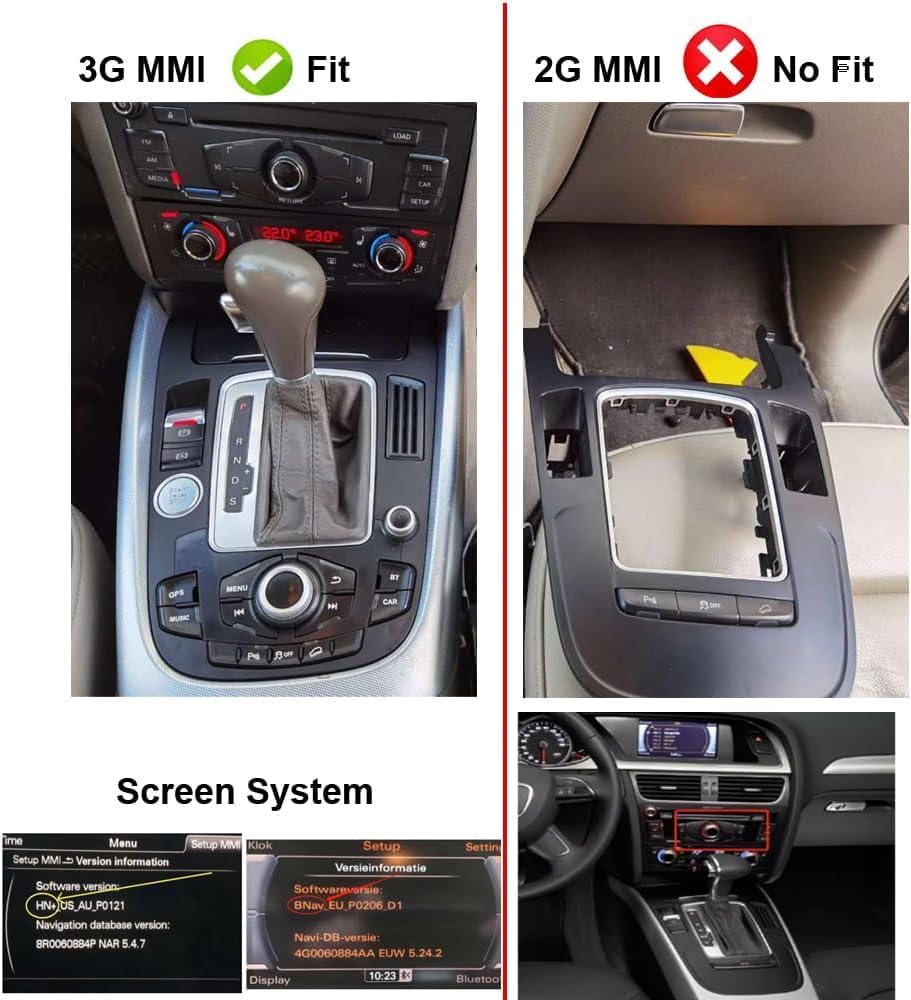
Image Description: This image provides a side-by-side comparison of 3G MMI and 2G MMI systems. The left side shows a 3G MMI system with a central control knob and buttons, labeled "3G MMI Fit". The right side shows a 2G MMI system with a different control layout, labeled "2G MMI No Fit". Below, a screen system comparison shows how to check the software version to confirm 3G MMI.
To verify your MMI version, navigate to the "Setup MMI" menu in your vehicle's infotainment system and check the software version information. The module requires a 3G MMI system.
4. Setup and Installation
Important: Installation should ideally be performed by a qualified professional. Disconnect the vehicle's battery before starting the installation process to prevent electrical damage.
4.1. Pre-Installation Steps
- Ensure the vehicle is turned off and the ignition key is removed.
- Disconnect the negative terminal of the car battery.
- Gather necessary tools (e.g., trim removal tools, screwdrivers).
4.2. Accessing the MMI Unit
Carefully remove the trim panels around your vehicle's MMI control unit and display screen to gain access to the wiring and the back of the MMI unit. Refer to your vehicle's specific service manual for detailed instructions on trim removal.
4.3. Wiring Connection
The module connects in-line with your existing MMI system using the provided wiring harness. This is a plug-and-play installation, meaning no wire cutting is typically required.
- Locate the main wiring harness connected to your MMI unit.
- Disconnect the original harness from the MMI unit.
- Connect the provided module harness to the MMI unit.
- Connect the original vehicle harness to the corresponding input on the module harness.
- Connect any additional cables (e.g., USB, external microphone if applicable) to the module.

Image Description: This image shows the LINHAMCOLN Wireless CarPlay Module Box itself, a gray rectangular unit with various ports, positioned above an Audi dashboard displaying the CarPlay interface on its screen. This illustrates the physical module and its intended in-car appearance.
4.4. Module Placement and Reassembly
- Secure the module in a safe location behind the dashboard, ensuring it does not interfere with any moving parts or existing wiring.
- Carefully reassemble all trim panels and reconnect the car battery.
5. Operating Instructions
5.1. Initial Power On and System Access
After installation, turn on your vehicle's ignition. The MMI screen should power on as usual. To access the CarPlay/Android Auto interface, you will typically need to switch the MMI source. This is often done by holding down a specific MMI button (e.g., "NAV" or "MEDIA") for a few seconds, or by selecting an external input source from the MMI menu.
5.2. Connecting Your Smartphone (Wireless CarPlay/Android Auto)
- On the module's interface displayed on your car screen, navigate to the Bluetooth settings.
- On your smartphone, enable Bluetooth and Wi-Fi.
- Search for the module's Bluetooth name (usually "CarPlay" or similar) on your phone and pair with it.
- Once paired via Bluetooth, your phone will automatically establish a Wi-Fi connection for wireless CarPlay or Android Auto.
- Follow any on-screen prompts on your phone or car display to complete the connection.

Image Description: This image shows a smartphone screen displaying the Apple CarPlay and Android Auto logos, indicating the module's support for both platforms. This visually confirms the dual compatibility of the device.
5.3. Key Features and Functions
- Navigation: Utilize real-time navigation apps like Google Maps, Waze, and Apple Maps directly on your car's display.

Image Description: This image shows the CarPlay interface on an Audi screen, displaying a navigation application with icons for Google Maps, Waze, and Apple Maps. This highlights the module's capability for integrated navigation.
- Voice Control (Siri): Activate Siri for hands-free control of calls, messages, navigation, and music. Hold the voice command button on your steering wheel or MMI controller.
- Hands-Free Calling: Make and receive calls safely using the integrated microphone and car speakers.

Image Description: This image shows the CarPlay interface on an Audi screen during an incoming phone call, demonstrating the hands-free calling feature. It displays the caller's name and options to accept or decline the call.
- Multimedia Playback: Stream music and podcasts from your smartphone. Supports offline videos and music via USB flash drive.
- Mirror-Linking: Supports AirPlay for iOS devices and Android Mirror-linking to display your phone's screen on the car's display.
- Steering Wheel Controls: Retains original steering wheel controls for volume, track skipping, and voice commands.
- Aftermarket Camera Support: The module supports aftermarket backup cameras.
6. Maintenance
The LINHAMCOLN Wireless CarPlay Module Box is designed for maintenance-free operation. No user-serviceable parts are inside the module. To ensure longevity:
- Keep the module free from moisture and extreme temperatures.
- Avoid physical impact to the unit.
- Ensure all connections remain secure.
For software updates, please refer to the manufacturer's official website or contact customer support.
7. Troubleshooting
| Problem | Possible Cause | Solution |
|---|---|---|
| No display after installation. | Incorrect wiring, MMI source not selected, power issue. |
|
| CarPlay/Android Auto not connecting wirelessly. | Bluetooth not paired, Wi-Fi disabled, phone compatibility. |
|
| Audio issues (no sound, distorted sound). | Incorrect audio source selected, volume settings. |
|
| MMI buttons not working after installation. | Incorrect harness connection. |
|
If you encounter issues not listed here, or if the suggested solutions do not resolve the problem, please contact LINHAMCOLN customer support.
8. Specifications
| Model Number | 730968199934 |
| Brand | LINHAMCOLN |
| Compatibility | Audi A4, A5, S4, S5, RS4, RS5, Q5 (2009-2015) with 3G MMI |
| Connectivity | Bluetooth 5.0, Wi-Fi 2.4GHz + 5.8GHz |
| Supported Features | Wireless CarPlay, Android Auto, Mirror-Linking (AirPlay), Siri Voice Control, USB Multimedia Playback, Aftermarket Camera Support |
| Dimensions | Approximately 9 x 5 x 3 inches (Package Dimensions) |
| Weight | Approximately 2.3 pounds (Item Weight) |
9. Warranty Information
Specific warranty details are typically provided at the point of purchase or on the manufacturer's official website. Please retain your proof of purchase for warranty claims. This product is generally covered by a standard manufacturer's warranty against defects in materials and workmanship.
For information regarding extended protection plans, please refer to the options available from your retailer at the time of purchase.
10. Customer Support
For technical assistance, troubleshooting, or warranty inquiries, please contact LINHAMCOLN customer support through the retailer where the product was purchased or visit the official LINHAMCOLN website for contact information.
Ask a question about this manual
Ask about setup, troubleshooting, compatibility, parts, safety, or missing instructions. Manuals+ will review the question and use this page’s manual context to help answer it.