
1. Introduction
The KP-GM032 Wireless RGB Gamepad is designed to provide a versatile and immersive gaming experience across multiple platforms. This manual offers detailed instructions for the setup, operation, and maintenance of your gamepad, ensuring optimal performance and longevity.
Key Features:
- Wireless Bluetooth and Wired Connectivity
- Customizable RGB Lighting with 3 modes and 9 colors
- 4 Programmable Bottom Buttons
- Turbo Function
- Dual Shock Vibration with 4 levels
- Ergonomic Design for extended comfort
- Nintendo Switch One-Button Wake Up
- Built-in 800 mAh Rechargeable Battery
Compatibility: Android, PC Windows, iOS, Nintendo Switch, Smart TV (Samsung, Android TV), Tablet PC, Car Multimedia Systems.

The KP-GM032 Wireless RGB Gamepad, featuring a lightning design and RGB lighting, shown alongside its product box.
2. Setup and Connection
2.1 Charging the Gamepad
Before initial use, fully charge the gamepad. Connect the gamepad to a USB power source (e.g., computer USB port, USB wall adapter) using the provided USB cable. The charging indicator will show the charging status and turn off or change color when fully charged.
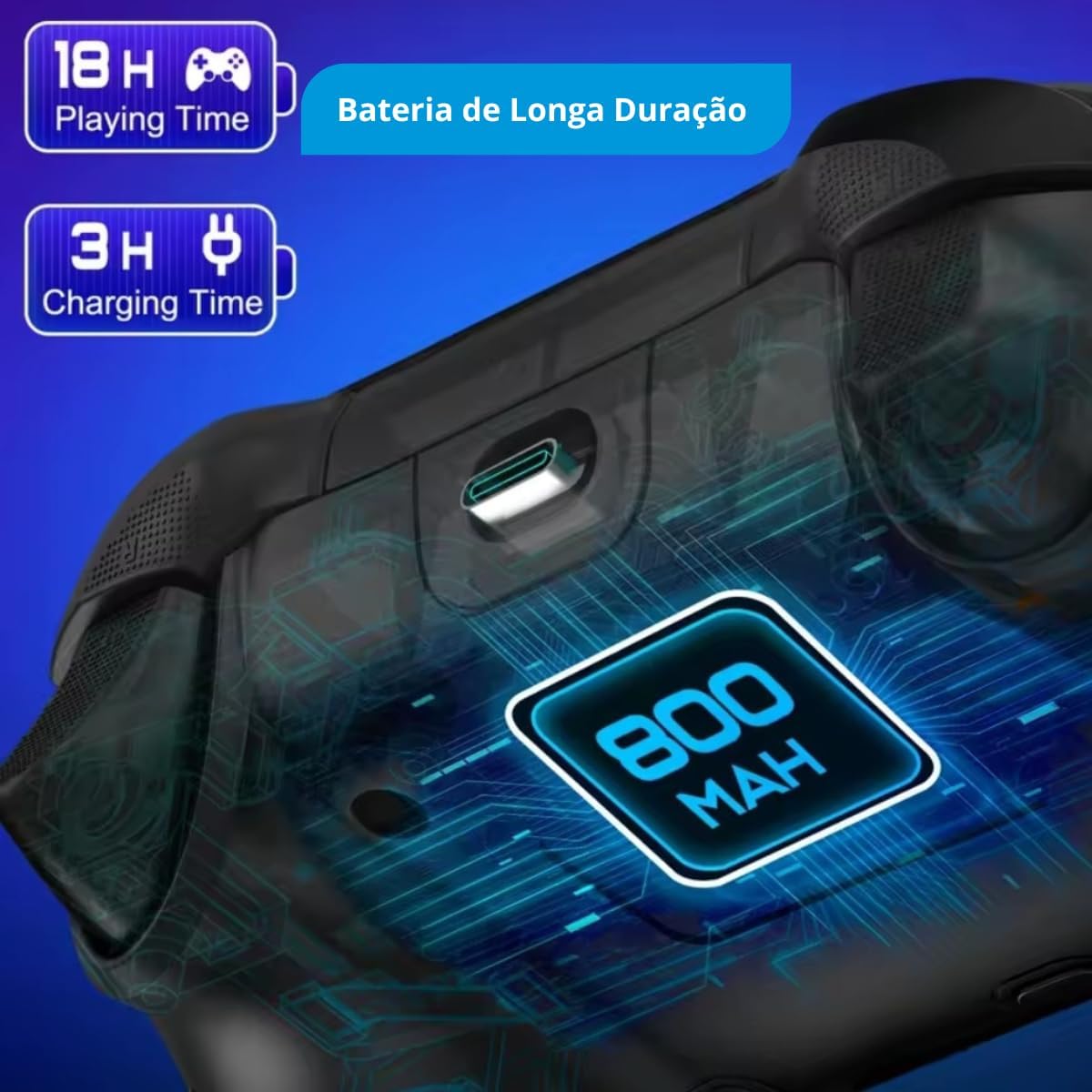
An illustration highlighting the gamepad's 800 mAh battery, offering approximately 18 hours of playing time after a 3-hour charge.
2.2 Pairing with Devices
The KP-GM032 supports both Bluetooth wireless and wired connections.
2.2.1 Bluetooth Connection (Wireless)
- Power On: Press and hold the Home button (or specific pairing button) on the gamepad until the indicator lights begin to flash.
- Activate Bluetooth: On your device (Smartphone, PC, Nintendo Switch, Smart TV), enable Bluetooth.
- Search for Devices: Search for available Bluetooth devices. The gamepad should appear as 'KP-GM032' or similar.
- Pair: Select the gamepad from the list to pair. The indicator lights on the gamepad will become solid once connected.
Specific Pairing Notes:
- Nintendo Switch: From the HOME Menu, select 'Controllers' > 'Change Grip/Order'. Press and hold the pairing button on the gamepad until the lights flash.
- PC (Windows): Ensure your PC has Bluetooth enabled. Go to 'Settings' > 'Devices' > 'Bluetooth & other devices' and add a new device.
- iOS/Android: Go to your device's Bluetooth settings and select the gamepad from the list of available devices.
2.2.2 Wired Connection (PC Only)
For PC gaming, you can connect the gamepad directly using a USB cable. Simply plug one end into the gamepad and the other into an available USB port on your PC. The PC should automatically detect and install the necessary drivers.

The KP-GM032 Gamepad displayed next to a smartphone and a Nintendo Switch, illustrating its broad compatibility with Nintendo Switch, iOS/Android devices, and Windows PCs.
3. Operating Instructions
3.1 Power On/Off
- Power On: Press the Home button once.
- Power Off: Press and hold the Home button for 3-5 seconds until the indicator lights turn off. The gamepad will also automatically power off after a period of inactivity to conserve battery.
3.2 RGB Lighting Control
The gamepad features customizable RGB lighting. Use the dedicated RGB button (or a combination of buttons as specified in a quick start guide, if available) to cycle through 3 lighting modes and 9 distinct colors.
3.3 Vibration Adjustment
The Dual Shock vibration feature has 4 adjustable levels. Consult the quick start guide or experiment with button combinations (e.g., Turbo + D-pad Up/Down) to adjust the intensity of the vibration feedback during gameplay.
3.4 Turbo Function
The Turbo function allows for rapid, repeated input of a button press. To activate:
- Press and hold the button you wish to set to Turbo.
- While holding the button, press the 'Turbo' button (if available, or a designated function button).
- Release both buttons. The button will now rapidly repeat its input when held down.
To deactivate, repeat the process or consult the quick start guide for specific instructions.
3.5 Programmable Bottom Buttons
The KP-GM032 includes 4 programmable buttons on the underside of the gamepad. These buttons can be mapped to other existing buttons or used to create macros (sequences of button presses).
- Enter Programming Mode: Press and hold the 'Program' button (or a designated function button) until an indicator light flashes.
- Select Bottom Button: Press one of the 4 bottom buttons you wish to program.
- Input Command: Press the button(s) or sequence of buttons you want to assign to the selected bottom button.
- Exit Programming Mode: Press the 'Program' button again. The indicator light will stop flashing, confirming the setting is saved.
Refer to the quick start guide for detailed instructions on macro creation and specific programming sequences.

A user holding the KP-GM032 Gamepad, actively engaged in gameplay on a computer monitor, demonstrating its ergonomic design during use.
4. Maintenance
4.1 Battery Care
- Avoid fully discharging the battery frequently.
- Charge the gamepad regularly, even if not in use for extended periods, to maintain battery health.
- Do not expose the gamepad to extreme temperatures.
4.2 Cleaning
Use a soft, dry cloth to clean the surface of the gamepad. For stubborn dirt, slightly dampen the cloth with water or a mild cleaning solution. Avoid using harsh chemicals or abrasive materials.
4.3 Storage
Store the gamepad in a cool, dry place away from direct sunlight and extreme temperatures. If storing for a long period, ensure the battery is partially charged (around 50%) to prevent deep discharge.
5. Troubleshooting
If you encounter issues with your KP-GM032 Gamepad, please refer to the following common problems and solutions:
- Gamepad does not power on:
Ensure the battery is charged. Connect the gamepad to a power source and try again. - Gamepad does not connect via Bluetooth:
Verify that Bluetooth is enabled on your device. Ensure the gamepad is in pairing mode. Try unpairing and re-pairing the device. Move closer to the device to reduce interference. - Buttons are unresponsive or delayed:
Check the battery level. If using a wireless connection, ensure there is no significant interference. Try connecting the gamepad via a wired connection to rule out wireless issues. - RGB lighting is not working:
Ensure the gamepad is powered on. Check if the RGB function has been accidentally turned off or set to a very dim mode. - Vibration is not working:
Verify that the game you are playing supports vibration feedback. Check the vibration intensity settings on the gamepad. - Gamepad not compatible with Xbox 360/Xbox One:
Please note that the KP-GM032 Gamepad is not compatible with Xbox 360 or Xbox One consoles.

The KP-GM032 Gamepad and its box, accompanied by a clear warning message stating that the controller is not compatible with Xbox 360 or Xbox One consoles.
If these steps do not resolve your issue, please contact customer support.
6. Specifications
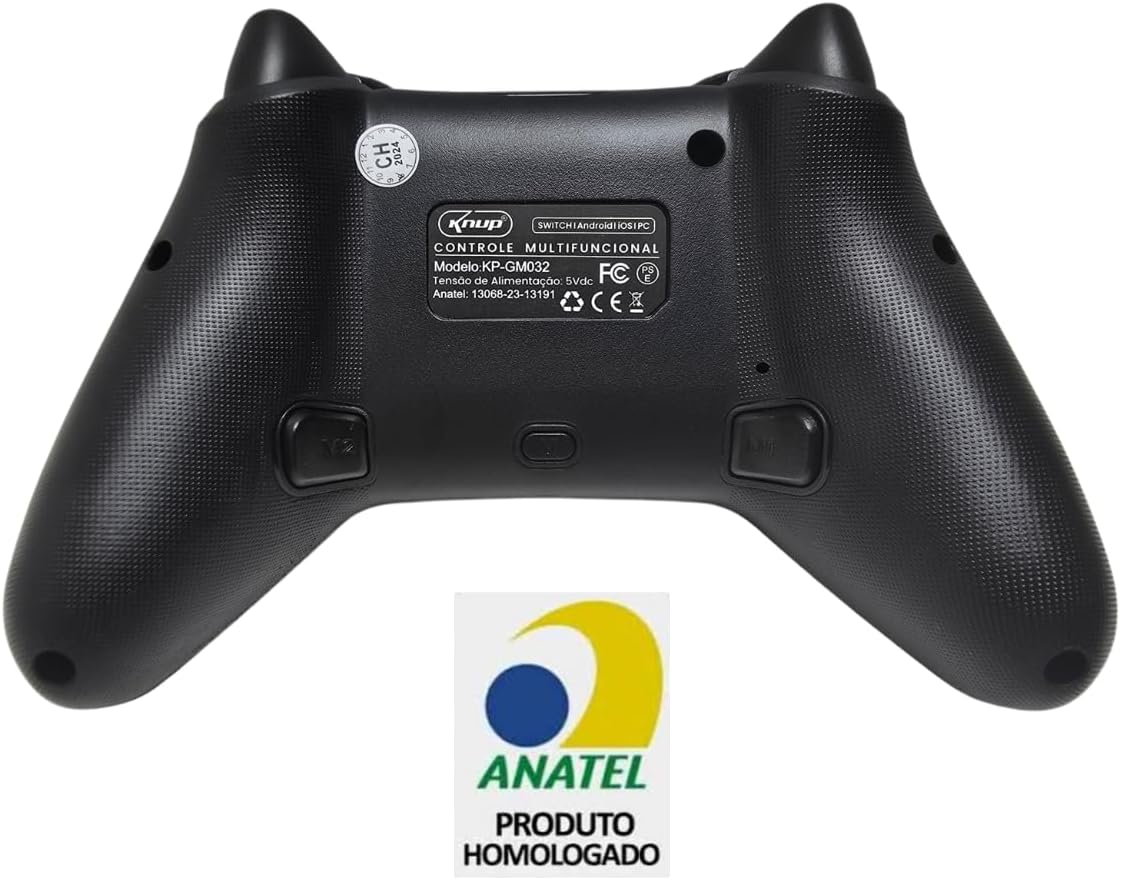
The back of the KP-GM032 Gamepad, displaying regulatory information and the ANATEL certification logo, confirming product compliance.
| Feature | Detail |
|---|---|
| Product Model | KP-GM032 |
| Product Dimensions | 155 x 106 x 60 mm |
| Weight | 500 g |
| Connectivity | Bluetooth, Wired (USB) |
| Compatible Platforms | PC (Windows), Nintendo Switch, Smartphone (Android, iOS), Android TV, Tablet PC, Car Multimedia Systems |
| Material | Thermoplastic |
| Battery Capacity | 800 mAh |
| RGB Lighting | Customizable, 3 modes, 9 colors |
| Vibration Feedback | Dual Shock with 4 levels |
| Programmable Buttons | 4 bottom buttons |
| Special Functions | Turbo Function, Nintendo Switch One-Button Wake Up |
| Certification | ANATEL: 130682313191 |
| Release Date | June 1, 2024 |
7. Warranty and Support
7.1 Warranty Information
This KP-GM032 Gamepad comes with a 6-month warranty against manufacturing defects. This warranty is provided directly by the manufacturer (KNUP). Please retain your proof of purchase for warranty claims.
7.2 Customer Support
For technical assistance, warranty claims, or any questions not covered in this manual, please contact the manufacturer's customer support. Refer to the product packaging or manufacturer's website for contact details.