
1. Introduction
This user manual provides detailed instructions for the Gwenland Smart Ring Health Ring, Model SR08. This device is designed to monitor various health and fitness metrics, including heart rate, blood oxygen saturation (SpO2), sleep patterns, and daily activity. Please read this manual thoroughly to ensure proper use and optimal performance of your smart ring.
2. Product Overview
The Gwenland Smart Ring SR08 is a compact and lightweight wearable device featuring an LED display screen and touch control for easy access to data. It is compatible with Android 5.0+ and iOS 10.0+ systems.
Key Features:
- Integrated LED Display: View time, step count, heart rate, blood oxygen, sleep data, and battery level directly on the ring.
- Health Monitoring: Continuous tracking of heart rate, scheduled blood oxygen saturation, and comprehensive sleep analysis.
- Activity Tracking: Records steps, distance, and calories burned, supporting various sports.
- Gesture Control: Air gesture functionality for browsing content and remote photography.
- Durable Design: IP68 waterproof rating for use during swimming, rain, and workouts.
- Long Battery Life: Up to 3-5 days of continuous use with a portable charging case.
- Free App: No subscription fees for the accompanying RJing app.
What's in the Box:
- Smart Ring x 1
- Charging Case x 1
- Charging Cable x 1
- User Manual x 1

Figure 1: Gwenland Smart Ring SR08 and Charging Case
3. Setup
3.1 Ring Sizing
Accurate sizing is crucial for comfortable wear and precise data collection. The smart ring is available in sizes 6-13. It is recommended to measure your finger circumference or use a sizing kit before purchasing to ensure the best fit.

Figure 2: Smart Ring Size Options and Measurement Guide

Figure 3: Detailed Ring Measurement Instructions
3.2 App Installation
The Gwenland Smart Ring uses the RJing app for data synchronization and management. The app is free to download and use.
- Scan the QR code provided in the packaging or search for 'JRing' in your device's app store (App Store for iOS, Google Play Store for Android).
- Download and install the app.
- Follow the on-screen prompts to grant necessary permissions (e.g., Bluetooth, notifications).
- Register an account and log in.

Figure 4: App Download and Setup Steps
You can also download the app directly from: http://download.keeprapid.com/jring.html
3.3 Initial Charging
Before first use, fully charge your smart ring. Place the ring into its charging case. The LED indicator on the case will show charging status.
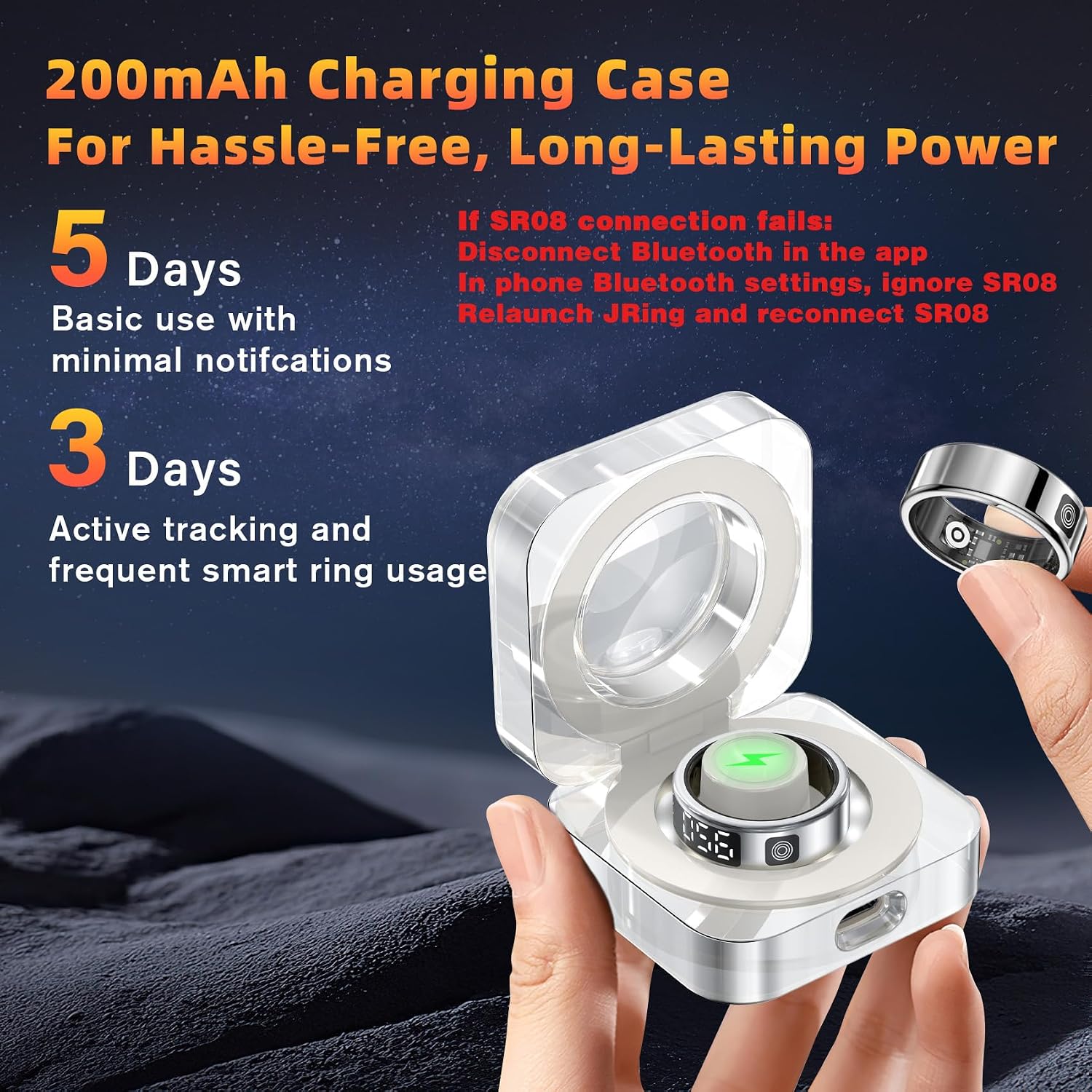
Figure 5: Smart Ring Charging in Case
3.4 Device Pairing
After charging and app installation, pair your smart ring with the app:
- Ensure Bluetooth is enabled on your smartphone.
- Open the RJing app.
- Navigate to the device connection section (usually indicated by a '+' icon or 'Add Device').
- Select 'SR08' from the list of available devices to connect.
- Once connected, the app will display your ring's status.
3.5 Wearing Instructions
For the most accurate readings, ensure the sensors on the ring are positioned against the pad of your index or middle finger while wearing it. The ring should fit snugly but comfortably.

Figure 6: Correct Wearing Position for Optimal Sensor Performance
4. Operating Instructions
4.1 Accessing Data via Touch Display
The smart ring features an LED display and touch control. A simple tap allows you to cycle through various data points without needing your phone.
- Single Tap: Activates the display to show time.
- Multiple Taps: Continue tapping to cycle through steps, heart rate, blood oxygen, sleep mode, and battery level.

Figure 7: Quick Data Access via Touch Mode

Figure 8: Multi-Function Display Interaction
4.2 Health Monitoring
The smart ring continuously monitors your health data, which can be viewed in detail within the RJing app.
- Heart Rate: Tracks your heart rate 24/7.
- Blood Oxygen (SpO2): Monitors blood oxygen saturation at scheduled intervals.
- Sleep Monitoring: Analyzes sleep duration, stages (deep, light, awake), and quality.

Figure 9: Real-time Heart Rate Monitoring

Figure 10: Sleep Monitoring and Analysis

Figure 11: Sleep Tracking Interface in App
4.3 Activity Tracking
The smart ring tracks your daily activities and supports various sports modes.
- Daily Activity: Records steps, distance, and calories burned.
- Multi-Sport Modes: Supports tracking for activities like running, walking, cycling, and hiking.

Figure 12: Multi-Sport Fitness Activity Tracking

Figure 13: Tracking Multiple Sports Activities

Figure 14: Activity Tracking Interface in App
4.4 Gesture Control and Remote Photography
The smart ring supports gesture control for enhanced interaction with your smartphone.
- Gesture Swipe: Use specific hand gestures to navigate content, such as swiping through videos on social media platforms.
- Remote Photography: Control your phone's camera remotely by shaking your finger while wearing the ring, ideal for selfies or group photos.

Figure 15: Gesture Control for Video Navigation

Figure 16: Remote Photography Function
5. Maintenance
5.1 Cleaning
Wipe the smart ring with a soft, damp cloth to remove dirt or sweat. Avoid using harsh chemicals or abrasive materials that could damage the device.
5.2 Water Resistance
The Gwenland Smart Ring SR08 has an IP68 waterproof rating, making it suitable for activities such as swimming, showering, and use in rainy conditions. However, it is not recommended for diving or high-pressure water activities.

Figure 17: IP68 Waterproof Rating for Various Activities
5.3 Charging and Battery Care
Charge the smart ring using the provided charging case and cable. A full charge typically takes about 1 hour. The ring offers 3 to 5 days of continuous use, with standby time of 10-15 days. To prolong battery life, avoid frequent full discharges and recharges.
6. Troubleshooting
6.1 Connection Issues (SR08 with RJing App)
If you encounter difficulties connecting your smart ring to the RJing app:
- First, disconnect any existing Bluetooth connection to the SR08 within the RJing app.
- Go to your phone's Bluetooth settings, locate the device named 'SR08', and select 'Forget' or 'Ignore This Device'.
- Close and relaunch the RJing app.
- Attempt to reconnect to the Bluetooth SR08 device through the app.
6.2 Display Not Responding or Power Saving
Frequent tapping of the touchscreen can consume more power. To save energy, you can turn off the smart screen when not in use:
- Press the touchscreen button until the interface toggles between "LCD" and "OFF" is displayed.
- Press and hold the touchscreen button for three seconds; the display will switch off.
- To reactivate the smart ring display, press and hold the touchscreen button for three seconds again.

Figure 18: Troubleshooting and Power Saving Tips
7. Specifications
| Feature | Detail |
|---|---|
| Model Number | SR08 |
| Brand | Gwenland |
| Item Weight | 3.5g (ring only), 0.16 Kilograms (package) |
| Dimensions (Package) | 7.4 x 2.99 x 1.26 inches |
| Screen Size | 0.2 Inches (visible screen diagonal: 1 cm) |
| Operating System Compatibility | Android 5.0 & iOS 10.0 and above |
| Connectivity Technology | Bluetooth |
| Special Features | Touchscreen, Gesture Control, Multisport Tracker, Daily Workout Memory, Wireless Charging |
| Waterproof Rating | IP68 |
| Battery Type | 1 AAA battery required (included), Lithium Polymer |
| Battery Life | 3-5 days continuous use, 10-15 days standby |
8. Warranty and Support
Gwenland provides dedicated after-sales service for its products. If you encounter any usage or quality issues with your Smart Ring SR08, please contact Gwenland customer support. Refer to your purchase documentation for specific warranty terms and contact information.
For technical assistance or inquiries, please reach out to our support team. We are committed to ensuring your satisfaction with our products.