
XIEFEI G28
XIEFEI Smartwatch G28 User Manual
Model: G28 | Brand: XIEFEI
Introduction
Welcome to the user manual for your new XIEFEI Smartwatch G28. This device is designed to enhance your daily life with its advanced health monitoring, communication features, and multi-sport tracking capabilities. Please read this manual carefully to understand how to properly set up, operate, and maintain your smartwatch for optimal performance.

Image: The XIEFEI Smartwatch G28, featuring a round gold-colored casing and a pink silicone band. The display shows various health metrics including steps, calories, and heart rate, along with the current time.
What's in the Box
Upon opening the package, please ensure all the following items are present:
- XIEFEI Smartwatch G28 (Gold)
- Charging Cable
- User Manual (this document)
- Watch Band (pink)
Setup Guide
1. Initial Charging
Before first use, fully charge your Smartwatch G28.
- Connect the charging cable to the charging port on the back of the smartwatch.
- Connect the other end of the charging cable to a USB power adapter (not included) or a computer's USB port.
- The watch display will indicate charging status. Allow approximately 2 hours for a full charge.

Image: The rear view of the Smartwatch G28, highlighting the magnetic charging contacts and the optical heart rate sensor in the center.
2. App Installation and Pairing
To unlock the full potential of your smartwatch, download the companion app on your smartphone.
- Scan the QR code in the quick start guide (if provided) or search for the recommended app (e.g., "WearFit Pro" or similar, common for these watches) in your smartphone's app store (App Store for iOS, Google Play Store for Android).
- Install and open the app. Follow the on-screen instructions to create an account and set up your profile.
- Enable Bluetooth on your smartphone.
- In the app, navigate to "Device" or "Add Device" and select your Smartwatch G28 from the list of available devices.
- Confirm the pairing request on both your smartphone and the smartwatch.
Once paired, the watch will synchronize time and data with your phone.
Operating Your Smartwatch
Basic Navigation
- Touch Screen: Swipe left/right, up/down to navigate through menus and features. Tap to select.
- Side Button(s): Typically, one button acts as a power on/off, back, or home button. Refer to the quick start guide for specific button functions.

Image: A collage of Smartwatch G28 displays, showing different watch faces and menu interfaces, illustrating the vibrant display and user interface.
Key Features Operation
Bluetooth Talk Capability
Once paired with your smartphone, you can make and receive calls directly from your smartwatch.
- Making Calls: Access the dialer or contact list on your watch.
- Receiving Calls: When a call comes in, the watch will vibrate and display the caller ID. Tap the green icon to answer or the red icon to reject.
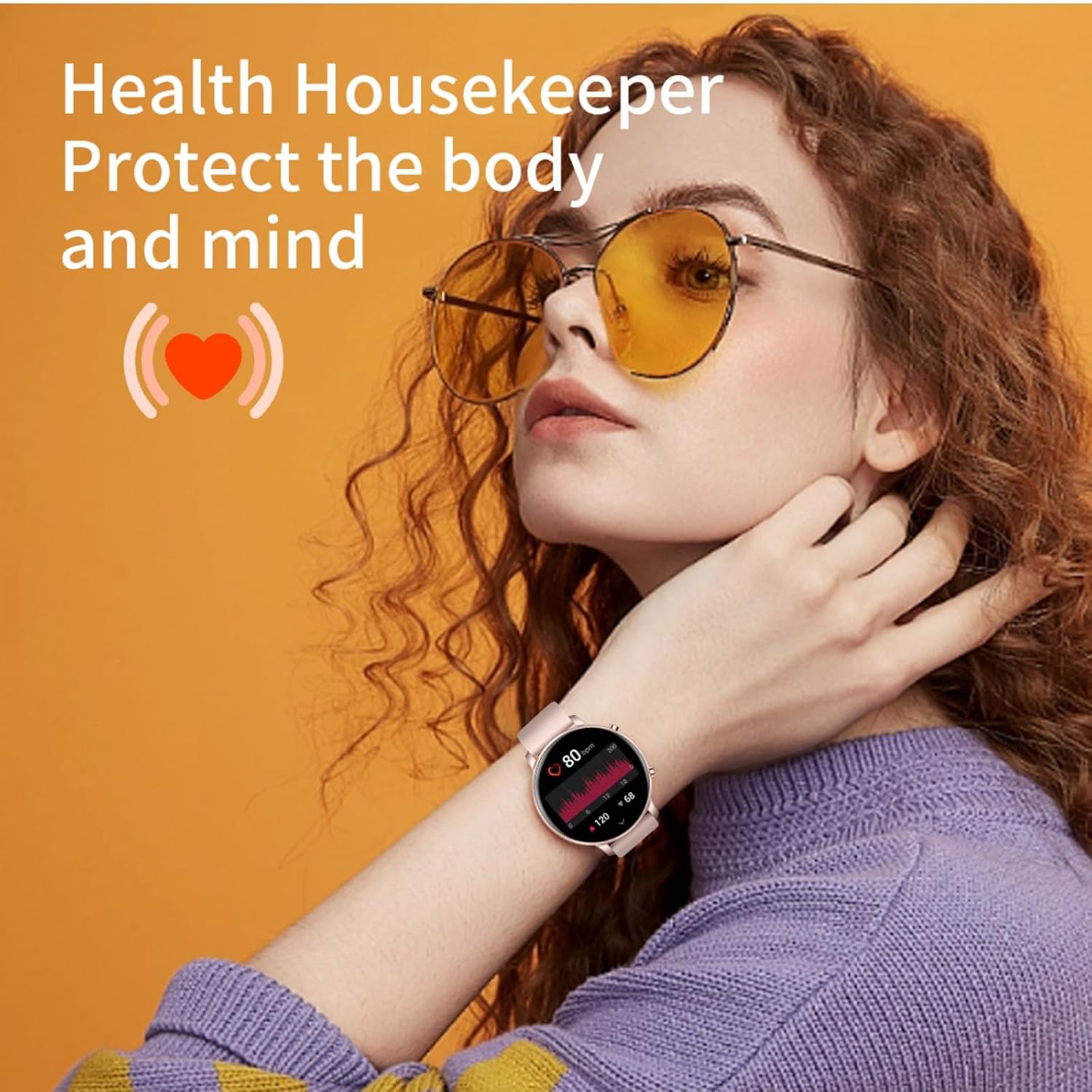
Image: A person wearing the Smartwatch G28, with text overlay indicating "Keep in touch Bluetooth call, hand answer," demonstrating the call functionality.
Health Monitoring
The Smartwatch G28 continuously monitors your health metrics.
- Heart Rate: Access the heart rate monitor feature on the watch to get real-time readings. Data is also logged in the app.
- Sleep Analysis: Wear the watch to bed for automatic sleep tracking. View sleep patterns and quality in the app.
- Step Counting: The watch automatically tracks your daily steps, distance, and calories burned.
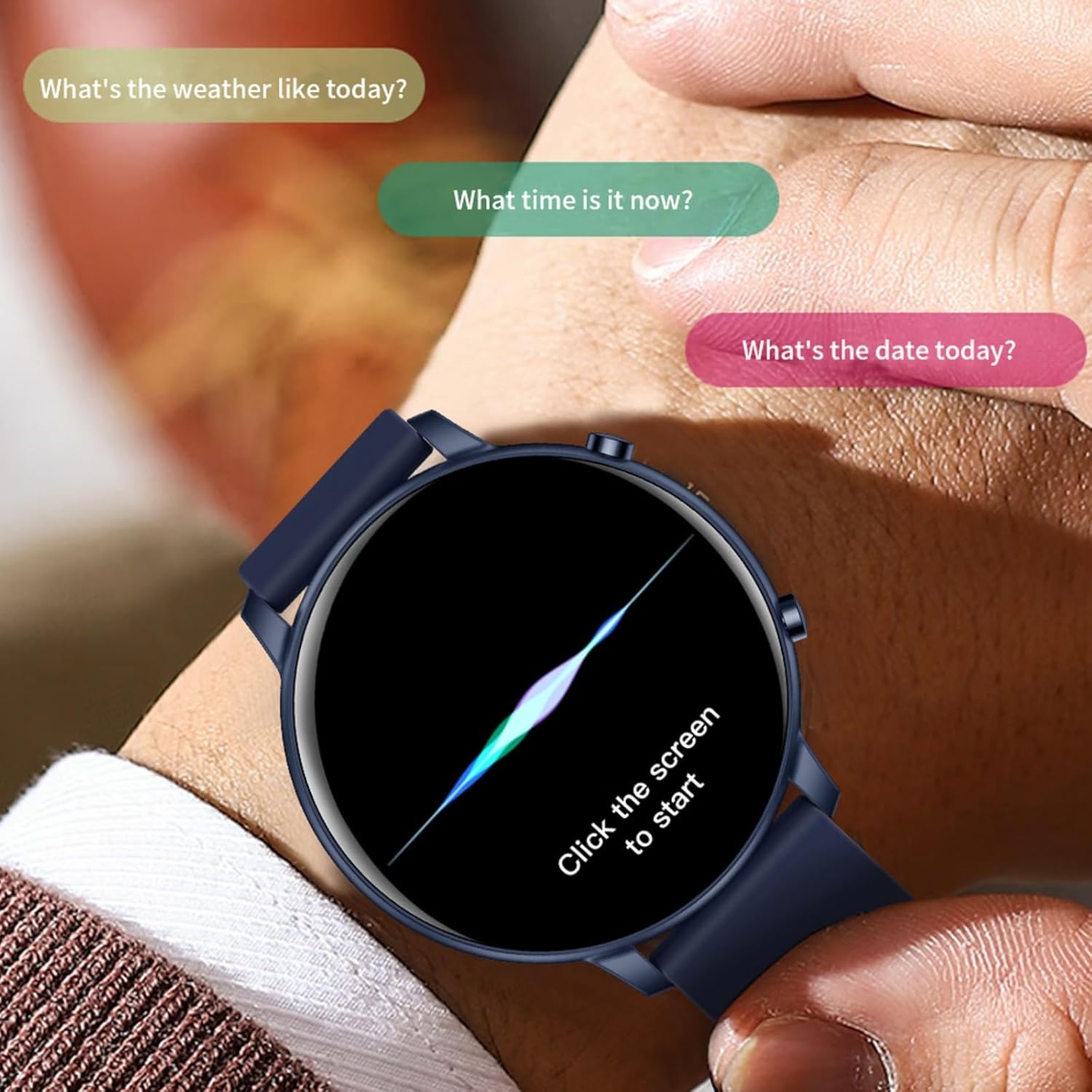
Image: A woman wearing the Smartwatch G28, with text indicating "Health Housekeeper Protect the body and mind," illustrating the health monitoring capabilities.
Multi-Sport Mode
Track various activities with dedicated sport modes.
- Navigate to the "Sport" or "Workout" menu on your watch.
- Select your desired activity (e.g., Outdoor Run, Indoor Run, Walking, Mountaineering).
- Start the activity. The watch will record duration, distance, calories, and heart rate.
- End the activity to save the data.

Image: A person playing basketball while wearing the Smartwatch G28, with insets showing the "Sports list" menu (Outdoor Run, Indoor Run, Walking, Mountaineering), "In motion" data (time, calories, BPM), and "End of movement" summary.
Care and Maintenance
To ensure the longevity and optimal performance of your Smartwatch G28, follow these care instructions:
- Cleaning: Wipe the watch and band regularly with a soft, damp cloth. Avoid using harsh chemicals or abrasive materials.
- Water Resistance: The watch is designed for daily use and light splashes (e.g., hand washing). Do not submerge it in water, wear it while swimming, or expose it to hot water/steam.
- Temperature: Avoid exposing the watch to extreme temperatures (very hot or very cold) or direct sunlight for prolonged periods.
- Charging: Use only the provided charging cable. Ensure the charging contacts are clean and dry before charging.
- Storage: When not in use for extended periods, store the watch in a cool, dry place.
Troubleshooting
If you encounter issues with your Smartwatch G28, try the following solutions:
| Problem | Solution |
|---|---|
| Watch won't turn on | Ensure the watch is fully charged. Press and hold the power button for several seconds. |
| Cannot pair with phone |
|
| Inaccurate health data | Ensure the watch is worn snugly on your wrist, not too tight or too loose. Clean the sensor on the back of the watch. |
| Notifications not received |
|
Specifications
| Feature | Detail |
|---|---|
| Model | G28 |
| Screen Size | 1.39-inch Round Screen |
| Connectivity | Bluetooth |
| Battery Type | Lithium Polymer |
| Operating System | Android Wear 2.9 |
| Health Monitoring | Heart Rate, Sleep Analysis, Step Counting |
| Special Features | Activity Tracker, Alarm Clock, Daily Workout Memory, Camera (remote control), GPS (via Smartphone), Phone Call, Music Player |
| Color | Gold (watch casing), Pink (band) |
| Item Weight | 5.6 ounces |
| Manufacturer | migou |
Warranty and Support
For warranty information and technical support, please refer to the contact details provided on the product packaging or visit the official XIEFEI website. Keep your purchase receipt as proof of purchase for warranty claims.
If you have any questions or require assistance, please do not hesitate to contact our customer support team.