Introduction
This manual provides essential information for the safe and effective use of your XIEFEI Smartwatch G28. Please read this manual thoroughly before using the device and retain it for future reference.
The XIEFEI Smartwatch G28 is designed to be a comprehensive health and fitness companion, featuring a 1.39-inch round screen, Bluetooth Talk capabilities, and various health monitoring and multi-sport modes.
What's in the Box
Upon opening the package, verify that all items are present and in good condition:
- XIEFEI Smartwatch G28 (Blue)
- Charging Cable
- User Manual (this document)
- Watch Band
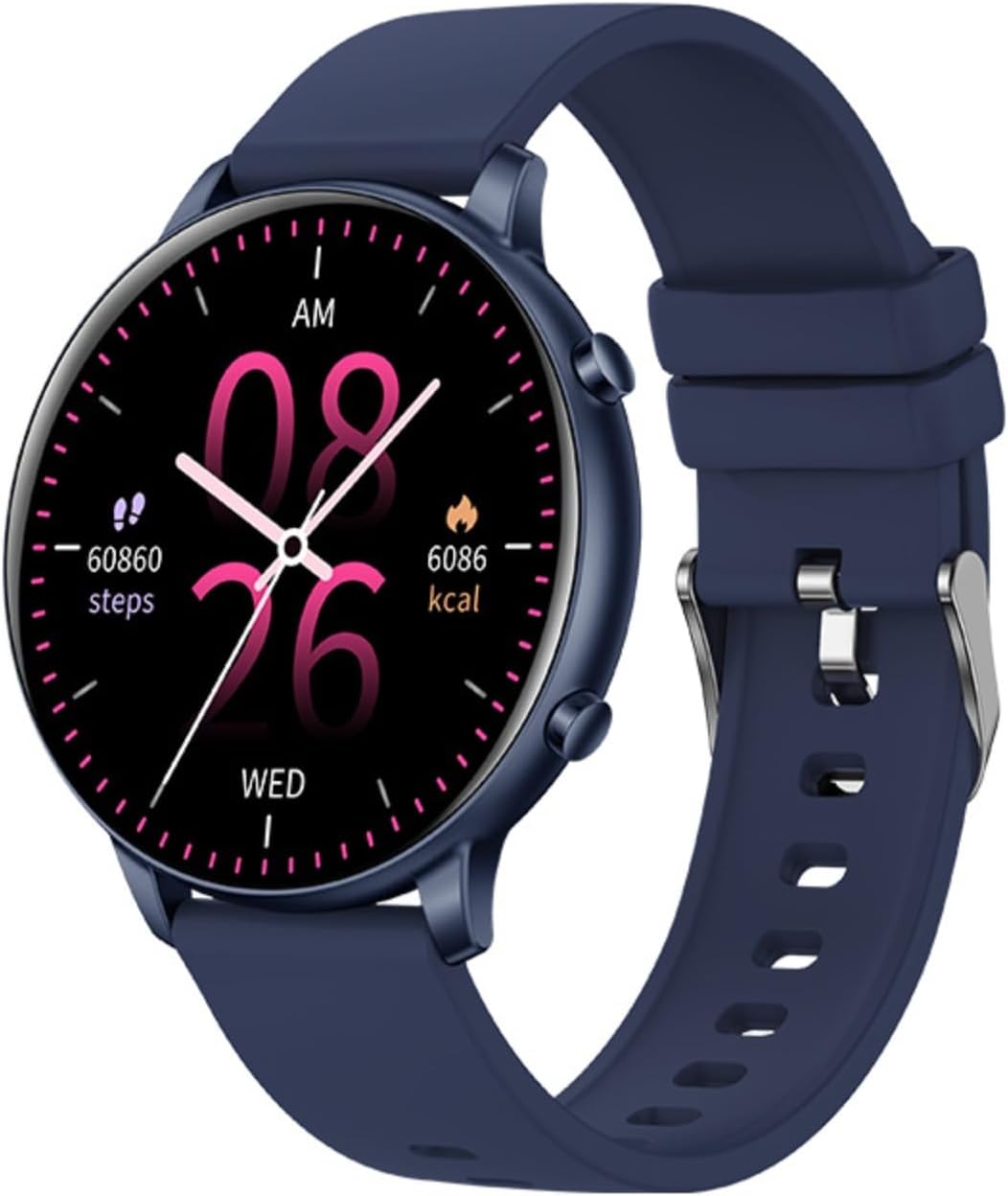
Image: The XIEFEI Smartwatch G28 in blue, showcasing its round display with health metrics.
Setup Guide
1. Charging the Smartwatch
Before first use, fully charge your Smartwatch G28. Connect the provided charging cable to the charging port on the back of the watch and plug the USB end into a standard USB power adapter (not included) or a computer USB port.
- A full charge typically takes approximately 2 hours.
- The battery icon on the screen will indicate charging status.
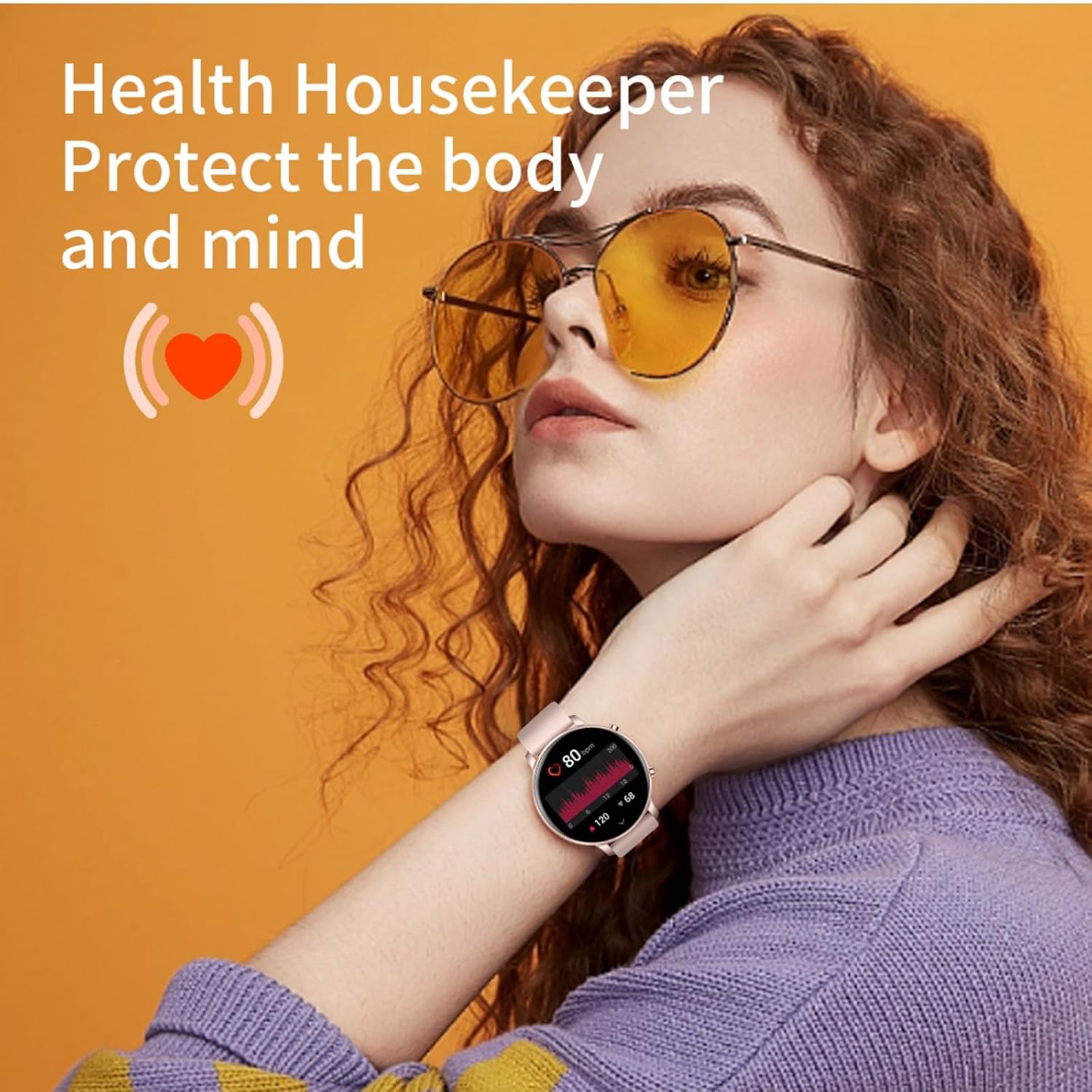
Image: Rear view of the smartwatch, highlighting the charging contacts and health sensors.
2. Powering On/Off
- Power On: Press and hold the side button for 3-5 seconds until the screen lights up.
- Power Off: Press and hold the side button, then select "Power Off" from the options on the screen.
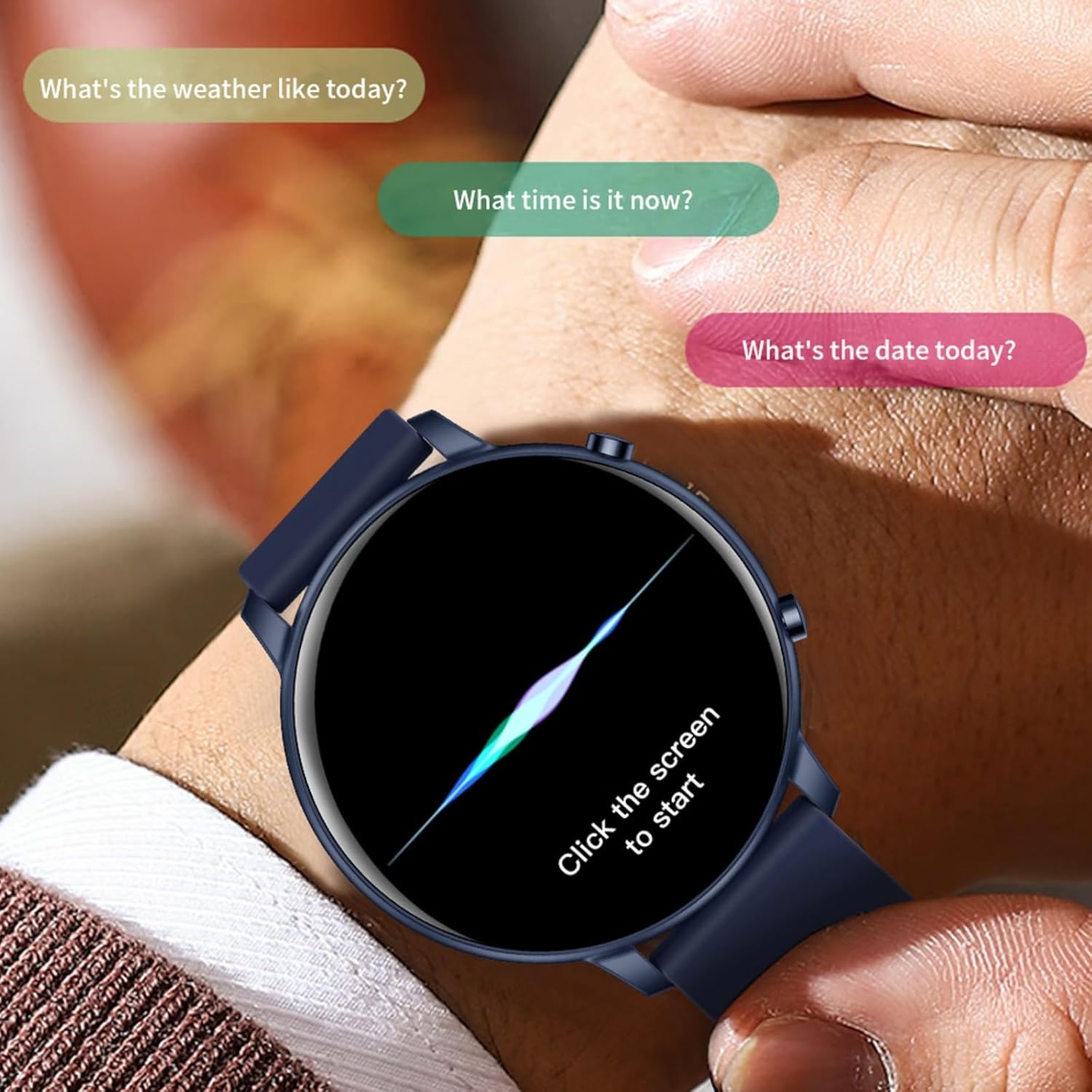
Image: Smartwatch screen prompting the user to tap to begin interaction.
3. Pairing with Your Smartphone
To unlock the full features of your Smartwatch G28, pair it with your smartphone via Bluetooth.
- Download the companion app (refer to the quick start guide or packaging for app name, usually found by scanning a QR code).
- Ensure Bluetooth is enabled on your smartphone.
- Open the app and follow the on-screen instructions to add a new device.
- Select "G28" from the list of available devices.
- Confirm the pairing request on both your phone and the smartwatch.
Once paired, the watch will synchronize time, date, and health data with your phone.
Operating Instructions
Basic Navigation
- Swipe Up/Down: Scroll through menus and notifications.
- Swipe Left/Right: Access quick functions or different data screens (e.g., heart rate, steps, weather).
- Tap: Select an item or confirm an action.
- Side Button: Press to return to the home screen or wake the device.
Key Features
Bluetooth Talk Capability
The Smartwatch G28 allows you to make and receive calls directly from your wrist when connected to your smartphone via Bluetooth. Ensure the Bluetooth call function is enabled in the watch settings and the companion app.
- Answering Calls: Tap the green phone icon on the watch screen when a call comes in.
- Making Calls: Access the dialer or contact list on the watch (requires synchronization with your phone's contacts).
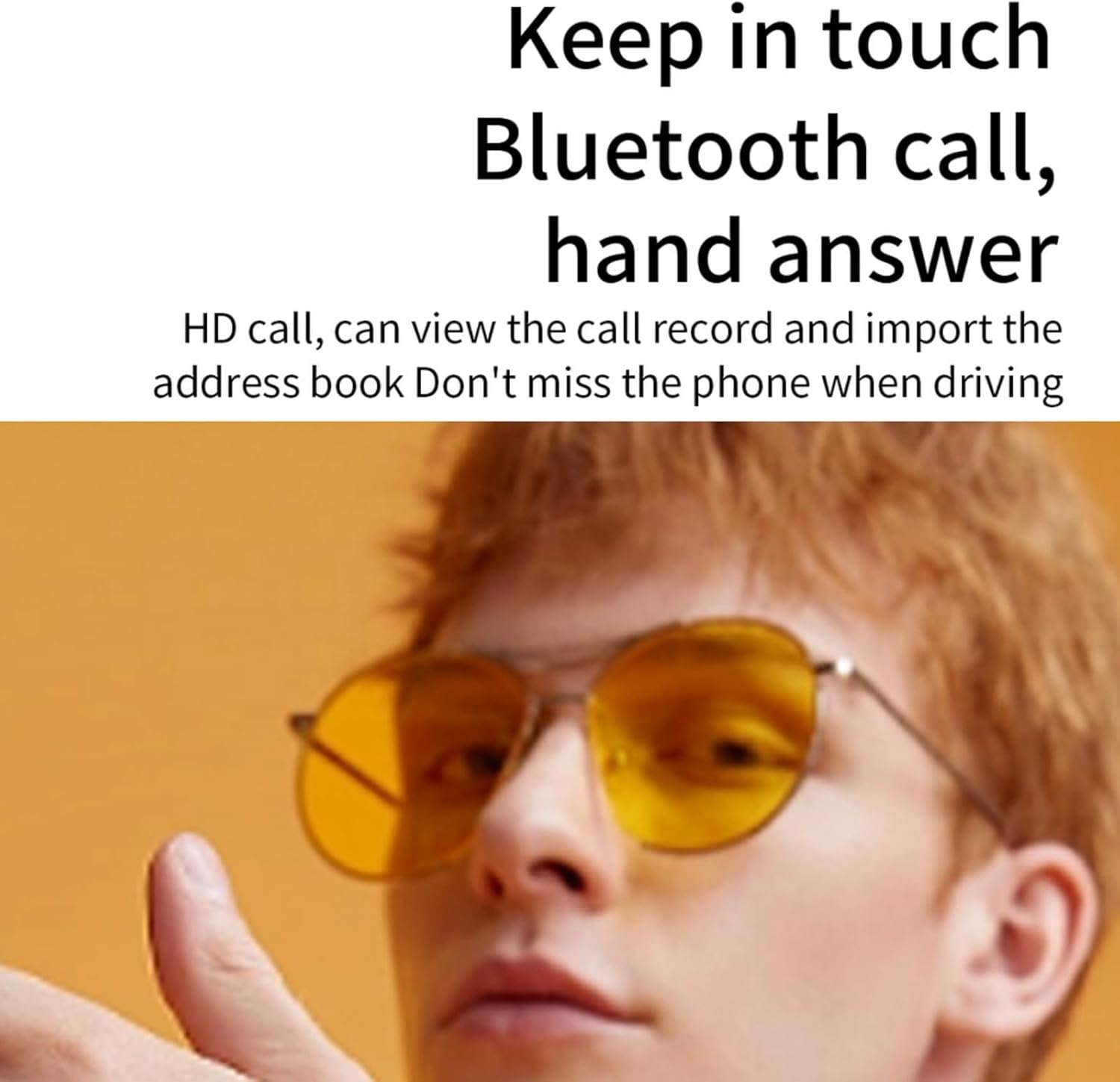
Image: Illustrates the Bluetooth call feature, showing a person interacting with the watch for communication.
Health Monitoring
The G28 smartwatch is equipped with sensors to monitor various health metrics. For accurate readings, ensure the watch is worn snugly on your wrist.
- Heart Rate Tracking: Continuously monitors your heart rate throughout the day. View real-time data on the watch or detailed trends in the app.
- Sleep Analysis: Tracks your sleep patterns, including deep sleep, light sleep, and wake times.
- Step Counting: Records your daily steps, distance, and estimated calories burned.

Image: A woman wearing the smartwatch, with the screen displaying heart rate and other health-related data, emphasizing its health monitoring capabilities.
Multi-Sport Modes
Select from various sport modes to accurately track your workouts. Each mode is optimized to collect relevant data for that activity.
- Access the "Sport" or "Workout" menu on the watch.
- Choose your desired activity (e.g., Outdoor Run, Indoor Run, Walking, Mountaineering).
- Tap to start tracking. The watch will display real-time metrics like duration, calories, and heart rate.
- Tap to pause or end the workout. Data will be saved and synced to the app.

Image: The smartwatch display showing a list of available sport modes and workout tracking metrics.
Notifications
Receive notifications from your smartphone directly on your watch. Configure which app notifications you want to receive through the companion app settings.
- Swipe down from the top of the watch face to view recent notifications.
Maintenance and Care
- Cleaning: Wipe the watch and band regularly with a soft, damp cloth. Avoid using harsh chemicals or abrasive materials.
- Water Resistance: The Smartwatch G28 is designed to be water-resistant (check specifications for exact rating). Avoid prolonged submersion or exposure to hot water/steam. Dry the watch thoroughly after exposure to water.
- Storage: Store the watch in a cool, dry place when not in use. Avoid extreme temperatures.
- Battery Care: To prolong battery life, avoid fully discharging the battery frequently. Charge the watch when the battery level is low.
Troubleshooting
Watch Not Turning On
- Ensure the watch is fully charged. Connect it to the charger for at least 30 minutes.
- Try pressing and holding the side button for a longer duration (up to 10 seconds).
Cannot Pair with Smartphone
- Make sure Bluetooth is enabled on your smartphone.
- Ensure the watch is within Bluetooth range (typically 10 meters or 33 feet).
- Restart both your smartphone and the smartwatch.
- Clear the Bluetooth cache on your phone (if applicable) or forget the device and try pairing again.
- Ensure the companion app is installed and running.
Inaccurate Health Data
- Ensure the watch is worn snugly on your wrist, not too loose or too tight.
- Clean the sensors on the back of the watch.
- Avoid excessive movement during measurements (e.g., heart rate).
Notifications Not Appearing
- Check the notification settings in the companion app to ensure desired apps are enabled.
- Verify that your phone's notification settings allow the companion app to display notifications.
- Ensure the watch is connected to your phone via Bluetooth.
Specifications
| Feature | Detail |
|---|---|
| Model | G28 |
| Brand | XIEFEI |
| Screen Size | 1.39 inches |
| Screen Shape | Round |
| Connectivity | Bluetooth |
| Operating System | Android Wear 2.9 |
| Battery Type | Lithium Polymer (1 12V battery included) |
| Item Weight | 5.6 ounces |
| Dimensions | 6.5 x 2.8 x 1.14 inches (Package) |
| Manufacturer | migou |
| First Available | December 30, 2024 |
Warranty and Support
For warranty information and technical support, please refer to the contact details provided on the product packaging or the official XIEFEI website. Keep your purchase receipt as proof of purchase for warranty claims.
Manufacturer: migou