1. Important Safety Instructions
Please read these instructions carefully before using your bonsaii shredder. Keep this manual for future reference.
- Keep out of reach of children and pets: The shredder has sharp blades and moving parts that can cause injury.
- Power Source: Connect the shredder to a properly grounded power outlet with the correct voltage as indicated on the product label.
- Avoid Overloading: Do not exceed the specified sheet capacity for both auto-feed and manual feed. Overloading can cause jams and damage the motor.
- Keep Hands, Hair, and Loose Clothing Away: Always keep hands, hair, ties, and loose clothing away from the paper entry slot to prevent injury.
- Do Not Shred: Avoid shredding adhesive labels, continuous forms, newspapers, or any materials other than paper, credit cards, or CDs/DVDs (if applicable to model). This model supports paper and credit cards.
- Unplug When Not in Use: Always unplug the shredder before moving, cleaning, or emptying the waste bin.
- Indoor Use Only: This shredder is designed for indoor use only.
- Do Not Disassemble: Do not attempt to repair or disassemble the shredder yourself. Contact qualified service personnel for assistance.
2. Product Overview
The bonsaii C290-A is an advanced auto-feed micro-cut shredder designed for efficient and secure document disposal in office environments. It features a large capacity auto-feed tray and robust shredding capabilities.

Figure 2.1: Front view of the bonsaii C290-A Auto-Feed Micro-Cut Shredder, showing the auto-feed tray and waste bin window.
Key Features:
- 150-Sheet Auto-Feed: Automatically shreds up to 150 sheets of A4 paper (64g/㎡) for hands-free operation.
- 60-Minute Continuous Run Time: Designed for extended use, capable of continuous shredding for up to 60 minutes.
- Micro-Cut Shredding: Shreds paper into tiny 4x12mm particles, providing high-security (DIN P-4) for sensitive information.
- 12-Sheet Manual Feed: Allows for manual shredding of up to 12 sheets at a time, suitable for smaller tasks or thicker documents.
- 23L Large Capacity Waste Bin: Reduces the frequency of emptying, featuring a pull-out design and transparent window for easy monitoring.
- Anti-Jam System: Equipped with Auto-Cleaning and Auto-Reverse functions to prevent paper jams and ensure smooth operation.
- Movable Casters: 360° silent wheels with a one-touch lock mechanism for easy movement and stable placement.
3. Setup
- Unpack the Shredder: Carefully remove the shredder from its packaging. Ensure all packing materials are removed from the shredder and the waste bin.
- Position the Shredder: Place the shredder on a flat, stable surface. The integrated casters allow for easy movement. To secure the shredder in place, engage the lock mechanism on the casters.

Figure 3.1: The 23L large capacity waste bin can be easily pulled out for emptying. The shredder also features movable casters for convenient placement.
- Connect Power: Plug the power cord into a standard electrical outlet. Ensure the power switch on the shredder is in the "OFF" position before plugging it in.
- Insert Waste Bin: Ensure the waste bin is correctly inserted into the shredder body. The shredder will not operate if the bin is not properly seated.
4. Operation
The bonsaii C290-A shredder offers both automatic and manual feeding options for versatile document shredding.
4.1. Control Panel

Figure 4.1: The intuitive control panel with power button and indicators for shredder status.
- Power Button: Press to turn the shredder ON/OFF.
- Forward/Reverse Buttons: Used for manual control, especially to clear minor jams.
- Status Indicators: Lights indicate power, overheating, paper jam, and bin full status.
4.2. Automatic Feed Operation (Auto-Feed)
- Ensure the shredder is plugged in and the power is ON.
- Open the auto-feed tray cover.
- Stack up to 150 sheets of A4 paper (64g/㎡) neatly into the auto-feed tray. Ensure there are no staples, paper clips, or other foreign objects.
- Close the auto-feed tray cover. The shredder will automatically begin shredding the stack.
- The shredder can operate continuously for up to 60 minutes. Allow a cool-down period if the shredder overheats.

Figure 4.2: The auto-feed feature allows for hands-free shredding of large document stacks, enabling continuous operation for up to 60 minutes.
4.3. Manual Feed Operation
- For manual shredding, insert up to 12 sheets of paper into the manual feed slot.
- The shredder will automatically detect the paper and begin shredding.
- Credit cards can also be shredded through the manual feed slot. Insert one card at a time.
- The manual feed function supports continuous use for up to 10 minutes.

Figure 4.3: The shredder supports both automatic feeding of up to 150 sheets and manual feeding of up to 12 sheets, including credit cards.
5. Maintenance
Regular maintenance ensures the longevity and optimal performance of your shredder.
5.1. Emptying the Waste Bin
- When the waste bin is full, the shredder will stop operating, and the "Bin Full" indicator light will illuminate.
- Unplug the shredder from the power outlet.
- Pull out the waste bin from the front of the shredder.
- Dispose of the shredded paper.
- Reinsert the waste bin firmly until it clicks into place.
- Plug the shredder back in.
Figure 5.1: The transparent window allows for easy monitoring of the shredded paper level, indicating when the 23L bin needs to be emptied.
5.2. Auto-Cleaning Function
The shredder is equipped with an auto-cleaning function to clear paper residue from the blades. This function activates automatically:
- For 1-3 seconds in reverse when the power is turned ON.
- For 1-3 seconds in reverse, extended by 2-3 seconds, at the end of each shredding cycle.

Figure 5.2: The auto-cleaning function helps maintain blade performance by clearing paper debris. The auto-reverse function prevents jams by reversing the blades if overloaded.
5.3. Oiling the Shredder Blades (Recommended)
To maintain optimal performance and extend the life of your shredder, it is recommended to oil the shredder blades regularly, especially after emptying the waste bin multiple times or after heavy use. Use a shredder-specific lubricant sheet or oil.
- Apply shredder oil in a zigzag pattern across a sheet of paper, or use a pre-lubricated shredder sheet.
- Feed the oiled sheet into the manual feed slot.
- Run the shredder in reverse for 10-20 seconds after shredding the sheet to distribute the oil.
6. Troubleshooting
Refer to this section for common issues and their solutions.
| Problem | Possible Cause | Solution |
|---|---|---|
| Shredder does not turn on. |
|
|
| Paper jam. |
|
|
| Shredder stops during operation. |
|
|
| Shredded paper is not micro-cut. | Incorrect shredder model or expectation. | This model is designed for micro-cut shredding (4x12mm). If the output is larger, contact customer support.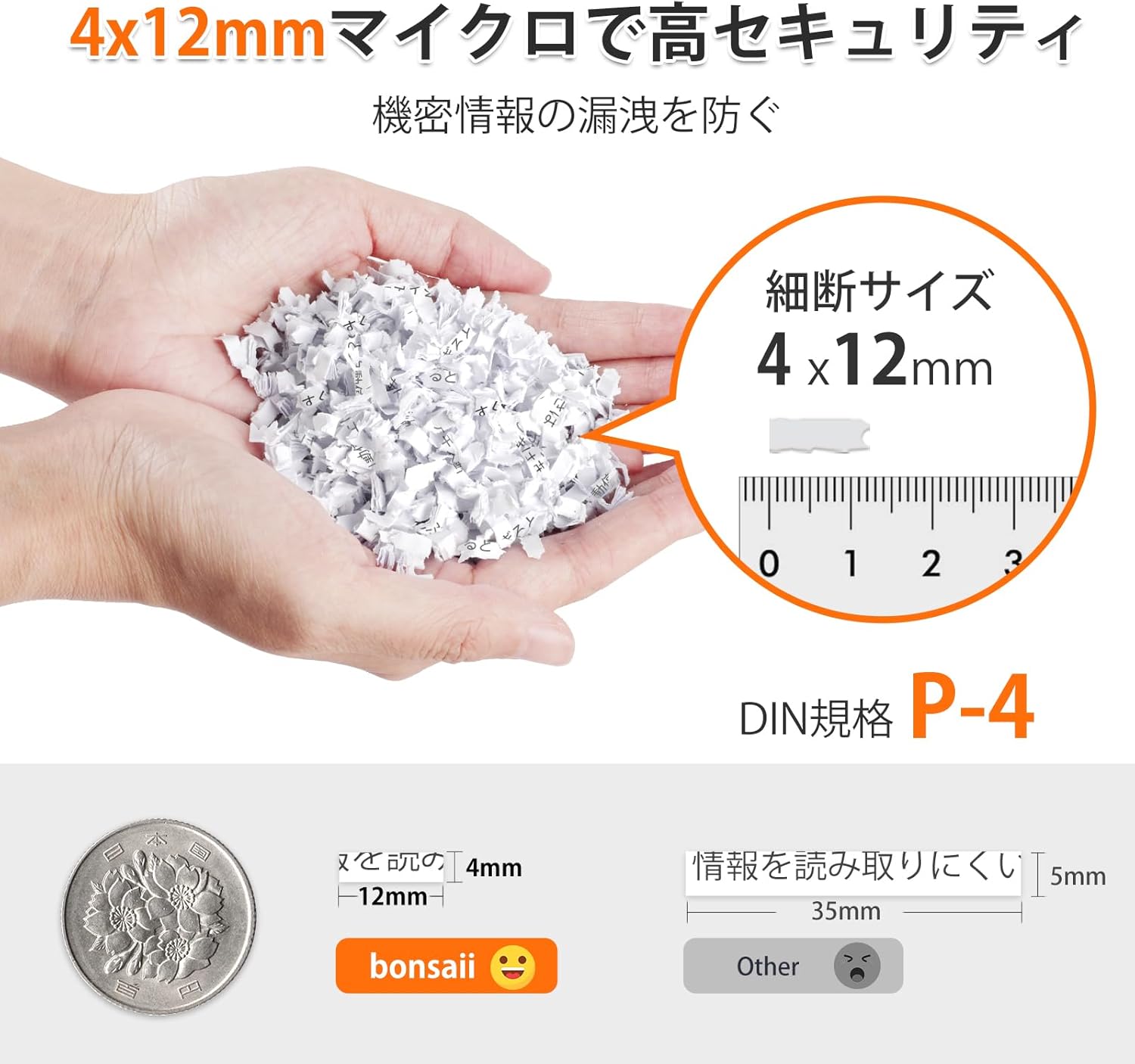 Figure 6.1: The bonsaii C290-A produces micro-cut particles of 4x12mm, ensuring high security for your documents. |
7. Specifications
| Feature | Specification |
|---|---|
| Model Number | JP-C290-A |
| Shred Type | Micro-Cut |
| Shred Size | 4 x 12 mm |
| Auto-Feed Capacity | Up to 150 sheets (A4, 64g/㎡) |
| Manual Feed Capacity | Up to 12 sheets |
| Continuous Run Time (Auto-Feed) | 60 minutes |
| Continuous Run Time (Manual Feed) | 10 minutes |
| Cool-down Time | Not specified, typically 30-60 minutes after max run time |
| Waste Bin Capacity | 23 Liters |
| Shreds Credit Cards | Yes (via manual feed slot) |
| Dimensions (L x W x H) | 26.3 x 36.7 x 50.6 cm |
| Weight | 9.2 kg |
| Power Source | Corded Electric |
8. Warranty and Support
bonsaii products are manufactured to the highest quality standards. For information regarding warranty coverage, please refer to the warranty card included with your product or visit the official bonsaii website.
If you encounter any issues or have questions about your bonsaii C290-A shredder, please contact bonsaii customer support for assistance. Contact details can typically be found on the bonsaii official website or on the product packaging.
For further assistance, you may visit the bonsaii store on Amazon: bonsaii Amazon Store