
1. Introduction
Thank you for choosing the Generic Ka-6660 Vertical Wireless and Bluetooth Mouse. This ergonomic mouse is designed to provide comfort and precision for extended use, reducing wrist strain. It offers versatile connectivity options (2.4GHz wireless and Bluetooth) and adjustable DPI settings for various tasks. Please read this manual carefully to ensure proper setup and operation.
2. Package Contents
- 1 x Ka-6660 Vertical Wireless Mouse
- 1 x USB Receiver
- 1 x USB Charging Cable (not explicitly listed but implied by 'rechargeable')
3. Product Overview
Familiarize yourself with the mouse's components and their functions.

Figure 3.1: Ka-6660 Vertical Mouse with Labeled Buttons
- DPI Switch Button: Adjusts the cursor sensitivity (DPI).
- Left Button: Standard left-click function.
- Right Button: Standard right-click function.
- Scroll Wheel: Scrolls through documents and web pages.
- Forward Button: Navigates forward in web browsers or file explorers.
- Backward Button: Navigates backward in web browsers or file explorers.

Figure 3.2: General View of the Ka-6660 Vertical Mouse

Figure 3.3: Ka-6660 Vertical Mouse and USB Receiver
4. Setup
4.1. Charging the Mouse
The Ka-6660 mouse features a rechargeable battery. Connect the mouse to a USB power source (e.g., computer USB port, USB wall adapter) using the provided USB charging cable. The mouse can be used while charging.
4.2. Connecting via 2.4GHz Wireless
- Locate the USB receiver stored in the compartment at the bottom of the mouse.
- Insert the USB receiver into an available USB port on your computer.
- Turn on the mouse using the ON/OFF switch located on the bottom.
- The mouse should automatically connect to your device.
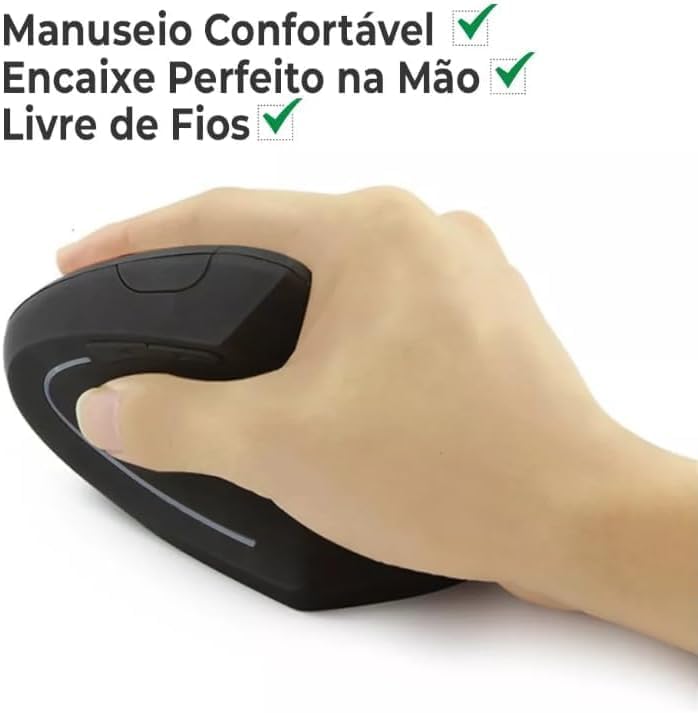
Figure 4.1: Nano Receiver Storage
4.3. Connecting via Bluetooth
- Turn on the mouse using the ON/OFF switch.
- Switch the connectivity mode to Bluetooth (refer to the mouse's mode switch, if available, or consult device-specific pairing instructions).
- On your device (laptop, tablet, smartphone), go to Bluetooth settings and enable Bluetooth.
- Search for new devices. The mouse should appear as "Ka-6660" or similar.
- Select the mouse to pair. Follow any on-screen prompts.
5. Operating Instructions
5.1. DPI Adjustment
Press the DPI switch button (located on the top of the mouse) to cycle through different sensitivity levels. The mouse supports up to 2400 DPI, allowing you to adjust cursor speed for various tasks, from precise graphic design to fast-paced gaming.
5.2. Button Functions
The mouse features 6 buttons: Left, Right, Scroll Wheel, DPI Switch, Forward, and Backward. The Forward and Backward buttons are typically used for navigation in web browsers or file explorers. Some operating systems or applications may allow for customization of these buttons.
5.3. Ergonomic Use
The vertical design of the Ka-6660 mouse promotes a natural handshake position, which can help reduce wrist pronation and muscle strain associated with traditional mice. Maintain a relaxed grip and allow your arm to move freely from the shoulder.

Figure 5.1: Ergonomic Grip on the Vertical Mouse
5.4. Silent Click Feature
The mouse is designed with silent click buttons, minimizing noise during use. This feature is beneficial in quiet environments or for users who prefer a less audible click.
6. Maintenance
6.1. Cleaning
To clean the mouse, gently wipe its surface with a soft, damp cloth. Avoid using harsh chemicals or abrasive materials, as these can damage the finish. Ensure no liquid enters the mouse's internal components.
6.2. Battery Care
To prolong battery life, avoid fully discharging the mouse frequently. Charge the mouse when the low battery indicator appears. Store the mouse in a cool, dry place when not in use for extended periods.
7. Troubleshooting
7.1. Mouse Not Responding
- Ensure the mouse is turned ON.
- Check the battery level and charge if necessary.
- For 2.4GHz wireless, ensure the USB receiver is securely plugged into a working USB port. Try a different USB port.
- For Bluetooth, ensure Bluetooth is enabled on your device and the mouse is properly paired. Try re-pairing.
- Restart your computer or device.
7.2. Intermittent Connection
- Ensure the mouse is within the operating range (up to 10 meters).
- Minimize interference from other wireless devices.
- Check battery level.
7.3. Cursor Movement is Erratic
- Clean the optical sensor at the bottom of the mouse.
- Use the mouse on a clean, non-reflective surface or a mouse pad.
- Adjust DPI settings to a lower sensitivity if needed.
8. Specifications
| Feature | Detail |
|---|---|
| Brand | Generic |
| Model | Ka-6660 |
| Connectivity Technology | 2.4GHz Wireless, Bluetooth |
| Movement Detection Technology | Optical |
| Maximum Sensitivity | 2400 DPI (Dots Per Inch) |
| Number of Buttons | 6 |
| Operating Range | Up to 10 meters |
| Power Source | Rechargeable Battery |
| Style | Vertical, Ergonomic |
| Material | ABS |
| Compatible Devices | Personal Computer (Windows, macOS, Linux), Laptops, Tablets, Smartphones (Android, iOS) |
| Recommended Uses | Office, Gaming |
9. Product Video
Watch this video for a visual demonstration of the mouse's ergonomic design and silent click feature.
Video: Demonstration of the Ka-6660 Vertical Mouse's ergonomic benefits and quiet operation.
10. Warranty and Support
This product comes with a 30-day warranty from the date of purchase. For any issues or support inquiries, please contact your retailer or the manufacturer directly. Keep your purchase receipt as proof of warranty.