
1. Introduction
This manual provides instructions for the installation, operation, and maintenance of your GAF Master Flow 1250 CFM Quick Connect Power Attic Fan. This smart attic fan is designed to improve attic ventilation, manage heat and moisture, and enhance home energy efficiency through its Wi-Fi control capabilities.
2. Safety Information
Read all instructions carefully before installation and operation. Failure to follow these instructions may result in electric shock, fire, or property damage.
- Electrical Safety: Ensure power is disconnected at the circuit breaker before installing or servicing the fan. All wiring must comply with local electrical codes.
- Installation: Installation should be performed by a qualified electrician or HVAC professional.
- Warning: DO NOT INSTALL WITH OPENINGS FACING DOWN.
- Servicing: Always disconnect the power supply before servicing the device.
- Intended Use: This product is for residential use only.
3. Package Contents
Verify that all components are present before beginning installation:
- GAF Master Flow Power Attic Fan Unit
- Master Flow QuickConnect Wi-Fi Control Module
- User Manual
- Mounting Hardware (if applicable)
4. Setup and Installation
4.1 Physical Installation
The GAF Master Flow Power Attic Fan is designed for attic mount installation. Ensure proper placement for optimal airflow and ventilation.

Image 4.1: GAF Master Flow Power Attic Fan installed on a roof. This image shows the external dome of the fan mounted on a shingled roof, indicating its placement for attic ventilation.
- Select an appropriate location on the roof for the fan, ensuring it is clear of obstructions and allows for effective air exhaust.
- Cut an opening in the roof deck according to the fan's specifications.
- Secure the fan unit to the roof structure using appropriate mounting hardware.
- Connect the electrical wiring to the fan unit, ensuring all connections are secure and insulated. Refer to local electrical codes for specific requirements.

Image 4.2: Internal view of the GAF Master Flow Power Attic Fan. This image displays the fan's metal blades and the central motor assembly, highlighting the robust construction and airflow components.
4.2 QuickConnect Wi-Fi Module Installation
The QuickConnect module enables smart control of your attic fan.

Image 4.3: Master Flow QuickConnect Wi-Fi Control Module. This image shows the blue QuickConnect module with status indicator lights and caution labels, mounted on a wooden surface.
- Mount the QuickConnect module in a suitable location within the attic, ensuring it is protected from extreme temperatures and moisture.
- Connect the module to the attic fan's electrical system as per the wiring diagram provided with the product.
- Ensure the module is installed with openings facing upwards, as indicated by the "TOP" arrow on the unit.
4.3 App Download and Pairing
Control your fan remotely using the Master Flow QuickConnect Ventilation Control App.
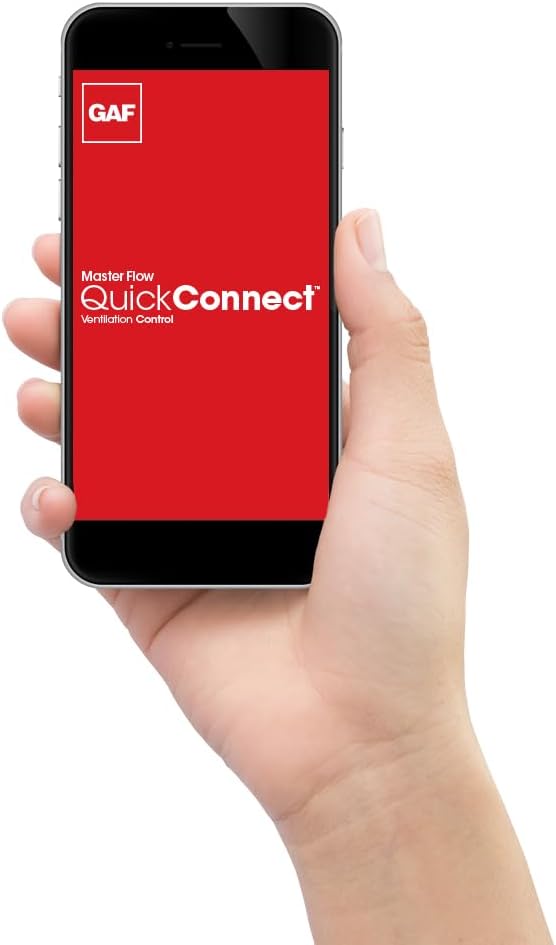
Image 4.4: Smartphone displaying the GAF Master Flow QuickConnect app. This image shows a hand holding a smartphone with the app's interface, featuring the GAF logo and "Master Flow QuickConnect Ventilation Control" text.
- Download the "Master Flow QuickConnect Ventilation Control App" from the App Store (for iOS 13 & above) or Google Play Store (for Android 5.0 & above). (Note: Placeholder links, replace with actual app links if available)
- Follow the in-app instructions to create an account and pair your QuickConnect module with your smartphone or tablet.
- Ensure your Wi-Fi network is active and within range of the module during the pairing process.
5. Operating Instructions
5.1 Using the App
The Master Flow QuickConnect app provides comprehensive control over your attic fan.
- Monitoring: View current attic temperature and humidity levels.
- Adjusting Settings: Set desired temperature and humidity thresholds for automatic fan operation. The fan will activate when these thresholds are exceeded.
- Manual Control: Override automatic settings to turn the fan ON or OFF manually.
- Scheduling: Create custom schedules for fan operation based on time of day or week.
5.2 Balanced Ventilation
For optimal performance and energy efficiency, ensure your attic has a balanced ventilation system. This includes adequate intake vents (e.g., soffit vents) to allow fresh air into the attic as the power fan exhausts hot, moist air. A balanced system helps reduce cooling costs and prolongs the lifespan of your roof.
6. Maintenance
Regular maintenance ensures the longevity and efficient operation of your attic fan.
- Annual Inspection: Annually inspect the fan for any debris, such as leaves or bird nests, that may obstruct airflow.
- Cleaning: Gently clean the fan blades and motor housing with a soft brush or cloth. Ensure power is disconnected before cleaning.
- Electrical Connections: Periodically check electrical connections for tightness and signs of wear.
- Roof Seal: Inspect the roof seal around the fan for any cracks or damage that could lead to leaks.
7. Troubleshooting
If you encounter issues with your GAF Master Flow Power Attic Fan, refer to the following common problems and solutions:
| Problem | Possible Cause | Solution |
|---|---|---|
| Fan does not turn on. | No power, tripped circuit breaker, faulty wiring, humidistat/thermostat not triggered. | Check power supply and circuit breaker. Verify wiring connections. Adjust humidistat/thermostat settings or test manually via app. |
| Fan runs continuously. | Humidistat/thermostat set too low/high, continuous operation mode enabled in app. | Adjust humidistat/thermostat settings. Check app for continuous operation mode and disable if not desired. |
| App cannot connect to the module. | Wi-Fi signal weak, incorrect Wi-Fi password, module not powered, app issue. | Ensure strong Wi-Fi signal. Re-enter Wi-Fi credentials. Check module power. Restart app or phone. Re-pair module if necessary. |
| Fan is noisy. | Debris in fan blades, loose mounting, motor issue. | Disconnect power and clear any debris. Check mounting for tightness. If noise persists, contact support. |
If the problem persists after attempting these solutions, contact Master Flow customer support.
8. Specifications
| Feature | Detail |
|---|---|
| Brand | Master Flow |
| Model Name | ERV5BLQCT |
| Model Number | ERV5BLQCT |
| Air Flow Capacity | 1250 Cubic Feet Per Minute (CFM) |
| Coverage Area | Up to 2,200 square feet |
| Power Source | Electric |
| Wattage | 225 watts |
| Control Method | App (Wi-Fi) |
| Smart Home Compatibility | Smart Home Compatible |
| Installation Type | Attic Mount |
| Material | Metal |
| Color | Black |
| Product Dimensions (D x W x H) | 10"D x 27"W x 27"H |
| Item Weight | 19 Pounds |
| UPC | 050206104682 |
9. Warranty Information
For detailed warranty information, please refer to the warranty card included with your product or visit the official GAF Master Flow website. Warranty terms typically cover manufacturing defects and material failures under normal use conditions.
10. Customer Support
If you require further assistance or have questions not covered in this manual, please contact Master Flow customer support:
- Online Support: Visit the official Master Flow Store on Amazon or the GAF Master Flow official website.
- Phone Support: Refer to the product packaging or official website for current contact numbers.