
Gawfolk GF270C
Gawfolk 27 Inch Curved Gaming Monitor
User Manual
1. Product Overview
The Gawfolk 27-inch Curved Gaming Monitor (Model GF270C) is designed to provide an immersive visual experience with its 1800R curved VA panel, Full HD (1920x1080) resolution, and a high 180Hz refresh rate. It features a rapid 1ms (MPRT) response time and AMD FreeSync technology to ensure smooth, tear-free gameplay. Advanced display technologies like flicker-free and blue light filter are integrated to reduce eye strain during extended use. With 16.7 million colors and 100% sRGB coverage, it delivers vibrant and accurate visuals. Versatile connectivity options include DisplayPort and HDMI ports.
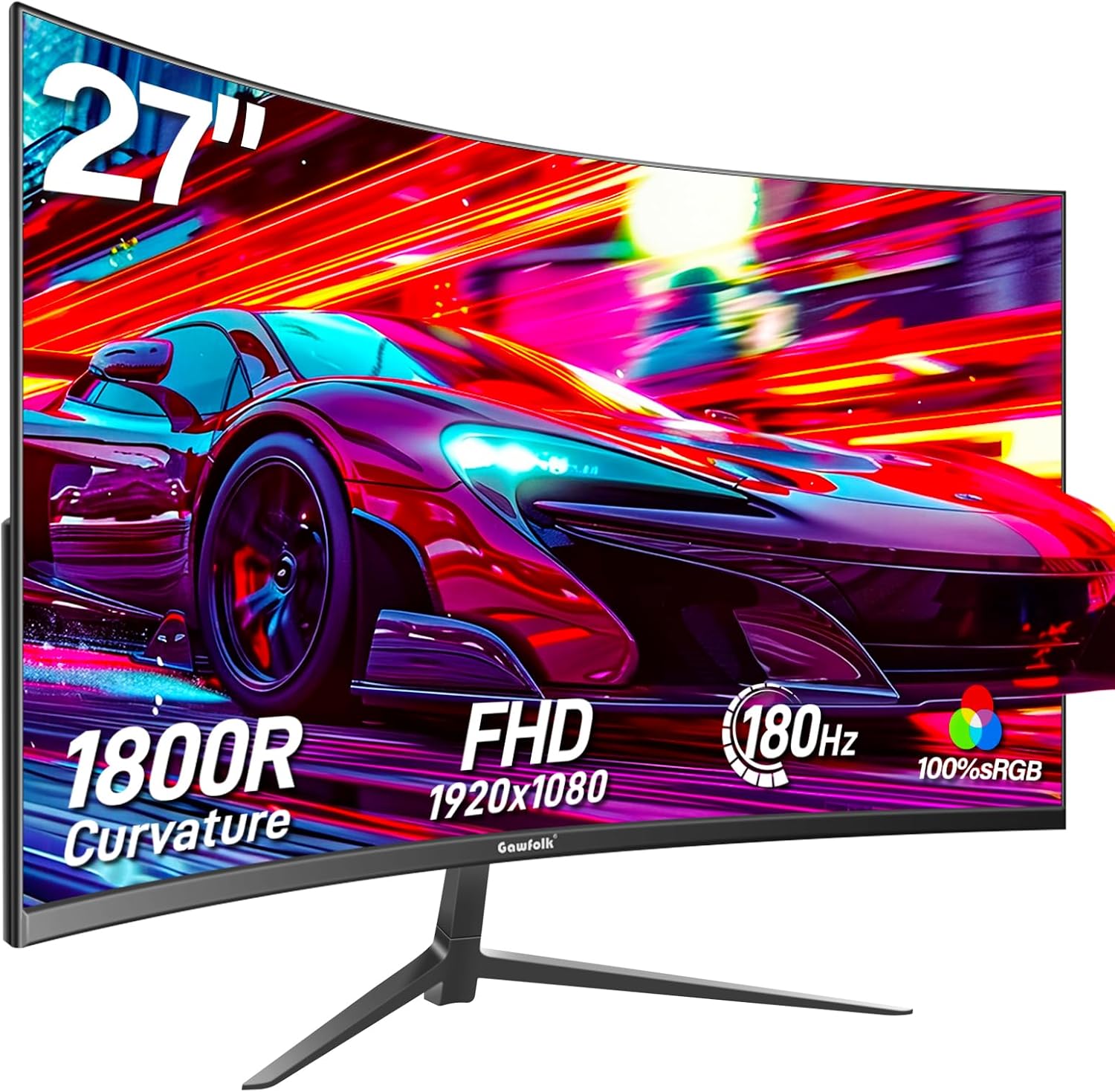
Image: Front view of the Gawfolk 27-inch Curved Gaming Monitor, highlighting its 27-inch size, 1800R curvature, FHD 1920x1080 resolution, 180Hz refresh rate, and 100% sRGB color gamut.
2. What's in the Box
Please check the package contents to ensure all items are present:
- 27 inch monitor (x1)
- Stand and Base (x1 set)
- User Manual (x1)
- Screws (for assembly)
- DP Cable (x1)
- Adapter (x1)
3. Setup Guide
3.1 Assembling the Stand
- Carefully remove the monitor from its packaging, keeping it protected.
- Attach the stand base to the stand neck using the provided screws.
- Securely attach the assembled stand to the back of the monitor.
3.2 Wall Mounting (Optional)
The monitor supports VESA 100x100mm mounting. Ensure you use appropriate wall mount hardware (not included) and follow the wall mount manufacturer's instructions.

Image: Rear view of the monitor showing VESA 100x100mm wall hanging specifications and tilt angle adjustment from -5° to 15°.
3.3 Connecting to Devices
The monitor features DisplayPort (DP) 1.4 and HDMI 2.0 ports. It also includes a USB port and an Audio Out port for external speakers or earphones.
- DisplayPort (DP): Connect your PC or notebook using the included DP cable for up to 180Hz refresh rate at 1080p.
- HDMI: Connect your PC, notebook, PS5, or X-Box using an HDMI cable for up to 144Hz refresh rate at 1080p (120Hz for consoles).
- USB: For charging or connecting low-power USB devices.
- Audio Out: Connect external speakers or headphones.

Image: Diagram illustrating various connectivity options including DP 1.4, HDMI 2.0, USB, and Audio Out, showing compatible devices like PCs, notebooks, PS5, and X-Box with their supported resolutions and refresh rates.
3.4 Powering On
Connect the power adapter to the monitor's DC IN 12V port and then to a power outlet. Press the power button on the monitor to turn it on.
4. Operating Instructions
4.1 Menu Navigation
The monitor features a joystick control for navigating the On-Screen Display (OSD) menu. Press the joystick to access the menu, and move it in different directions to select options and adjust settings.
4.2 Display Settings
- Resolution: The monitor supports Full HD (1920x1080) resolution for perfect details and vivid imagery.
- Refresh Rate: Experience smooth and fluid visuals with up to 180Hz refresh rate.
- Response Time: Enjoy a rapid 1ms (MPRT) response time for reduced motion blur and ghosting.
- AMD FreeSync: Enable FreeSync in the OSD menu to synchronize the monitor's refresh rate with your GPU's frame rate, eliminating screen tearing and stuttering.
- Eye-Care Technology: The monitor incorporates flicker-free technology and a blue light filter to minimize eye strain during prolonged use.

Image: Comparison showing the clarity of FHD (1920x1080) resolution versus standard HD (1280x720) resolution on the monitor.

Image: Visual comparison demonstrating the smoothness of 180Hz refresh rate versus 100Hz, showing clearer motion for fast-paced content.

Image: Illustration of the Blue Light Filter and Flicker-Free technologies, showing how they reduce eye strain.
5. Maintenance
5.1 Cleaning the Monitor
- Always power off and unplug the monitor before cleaning.
- Use a soft, lint-free cloth slightly dampened with water or a non-abrasive screen cleaner.
- Do not spray cleaner directly onto the screen.
- Avoid using alcohol, ammonia, or abrasive cleaners.
5.2 General Care
- Avoid placing heavy objects on the monitor or its cables.
- Keep the monitor away from direct sunlight, heat sources, and excessive moisture.
- Ensure proper ventilation around the monitor.
6. Troubleshooting
6.1 No Image on Screen
- Ensure the power cable is securely connected to the monitor and a power outlet.
- Verify that the video cable (DP or HDMI) is firmly connected to both the monitor and your computer/device.
- Check if the correct input source is selected in the monitor's OSD menu.
- Ensure your device (PC, console) is powered on and not in sleep mode.
6.2 Image Flickering or Distorted
- Check the video cable for damage or loose connections. Try a different cable if available.
- Ensure your device supports the monitor's resolution and refresh rate specifications. Lower versions of HDMI (e.g., HDMI 1.4) may only support up to 1080p@120Hz. For optimal performance, use HDMI 2.0 or DP 1.4 or later ports.
- It is recommended to use a GPU equivalent to or better than a GTX 1050 4G for optimal performance.

Image: Important note regarding device compatibility, recommending a GPU like GTX 1050 4G or above and using DP 1.4 or HDMI 2.0 for full resolution and refresh rate support.
6.3 No Audio
- Ensure external speakers or headphones are properly connected to the Audio Out port.
- Check the volume settings on both the monitor and your connected device.
7. Specifications
| Feature | Specification |
|---|---|
| Model Number | GF270C |
| Screen Size | 27 Inches |
| Resolution | 1920 x 1080 (FHD 1080p) |
| Refresh Rate | 180Hz (DP), 144Hz (HDMI) |
| Response Time | 1ms (MPRT) |
| Curvature | 1800R |
| Panel Type | VA |
| Color Gamut | 100% sRGB |
| Display Colors | 16.7 Million |
| Brightness | 300 Candela |
| Aspect Ratio | 16:9 |
| Connectivity | 1x DisplayPort 1.4, 1x HDMI 2.0, 1x USB, 1x Audio Out |
| VESA Mount | 100x100mm |
| Product Dimensions | 26 x 4 x 16 inches |
| Item Weight | 7.59 pounds |
| Country of Origin | China |
8. Warranty and Support
Gawfolk provides a 12-month warranty for this product. For any issues related to damaged units, defects, or missing parts, please contact Gawfolk customer service for quick resolution. You can find support information on the official Gawfolk website or through your purchase platform.
Ask a question about this manual
Ask about setup, troubleshooting, compatibility, parts, safety, or missing instructions. Manuals+ will review the question and use this page’s manual context to help answer it.