
Introduction
Thank you for choosing the Grandder 47x24 Inch Electric Standing Desk with Keyboard Tray. This manual provides detailed instructions for assembly, operation, maintenance, and troubleshooting to ensure safe and efficient use of your new desk. This electric height-adjustable desk is designed to promote a healthier work environment by allowing seamless transitions between sitting and standing positions.
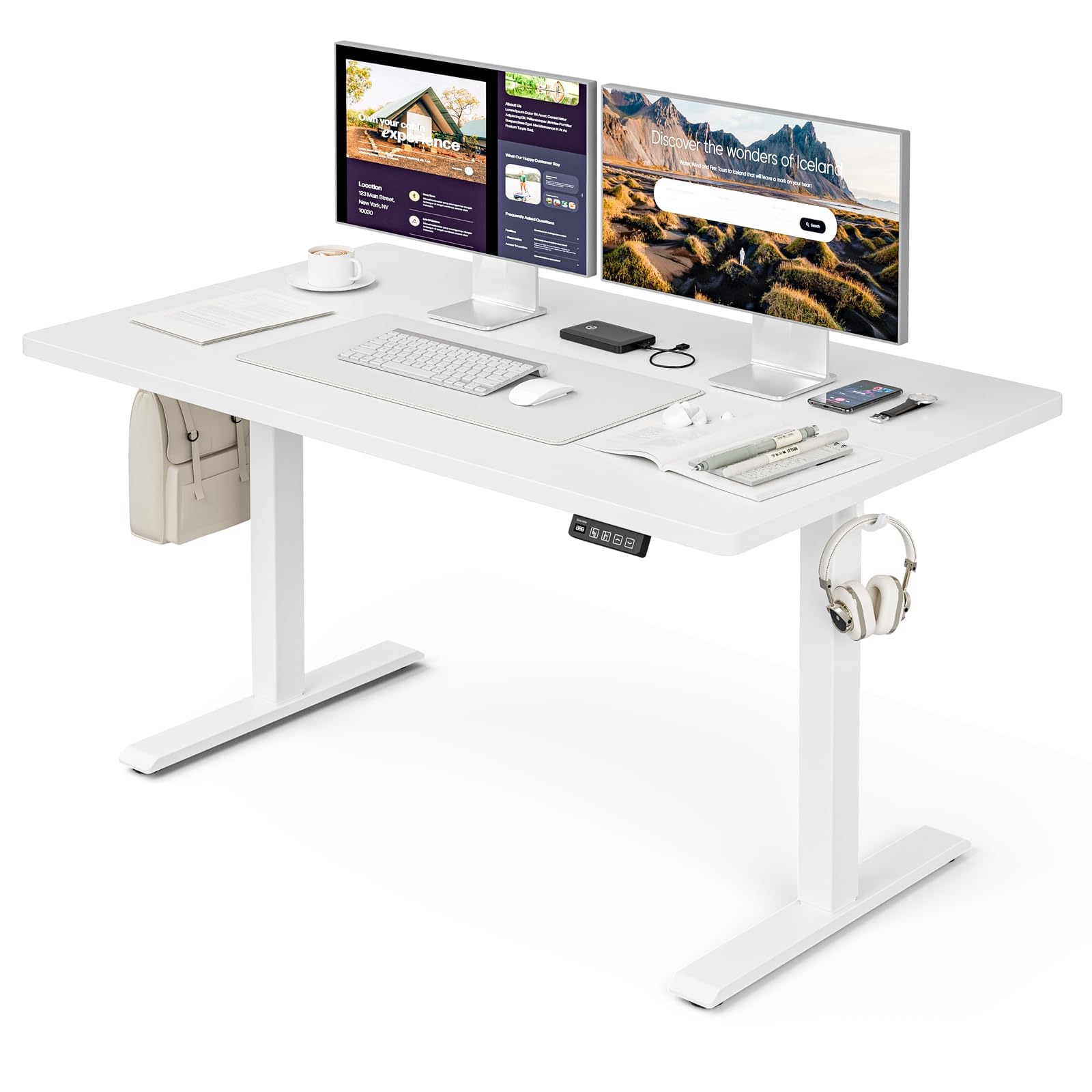
The Grandder 47x24 Inch Electric Standing Desk with Keyboard Tray, featuring a white desktop and frame, integrated keyboard tray, and a control panel for height adjustment.
Safety Information
General Safety Precautions
- Do not exceed the maximum weight limit of 176 lbs (80 kg) on the desktop. Overloading can cause damage or injury.
- Always use the motorized lift with caution. Ensure no obstructions are present during height adjustments to prevent injury or damage to property.
- Keep children and pets away from the desk during operation.
- Ensure all cables are properly managed and secured to prevent tripping hazards or entanglement with moving parts.
- Do not sit or stand on the desk.
- Disconnect power before cleaning or performing any maintenance.
Package Contents
Please verify that all components are present before beginning assembly. If any parts are missing or damaged, please contact customer support.
- Desktop (Splice Board)
- Desk Legs (2)
- Foot Pads (4)
- Motor and Control Box
- Control Panel
- Keyboard Tray and Rails
- Earphone Hooks (2)
- Cable Ties (3)
- Power Adapter and Cable
- Assembly Hardware (screws, bolts, etc.)
- L-shaped Allen Wrench
- Instruction Manual
Setup and Assembly
Assembly typically takes approximately 30 minutes. All parts are labeled, and an L-shaped Allen wrench is included for convenience. Follow the step-by-step instructions provided in the separate assembly guide for detailed visual instructions.
Pre-Assembly Considerations
- Choose a clear, spacious area for assembly.
- Lay out all components and hardware, matching them against the package contents list.
- Ensure the power outlet is easily accessible once the desk is in its final position.

Desk dimensions: 47 inches wide, 24 inches deep, with a height range of 28 to 45.6 inches.
Key Assembly Steps
- Attach the desk legs to the desktop using the provided hardware.
- Install the motor and control box according to the assembly guide.
- Mount the control panel to the underside of the desktop in an accessible location.
- Assemble and attach the keyboard tray rails and the keyboard tray itself.
- Install the adjustable foot pads on the bottom of the desk legs to ensure stability on uneven floors.
- Attach the earphone hooks to the side of the desk for convenient storage.
- Use the included cable ties to manage and secure power and peripheral cables, maintaining a tidy workspace.

Included accessories: two earphone hooks for organization, four adjustable foot pads for stability, and three cable ties for cable management.
Operating Instructions
Powering On and Initial Use
- Connect the power adapter to the control box and plug it into a wall outlet.
- The LED display on the control panel will illuminate, indicating the current desk height.
Height Adjustment
The desk can be adjusted electrically from a minimum height of 28.3 inches to a maximum height of 47.2 inches. The motorized lift operates smoothly and quietly (less than 45dB).
- Press the Up arrow (↑) button to raise the desk.
- Press the Down arrow (↓) button to lower the desk.
- Release the button at your desired height. The LED display shows the real-time height.

The control panel features an LED display for real-time height tracking, memory buttons for preset heights, and up/down adjustment buttons.

The desk operates with a smooth and quiet motor, maintaining noise levels below 45dB during height adjustments.
Memory Presets
The control panel includes memory buttons to save and quickly recall your preferred sitting and standing heights.
- Adjust the desk to your desired height.
- Press the M button (or similar memory set button, indicated by a person sitting/standing icon) until the display flashes.
- Press one of the numbered preset buttons (e.g., 1 or 2) to save the current height to that preset.
- To recall a saved height, simply press the corresponding preset button. The desk will automatically move to the saved position.
Keyboard Tray Usage
The integrated keyboard tray provides additional space and ergonomic benefits. It has a maximum load capacity of 10 kg (22 lbs).

The sturdy keyboard tray is designed to save working space and enhance typing comfort, supporting a maximum load of 10 kg.
Anti-Collision System
The desk is equipped with an anti-collision system that automatically stops and slightly reverses the desk's movement if it encounters an obstruction during height adjustment. This feature protects against damage and injury.
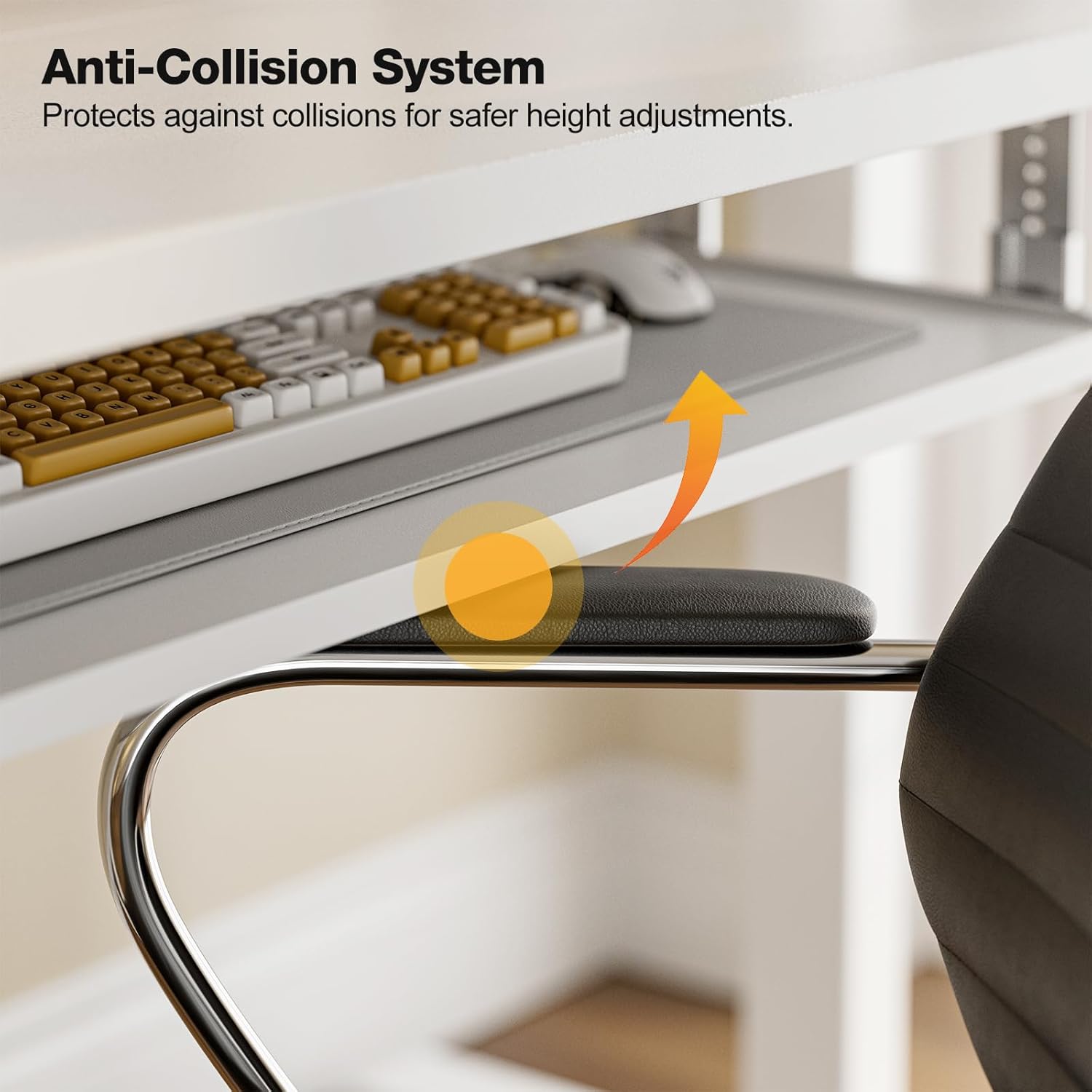
The anti-collision system protects against impacts by stopping and reversing desk movement when an obstruction is detected.
Maintenance
Cleaning
- Wipe the desktop and frame with a soft, damp cloth. Avoid abrasive cleaners or harsh chemicals.
- Ensure the desk is unplugged before cleaning.
Regular Checks
- Periodically check all screws and bolts to ensure they are tight. Retighten if necessary.
- Inspect the power cable for any signs of damage. If damaged, discontinue use and contact support.
Troubleshooting
If you encounter any issues with your Grandder standing desk, please refer to the following common troubleshooting steps:
| Problem | Possible Cause | Solution |
|---|---|---|
| Desk does not move / No power | Power cable disconnected; Power outlet malfunction; Control box issue. | Check if the power cable is securely plugged into both the desk and the wall outlet. Try a different outlet. Ensure all connections to the control box are secure. |
| Desk moves unevenly or makes unusual noise | Uneven load; Loose connections; Obstruction. | Ensure weight is evenly distributed on the desktop. Check all assembly screws and bolts for tightness. Inspect for any obstructions in the lifting mechanism. |
| Anti-collision system triggers frequently | Obstruction in path; Sensitivity setting. | Clear any objects from the desk's path. Refer to the full assembly guide for instructions on adjusting anti-collision sensitivity, if available. |
| Memory presets not working | Presets not saved correctly. | Re-save your desired heights by following the memory preset instructions in the Operating Instructions section. |
If the problem persists after attempting these solutions, please contact Grandder customer support for further assistance.
Specifications
| Feature | Detail |
|---|---|
| Brand | Grandder |
| Model | 47x24 Inch Electric Standing Desk |
| Desk Design | Standing Desk |
| Shape | Rectangular |
| Product Dimensions (D x W x H) | 60D x 120W x 74H Centimetres (approx. 23.6D x 47.2W x 29.1H Inches) |
| Minimum Height | 28.3 Inches |
| Maximum Height | 47.2 Inches |
| Colour | White |
| Top Material Type | Melamine |
| Base Material | Metal |
| Maximum Weight Recommendation | 176 Pounds (80 kg) |
| Motorized Lift Speed | 25mm/s |
| Noise Level | Less than 45dB |
| Special Features | Ergonomic, Electric Height Adjustable, Keyboard Tray Included, Anti-Collision System |
| Assembly Required | Yes (Tools included) |
Warranty and Support
Warranty Information
Grandder products are manufactured with quality and durability in mind. For specific warranty details regarding your electric standing desk, please refer to the warranty card included in your package or visit the official Grandder website. Typically, warranty covers manufacturing defects and motor malfunctions under normal use.
Customer Support
Should you require assistance with assembly, operation, or troubleshooting that is not covered in this manual, please contact Grandder customer support. Have your product model number and purchase date ready when contacting support.
- Online Support: Visit the Grandder official website for FAQs and contact forms.
- Email Support: Refer to your product packaging or warranty card for the customer service email address.