
1. Introduction
Welcome to the UMIDIGI G100A user manual. This guide provides comprehensive instructions on how to set up, operate, and maintain your new smartphone. The UMIDIGI G100A is designed to offer a smooth and efficient user experience with its Android 14 operating system, powerful UNISOC T615 processor, and a large 6.9-inch 120Hz HD+ display. Please read this manual carefully to ensure proper use and to maximize the device's potential.

Figure 1.1: Front and back view of the UMIDIGI G100A smartphone.
2. What's in the Box
Upon unboxing your UMIDIGI G100A, please verify that all the following items are included:
- 1x UMIDIGI G100A Smartphone
- 1x Pre-applied Screen Protector Film
- 1x Phone Case
- 1x SIM Tray Ejector
- 1x Type-C to Type-C USB Cable
- 1x Power Adapter
- 1x Quick Start Guide

Figure 2.1: All items included in the UMIDIGI G100A product package.
3. Setup
3.1. SIM Card and TF Card Installation
The UMIDIGI G100A supports dual SIM cards and a TF (microSD) card for expandable storage. To install:
- Locate the SIM tray on the side of the phone.
- Insert the SIM tray ejector tool into the small hole next to the tray and push gently until the tray pops out.
- Place your Nano-SIM cards and/or TF card into the designated slots on the tray, ensuring the gold contacts face downwards.
- Carefully reinsert the tray into the phone until it is flush with the device's side.
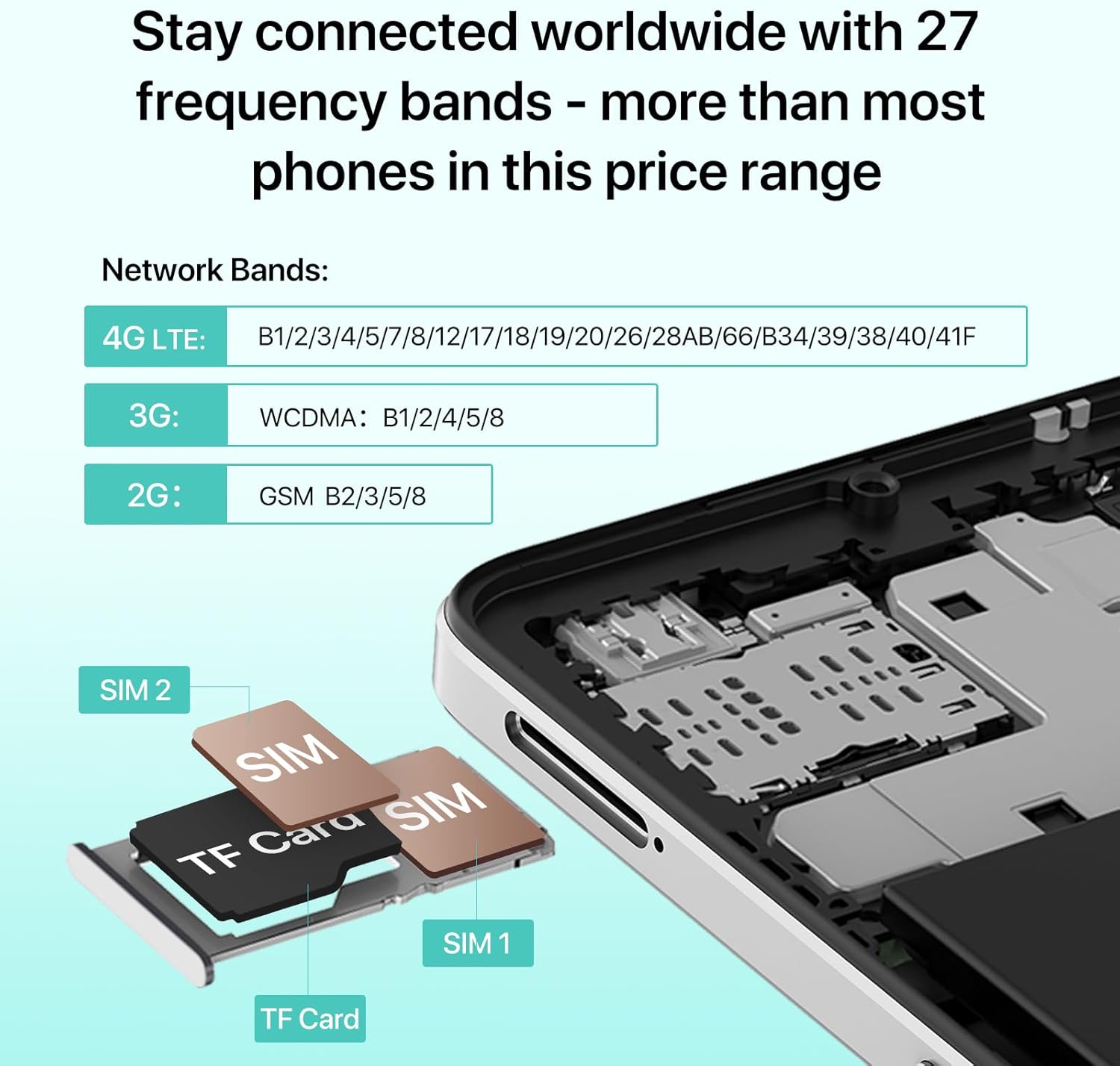
Figure 3.1: Proper placement of SIM cards and TF card in the tray.
3.2. Initial Power On and Charging
Before first use, it is recommended to fully charge your UMIDIGI G100A. Connect the provided USB cable to the phone's Type-C port and the power adapter, then plug it into a wall outlet. The phone supports 20W fast charging. Press and hold the power button (usually on the side) until the UMIDIGI logo appears to power on the device.

Figure 3.2: The UMIDIGI G100A features a 6000mAh battery and supports OTG for charging other devices.
3.3. Expanding RAM (Virtual Memory)
The UMIDIGI G100A allows you to expand its RAM virtually, utilizing a portion of the internal storage. This can enhance multitasking performance.
- Go to the phone's Settings.
- Find and tap on Memory Expansion.
- Click Set RAM extend Size.
- Select the desired RAM option to expand (e.g., 4GB + 4GB).
- Confirm the selection and reboot your phone for the changes to take effect.

Figure 3.3: Instructions for setting up virtual RAM expansion.
4. Operating Instructions
4.1. Display Features
The UMIDIGI G100A boasts a 6.9-inch HD+ display with a 120Hz refresh rate, providing a smooth visual experience, especially during scrolling and gaming. The resolution is 1640x720 pixels, offering clear and vibrant visuals for everyday use.

Figure 4.1: The 6.9-inch HD+ display offers immersive visuals.
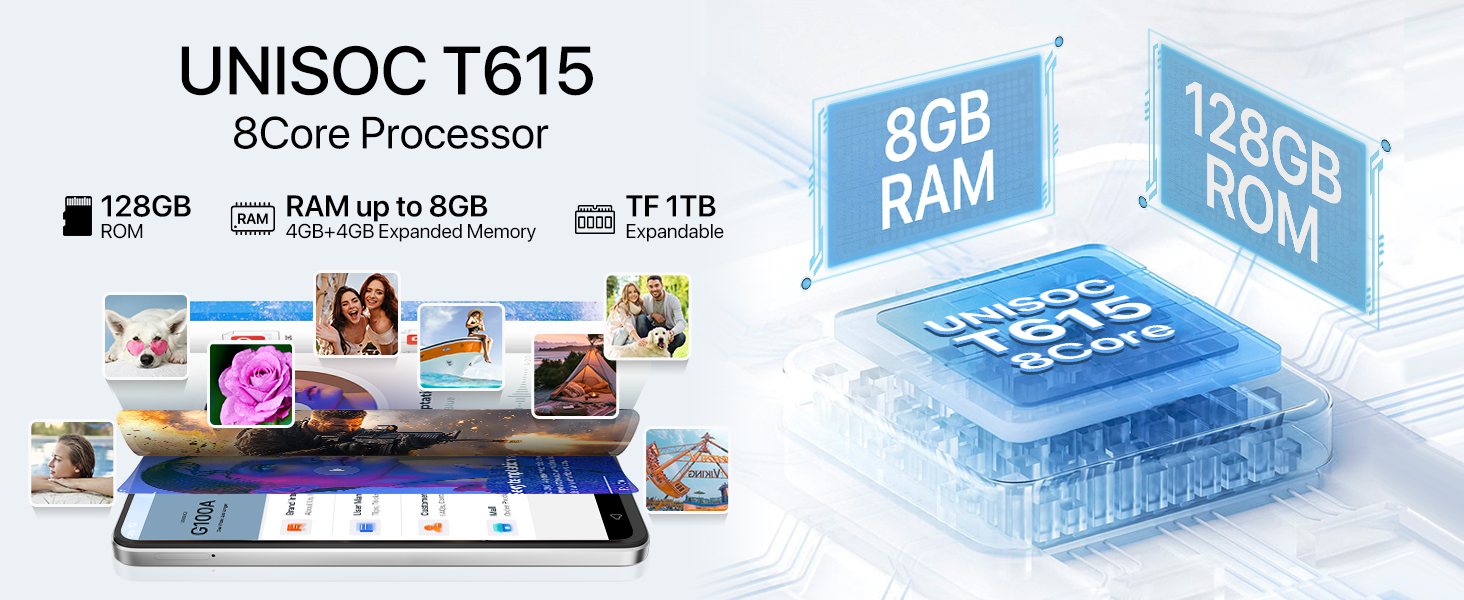
Figure 4.2: The 120Hz refresh rate significantly reduces motion blur for a smoother experience.
4.2. Processor Performance
Equipped with the UNISOC T615 8-core processor, the UMIDIGI G100A delivers efficient performance for daily tasks, gaming, and multimedia. This 12nm process chip ensures low power consumption and extended battery life.

Figure 4.3: The UNISOC T615 processor powers the UMIDIGI G100A.
4.3. Camera Usage
The UMIDIGI G100A features a versatile camera system to capture your moments:
- 13MP Rear Camera: For clear and detailed photos.
- 2MP Depth Camera: Enhances portrait mode for professional-looking bokeh effects.
- 8MP Front Camera: For high-quality selfies and video calls.
Explore various modes:
- Pro Mode: Manual settings for advanced photography, especially in low-light conditions.
- Capture Mode: Intelligent motion tracking to keep subjects in focus.
- Portrait Mode: Perfect for travel selfies and group shots with artistic blur.
- Night Mode: Optimized for clearer shots in dark environments.

Figure 4.4: Camera specifications and available shooting modes.
4.4. Connectivity
The UMIDIGI G100A offers robust connectivity options:
- 4G Dual SIM: Supports a wide range of 4G LTE bands (B1/2/3/4/5/7/8/17/18/19/20/26/28AB/66/38/40/41) for global compatibility.
- Bluetooth 5.2: Improved efficiency over Bluetooth 5.0 with LE Audio and lower latency for seamless wireless connections.
- Wi-Fi: Supports Wi-Fi connectivity for internet access.
- FM Radio: Stay informed and entertained even offline with the built-in FM radio.
- 3.5mm Audio Jack: For traditional wired headphones, ensuring stable and uninterrupted audio.

Figure 4.5: Bluetooth 5.2 enables efficient data transfer.

Figure 4.6: The phone includes FM Radio and a 3.5mm audio jack.
4.5. Android 14 Features
The UMIDIGI G100A runs on Android 14, offering enhanced privacy, performance, and accessibility features. Enjoy improved photo quality, AI-generated wallpapers, new themes, and robust data privacy controls.

Figure 4.7: Android 14 provides a more personal, secure, and accessible experience.
4.6. Accessibility Features (Auto-generated Subtitles)
The UMIDIGI G100A supports auto-generated subtitles for various spoken content, enhancing accessibility. To enable this feature:
- Click the Settings app.
- Navigate to Accessibility.
- Click Caption preferences.
- Open Show captions to activate.

Figure 4.8: Enabling auto-generated subtitles for improved accessibility.
4.7. Parental Controls
Manage your child's account, set time limits, content filters, and app permissions for a safe online experience using Parental Controls. To set up:
- Open your phone Settings.
- Click on Digital Wellbeing & parental controls.
- Enter the Set up parental controls section.
- Download the Google Family Link app and select the account to manage.

Figure 4.9: Setting up parental controls for a safer user experience.
5. Maintenance
To ensure the longevity and optimal performance of your UMIDIGI G100A, follow these maintenance guidelines:
- Cleaning: Use a soft, lint-free cloth to clean the screen and body of the phone. Avoid using harsh chemicals or abrasive materials.
- Temperature: Do not expose the phone to extreme temperatures (hot or cold) or direct sunlight for prolonged periods.
- Water Exposure: The UMIDIGI G100A is not waterproof. Avoid contact with water or other liquids.
- Storage: When not in use for extended periods, store the phone in a cool, dry place.
- Software Updates: Regularly check for and install system updates to ensure your phone has the latest features and security patches.
6. Troubleshooting
Here are solutions to common issues you might encounter:
- Phone not turning on: Ensure the battery is charged. Connect the phone to the charger and wait a few minutes before attempting to power it on again.
- Poor network signal or no service: Check if your SIM card is properly inserted. Verify that your carrier's network bands are compatible with the UMIDIGI G100A's supported bands (2G: B2/3/5/8, 3G: B1/2/4/5/8, 4G: B1/2/3/4/5/7/8/17/18/19/20/26/28AB/66/38/40/41). Try restarting the phone or toggling airplane mode on and off.
- Apps crashing or freezing: Close background apps. Clear the cache of the problematic app in Settings > Apps. If the issue persists, try reinstalling the app.
- Battery drains quickly: Reduce screen brightness, disable unnecessary features like Bluetooth or Wi-Fi when not in use, and close power-intensive background apps.
- Slow performance: Free up storage space by deleting unnecessary files or apps. Consider expanding virtual RAM as described in Section 3.3.
7. Specifications
Key technical specifications for the UMIDIGI G100A:
| Feature | Specification |
|---|---|
| Model Name | G100A |
| Operating System | Android 14 |
| CPU Model | UNISOC T615 (8-core) |
| CPU Speed | 1.6 GHz (up to 1.8 GHz) |
| Display Size | 6.9 Inches |
| Resolution | 720x1640 HD+ |
| Refresh Rate | 120 Hz |
| RAM Memory | 4 GB (expandable up to 8GB with virtual memory) |
| Internal Storage | 128 GB (expandable up to 1TB with TF card) |
| Rear Camera | 13MP + 2MP Depth |
| Front Camera | 8MP |
| Battery Capacity | 6000 mAh |
| Charging | 20W Fast Charging Support |
| Connectivity | 4G Dual SIM, Wi-Fi, Bluetooth 5.2, GPS |
| Audio Jack | 3.5 mm |
| Dimensions | 6.73 x 3.03 x 0.31 inches |
| Weight | 7 ounces |
8. Warranty and Support
UMIDIGI is committed to providing excellent customer service. Your UMIDIGI G100A comes with:
- 30-Day Money Back Guarantee and Free Return: For your peace of mind.
- 1-Year Limited Warranty: Covers manufacturing defects for one year from the date of purchase.
- 24/7 Online Support: Access dedicated one-on-one technical support.
For assistance, you can use the UMIDIGI Customer Center App:
- Find the Service Center APP on your phone.
- Enter the Customer Service section.
- Click Questions.
- Fill in the content according to the prompts and confirm.

Figure 8.1: Using the UMIDIGI Customer Center App for quick problem resolution.
For more information, visit the official UMIDIGI website or contact their customer support directly.


