1. Product Overview
The TIDRADIO 3-in-1 Wireless Programmer and Bluetooth PTT Button (Model TD-BL-PTT) is a versatile accessory designed to enhance your radio communication experience. It functions as a wireless programmer for compatible radios, a wireless Push-To-Talk (PTT) button for specific radio models, and a PTT for group communication within the ODmaster application.
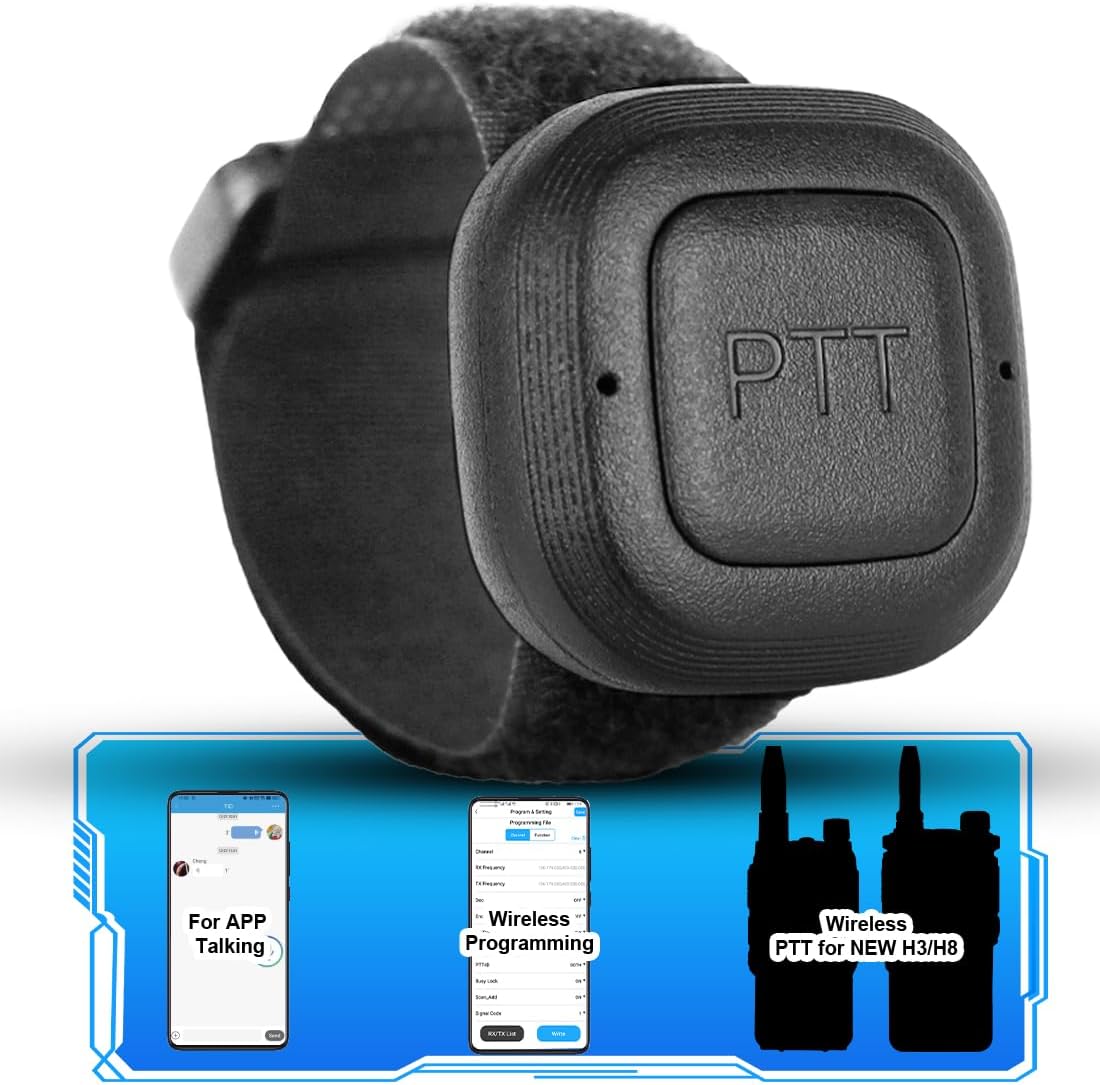
Image: The TIDRADIO 3-in-1 Wireless Programmer and Bluetooth PTT Button, showcasing its compact design and multi-functionality.
Key Features:
- Wireless Programmer: Connects to radios via a Kenwood interface cable, allowing programming through the ODmaster APP on mobile phones or the ODmaster Web on PC. Supports CHIRP CVS import without additional plugins.
- Wireless PTT Button with Microphone: Functions as a Push-To-Talk button with an integrated microphone for TD-H3 Plus and 3rd Generation TD-H8 radios.
- ODmaster APP Group Communication: Enables wireless PTT functionality for communication within ODmaster APP groups.
- Quick Customization: The ODmaster APP allows for quick radio programming, connection to repeaters, button customization, and frequency scheme sharing.
- Broad Compatibility: Supports various Baofeng radio models including 5RM (AR-5RM, UV-5RM), GM-15 PRO, UV-5G Plus, 5RM-GMRS, GM-5RH, UV-21R, UV-17R, UV-17R GPS, 5RX, and K5Plus. A full list is available on the ODmaster APP/Web.
- One-click Repeater Import: Easily import nearby repeater configurations to your radio for extended range.
2. Setup Guide
Follow these steps to set up your TIDRADIO Wireless Programmer and connect it to your radio and the ODmaster application.
- Connect the Wireless Programmer: Insert the wireless programmer into the headphone jack of your compatible walkie-talkie. Ensure it is securely connected.
- Power On Devices: Turn on the wireless programmer. Then, turn on your walkie-talkie.
- Install and Open ODmaster App: Download and install the ODmaster application on your mobile phone. Open the app. You may choose to skip the account registration/login process to proceed.
- Connect Bluetooth: Within the ODmaster app, navigate to the Bluetooth connection section and connect to the wireless programmer. The app will indicate a successful connection.
- Select Radio Model: In the ODmaster app, select the specific model of your walkie-talkie from the provided list (e.g., Baofeng UV-5R).
Video: Demonstrates how to connect the wireless programmer to a radio and establish a Bluetooth connection with the ODmaster app for programming.
3. Operating Instructions
3.1. Using as a Wireless Programmer
Once connected, the ODmaster app allows you to read, modify, and write frequency settings and other parameters to your radio.
- Read Frequency: In the ODmaster app, click the "Read" option. The light on your walkie-talkie will flash, indicating that the app is reading the current frequency and settings from the radio.
- Modify Settings: After the reading is complete, the app will display the programming interface. You can now adjust various settings such as RX/TX frequencies, channel numbers, power levels, and other functions. For example, to change a channel's frequency, select the channel and input the desired RX and TX frequencies.
- Write Frequency: Once you have made your desired changes, click the "Write" button in the app. The app will then write the new settings to your radio. The progress bar will indicate completion.
- Restart Radio: After writing is complete, unplug the wireless programmer from the radio and restart the walkie-talkie to apply the new settings. Verify that the settings on your radio match those programmed via the app.

Image: The wireless programmer connected to a radio, with the ODmaster app interface displayed on a phone and PC, illustrating programming capabilities.
3.2. Using as a Wireless PTT Button
The TD-BL-PTT can also serve as a wireless Push-To-Talk button for compatible radios and for communication within the ODmaster app.
- For TD-H3 Plus & 3rd Gen TD-H8: Simply press the PTT button on the device to transmit your voice signal through the integrated microphone.
- For ODmaster APP Group Talking: The PTT button can be used to communicate within group calls initiated through the ODmaster app.

Image: Instructions for using the wireless PTT button for group communication within the ODmaster app, including steps for selecting and entering a group.
4. Maintenance
Proper maintenance ensures the longevity and optimal performance of your wireless programmer.
- Charging: The device features convenient Type-C charging. Use the provided charging cable to connect it to various power sources such as a desktop computer, car charger, power bank, or laptop.

Image: Various methods for charging the wireless programmer using its Type-C port, including desktop, car, power bank, and laptop connections.
- Cleaning: Use a soft, dry cloth to clean the device. Avoid using harsh chemicals or abrasive materials.
- Storage: Store the device in a cool, dry place away from direct sunlight and extreme temperatures.
- Water Resistance: This device is not water resistant. Avoid exposure to water or high humidity.
5. Troubleshooting
If you encounter issues with your TIDRADIO Wireless Programmer, refer to the following common problems and solutions.
| Problem | Possible Cause | Solution |
|---|---|---|
| Device not connecting via Bluetooth. | Bluetooth is off on phone/programmer, device out of range, or interference. | Ensure Bluetooth is enabled on both devices. Move closer to the programmer. Restart both devices. |
| Radio not programming. | Programmer not fully inserted, radio not powered on, incorrect model selected in app, or app error. | Verify the programmer is fully inserted into the radio's headphone jack. Ensure the radio is powered on. Double-check the selected radio model in the ODmaster app. Restart the app and try again. |
| ODmaster app is slow or unresponsive. | App cache, low device memory, or temporary software glitch. | Clear the app's cache. Close other background applications. Restart your phone. Ensure you have a stable internet connection if using ODmaster Web. |
| Programmed settings not applied to radio. | Radio not restarted after programming, or programming not completed successfully. | Ensure you unplugged the programmer and restarted the radio after the "Upload Completed" confirmation. Re-attempt the programming process. |
6. Specifications
| Attribute | Detail |
|---|---|
| Model Number | TD-BL-PTT |
| Item Weight | 2.39 ounces (0.07 kg) |
| Package Dimensions | 4.57 x 4.09 x 1.34 inches |
| Batteries | 1 A battery required (included) |
| Connectivity Protocol | Bluetooth |
| Water Resistance Level | Not Water Resistant |
| Included Components | 1X wireless PTT, 2X cut-able velcro straps, 1X programming adapter cable, 1X charging cable |
| Compatible Radios | Baofeng 5RM, UV-5R, UV-5G Plus, UV-5R, UV-5G, 5RM-GMRS, GM-15 PRO, GM-5RH, UV-21R, UV-17R, UV-17R GPS, 5RX, K5Plus (Full list on ODmaster APP/Web) |
7. Warranty and Support
TIDRADIO is committed to providing quality products and customer satisfaction.
- Quality Guarantee: This product comes with a 365-day quality guarantee.
- Customer Support: For assistance, please contact the seller through your order details on Amazon: Go to 'Orders' > 'Get help' > select the order > click 'other' > send 'seller'.
- Online Manual: A PDF version of the user manual is available for download at: Wireless PTT User Manual PDF.