
Nisanuki CC30
Nisanuki CC30 WiFi 5G Hidden Camera Alarm Clock User Manual
Model: CC30
Introduction
Thank you for choosing the Nisanuki CC30 WiFi 5G Hidden Camera Alarm Clock. This device combines a security camera, digital clock, alarm clock, calendar, and thermometer into one compact unit. This manual provides detailed instructions for setup, operation, and maintenance to ensure optimal performance and security.

Image: The Nisanuki CC30 device displaying its various functions, including security camera, digital clock, alarm, calendar, and thermometer. The main display shows 15:30 and 17.8 degrees Celsius.
Package Contents
Please check the package contents upon unboxing. If any items are missing or damaged, contact customer support.
- Nisanuki CC30 Hidden Camera Alarm Clock
- USB Charging Cable
- User Manual
- (Optional: Power Adapter, Micro SD Card - not included)
Important Safety Information
- Do not expose the device to extreme temperatures, direct sunlight, or moisture.
- Keep the device away from strong magnetic fields.
- Do not attempt to disassemble or repair the device yourself. Contact qualified personnel for service.
- Ensure proper ventilation to prevent overheating.
- Use only the provided or recommended power adapter.
- Respect privacy laws and regulations when using the camera function.
Product Overview
The Nisanuki CC30 integrates multiple functionalities into a discreet alarm clock design. Key features include:
- 1080P HD Camera: High-definition video recording.
- Dual-Band WiFi (2.4GHz & 5GHz): Stable and fast network connection.
- Night Vision: Infrared (IR) LEDs for clear images in low-light conditions.
- Motion Detection: Real-time alerts and adjustable sensitivity.
- Dual Alarm Clock: Set two independent alarms.
- Adjustable LED Brightness: 5 levels of display brightness.
- Temperature Display: Shows ambient temperature.
- Multiple Storage Options: Supports Micro SD card (up to 256GB, not included) and Cloud Storage (subscription required).
- Tuya APP Compatibility: Remote control and monitoring via smartphone.

Image: Front view of the Nisanuki CC30 Hidden Camera Alarm Clock, displaying the time, temperature, and date, along with the control buttons at the bottom.
Setup Guide
1. Charging the Device
Before initial use, fully charge the device using the provided USB cable and a compatible power adapter. The charging indicator will show the charging status.
2. Inserting a Micro SD Card (Optional)
If you plan to use local storage, insert a Micro SD card (up to 256GB, not included) into the designated slot. Ensure the device is powered off before inserting or removing the card.

Image: An illustration showing the options for cloud storage and Micro SD card storage for the camera, as displayed on a smartphone app interface.
3. Downloading the Tuya App
Download the "Tuya Smart" or "Smart Life" app from your smartphone's app store (App Store for iOS, Google Play Store for Android).
- Search for "Tuya Smart" or "Smart Life".
- Install the app and create an account if you don't have one.
4. Connecting to WiFi
- Power on the Nisanuki CC30.
- Open the Tuya Smart app and tap "Add Device" or the "+" icon.
- Select "Security & Video Surveillance" -> "Smart Camera (Wi-Fi)".
- Follow the in-app instructions to connect the camera to your 2.4GHz or 5GHz WiFi network. Ensure your phone is connected to the same network during setup.
- The device supports both 2.4GHz and 5GHz WiFi bands for flexible connectivity.

Image: The Nisanuki CC30 alarm clock displaying time and temperature, with an overlay indicating its dual-band WiFi capabilities (2.4GHz and 5GHz) and a smartphone showing the device connection process.
Operating Instructions
1. Basic Clock Functions
- Time Display: The large LED display shows the current time.
- 12/24H Format: Switch between 12-hour and 24-hour time formats using the dedicated button on the device or via the app.
- Temperature Display: The device displays the ambient temperature in Celsius or Fahrenheit. Switch units as needed.
- Adjusting Brightness: The LED display brightness can be adjusted through 5 levels (L1-L5) or turned off (OFF) using the device buttons or the app.

Image: Two Nisanuki CC30 alarm clocks demonstrating the 12-hour and 24-hour time display options, showing 06:30 AM and 18:30 respectively.

Image: A visual representation of the 5-level brightness adjustment for the LED display, ranging from OFF to L5, allowing customization for different lighting conditions.
2. Setting Alarms
The device supports setting two independent alarms. Refer to the app's alarm settings section for detailed configuration, including time, snooze, and alarm sound.
Image: The Nisanuki CC30 alarm clock showing two different alarm settings, one for 7:00 AM (waking up) and another for 3:00 PM (work schedule), highlighting its dual alarm capability.
3. Camera Operation via Tuya App
- Live View: Open the Tuya app and select your device to view the live camera feed.
- Recording: Initiate manual recording or set up scheduled recordings via the app.
- Motion Detection:
- Enable motion detection in the app settings.
- Adjust sensitivity (Low, Medium, High) to minimize false alerts.
- Receive real-time push notifications on your phone when motion is detected.
- Night Vision: The camera automatically switches to infrared night vision in low-light conditions, providing clear black and white images.
- Playback: Access recorded footage from the Micro SD card or cloud storage through the app's playback feature.
- Sharing: Share camera access with family members or other authorized users via the app.
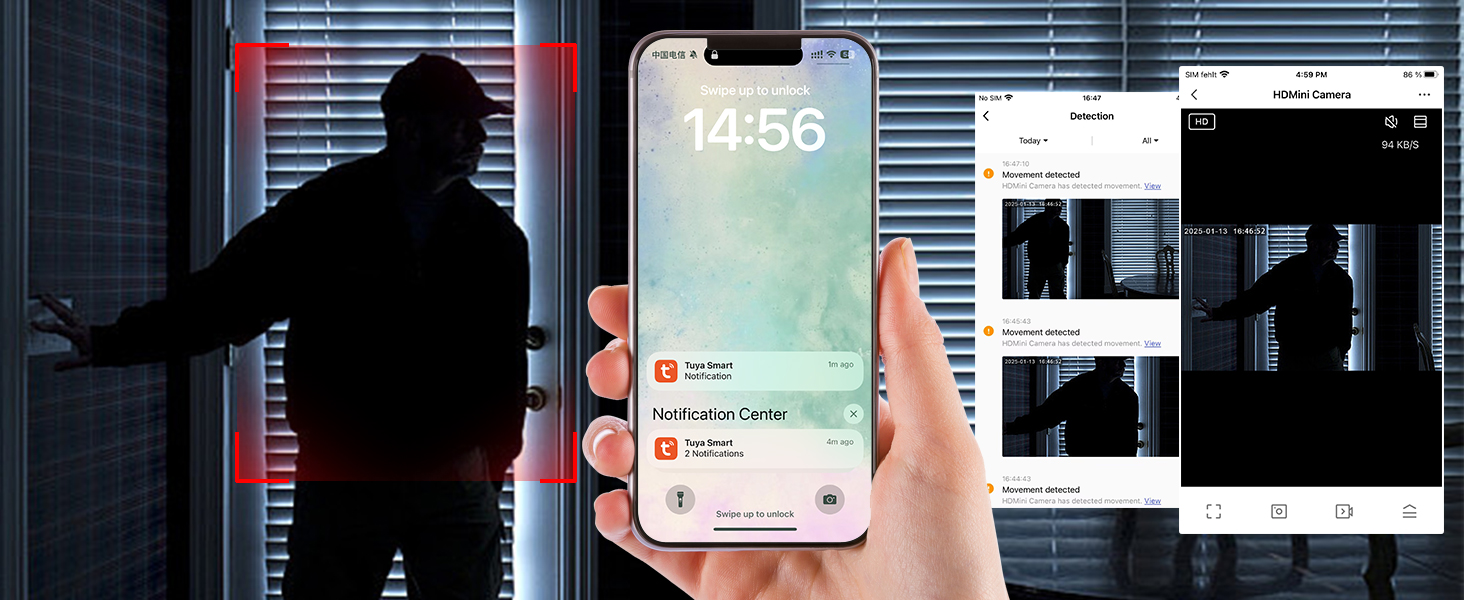
Image: A smartphone displaying the Tuya app interface, showing a live camera feed and options for monitoring, indicating the time 14:56.

Image: The mobile app interface demonstrating the night vision feature of the camera, with control buttons and a monitoring screen showing a clear image in low light.
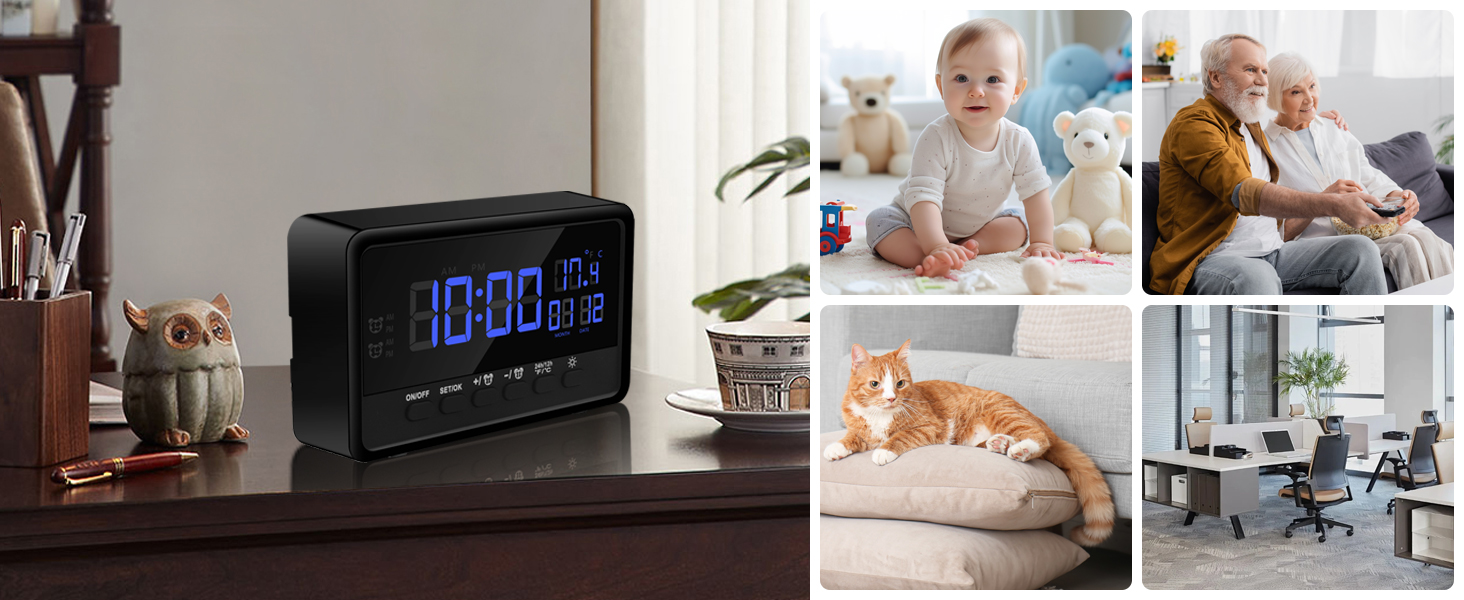
Image: The Nisanuki CC30 alarm clock placed in various home and office settings, demonstrating its versatile use as a discreet surveillance device.
Maintenance
- Cleaning: Use a soft, dry cloth to clean the device. Do not use liquid cleaners or abrasive materials.
- Firmware Updates: Regularly check the Tuya app for available firmware updates to ensure optimal performance and security.
- Battery Care: If the device has an internal battery, avoid fully discharging it frequently to prolong its lifespan.
- Storage: When not in use for extended periods, store the device in a cool, dry place.
Troubleshooting
Device Not Powering On
- Ensure the device is fully charged or connected to a power source.
- Check the power cable and adapter for damage.
Cannot Connect to WiFi
- Verify your WiFi network is 2.4GHz or 5GHz and stable.
- Ensure your phone is connected to the same WiFi network during setup.
- Move the device closer to your WiFi router.
- Reset the device and try the connection process again.
No Motion Detection Alerts
- Check if motion detection is enabled in the Tuya app.
- Adjust the motion detection sensitivity.
- Ensure the app has notification permissions enabled on your phone.
- Verify the device has a stable internet connection.
Poor Video Quality / Night Vision Issues
- Ensure the camera lens is clean and free from obstructions.
- Check your internet connection speed.
- For night vision, ensure there are no strong light sources directly facing the camera that could interfere with the IR sensors.
SD Card Not Recording
- Ensure the Micro SD card is inserted correctly.
- Format the SD card via the app (this will erase all data).
- Check if the SD card is full or corrupted. Try a different SD card.
- Verify recording settings in the app are configured correctly for SD card storage.
Specifications
| Model Name | CC30 |
| Brand | Nisanuki |
| Connectivity Technology | Wireless (Wi-Fi 2.4GHz & 5GHz) |
| Video Capture Resolution | 1080p |
| Viewing Angle | 120 Degrees |
| Night Vision Range | 2 Meters |
| Storage Options | Micro SD Card (up to 256GB), Cloud Storage (subscription) |
| Compatible Devices | Smartphone, Tablet, iPad, iPhone |
| Indoor/Outdoor Use | Indoor |
| Dimensions | 12 x 3 x 7 cm |
| Color | Black |
| Batteries Required | Yes |
| Components Included | Spy camera (device itself) |
Warranty and Support
For warranty information and technical support, please refer to the documentation included with your purchase or contact Nisanuki customer service directly. You can often find support contact details on the manufacturer's official website or within the Tuya Smart app's help section.
Return Policy: The product has a 14-day return policy for refund/replacement.
Ask a question about this manual
Ask about setup, troubleshooting, compatibility, parts, safety, or missing instructions. Manuals+ will review the question and use this page’s manual context to help answer it.