
1. Introduction
This manual provides essential information for the safe and efficient operation of your Philips 55PUS7009/62 55-inch 4K UHD Smart LED TV. Please read these instructions thoroughly before using the product and retain them for future reference.
2. Safety Information
- Electrical Safety: Do not expose the TV to rain or moisture. Ensure the power cord is not damaged and is properly grounded. Disconnect the power plug during lightning storms or when unused for long periods.
- Placement: Place the TV on a stable, level surface. Ensure adequate ventilation around the TV. Do not block ventilation openings. Avoid direct sunlight, heat sources, and extreme temperatures.
- Cleaning: Unplug the TV before cleaning. Use a soft, dry cloth. Do not use liquid or aerosol cleaners.
- Children: Keep small parts and packaging materials out of reach of children. Do not allow children to climb on the TV or stand.
3. Package Contents
Verify that all items are present in the package:
- Philips 55PUS7009/62 55-inch 4K UHD Smart LED TV
- Remote Control with Batteries
- TV Stand (2 pieces)
- Screws for TV Stand
- Power Cord
- Quick Start Guide
- Legal and Safety Leaflet
4. Setup
4.1 Unpacking
Carefully remove the TV and all accessories from the packaging. Retain the packaging materials for potential future transport or service.
4.2 Attaching the Stand
Place the TV face down on a soft, clean surface to prevent screen damage. Align the stand pieces with the designated slots on the bottom of the TV. Secure the stand using the provided screws. Ensure the stand is firmly attached before placing the TV upright.
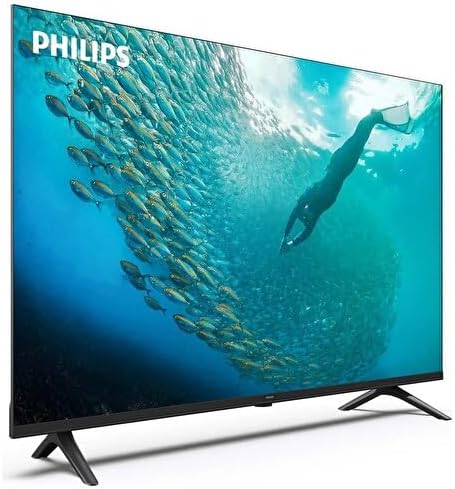
Image: Angled view of the Philips 55PUS7009/62 TV, illustrating the attached stand. The stand consists of two feet positioned at the bottom corners of the television, providing stable support.
4.3 Wall Mounting (Optional)
If you intend to wall mount the TV, refer to the instructions provided with your wall mount kit. Ensure the wall mount is compatible with VESA standard 300x200mm and can support the weight of the TV. Remove the stand before wall mounting.
4.4 Connecting Devices
- HDMI Devices: Connect external devices such as Blu-ray players, game consoles, or set-top boxes to the HDMI ports using HDMI cables.
- USB Devices: Insert USB storage devices into the USB ports for media playback or software updates.
- Antenna/Cable: Connect an antenna or cable TV signal to the 'ANTENNA IN' port.
- Network: Connect an Ethernet cable to the LAN port for a wired internet connection, or connect wirelessly via Wi-Fi during initial setup.
4.5 Initial Power On and First-Time Setup
After connecting all necessary cables, plug the power cord into an electrical outlet. Press the power button on the remote control or TV. Follow the on-screen instructions to select your language, connect to a network, scan for channels, and complete the initial setup process.
5. Operating Instructions
5.1 Remote Control Overview
Familiarize yourself with the buttons on your remote control. Key functions include Power, Volume Up/Down, Channel Up/Down, Input Source, Home (Smart TV), Navigation (directional arrows, OK), Back, and Menu.
5.2 Basic TV Functions
- Power On/Off: Press the Power button.
- Volume Adjustment: Use the Volume Up/Down buttons.
- Channel Selection: Use the Channel Up/Down buttons or numeric keypad.
- Input Source: Press the 'Source' or 'Input' button to switch between HDMI, TV, USB, etc.
5.3 Smart TV Features
Press the 'Home' button on your remote to access the Smart TV interface. From here, you can launch pre-installed applications, browse the internet, and access streaming services. Ensure your TV is connected to the internet for full Smart TV functionality.
5.4 Picture and Sound Settings
Access the TV's menu to adjust picture settings (e.g., brightness, contrast, color, sharpness, picture mode) and sound settings (e.g., bass, treble, sound mode, surround sound). These settings can be customized to your preference.
6. Maintenance
- Screen Cleaning: Gently wipe the screen with a soft, lint-free cloth. For stubborn marks, slightly dampen the cloth with water or a specialized screen cleaner, then wipe dry immediately. Do not spray liquid directly onto the screen.
- Cabinet Cleaning: Use a soft, dry cloth to clean the TV cabinet.
- Ventilation: Ensure the ventilation openings on the TV are not blocked by dust or objects.
7. Troubleshooting
If you encounter issues with your TV, refer to the following common solutions:
- No Power: Check if the power cord is securely plugged into both the TV and the electrical outlet. Test the outlet with another device.
- No Picture/Sound: Ensure the correct input source is selected. Check all cable connections (HDMI, antenna). Try restarting the TV.
- Remote Control Not Working: Replace the batteries. Ensure there are no obstructions between the remote and the TV's IR sensor.
- Network Connection Issues: Check your router and modem. Restart your router. Re-enter Wi-Fi password or try a wired connection.
- Picture Quality Issues: Adjust picture settings in the TV menu. Ensure the input source is providing a high-quality signal.
If the problem persists, consult the Philips support website or contact customer service.
8. Specifications
The Philips 55PUS7009/62 is a 55-inch 4K UHD Smart LED TV designed for an immersive viewing experience.

Image: Front view of the Philips 55PUS7009/62 55-inch 4K UHD Smart LED TV, showcasing its slim bezels and overall design.
| Feature | Description |
|---|---|
| Model | 55PUS7009/62 |
| Display Size | 55 inches |
| Display Type | LED |
| Resolution | 4K UHD (3840 x 2160) |
| Smart TV | Yes |
| Connectivity | HDMI, USB, Wi-Fi, Ethernet |
| Audio Output | Integrated Stereo Speakers |
| Power Supply | AC 220-240V ~ 50/60Hz |
9. Warranty and Support
This Philips TV comes with a standard manufacturer's warranty. Please refer to the warranty card included in your package for specific terms and conditions, including warranty period and coverage details. For technical support, service, or further assistance, please visit the official Philips support website or contact their customer service department. Keep your purchase receipt as proof of purchase for warranty claims.