
Introduction
This manual provides comprehensive instructions for the installation, operation, and maintenance of your GreenVation Smart Sprinkler Controller Pro. This 12-zone irrigation system is designed to manage your garden, yard, or lawn watering efficiently through a 2.4G/5GHz WiFi connection, offering smart control and integration with water pumps and rain sensors.
Please read this manual thoroughly before using the device to ensure proper functionality and to maximize its benefits.
Product Overview
Key Features:
- 12-Zone Fully Automatic Control: Dynamically creates and adjusts watering schedules for plants and lawns.
- Water Pump Connection Interface: Allows control over your water source.
- Rain Sensor Connection Interface: Provides accurate rainfall detection to pause watering schedules.
- Simultaneous Operation: Capable of operating up to 4 solenoid valves concurrently.
- Smart Cloud Service: Monitor and manage your system via the Smart Life/Tuya app on iOS or Android devices.
- 2.4G/5GHz WiFi Connectivity: Connects to your home network for remote access.
- Easy Installation: Designed for straightforward setup with a user-friendly interface.
- Integration with Other Devices: Compatible with soil sensors for precise and targeted watering.

Image: The GreenVation Smart Sprinkler Controller Pro unit displayed alongside a smartphone showing the companion application's interface for scheduling and monitoring.

Image: A visual comparison chart highlighting features of the 12-Zone Controller Pro (compatible with rain sensor and water pump, 4 simultaneous watering zones) versus a 16-Zone Controller (no rain sensor/water pump compatibility, 1 simultaneous watering zone).
Setup
1. Physical Installation:
- Mounting: Select a suitable location for the controller, protected from direct weather exposure if not rated for outdoor use.
- Wiring: Connect existing sprinkler wires to the corresponding zone terminals on the controller. Ensure all connections are secure.
- Power Connection: Plug the power adapter into the controller and then into a standard electrical outlet.
- Water Pump & Rain Sensor (Optional): If using, connect your water pump and rain sensor to their designated interfaces on the controller.

Image: A visual guide showing the three main setup steps: 1. Plugging existing wires into the Sprinkler Controller, 2. Completing setup in the Smart Life or Tuya app, and 3. Controlling the system from anywhere. The image also notes that the maximum distance between the device and the WiFi router is 45m.
2. App Connection:
- Download App: Download the "Smart Life" or "Tuya" app from the App Store (iOS) or Google Play Store (Android).
- Register/Login: Create a new account or log in to your existing account.
- Add Device: In the app, tap the "+" icon to add a new device. Follow the on-screen instructions to connect the controller to your 2.4G/5GHz WiFi network. Ensure your mobile device is connected to the same WiFi network during the pairing process.
- Firmware Update: After successfully pairing the controller with the app, navigate to the device settings within the app and ensure the firmware is updated to the latest version. This is crucial for optimal performance and access to all features.

Image: A person using a smartphone to remotely control the sprinkler system, with an inset image showing the controller mounted on a house, indicating remote smart control capabilities.
Operating Instructions
1. Scheduling Watering Plans:
- Open the Smart Life/Tuya app and select your GreenVation Smart Sprinkler Controller.
- Navigate to the "Irrigation settings" or "Schedule" section.
- Set the duration, areas (zones), and frequency for each watering cycle. The Pro version allows for flexible irrigation planning, including watering up to four areas simultaneously.
- Save your schedule. The system will dynamically adjust based on your settings and environmental factors.
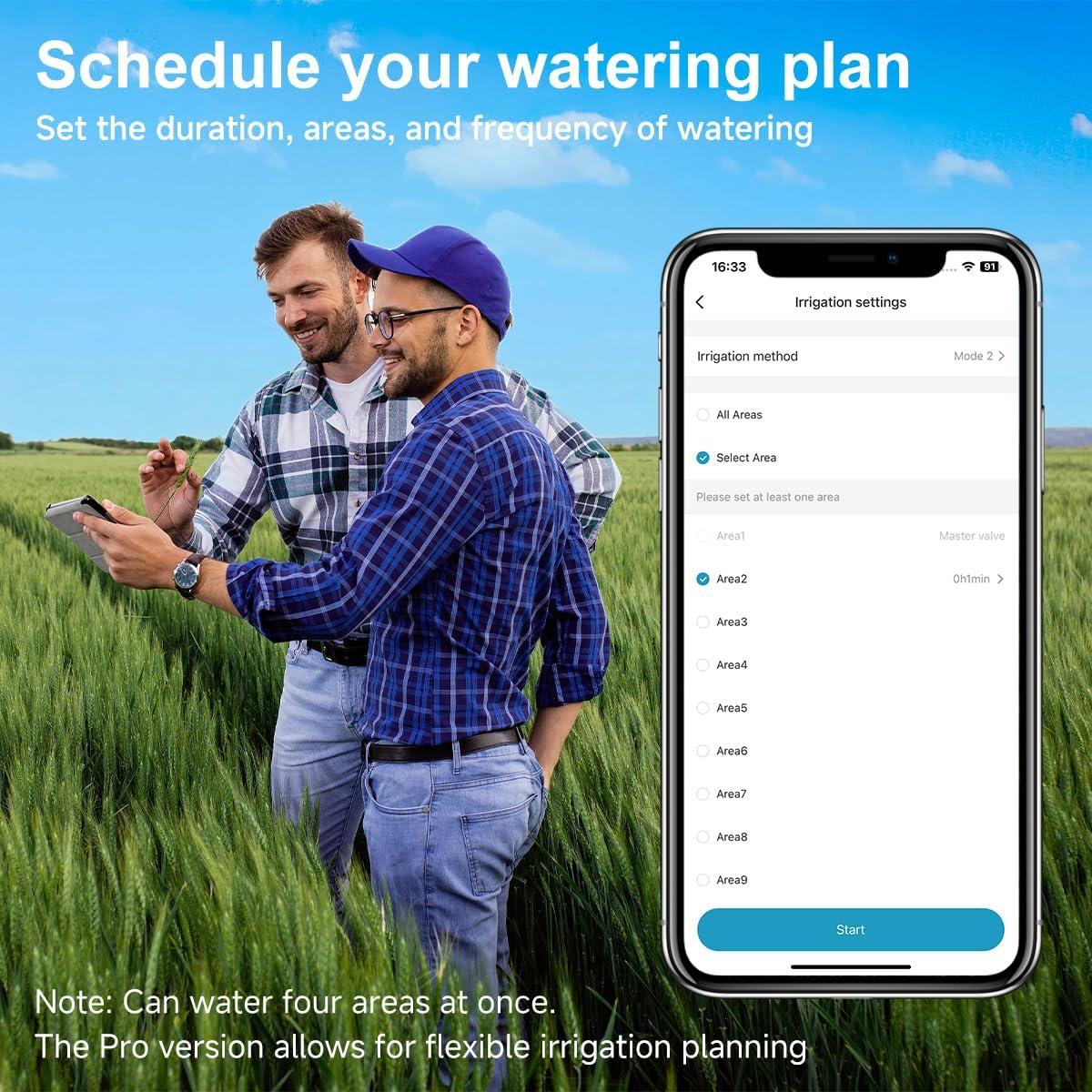
Image: A smartphone displaying the "Irrigation settings" interface within the app, allowing users to select irrigation methods, specific areas (zones 1-8 shown), and set watering durations. The text highlights the ability to water four areas at once and flexible planning.
2. Water Pump Integration:
If a water pump is connected, the controller will activate it as needed during scheduled watering times. You can manage the water pump's operation through the app settings, ensuring your water source is controlled efficiently.
3. Rain Sensor Linkage:
When a rain sensor is connected, it provides real-time rainfall data to the controller. If rain is detected, the system will automatically pause or skip scheduled watering cycles to prevent overwatering and conserve water.
- In the app, navigate to the rain sensor settings.
- Enable "Rain sensor linkage" and configure the desired pause duration (e.g., 24, 48, 72, 96 hours, or a week) after rain detection.

Image: A rain sensor mounted on the exterior of a house, with a smartphone screen overlay showing the app's "Rain sensor linkage" settings. Options for pausing irrigation for various durations (24 hours to a week) are visible, emphasizing automatic watering pause upon rain detection.
4. Remote Control:
The Smart Life/Tuya app allows you to monitor and manage your sprinkler system from any location with an internet connection. You can start, stop, or adjust watering schedules remotely.

Image: An illustrative diagram showing a complete smart irrigation system for a house with a garden and pool. It depicts the GreenVation controller, a rain sensor, and a water pump connected, demonstrating an "All-in-One Solution" capable of managing up to 12 zones of solenoid valves.

Image: A collage illustrating diverse applications of the smart sprinkler controller, including watering potted plants, managing irrigation in a greenhouse, utilizing rain detection, and maintaining lawns and gardens.
Maintenance
- Regular Checks: Periodically inspect all wiring connections to ensure they are secure and free from corrosion.
- Software Updates: Keep the app and controller firmware updated to the latest versions for optimal performance and security.
- Cleaning: Gently wipe the controller's exterior with a dry, soft cloth. Do not use harsh chemicals or abrasive cleaners.
- Winterization: In colder climates, follow standard irrigation system winterization procedures, which may include disconnecting the controller and storing it indoors.
Troubleshooting
Common Issues and Solutions:
- Controller Not Connecting to WiFi:
- Ensure your WiFi network is 2.4G/5GHz.
- Verify the WiFi password is correct.
- Place the controller within 45 meters of your WiFi router.
- Restart your router and the controller, then attempt to reconnect.
- Zones Not Watering:
- Check wiring connections for the affected zone.
- Ensure the zone is enabled and scheduled in the app.
- Verify water supply to the irrigation system is on.
- If a rain sensor is connected, check if it has paused watering due to recent precipitation.
- App Not Responding:
- Ensure your smartphone has a stable internet connection.
- Close and reopen the app.
- Check for app updates in your device's app store.
Specifications
| Brand | GreenVation |
| Model | Smart Sprinkler Controller Pro |
| Number of Zones | 12 |
| Connectivity | 2.4G/5GHz WiFi |
| Water Pump Connection | Yes |
| Rain Sensor Connection | Yes |
| Simultaneous Valve Operation | Up to 4 solenoid valves |
| Color | Black |
| Item Weight | 1.02 Kilograms |
| Display Type | LCD or LED |
| Manufacturer | SHENZHEN NEO ELECTRONICS CO.,LTD |
Warranty and Support
For warranty information and technical support, please refer to the official GreenVation website or contact their customer service directly. Keep your purchase receipt as proof of purchase for warranty claims.
Online Support: Visit the GreenVation Store on Amazon for additional resources and contact information.