
1. Introduction
This manual provides detailed instructions for the installation, operation, and maintenance of your Mars Gaming MC-3TCOREM Micro-ATX Gaming Case. Please read this manual thoroughly before beginning installation to ensure proper setup and to maximize the performance and longevity of your system.
1.1 About the MC-3TCOREM Gaming Case
The Mars Gaming MC-3TCOREM is a custom-designed Micro-ATX gaming case engineered for versatility and performance. It features three tempered glass panels for a panoramic view of your components, an optimized internal layout, and extensive cooling support. This case is designed to accommodate Micro-ATX and Mini-ITX motherboards, offering a robust foundation for your custom PC build.

Figure 1.1: Fully assembled Mars Gaming MC-3TCOREM case showcasing internal components and lighting.
2. Product Features
- Custom Edition Design: Allows for detailed customization and a unique aesthetic for your PC build.
- Triple Tempered Glass Panels: Provides a panoramic view of internal components, enhancing visual appeal and allowing easy access for maintenance.
- Advanced Cooling Support: Accommodates up to nine 120mm fans and liquid cooling systems up to 360mm, ensuring efficient thermal management. Features internal cable management and magnetic dust filters.
- Optimized Capacity: Designed for Micro-ATX and Mini-ITX motherboards with a dual-chamber layout. Includes 5 expansion slots and internal brackets for 2x 3.5" HDDs and 3x 2.5" SSDs. Supports GPUs up to 415mm in length and 150mm in width, and CPU coolers up to 160mm in height.
- Dual Side Chamber: Facilitates better organization and cable management, contributing to improved airflow and a cleaner build.
- Full Connectivity: Front panel includes USB 3.0, USB 2.0, USB-C ports, and HD audio/microphone connections for convenient peripheral access.
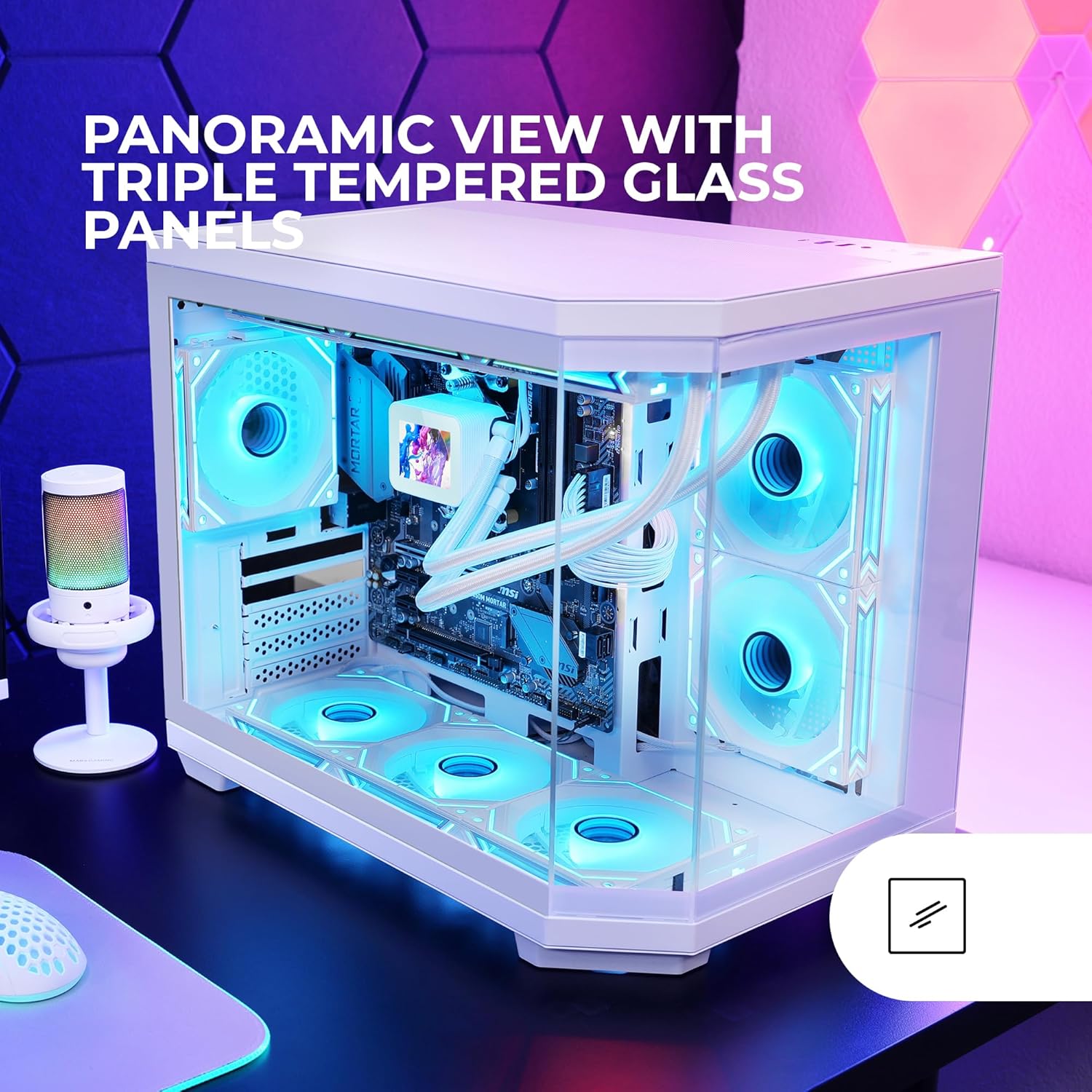
Figure 2.1: The MC-3TCOREM case highlighting its triple tempered glass panels for a panoramic view.

Figure 2.2: Illustration of the MC-3TCOREM case with a 360mm liquid cooling radiator installed.

Figure 2.3: The MC-3TCOREM case interior, showing ample space for Micro-ATX components.

Figure 2.4: View of the MC-3TCOREM's dual side chamber, designed for efficient cable routing and component separation.

Figure 2.5: Top view of the MC-3TCOREM case, illustrating the front I/O panel with various ports.
3. Setup Guide
3.1 Unpacking
- Carefully remove the case from its packaging.
- Inspect the case for any signs of damage during transit. If damage is found, contact your retailer immediately.
- Remove all protective films from the tempered glass panels.
- Locate the accessory box, which typically contains screws, cable ties, and the user manual.
3.2 Component Installation
Before installing components, ensure the case is placed on a stable, flat surface. Refer to your motherboard and component manuals for specific installation instructions.
- Motherboard: Install the necessary standoffs for your Micro-ATX or Mini-ITX motherboard. Carefully place the motherboard into the case and secure it with screws.
- CPU Cooler: Install your CPU cooler. The case supports coolers up to 160mm in height.
- Graphics Card (GPU): Install your graphics card into the appropriate PCIe slot. The case supports GPUs up to 415mm in length and 150mm in width. Secure it with the provided screws.
- Storage Drives: Install 3.5" HDDs and 2.5" SSDs into their designated brackets within the dual-chamber design.
- Power Supply Unit (PSU): Install the PSU in the bottom mount location. Ensure all necessary cables are routed through the cable management cutouts.
3.3 Cable Management
Utilize the dual side chamber and cable routing cutouts to organize cables behind the motherboard tray. This improves airflow and creates a cleaner interior aesthetic. Use cable ties to secure bundles of cables.
3.4 Cooling System Installation
The MC-3TCOREM supports various cooling configurations:
- Fans: Install up to nine 120mm fans in designated mounting points (front, top, bottom, rear).
- Liquid Cooling: Install liquid cooling radiators up to 360mm in size. Ensure proper orientation and secure mounting.
4. Operating Instructions
Once all components are installed and connected, close the side panels. Connect your monitor, keyboard, mouse, and power cable to the PC. Press the power button on the front panel to start your system.
4.1 Front Panel Connectivity
The front I/O panel provides convenient access to:
- 1 x USB 3.0 Port
- 1 x USB 2.0 Port
- 1 x USB-C Port
- HD Audio Output
- Microphone Input
5. Maintenance
Regular maintenance helps ensure optimal performance and extends the lifespan of your PC components.
- Dust Filters: Periodically remove and clean the magnetic dust filters located at the top and bottom of the case. Use compressed air or a soft brush to remove accumulated dust.
- Tempered Glass Panels: Clean the tempered glass panels with a soft, lint-free cloth and a non-abrasive glass cleaner. Avoid harsh chemicals that could damage the glass or coatings.
- Interior Cleaning: With the system powered off and unplugged, use compressed air to remove dust from internal components such as fans, heatsinks, and circuit boards.
6. Troubleshooting
If you encounter issues with your PC build, consider the following common troubleshooting steps:
- No Power: Ensure the PSU is properly connected to the wall outlet and the motherboard. Check all power cables to components. Verify the power button cable is correctly connected to the motherboard.
- Fans Not Spinning: Check fan connections to the motherboard or fan controller. Ensure fan headers are enabled in BIOS/UEFI.
- Component Fit Issues: Double-check component dimensions against the case specifications (GPU length, CPU cooler height, radiator size). Ensure all standoffs are correctly installed for the motherboard.
- Excessive Noise: Identify the source of the noise. It could be a fan, HDD, or loose component. Ensure all screws are tightened and cables are secured.
For more complex issues, consult the manuals for your individual components or seek assistance from a qualified technician.
7. Technical Specifications
| Feature | Specification |
|---|---|
| Model Name | MC-3TCOREM (MC3TCOREMW) |
| Brand | Mars Gaming |
| Case Type | Mini Tower |
| Motherboard Compatibility | Micro ATX, Mini ITX |
| Material | Tempered Glass |
| Color | White |
| Product Dimensions (LxWxH) | 17.13 x 11.3 x 14.57 inches (43.5 x 28.7 x 37 cm) |
| Item Weight | 12.32 pounds (5.6 Kilograms) |
| GPU Length Support | Up to 415mm |
| GPU Width Support | Up to 150mm |
| CPU Cooler Height Support | Up to 160mm |
| Cooling Method | Air, Water |
| Fan Support | Up to 9 x 120mm fans |
| Liquid Cooling Support | Up to 360mm radiator |
| Storage Bays | 2 x 3.5" HDD, 3 x 2.5" SSD |
| Expansion Slots | 5 |
| Front I/O Ports | 1 x USB 3.0, 1 x USB 2.0, 1 x USB-C, HD Audio, Mic |
| Power Supply Mounting | Bottom Mount |
8. Warranty and Support
Mars Gaming products are designed and manufactured to the highest quality standards. For information regarding warranty coverage, technical support, or service inquiries, please refer to the official Mars Gaming website or contact your local retailer. Keep your proof of purchase for warranty claims.