
MMB MMB TV2.0
MMB Magic Video Box 2.0 User Manual
Model: MMB TV2.0
Brand: MMB
Introduction
The MMB Magic Video Box 2.0 is a versatile 3-in-1 multimedia system designed to enhance your in-car entertainment and connectivity. It functions as a wireless CarPlay and Android Auto adapter, a streaming media dongle, and a USB Flash box for media playback. Featuring Android 12 with 4GB RAM and 32GB storage, it allows seamless access to popular applications and offers HDMI output for rear-seat entertainment.

Figure 1: MMB Magic Video Box 2.0 and included accessories, demonstrating its use with a car's infotainment system.
What's in the Box
- MMB TV2.0 Box *1
Setup Guide
1. Compatibility Check
This device is designed for vehicles equipped with factory-wired Apple CarPlay or Android Auto. It supports vehicles manufactured between 2017 and 2025. Please note that it is not compatible with BMW or Tesla vehicles.

Figure 2: Visual representation of car brands compatible with the MMB Magic Video Box 2.0, highlighting the requirement for factory-wired CarPlay.
2. Connecting the Device
Locate the wired CarPlay USB port in your vehicle. Connect the MMB Magic Video Box 2.0 to this port using the provided USB cable. The device is plug-and-play, minimizing the need for frequent plugging and unplugging of your phone's charging cable.

Figure 3: The MMB Magic Video Box 2.0 with its HDMI and USB 2.0 ports clearly visible, indicating connection points.
3. Initial Pairing
Once connected, the device will boot up. Follow the on-screen prompts on your car's infotainment system to pair your smartphone via Bluetooth for wireless CarPlay or Android Auto functionality. Ensure your phone's Bluetooth and Wi-Fi are enabled.
Operating Instructions
1. Wireless CarPlay and Android Auto
After successful pairing, your car's display will show the wireless CarPlay or Android Auto interface. You can control it using the original car controls, including Siri voice control, steering wheel controls, knob, and touch screen.
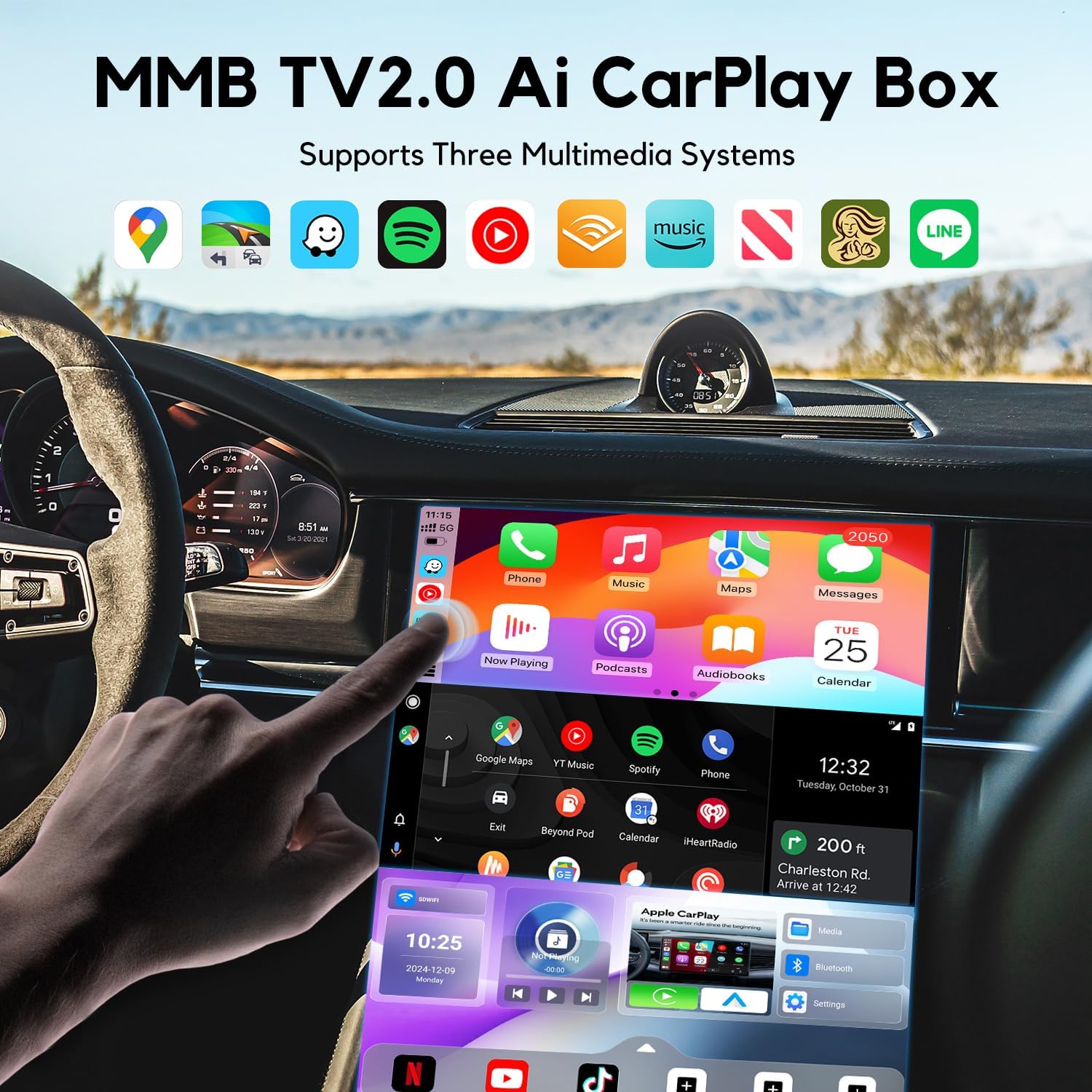
Figure 4: The MMB TV2.0 interface on a car screen, showing integrated multimedia systems and app icons.
2. Streaming Applications
The device provides seamless access to popular streaming apps such as YouTube, Netflix, Disney+, and Spotify. Connect the device to a Wi-Fi network (e.g., your phone's hotspot or home Wi-Fi) to access online content. You can also play videos and music directly from a USB Flash Drive if no network is available.
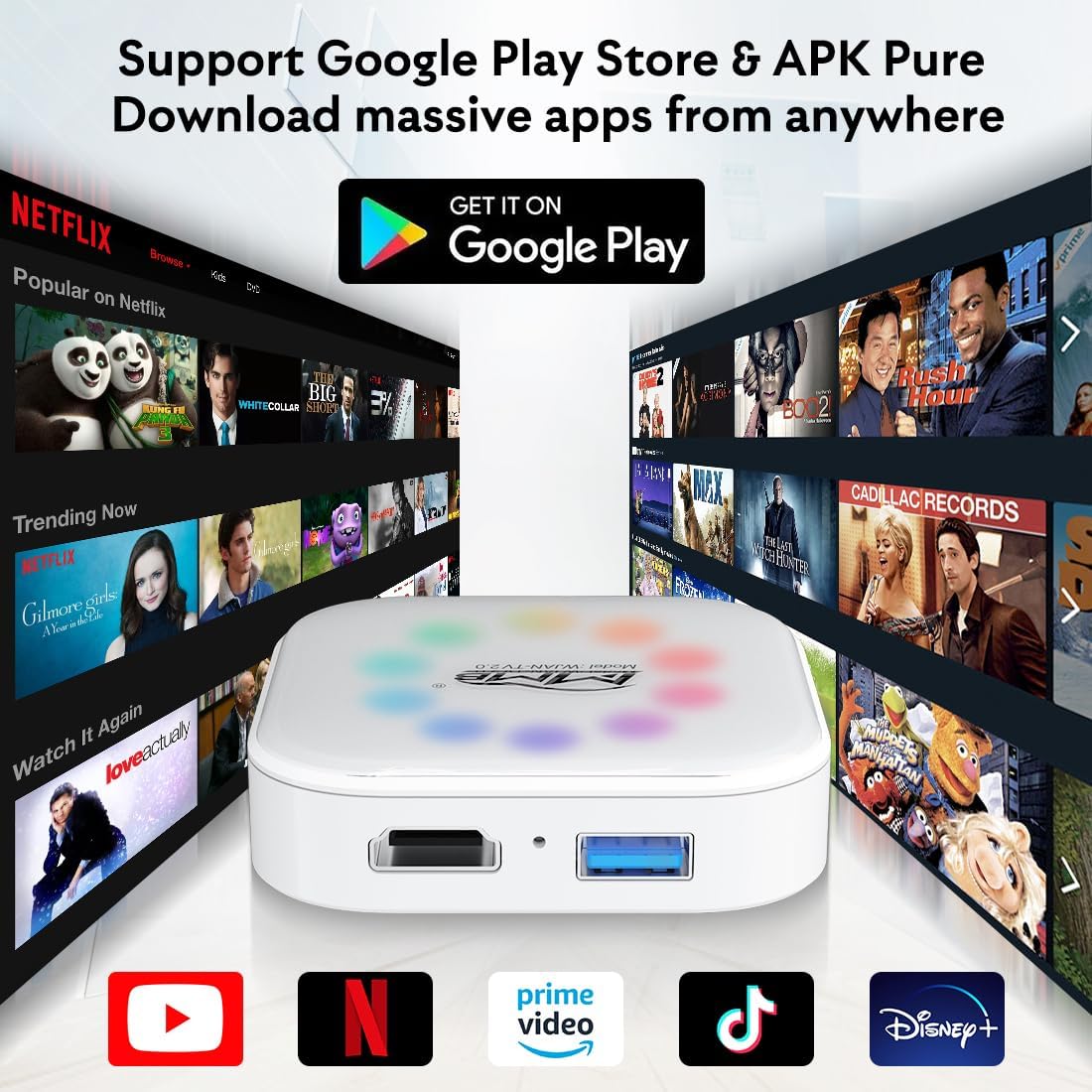
Figure 5: The MMB Magic Video Box 2.0 supporting various streaming platforms and Google Play Store access.
3. Google Play Store and APK Installation
With 32GB of built-in storage, you can download your favorite apps directly from the Google Play Store. An integrated APK installer is also available for additional software installations.
4. HDMI Output and Screen Mirroring
The full HD Micro HDMI output port allows you to connect external displays, such as rear-seat headrest screens, for an enhanced viewing experience. You can also mirror your phone's content to your car's screen for sharing, with a minimal delay of approximately 0.5 seconds.

Figure 6: Demonstration of phone screen mirroring to the car's infotainment system via the MMB Magic Video Box 2.0.

Figure 7: Rear-seat entertainment setup utilizing the 1080P HDMI output of the MMB Magic Video Box 2.0.
5. DIY Ambient Lighting
The device features customizable ambient lighting. You can switch between Daytime mode (brighter lights), Night mode (dimmer lights), or Auto mode, which automatically changes colors.

Figure 8: The MMB Magic Video Box 2.0 showcasing its DIY ambient lighting feature with various color options and control modes.
Maintenance
To ensure optimal performance and longevity of your MMB Magic Video Box 2.0, follow these guidelines:
- Keep the device clean and free from dust. Use a soft, dry cloth for cleaning.
- Avoid exposing the device to extreme temperatures, direct sunlight, or moisture.
- Do not attempt to disassemble or repair the device yourself. Refer to qualified service personnel for any repairs.
- Ensure proper ventilation around the device during operation.
Troubleshooting
If you encounter issues with your MMB Magic Video Box 2.0, please refer to the following common problems and solutions:
| Problem | Possible Cause | Solution |
|---|---|---|
| Device is slow or unresponsive. | Too many apps running in the background; low network speed; outdated firmware. | Close unused applications. Ensure a stable and strong Wi-Fi connection. Check for system updates in the device settings. |
| No display on car screen. | Incorrect USB port; loose connection; car not in CarPlay/Android Auto mode. | Ensure the device is connected to the correct wired CarPlay USB port. Check all cable connections. Verify your car's infotainment system is set to CarPlay or Android Auto mode. |
| Cannot connect to Wi-Fi/Internet. | Incorrect Wi-Fi password; out of range; hotspot issues. | Double-check the Wi-Fi password. Move the device closer to the Wi-Fi source. Restart your phone's hotspot or the Wi-Fi router. |
| HDMI output not working. | Loose HDMI cable; incompatible display; incorrect input selected on external display. | Ensure the Micro HDMI cable is securely connected to both the device and the external display. Verify the external display supports 1080p resolution. Select the correct HDMI input on the external display. |
Specifications
- Brand Name: MMB
- Item Weight: 7.2 ounces
- Package Dimensions: 2.6 x 2.5 x 0.6 inches
- Item Model Number: MMB TV2.0
- Color Name: Red
- Special Features: Bluetooth
- Connectivity Technology: Bluetooth, Wi-Fi
- Resolution: 1080p
- Supported Internet Services: Netflix, YouTube
- Form Factor: TV Box
- RAM Memory Installed Size: 4 GB
- Compatible Devices: iOS, Android
Warranty and Support
For warranty information and technical support, please refer to the documentation included with your purchase or contact the seller directly. Protection plans are available for extended coverage.