
AUCARAUTO V300
AuCar Android 13 Car Radio Head Unit Instruction Manual
Model: V300 | For Nissan 370Z (2009-2021)
Introduction
This manual provides detailed instructions for the installation, operation, and maintenance of your AuCar Android 13 Car Radio Head Unit, Model V300. This unit is specifically designed for Nissan 370Z vehicles manufactured between 2009 and 2021.
Key features include a 13.6-inch IPS capacitive multi-touch screen, Android 13.0 OS, Snapdragon 665AIE processor, 8GB RAM, 128GB ROM, wireless Apple CarPlay, Android Auto, GPS navigation, 4G SIM card support, Wi-Fi, Bluetooth 5.0, and compatibility with OEM vehicle systems.
Setup Guide
The AuCar head unit is engineered for a plug-and-play installation, eliminating the need for cutting or splicing original vehicle wiring. It is fully compatible with OEM IN TOUCH systems.
Pre-Installation Checklist
- Verify vehicle compatibility: Nissan 370Z, model years 2009-2021.
- Ensure all components listed in the package contents are present.
- Disconnect the vehicle's battery before beginning installation to prevent electrical damage.
Installation Steps
- Carefully remove the original car radio and dashboard trim. Refer to vehicle-specific guides or seek professional assistance if you are unsure about this step.
- Connect the provided wiring harnesses to the vehicle's existing connectors. Ensure all connections are secure and properly seated.
- Connect the GPS antenna, 4G signal antenna, and external microphone to their respective ports on the head unit.
- Carefully integrate the new head unit into the dashboard opening, ensuring no wires are pinched.
- Reconnect the vehicle's battery.
- Power on the unit and perform initial function tests to confirm proper operation.
Note: For optimal installation, it is recommended to consult a professional installer or refer to detailed video guides available online. Before purchasing, please provide a picture of your car's dashboard, model, manufacturing year, and center console shape to confirm compatibility.

AuCar Android 13 Car Radio Head Unit for Nissan 370Z.

Comparison of Nissan 370Z dashboard before and after installation of the 13.6-inch AuCar head unit.
Various cables and components included for plug-and-play installation.
Operating Instructions
Power On/Off
Press and hold the power button on the unit or use the vehicle's ignition to power the unit on or off.
Android 13 OS Interface
The unit operates on the Android 13.0 OS. Navigate the interface using the responsive 13.6-inch capacitive multi-touch screen. Standard gestures such as swiping, tapping, and pinching are supported.
Wireless Apple CarPlay & Android Auto
Connect your compatible smartphone wirelessly to access Apple CarPlay or Android Auto functionality. This allows seamless integration of navigation, music, calls, and messages directly onto the head unit display.
- Ensure Bluetooth and Wi-Fi are enabled on your smartphone.
- On the head unit, select the CarPlay or Android Auto application.
- Follow the on-screen prompts to pair your device.
Note: When connected to CarPlay or Android Auto, the Bluetooth or Wi-Fi function cannot be used simultaneously with the hotspot or other devices.

Wireless Apple CarPlay and Android Auto integration.
GPS Navigation
The unit includes built-in GPS with support for offline maps. Online maps are also accessible via Wi-Fi or a 4G SIM card connection.
- Open the pre-installed navigation application.
- Enter your desired destination.
- Follow the voice and visual prompts for turn-by-turn directions.
Multimedia Playback
The head unit supports HD 1080P video playback and a variety of audio formats.
- USB Port: Connect USB drives to play media files.
- Bluetooth 5.0: Stream audio wirelessly from your smartphone or other Bluetooth-enabled devices.
- AM/FM Radio with RDS: Tune into local radio stations with enhanced data display.
- Built-in Google Play Store: Download and install additional media applications for expanded entertainment options.
Connectivity (Wi-Fi & 4G SIM)
The head unit features built-in Wi-Fi for internet access and supports a 4G SIM card for cellular data connectivity, allowing you to stay connected on the go.
- Wi-Fi: Navigate to Settings > Wi-Fi, select your desired network, and enter the password.
- 4G SIM: Insert a compatible 4G SIM card into the designated slot (if available) to enable cellular data.

Access to various applications via Wi-Fi and 4G SIM card connectivity.
Steering Wheel Control
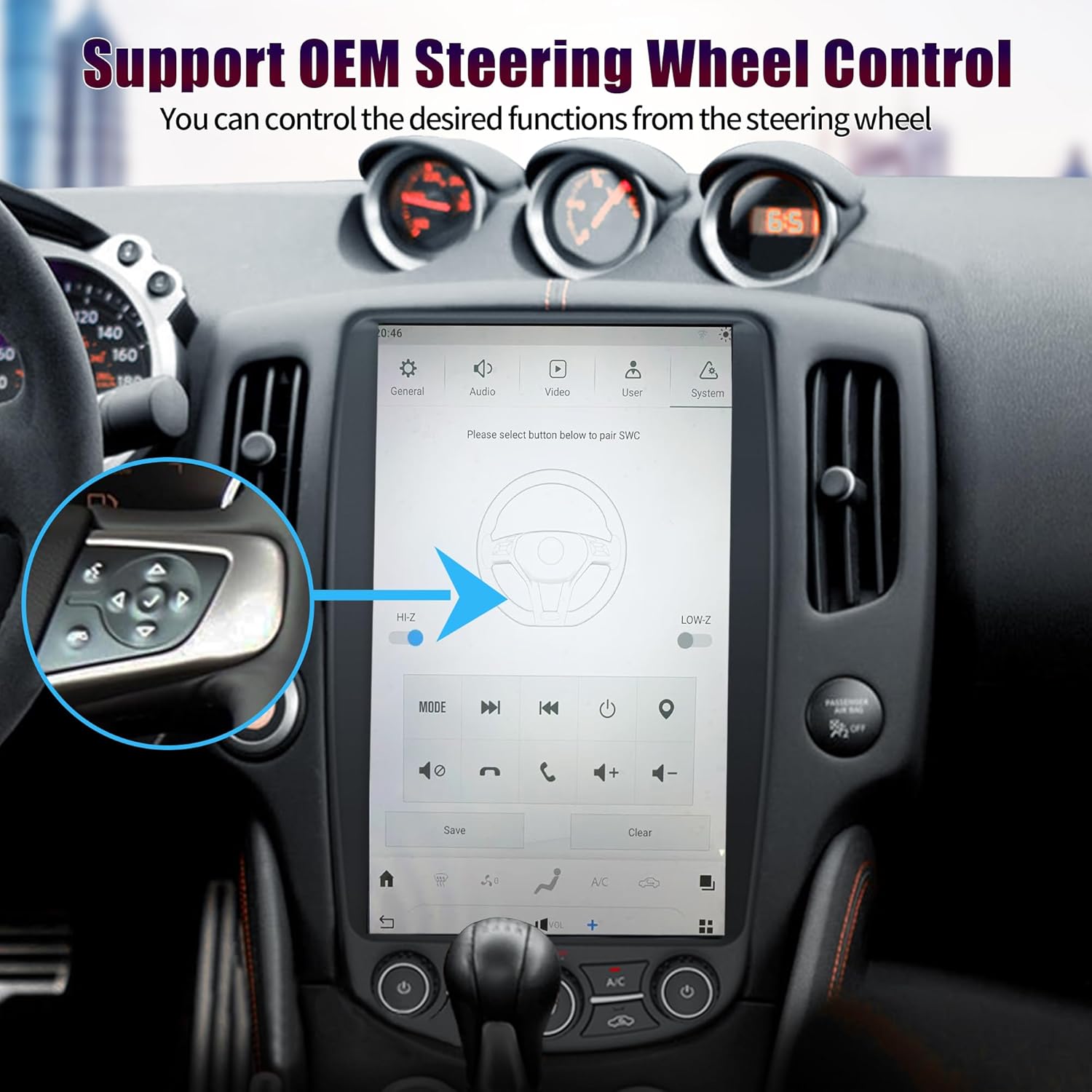
The unit is compatible with your vehicle's OEM steering wheel controls, enabling you to manage audio, calls, and other functions safely without removing your hands from the wheel.
- Access the steering wheel control settings within the unit's main menu.
- Follow the on-screen instructions to map the vehicle's steering wheel buttons to your preferred functions.

Seamless integration with OEM steering wheel controls.
Camera Support
The system supports both OEM and aftermarket reverse cameras, providing a clear reversing image on the large screen for enhanced safety and easier parking maneuvers.

Reverse camera view displayed on the head unit screen.
Climate Control Integration
The head unit integrates with the vehicle's climate control system, allowing you to conveniently adjust air conditioning and heating settings directly from the touchscreen interface.

Integrated climate control and heated seat functions.
OEM Sound System Support
The unit is designed to support your vehicle's original sound system, ensuring continued audio quality and compatibility with existing speakers and amplifiers.

Compatibility with the vehicle's OEM sound system.
Maintenance and Care
Screen Cleaning
Use a soft, lint-free cloth to gently wipe the screen. For stubborn smudges, slightly dampen the cloth with water or a screen-safe cleaner. Avoid abrasive materials or harsh chemicals, which can damage the display.
Software Updates
Periodically check for software updates to ensure optimal performance, security, and access to new features. Updates can typically be found in the system settings menu or on the manufacturer's official website.
General Care
Avoid exposing the unit to extreme temperatures or direct sunlight for prolonged periods. Ensure proper ventilation around the unit to prevent overheating. Do not attempt to disassemble the unit, as this will void the warranty.
Troubleshooting Guide
No Power
- Check all power connections to ensure they are secure and properly seated.
- Verify the vehicle's battery is properly connected and charged.
- Inspect vehicle fuses related to the radio/head unit for any blown fuses.
No Sound
- Check volume levels on the head unit and any connected devices.
- Ensure all speaker connections are secure and correctly wired.
- Verify audio output settings in the system menu are configured correctly.
GPS Signal Issues
- Ensure the GPS antenna is properly installed and has a clear, unobstructed view of the sky.
- Check GPS settings in the unit's menu to ensure GPS is enabled.
Touchscreen Unresponsive
- Restart the head unit by turning the vehicle off and on, or by using the reset button if available.
- Ensure the screen is clean and free of debris or moisture.
- If the issue persists, a factory reset may be necessary (note: this will erase user data and settings).
Apple CarPlay / Android Auto Connection Problems
- Ensure Bluetooth and Wi-Fi are active on both your smartphone and the head unit.
- Verify that your phone is compatible with Apple CarPlay or Android Auto.
- Try restarting both your phone and the head unit.
- Check for any available software updates for the head unit or your phone's operating system.
Technical Specifications

Front and back view of the AuCar head unit.
| Feature | Detail |
|---|---|
| Model | V300 |
| Operating System | Android 13.0 |
| Processor | Snapdragon 665AIE (8 CORES) |
| RAM | 8GB |
| ROM | 128GB |
| Display Size | 13.6 inches |
| Display Resolution | 1920*1080 IPS Capacitive Multi-Touch |
| Connectivity | Wi-Fi, 4G SIM, Bluetooth 5.0, USB |
| Audio Output | 4*45W, 7850 amplifier, 9 Equalizers |
| Radio | AM/FM with RDS (NXP6686 Chip) |
| GPS | Built-in GPS (Offline & Online Map Support) |
| Compatibility | Nissan 370Z (2009-2021), OEM IN TOUCH, Steering Wheel Control, OEM Car Camera |
| Item Weight | 8.51 pounds |
| Product Dimensions | 8 x 4 x 4 inches |
| Included Components | 1* GPS Tracker (main unit, wiring harnesses, antennas, external microphone) |
Warranty and Customer Support
Warranty Information
This product is covered by a 30-day manufacturer warranty. Additionally, AuCar provides 12 months of after-sales support to address any product-related concerns.
Returns and Replacements
We offer a 30-day hassle-free return policy and no-cost replacements for eligible issues, ensuring your satisfaction with the product.
Contact Support
For technical assistance, warranty claims, or any questions regarding your AuCar head unit, please contact our customer support. Support is available 24 hours online.
If you purchased through Amazon, you can typically contact the seller by navigating to your order history and selecting "Ask a question" next to the product listing.

Instructions on how to contact the seller for support.
Related Documents - V300
 |
V300 User Manual: Setup, Operation, and Precautions Comprehensive user manual for the V300 fitness tracker, covering product description, installation, wear, operation, charging, water resistance, and important precautions. Learn how to set up and use your V300 device effectively. |
 |
V300 Professional OBD2 Diagnostic Scanner Code Reader Professional V300 OBD2 diagnostic scan tool for reading and erasing engine fault codes, viewing live data, and performing system tests to maintain vehicle health. |
 |
American International NDK746 Dash Kit Installation Guide for Nissan 370Z (2009-2020) Step-by-step installation instructions for the American International NDK746 dash kit, designed for 2009-2020 Nissan 370Z vehicles without factory navigation. Includes single and double DIN radio installation guidance. |
 |
STILLEN Front Fascia Installation Instructions for 2009 Nissan 370Z Detailed installation guide for the STILLEN Front Fascia (P/N: KB11121) for the 2009 Nissan 370Z, covering preparation, painting, and assembly steps. |
 |
Z1 Motorsports 370Z / G37 3" Intake Kit Installation Manual Comprehensive installation guide for the Z1 Motorsports 3" Intake Kit designed for Nissan 370Z and Infiniti G37, Q60, and Q40 models. Includes a detailed parts list, required tools, safety precautions, and step-by-step instructions with textual descriptions of diagrams and images. |
 |
2009 Nissan 370Z Coupe Owner's Manual - Your Guide to Driving Pleasure Your essential guide to the 2009 Nissan 370Z Coupe. This owner's manual provides comprehensive details on vehicle operation, safety features, maintenance, controls, and more, helping you maximize your driving experience. |
Ask a question about this manual
Ask about setup, troubleshooting, compatibility, parts, safety, or missing instructions. Manuals+ will review the question and use this page’s manual context to help answer it.