
1. Introduction
This manual provides essential information for the setup, operation, maintenance, and troubleshooting of your Generic R36H Portable Handheld Video Game Console. Please read this guide thoroughly to ensure proper use and to maximize your gaming experience.
2. Product Overview
The R36H is a portable handheld video game console designed for playing a wide variety of retro video games through various emulators. It features a 3.5-inch display, dual joysticks, and a quad-core processor for smooth performance.
2.1 Key Features
- Processor: RK3566 64bit Quad Core 1.8GHz A53 CPU with Mali-G52 GPU.
- Display: 3.5-inch high-definition color screen (640x480 resolution).
- Storage: Dual TF card design for separate system and game storage (supports 16GB-256GB cards).
- Controls: Dual analog joysticks, D-Pad, action buttons (A, B, X, Y), L1/L2/R1/R2 shoulder buttons, START, SELECT, Volume, Power.
- Battery: Built-in 3000mAh polymer battery, providing approximately 5 hours of gameplay on a full charge. Features an external battery compartment for convenient replacement.
- Connectivity: USB Type-C port for charging and OTG, 3.5mm audio jack, built-in Wi-Fi.
- Game Compatibility: Supports emulators for NES, GBA, MD, SFC, MAME, PSP, PS1, GB, NDS, N64, CPS, and more.
2.2 Console Components
Familiarize yourself with the console's layout and controls:
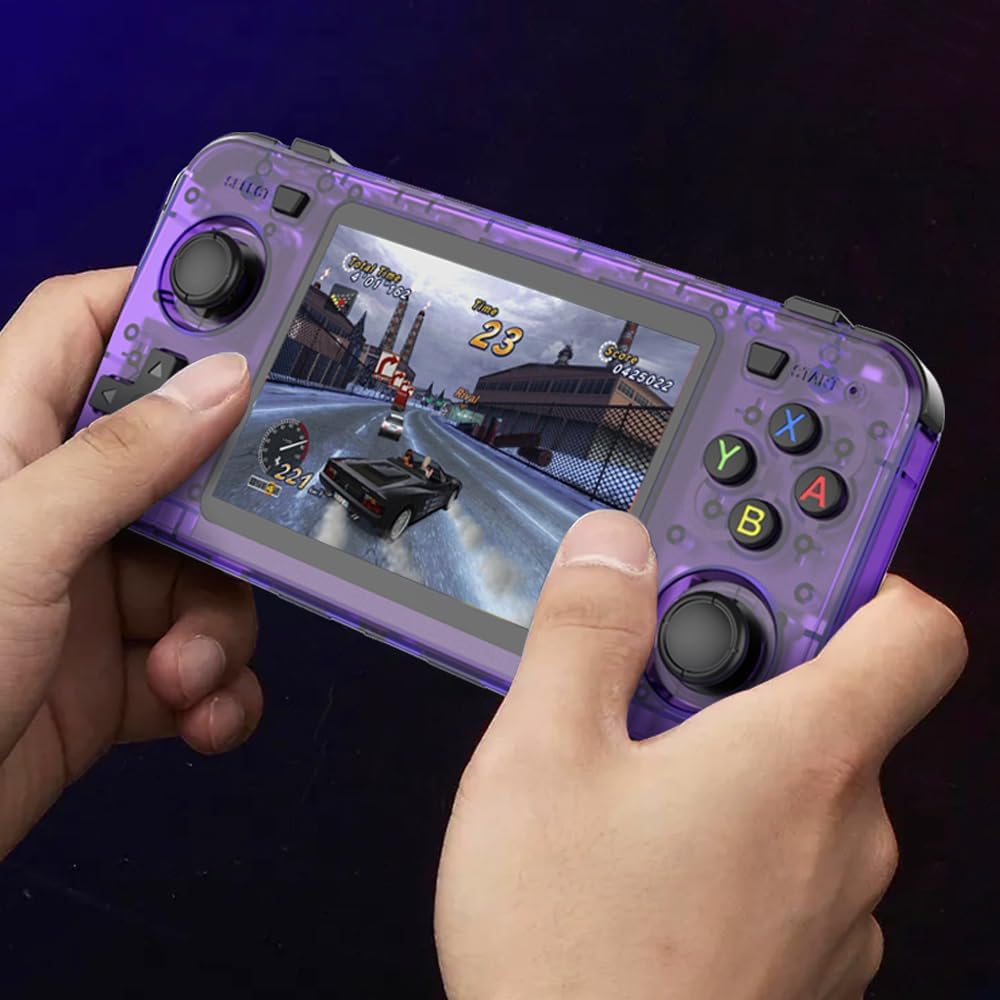
Image: Labeled diagram of the R36H Portable Handheld Video Game Console, highlighting its various buttons, ports, and features. Key components include the screen, joysticks, D-Pad, action buttons, shoulder buttons, volume control, power button, charging port, and audio jack.
- Silicone pad
- Horn hole (Speaker)
- Type-C OTG port
- TF2-GAME (Game Card Slot)
- 3.5mm Audio hole
- TF1-OS (System Card Slot)
- Charging input
- Top R1/R2 buttons
- Volume button
- RESET button
- Power key
- SELECT button
- Top L1/L2 buttons
- Joystick (L)
- D-Pad
- Charging level light
- START button
- Game function keys (A, B, X, Y)
- Joystick (R)
- 3.5-inch color screen
2.3 Included Components
Upon unboxing, ensure all the following items are present:
- R36H Game Console
- Color Box (Packaging)
- Instruction Manual (This document)
- USB Type-C Charging Cable
3. Setup
3.1 Initial Charging
Before first use, fully charge the console. Connect the provided USB Type-C charging cable to the console's charging input (7) and plug the other end into a compatible USB power adapter (not included) or a computer's USB port. The charging level light (16) will indicate charging status.
3.2 Inserting TF Cards
The R36H uses two TF (microSD) card slots:
- TF1-OS (6): This slot is for the system's operating system. A system card is typically pre-installed.
- TF2-GAME (4): This slot is for storing game ROMs. A game card with pre-loaded games is usually included.
To insert a TF card, gently push it into the corresponding slot until it clicks into place. To remove, push it in again until it springs out. Ensure the console is powered off before inserting or removing TF cards to prevent data corruption.

Image: The R36H console displaying its dual TF card slots, labeled TF-OS for the operating system and TF-GAME for downloaded games, each supporting 16GB to 256GB storage.
3.3 Powering On/Off
- To Power On: Press and hold the Power key (11) for a few seconds until the screen illuminates.
- To Power Off: Press and hold the Power key (11) until a power-off menu appears on the screen, then select the power-off option. Alternatively, a quick press of the power button may put the device into sleep mode.
4. Operating Instructions
4.1 Navigation
Use the D-Pad (15) or the left Joystick (14) to navigate through menus and game lists. The A button (part of 18) typically confirms selections, while the B button (part of 18) usually cancels or goes back.
4.2 Selecting and Launching Games
From the main menu, select the desired emulator or game category. Browse the list of available games. Press the A button to launch a selected game.
4.3 In-Game Controls
Controls vary by game and emulator. Generally:
- Movement: D-Pad (15) or Left Joystick (14).
- Action Buttons: A, B, X, Y (18) for various in-game actions.
- Shoulder Buttons: L1/L2 (13) and R1/R2 (8) for additional actions, often used in 3D games or for specific emulator functions.
- START (17) and SELECT (12): Used for pausing games, accessing in-game menus, or specific emulator functions.
- Volume: Use the Volume button (9) to adjust audio output.

Image: A person holding and actively playing the R36H Portable Handheld Video Game Console, demonstrating its ergonomic design and ease of use during gameplay.
4.4 Connecting to Wi-Fi
The R36H includes built-in Wi-Fi. To connect:
- Navigate to the system settings menu.
- Locate and select the Wi-Fi option.
- Choose your desired network from the list of available networks.
- Enter the network password if prompted.
- Confirm the connection.
Wi-Fi connectivity can be used for system updates or accessing online features if supported by the installed operating system.
5. Maintenance
5.1 Battery Care
The console is powered by a 3000mAh polymer battery. To prolong battery life:
- Avoid completely draining the battery regularly.
- Charge the device using the provided USB Type-C cable and a compatible 5V/1A or 5V/2A charger.
- If the battery needs replacement, the external battery compartment allows for easier access. Consult the seller or a qualified technician for battery replacement if you are unsure.

Image: The R36H console with its external battery compartment open, revealing the replaceable 3000mAh polymer battery, designed for convenient battery maintenance.
5.2 Cleaning
To clean the console, use a soft, dry, lint-free cloth. For stubborn smudges, slightly dampen the cloth with water. Avoid using harsh chemicals, solvents, or abrasive materials, as these can damage the screen or casing.
5.3 TF Card Management
The quality of TF cards can impact performance and reliability. For optimal experience, consider using high-quality, reputable brand TF cards, especially for the game storage (TF2-GAME) if you plan to add or replace games.
6. Troubleshooting
6.1 Device Not Powering On
- Ensure the battery is sufficiently charged. Connect the console to a charger and wait a few minutes before attempting to power on again.
- Press and hold the Power key (11) for an extended period (e.g., 10-15 seconds) to perform a hard reset if the device is unresponsive.
6.2 Games Not Loading or Crashing
- Verify that the game ROMs are compatible with the installed emulator and are not corrupted.
- Ensure the TF2-GAME card is properly inserted into its slot (4).
- Some emulators or games may require specific settings or BIOS files. Consult online communities or resources for specific emulator configurations.
6.3 Performance Issues (e.g., Slowdown)
- Certain demanding games, especially from platforms like N64 or PSP, may experience occasional slowdowns due to hardware limitations or emulator optimization.
- Close any background applications or processes if the operating system allows.
- Ensure the system's operating system is up to date (if updates are available).
6.4 Screen Issues
- If the screen is unresponsive or frozen, try pressing the RESET button (10) using a thin, pointed object (like a paperclip). This will restart the device.
- Adjust screen brightness settings if the display is too dim or bright.
7. Specifications
| Feature | Detail |
|---|---|
| Model Number | R36H |
| Processor | RK3566 64bit Quad Core 1.8GHz A53 CPU |
| GPU | Mali-G52 |
| Display | 3.5-inch LCD, 640x480 resolution |
| Memory Storage Capacity | 128 GB (via TF card, supports up to 256GB) |
| Battery | 3000mAh Polymer Battery |
| Battery Life | Approximately 5 hours |
| Charging Port | USB Type-C |
| Audio Output | 3.5mm Audio Jack, Built-in Speaker |
| Connectivity | Wi-Fi, USB Type-C OTG |
| Operating System Platform | Android (as per specifications) |
| Material | Plastic |
| Dimensions (L x W x H) | 6 x 3 x 0.7 inches (15.24 x 7.62 x 1.78 cm) |
| Weight | 0.41 Pounds (186 grams) |
8. Warranty Information
Specific warranty terms and conditions for the Generic R36H Portable Handheld Video Game Console are provided by the seller at the time of purchase. Please refer to your purchase documentation or contact the seller directly for detailed warranty information, including coverage period and claim procedures.
9. Customer Support
For technical assistance, troubleshooting beyond this manual, or inquiries regarding your R36H console, please contact the seller or manufacturer directly. Contact information can typically be found on your purchase receipt, product packaging, or the seller's online storefront.