
Introduction
The karuisrc K600GPS Drone is designed for both adults and beginners, offering advanced features for an enhanced flying experience. This drone is equipped with a 4.5-inch HD LCD screen on its remote control for real-time POV transmission, a 4K HD camera for vivid photo and video capture, and GPS auto-return for stable and safe operation. Its lightweight design (under 249g) and brushless motors ensure smooth and quiet flight. This manual provides comprehensive instructions for setup, operation, and maintenance to ensure optimal performance and longevity of your K600GPS drone.
What's in the Box
Upon unboxing your K600GPS Drone, please verify that all the following components are included:
- K600GPS Drone x 1
- Remote Control with 4.5" LCD Screen x 1
- Modular Battery x 1
- Propellers x 4 (spare)
- Screwdriver x 1
- USB Charging Cable x 1
- Carrying Case x 1
- SD Card (32GB) x 1
- User Manual (this document) x 1

Image: The K600GPS Drone and its remote control, as typically found in the package.

Image: Visual representation of the K600GPS Drone package contents, including the drone, remote, battery, and accessories.
Setup
1. Charging the Battery
Before first use, fully charge the drone's modular battery and the remote control. Connect the provided USB charging cable to the battery/remote and a compatible USB power source (e.g., computer USB port, USB wall adapter). The charging indicator will show progress and turn off when fully charged.

Image: The modular battery, highlighting its design and the TPC charging capability.
2. Installing the Battery
Carefully insert the fully charged modular battery into the designated battery compartment on the rear of the drone until it clicks securely into place. Ensure it is flush with the drone's body to prevent dislodgement during flight.
3. Propeller Installation
The K600GPS drone comes with pre-installed propellers. If replacement is necessary, use the provided screwdriver to carefully remove the old propellers and install the new ones, ensuring they are correctly oriented (indicated by markings on the propellers and drone arms). Secure them firmly but do not overtighten.
4. Controller Setup
Extend the antennas on the remote control. The 4.5-inch LCD screen will power on automatically when the remote is activated. Ensure the joysticks are securely attached. The remote control features a built-in screen, eliminating the need for a separate mobile device for live video feed.

Image: Close-up of the K600GPS remote control, showcasing its 4.5-inch HD LCD screen for direct video feed.
5. SD Card Installation
Locate the SD card slot on the drone. Insert the provided 32GB SD card into the slot until it clicks. This card will store your 4K photos and videos directly, allowing for efficient shooting without requiring a phone connection for storage.

Image: Detailed view of the SD card slot on the K600GPS drone, indicating where to insert the memory card for media storage.
6. App Installation (Optional)
While the remote control features an integrated screen, you can also download the dedicated karuisrc app on your smartphone for additional control options and features. Refer to the quick start guide for QR codes or app store links.

Image: Illustration showing the two control methods for the K600GPS drone: via the remote control or through a mobile application.
Operating the Drone
1. Basic Flight Controls
Familiarize yourself with the remote control's joysticks and buttons. The left joystick typically controls altitude and rotation, while the right joystick controls forward/backward and left/right movement. Practice in an open, safe area away from obstacles.
2. GPS Auto-Return & Stability
The K600GPS drone utilizes high-precision GPS positioning for stable flight and automatic return functions. This includes One-Key Return, Low Power Return, and Lost Signal Return, ensuring the drone safely returns to its takeoff point. Always ensure a strong GPS signal before flight.

Image: The K600GPS drone performing an auto-return to a designated landing area, illustrating its GPS capabilities.
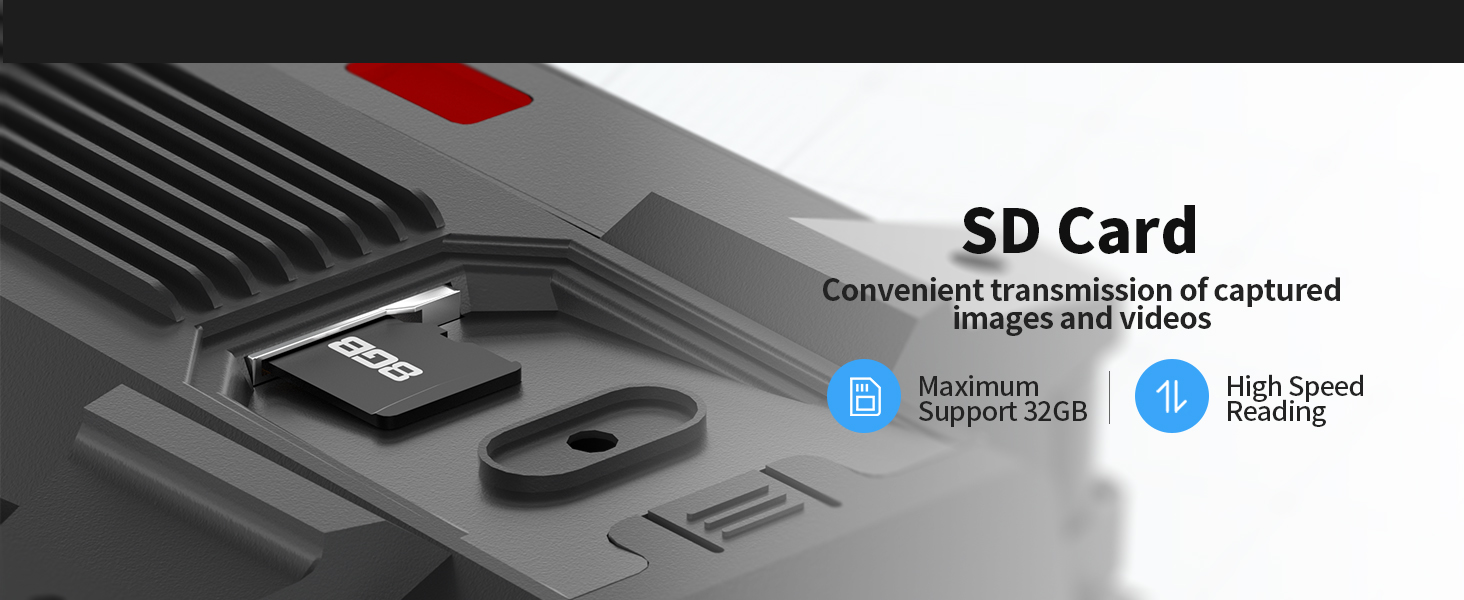
Image: Visual explanation of the GPS Auto Return Home features, including Low Power Return, One Key Return, and Lost Signal Return.
3. Gesture Flight
Engage gesture control to take photos or videos with simple hand movements. This feature allows for hands-free operation, focusing on capturing the perfect shot.

Image: A hand demonstrating gesture control for the drone, indicating its ability to take photos and videos hands-free.
4. Optical Flow Positioning
For enhanced stability, especially indoors or in areas with weak GPS signals, the drone utilizes optical flow positioning to maintain its position accurately.
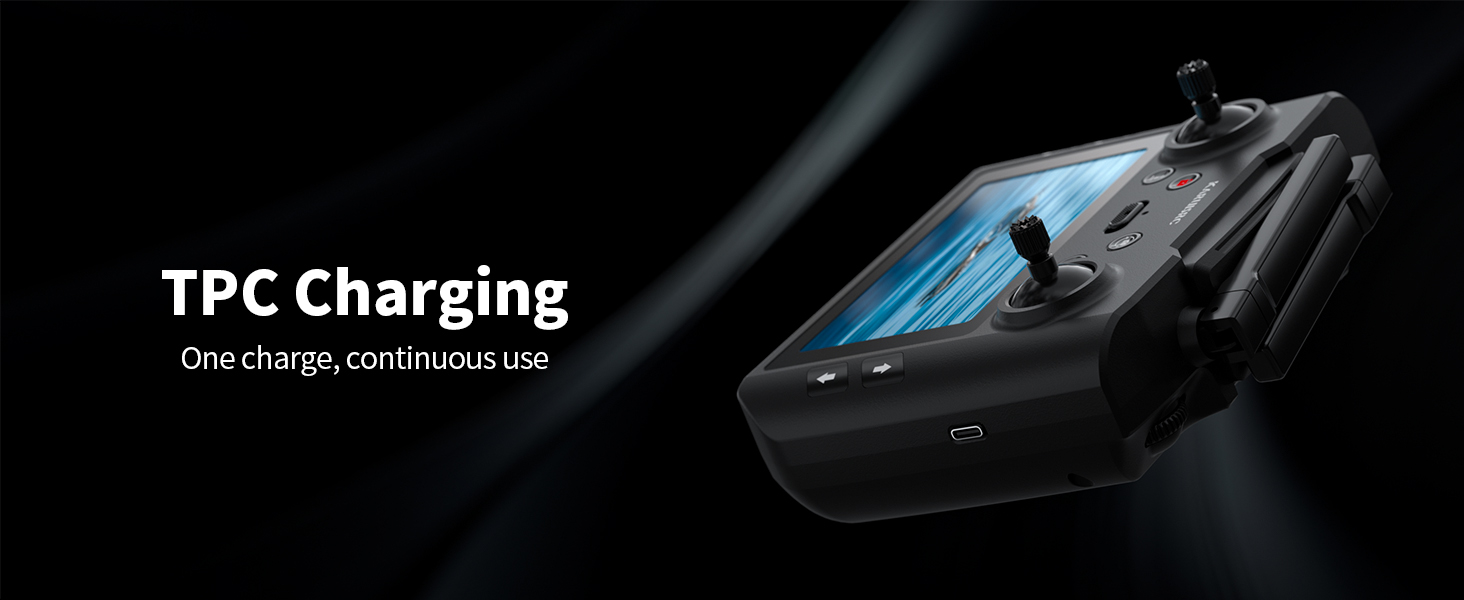
Image: Diagram illustrating the Optical Flow Positioning system, showing how the drone maintains stable flight.
5. Image and Video Capture
The 4K HD camera captures vivid colors and sharp details. Use the remote control buttons to initiate photo or video recording. All media is saved directly to the installed 32GB SD card.
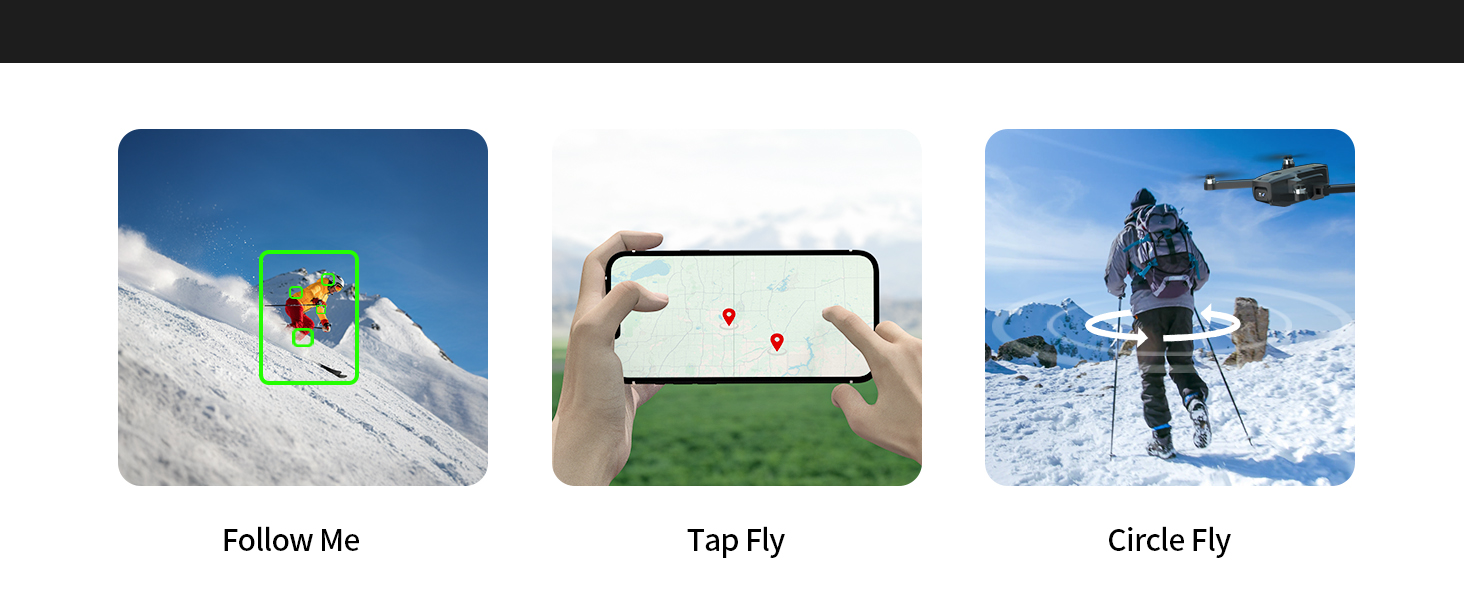
Image: The drone's camera system, highlighting its 1080P HD resolution and 90-degree electric adjustment capability.
6. Flight Modes
The K600GPS drone supports various intelligent flight modes for dynamic capture:
- Follow Me: The drone automatically follows a designated subject.
- Tap Fly: Tap points on the map in the app, and the drone will fly along the specified path.
- Circle Fly: The drone orbits around a central point, capturing a 360-degree view.
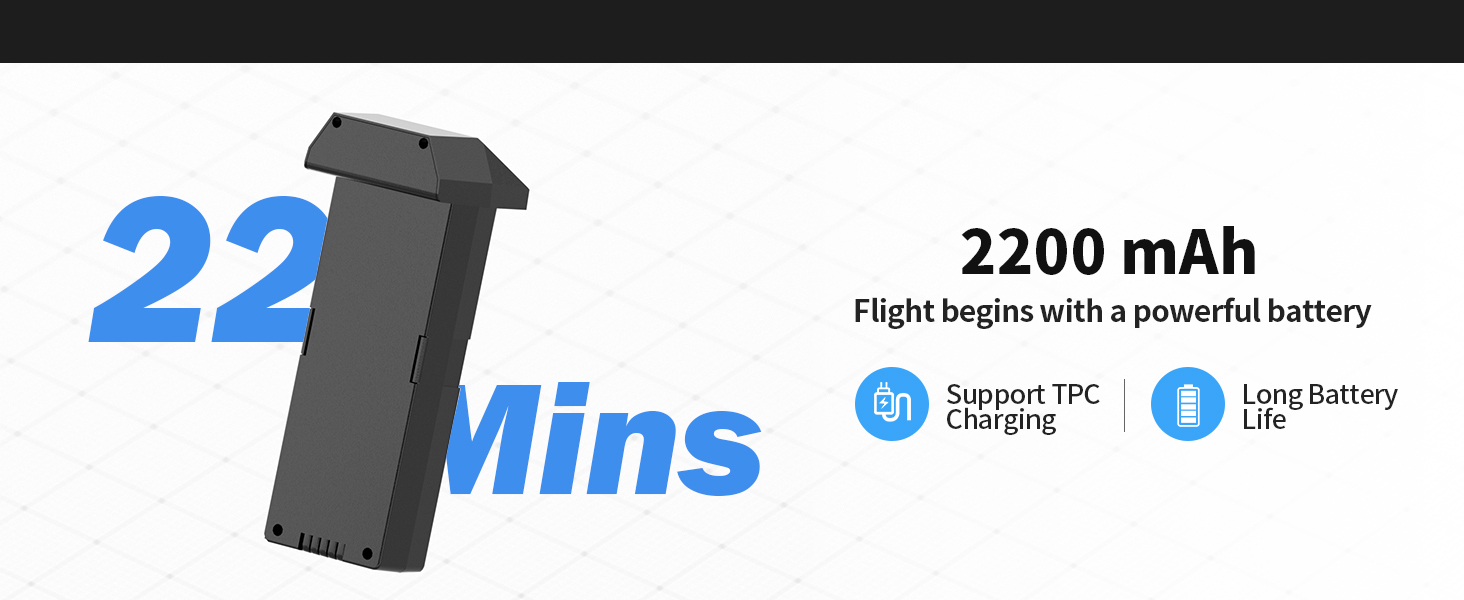
Image: Visual representation of intelligent flight modes: Follow Me, Tap Fly, and Circle Fly.
7. Flight Range
The drone offers a maximum control range of 400 meters, with image transmission up to 984 feet (approximately 300 meters). This allows for extensive exploration and capture.
Image: Displaying the remote control's image transmission range (984 FT) and remote control distance (1312 FT).
Official Product Video
Video: An introduction video showcasing the K600GPS drone's features and capabilities in action.
Maintenance
1. Battery Care
To prolong battery life, avoid overcharging or completely draining the battery. Store batteries in a cool, dry place when not in use. If storing for extended periods, charge them to about 50% capacity.
2. Propeller Replacement
Inspect propellers regularly for any signs of damage (cracks, bends). Damaged propellers can affect flight stability and safety. Replace them immediately using the spare propellers and screwdriver provided in the package. Ensure correct orientation during installation.
3. Cleaning
Gently wipe the drone and remote control with a soft, dry cloth after each use to remove dust and debris. Avoid using harsh chemicals or abrasive materials that could damage the surfaces or electronic components.
Troubleshooting
If you encounter any issues with your K600GPS drone, please refer to the following common troubleshooting tips:
- Drone not powering on: Ensure the battery is fully charged and correctly inserted.
- Remote control not connecting: Make sure both the drone and remote are powered on and within range. Re-pair them according to the quick start guide if necessary.
- Unstable flight: Check for damaged propellers and replace if needed. Ensure the drone is calibrated on a flat surface before takeoff. Verify strong GPS signal for outdoor flights.
- No image on screen: Check SD card insertion. Ensure the camera is properly connected and not obstructed.
- Short flight time: Ensure the battery is fully charged. Flight time can be affected by wind conditions and aggressive flying.
For more detailed troubleshooting or persistent issues, please contact customer support.
Specifications
| Feature | Detail |
|---|---|
| Brand | karuisrc |
| Model Name | K600GPS Drone with Camera |
| Item Weight | 205 Grams (7.2 ounces) |
| Product Dimensions | 8"L x 7"W x 2"H |
| Video Capture Resolution | 4K |
| Video Capture Format | MP4, MOV |
| Control Type | Remote Control, App Control |
| Remote Control Screen | 4.5-inch HD LCD |
| Maximum Range | 400 Meters |
| Image Transmission Range | 984 FT (approx. 300 meters) |
| Battery Life | Approx. 22 minutes |
| SD Card Included | 32GB |
| Special Features | Auto Follow, Foldable, Auto-Landing, Adjustable Camera, First Person View (FPV), Gesture Flight, Brushless Motor, Optical Flow Positioning |
| Connectivity Technology | Wi-Fi, Bluetooth, RF |
Warranty and Support
karuisrc is committed to providing high-quality products and excellent customer service. For any product-related inquiries, technical support, or warranty claims, please contact our customer support team. While specific warranty details are not provided in this manual, please retain your proof of purchase for any potential claims.
Contact Information:
- Email: Karuisrc@gmail.com
- Phone: +44 7419 298225

Image: Customer support contact details for karuisrc.