
DODOXCX C80S
DODOXCX C80S Portable Wireless Thermal Tattoo Stencil Printer
User Manual
1. Introduction
Thank you for choosing the DODOXCX C80S Portable Wireless Thermal Tattoo Stencil Printer. This device is designed to provide a convenient and efficient solution for printing tattoo stencils and other documents using thermal technology. Its compact, inkless design and broad compatibility make it suitable for various professional and personal uses.
2. Safety Information
- Keep the device away from water and high humidity.
- Do not expose the printer to direct sunlight or extreme temperatures.
- Use only recommended thermal paper and tattoo transfer paper to prevent damage to the print head.
- Do not open the printer cover while printing, as this may result in data loss or damage.
- Keep out of reach of children.
3. Package Contents
Please check the box for the following items:
- DODOXCX C80S Thermal Printer Unit
- USB Charging Cable
- Instruction Manual
- 10 Sheets of Tattoo Transfer Paper
- 1 Roll of Thermal Paper
4. Setup
4.1. Charging the Device
Before first use, fully charge the printer using the provided USB cable. The indicator light will show charging status.
4.2. Loading Paper
The printer supports both thermal roll paper and tattoo transfer paper. Ensure the paper is loaded correctly to avoid jams and ensure clear prints.

Figure 4.2.1: Steps for loading tattoo transfer paper.
- Tear off the yellow bottom paper from the tattoo transfer sheet.
- Remove the white protective paper.
- Turn on the printer and connect to the "Sharpfox" app.
- Put the paper into the printer, ensuring the blue transfer paper is face up.
4.3. App Installation & Connectivity
The DODOXCX C80S printer is compatible with Android, iOS, Windows, and macOS devices.
For Smartphones (iOS & Android):
- Download the "Sharpfox" app from your device's app store or by scanning the QR code in the manual. You can also visit sharpfox.angyin.net.
- Turn on the printer and enable Bluetooth on your phone. Open the "Sharpfox" app and click 'Connected' to pair with the printer.
- Proceed with printing.

Figure 4.3.1: Phone Printing via Sharpfox App.
For Computers (macOS & Windows):
- Turn on the printer.
- Connect the printer to your computer with a data cable.
- Download the necessary drivers from help.flashlabel.com/support/search?term=c80.
- Feed the transfer paper into the printer, then select the image to print.

Figure 4.3.2: Computer Printing Setup.
5. Operating the Printer
5.1. Powering On/Off
Press and hold the power button for 3 seconds to turn the printer on or off. The indicator light will illuminate when powered on.
5.2. Printing Tattoo Stencils
Using the "Sharpfox" app, you can select from ready-made tattoo templates or upload your own designs. Adjust the size and print density as needed before sending the print job to the printer.

Figure 5.2.1: Streamlined tattoo stencil printing process.

Figure 5.2.2: Efficiency comparison: Tattoo Printer vs. Hand-Painted.
5.3. Applying Tattoo Stencils

Figure 5.3.1: Steps for applying a tattoo stencil.
- Following skin cleansing and the application of tattoo transfer cream.
- Place the tattoo transfer paper onto the skin and gently press it for several seconds.
- Carefully and slowly peel off the transfer paper to reveal the tattoo design on the skin.
5.4. Printing Documents and Images
The DODOXCX C80S can also print standard documents and images on thermal paper. Load the thermal roll paper as instructed in Section 4.2 and use the app or computer software to print.
Figure 5.4.1: Printer versatility for tattoo and document printing.
6. Maintenance
6.1. Cleaning the Print Head
Regularly clean the print head to ensure optimal print quality. Use a soft, lint-free cloth lightly dampened with isopropyl alcohol. Gently wipe the print head surface. Ensure the printer is off and disconnected from power before cleaning.
6.2. Paper Handling
Always store thermal paper and tattoo transfer paper in a cool, dry place away from direct light. Avoid creasing or damaging the paper before loading it into the printer.
7. Troubleshooting
| Problem | Possible Cause | Solution |
|---|---|---|
| Printer does not turn on | Low battery; Power button not pressed correctly | Charge the printer; Press and hold the power button for 3 seconds |
| Poor print quality (blurry, faded) | Dirty print head; Incorrect paper type; Low print density setting | Clean the print head; Use appropriate thermal/transfer paper; Adjust print density in the app/software |
| Paper jam | Improper paper loading; Damaged paper | Open the printer cover, carefully remove jammed paper, reload correctly; Use undamaged paper |
| Cannot connect via Bluetooth | Bluetooth off on device; Printer not in pairing mode; App issue | Ensure Bluetooth is on; Restart printer and app; Re-pair device in app settings |
| Prints only half the stencil | Incorrect image scaling or paper size setting in app | Verify image dimensions and paper size settings in the Sharpfox app before printing. Adjust scaling to fit the paper. |
8. Specifications
- Brand: DODOXCX
- Model: C80S
- Color: Black
- Product Dimensions: 2"D x 11.5"W x 1.5"H
- Item Weight: 1.5 Pounds
- Operation Mode: Automatic
- Print Media: Thermal Paper, Tattoo Transfer Paper
- Batteries: 2 Lithium Metal batteries (1500mAh capacity, included)
- Compatibility: Android, iOS, Windows, macOS
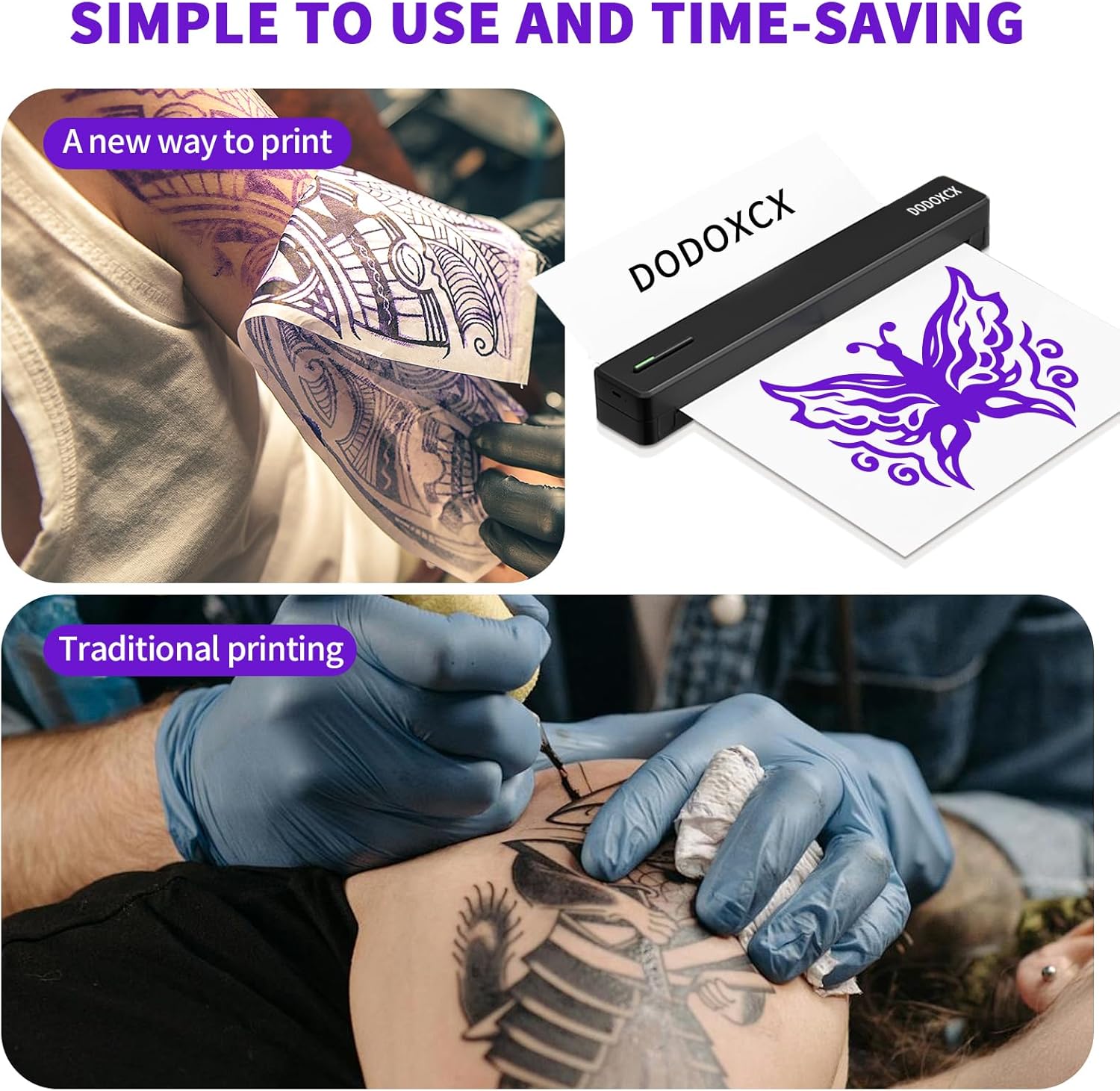
Figure 8.1: Compact design and dimensions of the C80S printer.
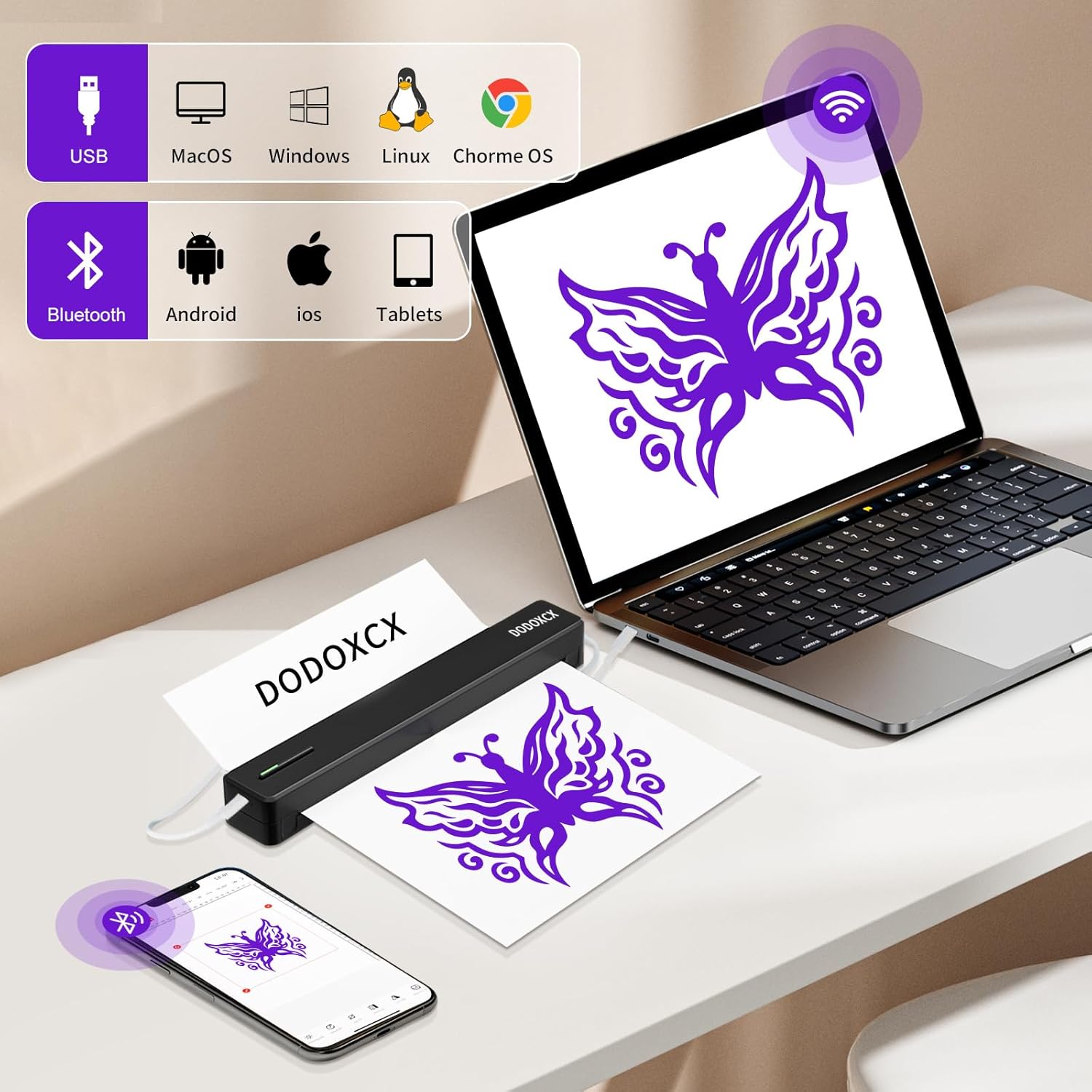
Figure 8.2: Broad compatibility with various operating systems.

Figure 8.3: Enhanced print clarity.
9. Warranty and Support
For warranty information and customer support, please refer to the documentation included with your product or visit the official DODOXCX website. You may also contact DODOXCX customer service directly for assistance with product inquiries, technical support, or warranty claims.
Ask a question about this manual
Ask about setup, troubleshooting, compatibility, parts, safety, or missing instructions. Manuals+ will review the question and use this page’s manual context to help answer it.