
ZJchao ZJchaowgeuptia9m
ZJchao 4-Port USB KVM Switch User Manual
Model: ZJchaowgeuptia9m
Introduction
This manual provides comprehensive instructions for the installation, operation, and maintenance of your ZJchao 4-Port USB KVM Switch. This device allows you to control up to four computers using a single set of USB keyboard, USB mouse, and VGA/SVGA/DisplayPort monitor.
The KVM switch is designed for versatile connectivity, supporting various display types and enabling seamless switching between connected systems. It requires no external power supply and offers plug-and-play functionality, making it an efficient solution for managing multiple computers.
Product Features
- No external power supply required for operation.
- Supports SVGA, VGA, and multi-sync monitors.
- LED indicators display the active monitor status.
- Effortless switching between computers via a dedicated button on the KVM switch.
- Plug-and-play functionality; no software installation needed.
- Enables sharing of USB devices such as printers, scanners, flash drives, and USB hubs among connected computers.
Package Contents
Verify that all items are present in the package:
- 1 x ZJchao 4-Port USB KVM Switch
- 1 x User Manual (this document)
Setup
Follow these steps to set up your KVM switch:
- Power Off Computers: Ensure all computers you intend to connect are powered off before beginning the setup.
- Connect Monitor: Connect your VGA/SVGA/DisplayPort monitor cable to the "USB CONSOLE" VGA port on the KVM switch.
- Connect Keyboard and Mouse: Plug your USB keyboard and USB mouse into the designated "USB CONSOLE" USB ports on the KVM switch.
- Connect Computers:
- For each computer (PC1, PC2, PC3, PC4), connect a VGA cable from the computer's VGA output to the corresponding VGA input port (e.g., PC1, PC2) on the KVM switch.
- For each computer, connect a USB cable from the computer's USB port to the corresponding USB input port (e.g., USB1, USB2) on the KVM switch.
- Connect Shared USB Devices (Optional): If you have additional USB devices like printers or flash drives, connect them to the available USB ports on the KVM switch.
- Power On Computers: Once all connections are secure, power on your computers. The KVM switch will automatically detect the active computer.
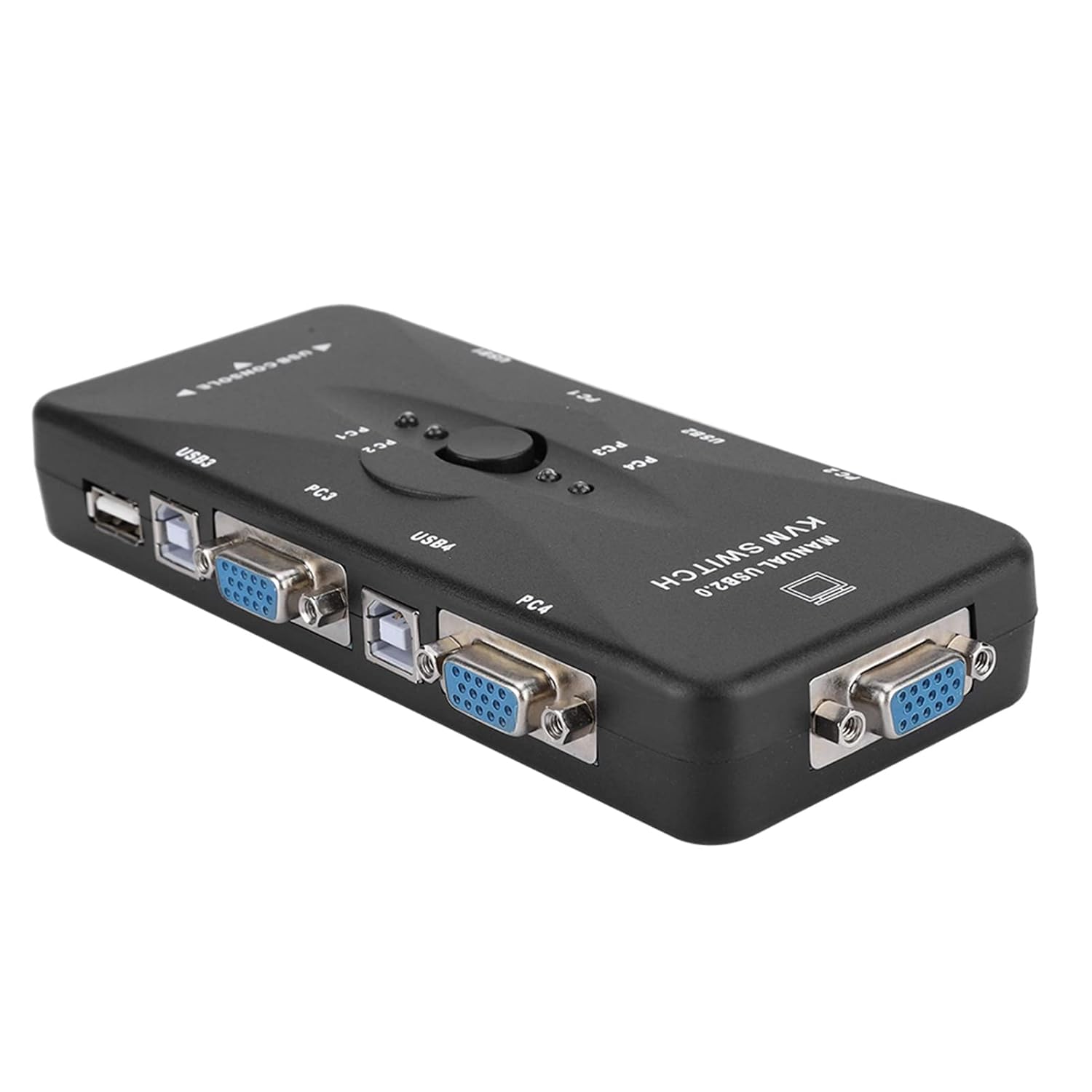
Figure 1: Side view of the KVM switch illustrating the VGA and USB input/output ports for connecting computers and console devices.
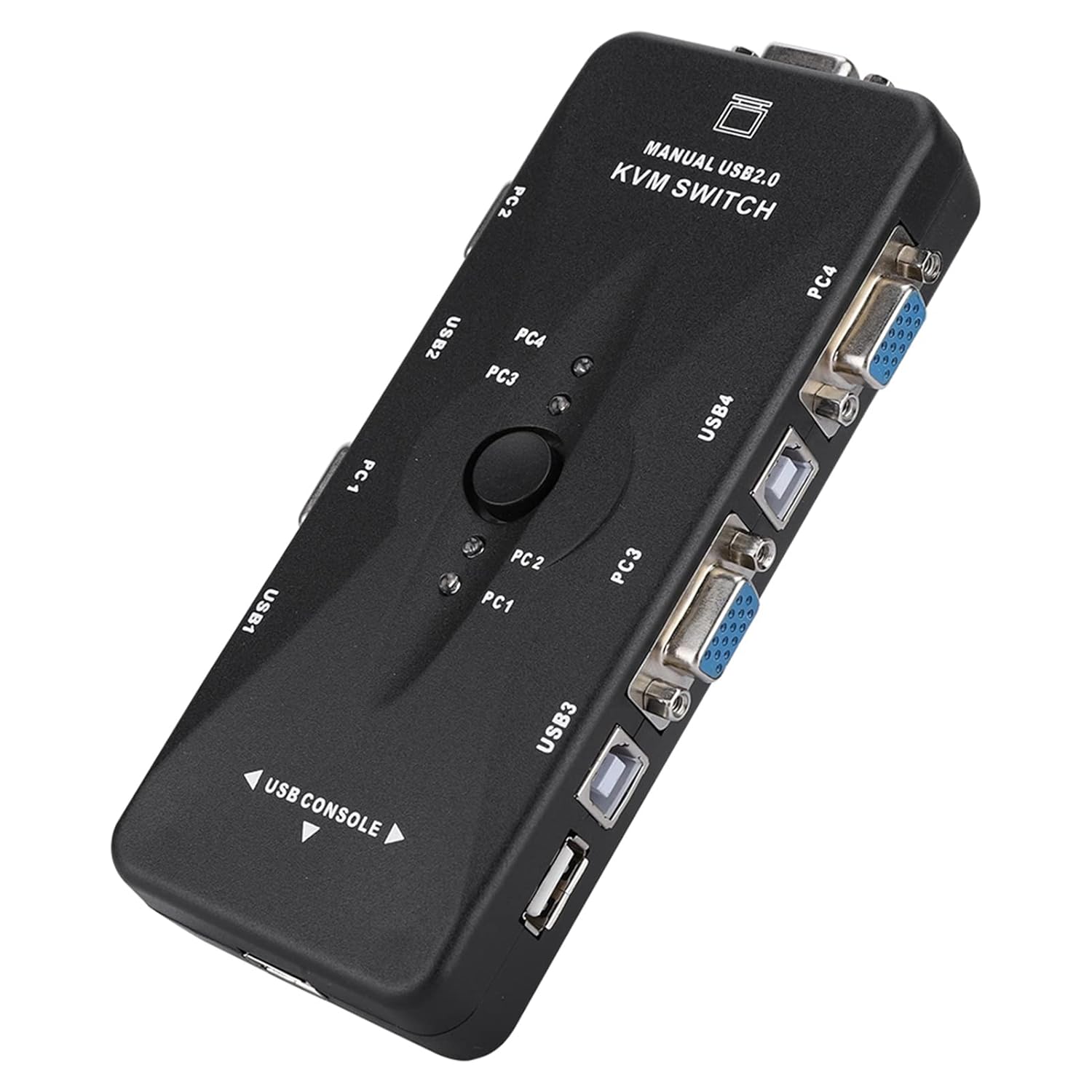
Figure 2: Top view of the KVM switch, highlighting the central selection button and LED indicators for active computer status.
Operating Instructions
Operating the ZJchao 4-Port USB KVM Switch is straightforward:
- Switching Computers: To switch between connected computers, simply press the central button located on the top of the KVM switch. Each press will cycle through the active computers (PC1, PC2, PC3, PC4).
- LED Indicators: The LED lights on the KVM switch correspond to each connected computer (PC1, PC2, PC3, PC4). The illuminated LED indicates which computer is currently active and being controlled.
- USB Device Sharing: Any USB devices connected to the KVM switch's shared USB ports will automatically be accessible by the currently selected computer.
Maintenance
The ZJchao 4-Port USB KVM Switch requires minimal maintenance to ensure optimal performance and longevity.
- Cleaning: Use a soft, dry cloth to wipe the exterior of the KVM switch. Avoid using liquid cleaners or abrasive materials, as they may damage the device.
- Ventilation: Ensure the KVM switch is placed in a well-ventilated area to prevent overheating. Do not block any ventilation openings.
- Cable Management: Keep cables organized and free from kinks or excessive bending to prevent damage to the cables and ports.
- Storage: When not in use for extended periods, store the KVM switch in a cool, dry place away from direct sunlight and extreme temperatures.
Troubleshooting
If you encounter issues with your KVM switch, refer to the following common problems and solutions:
| Problem | Possible Cause | Solution |
|---|---|---|
| No display on monitor. | Incorrect cable connection; KVM switch not selected to the correct computer; computer is off or in sleep mode. |
|
| Keyboard or mouse not responding. | Incorrect USB cable connection; KVM switch not selected to the correct computer; USB device not properly recognized. |
|
| Shared USB devices not working. | Device not properly connected; KVM switch not selected to the correct computer. |
|
Specifications
| Feature | Detail |
|---|---|
| Model Number | ZJchaowgeuptia9m |
| Maximum Resolution | 1920x1440 |
| Bandwidth | 500MHz |
| Console Ports | 3 (1x VGA, 2x USB for Keyboard/Mouse) |
| Supported Computers | 4 |
| Keyboard Emulation | USB |
| Mouse Emulation | USB |
| Keyboard Input/Output | USB |
| Mouse Input/Output | USB |
| VGA Input/Output | High Density D-Sub 15 Pin |
| LED Indicators | 4 (one for each PC) |
| Supported Operating Systems | DOS, Windows 3.X, 95/98/ME/2000/XP/Vista/7/8, WinNT, Netware, Unix, Linux |
| Dimensions (L x W x H) | Approx. 6.69 x 3.54 x 0.79 inches |
| Weight | Approx. 6.53 ounces |

Figure 3: Product label on the underside of the KVM switch, displaying model information and UPC.
Warranty and Support
This product is manufactured by ZJchao. For specific warranty details and technical support, please refer to the information provided at the point of purchase or contact ZJchao customer service directly. Information regarding warranty and support is not provided within this manual.
For further assistance, you may visit the ZJchao Store on Amazon.
Ask a question about this manual
Ask about setup, troubleshooting, compatibility, parts, safety, or missing instructions. Manuals+ will review the question and use this page’s manual context to help answer it.