
1. Safety Information
Please read all instructions carefully before using the MCHOSE M7 Wireless Gaming Mouse. Retain this manual for future reference.
- Do not expose the mouse to extreme temperatures, humidity, or direct sunlight.
- Avoid dropping or subjecting the mouse to strong impacts.
- Do not attempt to disassemble or modify the mouse. This will void the warranty.
- Keep the mouse away from water and other liquids.
- Dispose of the battery according to local regulations. Do not incinerate.
2. Package Contents
- MCHOSE M7 Wireless Gaming Mouse
- USB-C Charging Cable
- 2.4GHz USB Receiver
- User Manual
3. Product Overview
The MCHOSE M7 is a lightweight, ergonomic gaming mouse designed for high performance and versatile connectivity.
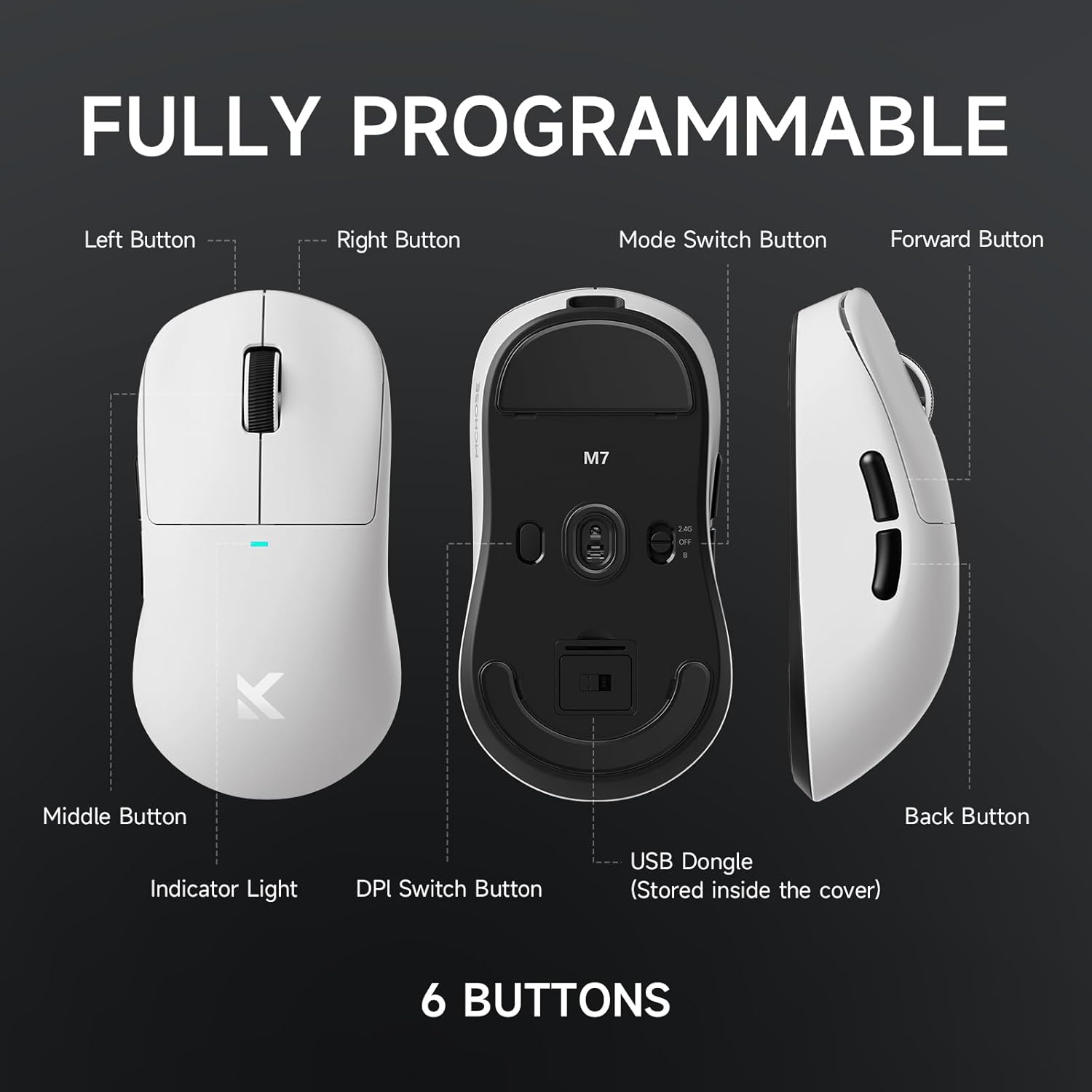
Figure 3.1: MCHOSE M7 Button Layout
This image displays the MCHOSE M7 mouse from top, bottom, and side views, highlighting its six programmable buttons: Left Button, Right Button, Middle Button (scroll wheel click), Forward Button, Back Button, and DPI Switch Button. It also shows the Indicator Light, Mode Switch Button, and the location of the USB Dongle stored inside the bottom cover.

Figure 3.2: Ergonomic Design and Grip Styles
This image illustrates the ergonomic design of the MCHOSE M7 mouse, suitable for various grip modes including Palm Grip, Finger Grip, and Claw Grip, ensuring comfort during extended use.
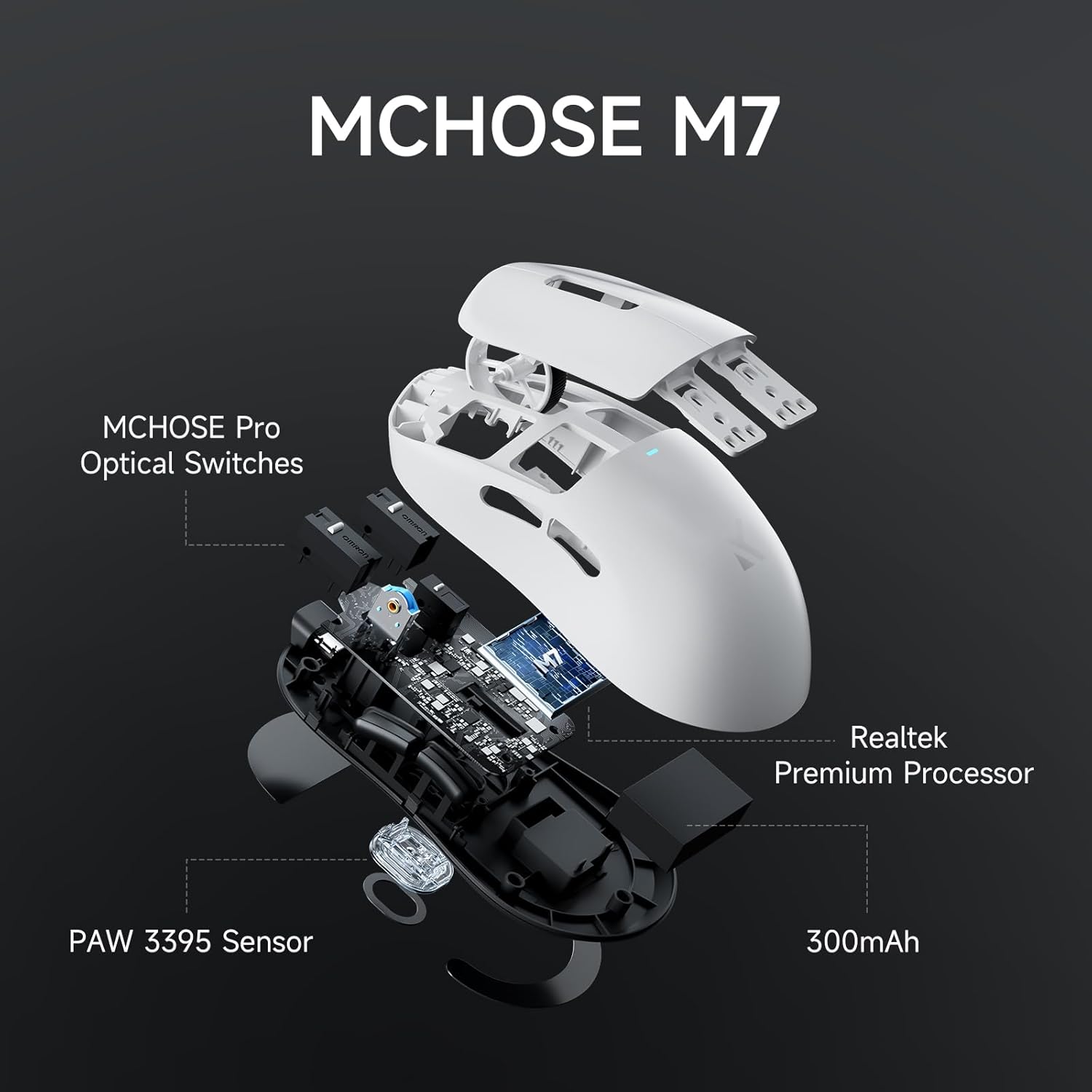
Figure 3.3: MCHOSE M7 Internal Components
This image provides an exploded view of the MCHOSE M7, showcasing its key internal components: the PAW 3395 Sensor, Realtek Premium Processor, MCHOSE Pro Optical Switches, and the 300mAh battery.
4. Setup and Connectivity
The MCHOSE M7 mouse supports three connectivity modes: 2.4GHz Wireless, Bluetooth, and USB-C Wired.

Figure 4.1: Tri-mode Connectivity
This image shows the MCHOSE M7 mouse connected to a laptop, illustrating its versatile tri-mode connectivity options: 2.4GHz Wireless for fast, low-latency response, Bluetooth 5.0 for longer battery life, and USB-C Wired for stable and rechargeable connection.
4.1. 2.4GHz Wireless Connection
- Locate the 2.4GHz USB receiver stored in the compartment on the underside of the mouse.
- Plug the USB receiver into an available USB port on your computer.
- Turn on the mouse using the power switch on the bottom. The mouse will automatically connect to the receiver.
4.2. Bluetooth Connection
- Ensure the mouse is powered on.
- Press and hold the Left Button, Right Button, and Middle Button (scroll wheel click) simultaneously for 3 seconds to enter Bluetooth pairing mode. The indicator light will flash.
- On your computer or device, go to Bluetooth settings and search for new devices.
- Select "MCHOSE M7" from the list of available devices to pair.
4.3. USB-C Wired Connection
- Connect one end of the provided USB-C cable to the mouse and the other end to a USB port on your computer.
- The mouse will automatically switch to wired mode and begin charging.
5. Operating Instructions
5.1. DPI Adjustment
The MCHOSE M7 features a PAW 3395 sensor with up to 26,000 DPI. Use the DPI Switch Button (located on the bottom of the mouse) to cycle through preset DPI levels. The indicator light may change color or flash to indicate the current DPI setting.
5.2. Polling Rate
The M7 model supports wired 1K and wireless 8K polling rates. The M7 Pro model offers dual-mode 8K options. Higher polling rates reduce latency for enhanced precision.

Figure 5.1: 8K Hz Hyperpolling Rate
This image highlights the MCHOSE M7's 8K Hz Hyperpolling Rate, indicating ultra-low-latency response through TOPSPEED Wireless Technology. Note that the 8K Receiver for M7/M7 Pro is sold separately.
5.3. Charging the Mouse
Connect the USB-C charging cable to the mouse and a USB power source (e.g., computer USB port, wall adapter). The indicator light will show charging status. A full charge provides extended battery life.

Figure 5.2: M7 Battery Capacity
This image shows the MCHOSE M7 mouse and highlights its lightweight design (53g) and 300mAh battery capacity, along with estimated usage times for 8K, 1K, and Bluetooth modes.
6. Customization with MCHOSE Custom Driver
Unlock the full potential of your MCHOSE M7 mouse by installing the MCHOSE Custom Driver software. This software allows for advanced customization of buttons, DPI settings, polling rate, Esports mode, and macro management.
- Download the latest driver from the official MCHOSE website.
- Install the software on your computer.
- Connect your MCHOSE M7 mouse to the computer (preferably via wired or 2.4GHz mode for initial setup).
- Use the software interface to:
- Program up to five mouse buttons.
- Adjust DPI levels and profiles.
- Set polling rates.
- Create and manage macros.
- Configure Esports mode settings.

Figure 6.1: MCHOSE Custom Driver Interface
This image displays the MCHOSE Custom Driver software interface, showing options for button editing, macro management, and general mouse configuration, including DPI and polling rate adjustments.
7. Maintenance
- Cleaning: Use a soft, dry cloth to clean the mouse. For stubborn dirt, slightly dampen the cloth with water or a mild cleaning solution. Do not use harsh chemicals or abrasive materials.
- Storage: When not in use for extended periods, store the mouse in a cool, dry place away from direct sunlight.
- Battery Care: To prolong battery life, avoid fully discharging the mouse frequently. Charge it when the battery low indicator appears.
8. Troubleshooting
| Problem | Possible Cause | Solution |
|---|---|---|
| Mouse not responding | Low battery, incorrect connection mode, receiver not plugged in (2.4GHz), Bluetooth not paired. | Charge the mouse. Check the mode switch on the bottom. Ensure the USB receiver is securely plugged in. Re-pair Bluetooth if necessary. |
| Cursor erratic or not tracking smoothly | Dirty sensor, unsuitable surface, low battery, software interference. | Clean the optical sensor with a soft cloth. Use on a clean, non-reflective mouse pad. Charge the mouse. Restart your computer. |
| Buttons not working | Software conflict, physical damage. | Restart your computer. Reinstall the MCHOSE Custom Driver. If physical damage is suspected, contact support. |
| Bluetooth connection issues | Interference, device limit, incorrect pairing. | Ensure no other devices are interfering. Disconnect other Bluetooth devices. Re-pair the mouse following the instructions in Section 4.2. |
9. Specifications
| Feature | Detail |
|---|---|
| Model | M7 |
| Connectivity | Bluetooth, 2.4GHz Wi-Fi, USB-C Wired |
| Sensor | PAW 3395 Optical Sensor |
| DPI | Up to 26,000 DPI |
| IPS | 650 IPS |
| Acceleration | 50G |
| Polling Rate | Wired 1K, Wireless 8K (M7 model) |
| Switches | MCHOSE PRO Optical Switches |
| Battery Capacity | 300mAh (M7) |
| Weight | Approximately 53g |
| Dimensions | 5 x 2.5 x 0.1 inches |
10. Official Product Video
Video 10.1: MCHOSE M7 Series Mouse Overview
This official video from MCHOSE provides a visual overview of the M7 Series mouse, showcasing its design, features, and various color options. It highlights key aspects such as its lightweight build, tri-mode connectivity, and ergonomic design.
11. Warranty and Support
MCHOSE products come with a standard manufacturer's warranty. For detailed warranty information, technical support, or service inquiries, please visit the official MCHOSE website or contact their customer support.
Official MCHOSE Store: MCHOSE Official Store