
1. Introduction
The KIKIJANE Wireless CarPlay Adapter C6 converts your vehicle's existing wired CarPlay system into a wireless connection, allowing you to use Apple CarPlay functions without needing a physical cable connection to your iPhone. This adapter provides seamless integration for navigation, music, phone calls, and messaging directly from your iPhone to your car's infotainment system.

Image: The KIKIJANE Wireless CarPlay Adapter C6 connected in a car, demonstrating its wireless capabilities for Apple CarPlay.
2. Safety Information
- This device may interfere with other wireless devices.
- Do not expose the adapter to extreme temperatures or humidity.
- Ensure the adapter is securely connected to prevent disconnections during operation.
- Always prioritize safe driving. Do not operate your phone or car's infotainment system in a way that distracts you from the road.
3. Package Contents
The package includes:
- KIKIJANE Wireless CarPlay Adapter C6 (with integrated USB-A cable and detachable USB-C adapter)

Image: The KIKIJANE Wireless CarPlay Adapter C6, showing its compact design and dual USB-A and USB-C connectivity options.
4. Specifications
| Feature | Detail |
|---|---|
| Product Dimensions | 1.9 x 1.9 x 2.5 inches |
| Item Weight | 2.39 ounces |
| Model Number | C6 |
| Connectivity Technology | USB (USB-A and USB-C compatible) |
| Wireless Communication Standard | Bluetooth V5.3, Wi-Fi 2.4-5.8GHz |
| Special Feature | Wireless CarPlay Connectivity with Seamless, Low Latency Connection |
| Media Type Support | MP3, AAC, WAV |

Image: Diagram illustrating the internal components designed for stable wireless connections.
5. Compatibility
5.1 iPhone Compatibility
The KIKIJANE Wireless CarPlay Adapter C6 is compatible with Apple iPhone 6 and later models running iOS 10 or higher.
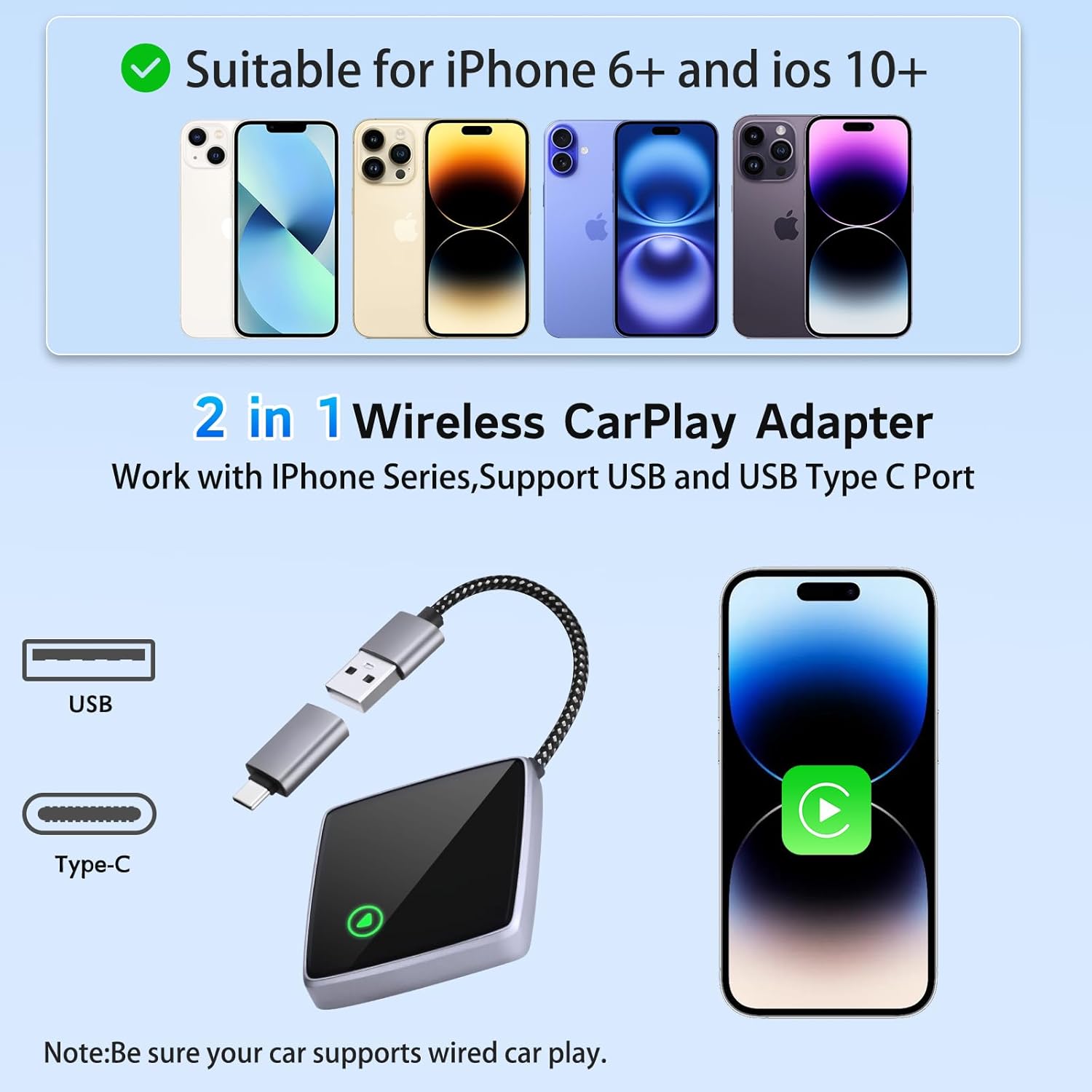
Image: Visual representation of various iPhone models compatible with the adapter, including iPhone 6 and newer.
5.2 Vehicle Compatibility
This adapter is designed for vehicles equipped with factory-installed wired Apple CarPlay, typically models from 2015 onwards. It supports over 800 car models.
To verify your car's compatibility, please refer to the official Apple CarPlay website: Apple CarPlay Available Models.

Image: Examples of compatible car brands such as Audi, Volvo, Buick, Cadillac, Chery, Jeep, Toyota, and Ford.
5.3 Known Incompatibilities
The adapter is currently not supported with the following vehicles or conditions:
- BMW, Tesla, Jeep Compass, Honda Civic.
- Vehicles without factory-installed wired CarPlay.
- Not recommended for 2016-2020 Nissan cars, as they may require an additional USB Y splitter cable.
- Specific models reported to have connection issues: Kia Sportage, Acura TLX, 2018 RS350, 2017 BMW 430i, Hyundai (various models), Volkswagen (various models), 2019 4Runner, 2015 Honda, Toyota Highlander 2018, Tundra, 2013 Mini Cooper, Hyundai Elantra, Hyundai Tucson, Chevrolet Silverado, Hyundai Ioniq Hybrid, Mazda (various models), new Honda Civic, Jeep Cherokee, 2016 Honda, Honda Pilot, 2014 Kia Soul, 2021 Chevy Silverado, 2017 Hyundai Elantra, Toyota Sienna, 2019 XT5 Cadillac, 2018 Toyota Camry.
If your car model is listed above, it is advised not to purchase this adapter.
6. Setup Instructions
Follow these steps to connect your KIKIJANE Wireless CarPlay Adapter C6:
- Plug the Adapter: Connect the adapter to your car's USB port. A green light on the adapter will illuminate once it is powered on and working. Use the appropriate USB-A or USB-C connector for your vehicle.
- Ensure Wi-Fi is Available: On your iPhone, ensure that Wi-Fi is enabled and not currently occupied by another connection.
- Bluetooth Pairing: On your iPhone, go to Bluetooth settings. Search for and connect to the CarPlay device, typically named "smartbox-xxx". Confirm the pairing request on your iPhone by clicking "Yes" or "Allow".

Image: Visual guide for the three-step connection process: plugging in the adapter, ensuring Wi-Fi is on, and pairing via Bluetooth.
Note: The adapter will automatically reconnect to the last used phone after starting the car. If you wish to connect a different phone, you will need to re-pair it following these steps.
7. Operating Instructions
7.1 Automatic Connection
Once successfully paired, the adapter will automatically connect to your iPhone when you start your vehicle, providing a seamless wireless CarPlay experience.

Image: Illustration of the automatic connection process, where the iPhone wirelessly connects to the adapter and then to the car's display.
7.2 CarPlay Functions
The adapter supports all standard Apple CarPlay functions, including:
- Navigation: Use Apple Maps, Google Maps, Waze, and other compatible navigation apps.
- Music & Audio: Stream music, podcasts, and audiobooks from your favorite apps.
- Phone Calls: Make and receive calls hands-free.
- Messages: Send and receive messages using voice commands or the car's display.
- Voice Assistant: Access Siri for commands, questions, and controls.

Image: A car's infotainment screen displaying various Apple CarPlay applications such as navigation, music, and communication tools.
7.3 Retaining Original Car Controls
The adapter allows you to maintain control over CarPlay using your car's original input methods:
- Steering Wheel Controls: Use your car's steering wheel buttons for audio, calls, and navigation.
- Knob Controls: Interact with CarPlay using your vehicle's rotary knobs.
- Touch Screen: Directly interact with the CarPlay interface via your car's touchscreen display.
- Voice Control (Siri): Activate Siri for hands-free operation.

Image: A driver interacting with CarPlay using voice commands, alongside detailed views of steering wheel controls, central console knobs, and the car's touchscreen.
8. Troubleshooting
8.1 Disconnections or Unstable Connection
If you experience frequent disconnections or an unstable connection:
- Interference: This may be caused by Wi-Fi or Bluetooth interference.
- Re-pair: Unplug and re-plug the adapter. Clear old pairing records from your iPhone's Bluetooth settings. Restart your iPhone's Wi-Fi and Bluetooth, then re-pair the adapter.
- Firmware Update: If the issue persists, check for available firmware updates. Updating the firmware can resolve many common issues.
8.2 No Sound
If there is no sound when using the adapter:
- Bluetooth Connection: Verify your iPhone's Bluetooth connection. If your phone is connected to another audio device (e.g., headphones), sound may be redirected. Disconnect other Bluetooth devices to restore playback through CarPlay.
8.3 Adapter Stopped Working
If the adapter stops functioning:
- Connection Check: Ensure the wireless adapter is fully inserted into the USB port.
- CarPlay Settings: Verify that CarPlay is enabled in your car's infotainment settings.
- Reset: Try resetting the wireless adapter by unplugging and re-plugging it. This can resolve temporary issues.
- Firmware Update: Ensure the adapter's firmware is up to date.
8.4 Adapter Heats Up During Use
Slight heating during use is normal due to power consumption. To ensure optimal performance and longevity, maintain a comfortable temperature inside the car.
8.5 Multiple Phone Pairing
The adapter can be paired with multiple phones, but only one phone can be connected and active with CarPlay at a time.
9. Maintenance
- Keep the adapter clean and free from dust and debris. Use a soft, dry cloth for cleaning.
- Avoid exposing the adapter to liquids or excessive moisture.
- Store the adapter in a cool, dry place when not in use.
10. Warranty and Support
For any issues or dissatisfaction with the product, you may initiate a return directly. The manufacturer provides full service for all products.
For firmware updates and additional support, please refer to the product detail page where an electronic version of the user manual and update instructions are available for download.