
1. Introduction
This manual provides comprehensive instructions for the installation, operation, maintenance, and troubleshooting of your Razuvious M3 - Weatherproof Smart Door Lock. Please read this manual thoroughly before installation and use to ensure proper function and longevity of your device. Keep this manual for future reference.
2. Product Overview
The Razuvious M3 Smart Door Lock offers advanced security and convenience with multiple unlocking methods and remote management capabilities. Designed for durability, it is suitable for various environments including homes, offices, and rental properties.
Key Features:
- 5-in-1 Keyless Entry: Unlock via APP, Fingerprint, Password, Card, or Mechanical Key.
- WiFi Connectivity: Remote access and control without a separate gateway.
- Anti-Peeping Password: Input random digits before and after the correct code for enhanced security.
- Remote Passcode Generation: Create temporary access codes for guests or service providers.
- Access Logs: Monitor door activity in real-time via the mobile application.
- Low Battery Alert & Emergency Power: Notifies when batteries are low and includes a USB emergency charging interface.
- Reversible Handle: Compatible with both left-handed and right-handed doors.
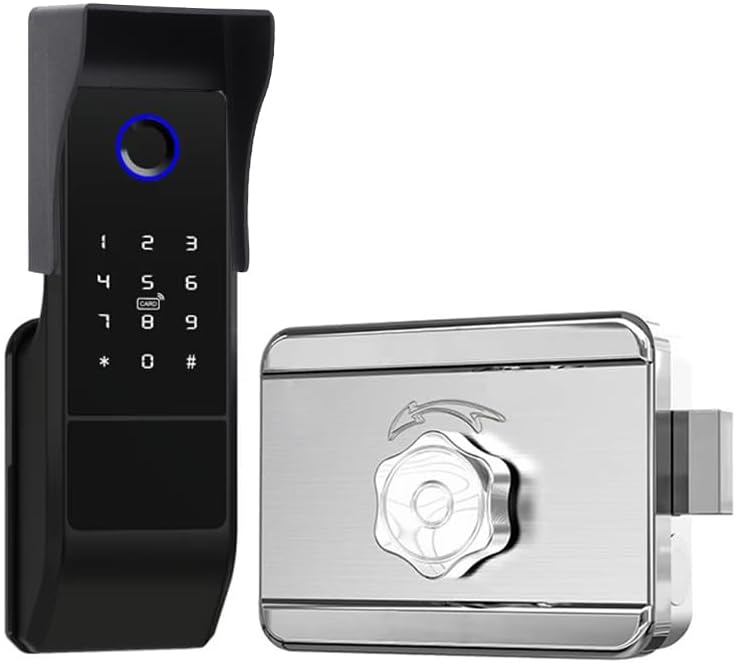
Figure 2.1: Razuvious M3 Smart Door Lock components.
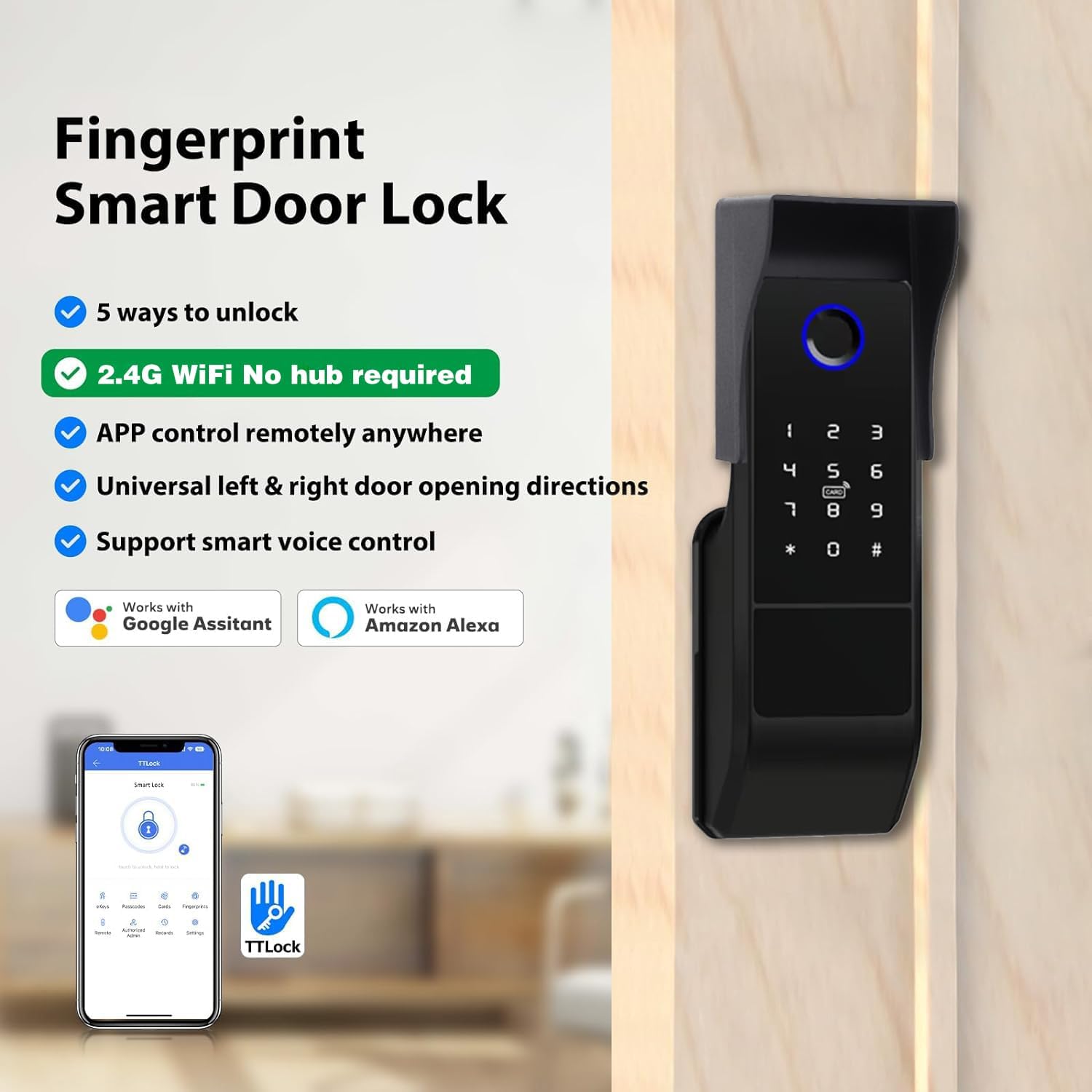
Figure 2.2: Overview of the five unlocking methods and smart features.
3. Setup & Installation
3.1 Pre-Installation Checklist
- Ensure your door thickness is between 40mm and 70mm.
- Gather necessary tools (screwdriver, drill if needed).
- Prepare 4*AA batteries (not included).
3.2 Important Installation Notes
- Critical: Do not use the keypad to change the Master Password before pairing the lock with the TT Lock APP.
- Before pairing, you may need to touch the keypad to activate the lock.
- If the app does not find the lock or cannot connect, perform a factory reset on the lock.
- The handle is reversible; adjust according to your door's opening direction.
3.3 Internal Components Overview
Familiarize yourself with the internal components for correct assembly and wiring.

Figure 3.1: Internal components of the Razuvious M3 Smart Door Lock, including battery compartment and wiring points.
4. Operating Instructions
4.1 Mobile Application (TT Lock App)
The TT Lock app provides full control over your smart lock. Download it from your device's app store.
- Pairing: Follow the in-app instructions to pair your lock. Ensure the lock is activated by touching the keypad if needed.
- Remote Unlock/Lock: Use the app to unlock or lock your door from anywhere via WiFi.
- User Management: Add or remove users, assign different access levels (eKeys, Passcodes, Cards, Fingerprints).
- Access Records: View a detailed log of who entered and when.
- Settings: Configure auto-lock, passage mode, volume, and other lock parameters.

Figure 4.1: Using the TT Lock app for touch unlock and long-press to lock.
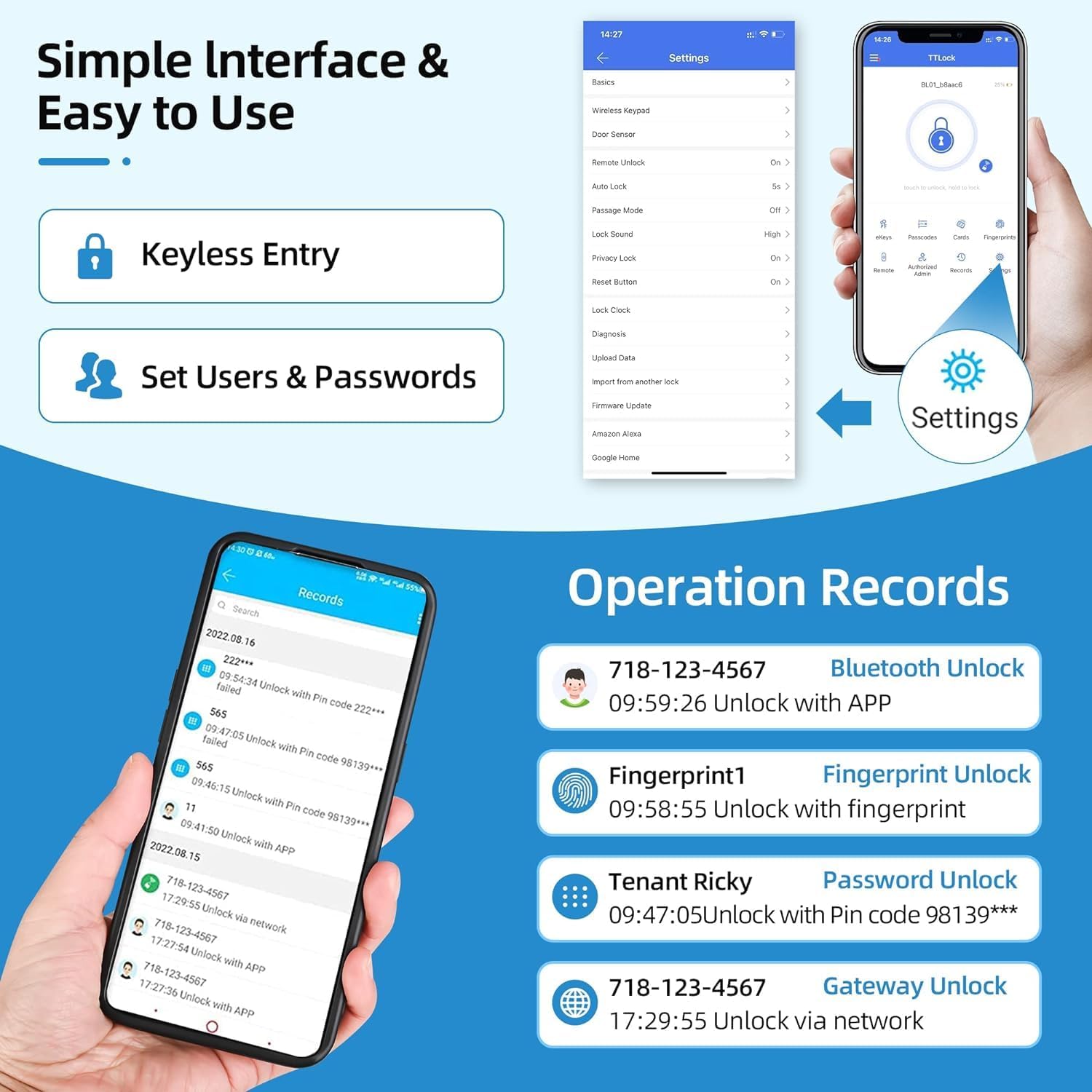
Figure 4.2: App interface for managing users, passwords, and viewing operation records.
4.2 Fingerprint Unlock
Register your fingerprints through the TT Lock app. To unlock, place your registered finger on the fingerprint sensor.
4.3 Password Unlock
Enter your 4-9 digit password on the touchscreen keypad. For added security, utilize the anti-peeping feature by entering random digits before or after your correct password.

Figure 4.3: How to use the virtual password feature for enhanced security.
4.4 Card Unlock
Present a registered RFID card to the card reader area on the lock to unlock.
4.5 Mechanical Key Unlock
In case of emergency or battery depletion, use the provided mechanical key to unlock the door manually.
4.6 Generating One-Time Passcodes
The TT Lock app allows you to generate temporary or one-time passcodes for visitors, housekeepers, or delivery services. These can be shared remotely.

Figure 4.4: Generating and sharing one-time passcodes for temporary access.
5. Maintenance
5.1 Battery Replacement
The lock requires 4*AA batteries. The system will provide a low battery alert. Replace batteries promptly when notified. In case of complete battery depletion, use the USB emergency charging interface or the mechanical key to gain access.
5.2 Cleaning
Wipe the lock's exterior with a soft, damp cloth. Avoid abrasive cleaners or solvents that could damage the finish or electronic components.
5.3 Fingerprint Sensor Tips
For optimal performance of the fingerprint sensor, consider the following:
- Users with clear fingerprints are recommended to use fingerprints and other unlocking methods (App, IC card, Passcode).
- Seniors and users with severe fingerprint wear are recommended to use a passcode or IC card.
- Children and users with shallow fingerprints are recommended to use passwords and the TT Lock app to unlock the lock.
- Friends and visitors are recommended using one-time or recurring temporary passwords set by the TT Lock app.

Figure 5.1: Fingerprint operation tips for various user scenarios.
6. Troubleshooting
- App Cannot Find/Connect to Lock: Ensure Bluetooth is enabled on your phone. If the issue persists, touch the lock's keypad to activate it. If still unsuccessful, perform a factory reset on the lock.
- Lock Not Responding: Check battery levels. Replace batteries if low. Use the USB emergency power interface if batteries are completely drained.
- Fingerprint Not Recognized: Ensure your finger is clean and dry. Try re-registering your fingerprint if recognition issues persist. Refer to Fingerprint Operation Tips in Section 5.3.
- Keypad Not Responding: Check for low battery. Ensure the keypad is clean and free from debris.
- Remote Access Issues: Verify your WiFi connection is stable. Ensure the lock is within range of your WiFi network.
7. Specifications
| Feature | Detail |
|---|---|
| Model Number | M3 - Weatherproof |
| Brand | Razuvious |
| Material | Aluminum |
| Color | Gery |
| Item Weight | 1.7 Kilograms |
| Product Dimensions (L x W x H) | 6 x 2 x 37 cm |
| Door Thickness Range | 40mm to 70mm |
| Power Source | 4*AA Batteries (not included) |
| Emergency Power | USB Interface |
| Unlocking Methods | App, Fingerprint, Password, Card, Mechanical Key |
| Connectivity Protocol | Bluetooth, Wi-Fi |
| Control Method | App, Touch |
| Special Features | Anti-Peeping Password, Fob Unlock, One-Touch Lock |
| Included Components | Mortise, Smart door lock |
8. Warranty & Support
For warranty information or technical support, please contact Razuvious customer service. Refer to your purchase documentation for specific warranty terms and contact details. You can typically find support information on the Razuvious official website or through your retailer.