
Bimawen 712ac933-b5dd-4b28-bb9a-9a57f3e45018
Bimawen 15.6 inch 2K Portable Monitor User Manual
Model: 712ac933-b5dd-4b28-bb9a-9a57f3e45018
Introduction
Thank you for choosing the Bimawen 15.6 inch 2K Portable Monitor. This monitor is designed to provide an enhanced visual experience with its 2560x1440 2K resolution, IPS panel, 100% sRGB color gamut, HDR support, and FreeSync technology. Its lightweight and slim design makes it ideal for on-the-go use, whether for work, gaming, or entertainment. This manual provides detailed instructions for setup, operation, maintenance, and troubleshooting to ensure optimal performance and longevity of your device.

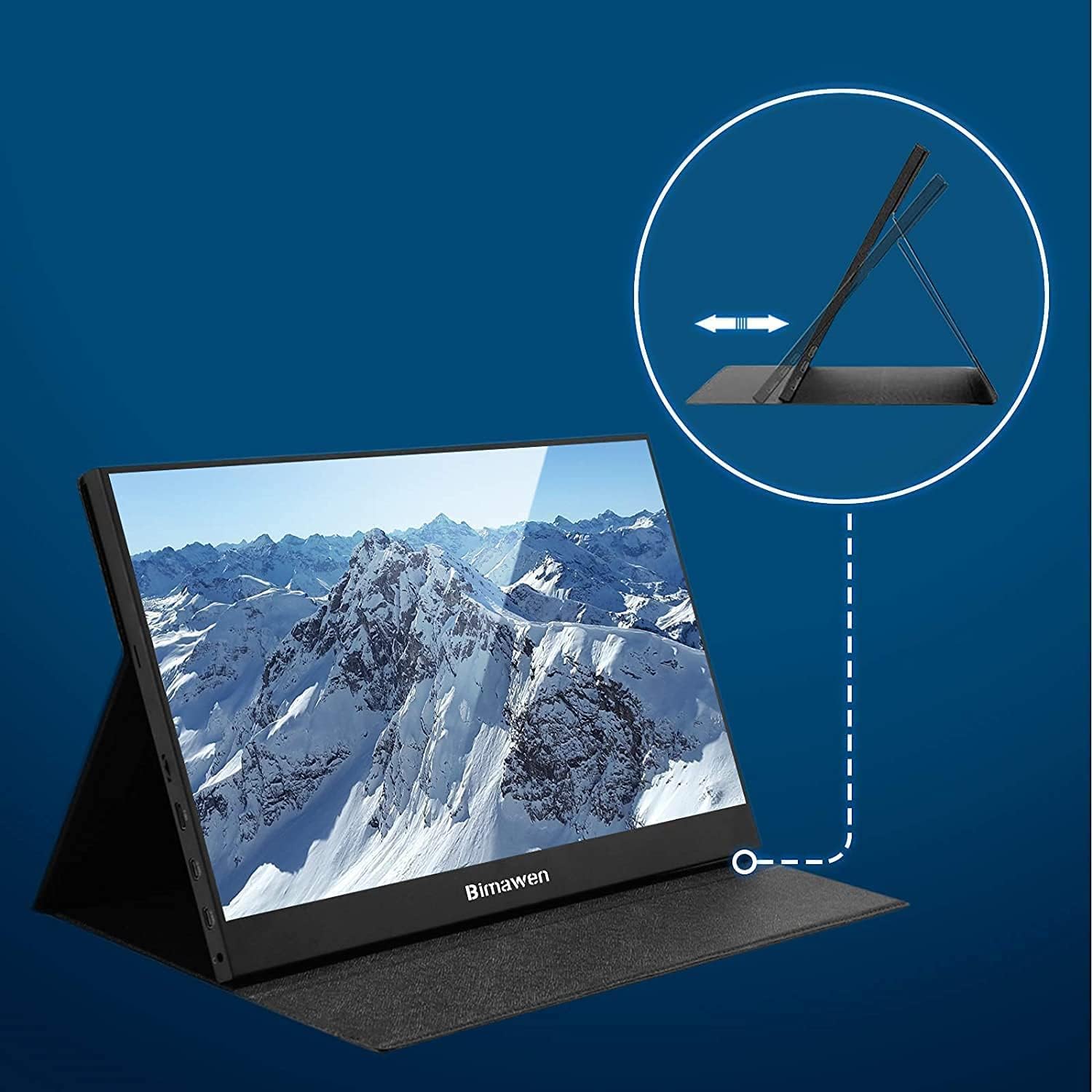
The Bimawen 15.6 inch 2K Portable Monitor, showcasing its sleek design and integrated stand.
What's in the Box
Your Bimawen 15.6 inch 2K Portable Monitor package includes the following items:
- 1 x Bimawen 15.6 inch 2K Portable Monitor
- 1 x Leather Case (doubles as a stand)
- 1 x Power Adapter
- 1 x USB-C to USB-C Cable (for power and video)
- 1 x Mini-HDMI to HDMI Cable
- 1 x Foldable Portable Stand
- 1 x User Manual
Setup
Follow these steps to set up your portable monitor:
- Positioning the Monitor: Use the included leather case as a stand to prop up the monitor at your desired viewing angle. The case is designed to support the monitor both vertically and horizontally.
- Power Connection: Connect the power adapter to the monitor's PD-POWER USB-C port and plug it into a power outlet.
- Device Connection: Connect your device (laptop, smartphone, gaming console, etc.) to the monitor using one of the following methods:
- USB Type-C Connection: If your device has a full-feature USB Type-C port (USB 3.0/3.1/3.2 or Thunderbolt 3/4/5), use the provided USB-C to USB-C cable. This single cable can transmit both video signal and power.
- HDMI Connection: Use the provided Mini-HDMI to HDMI cable to connect your device's HDMI output to the monitor's Mini-HDMI input. Ensure the monitor is also powered via its USB-C PD-POWER port.
- Adjust Settings: Once connected, the monitor should automatically detect the signal. You may need to adjust display settings on your connected device (e.g., resolution, display mode) for optimal viewing.

The monitor offers wide compatibility with various devices, including laptops, smartphones, and gaming systems.

Various connection modes are supported, allowing for flexible display configurations.
Operating the Monitor
The Bimawen portable monitor offers several features to enhance your visual experience:
Display Modes
- Copy Mode: Duplicates your primary screen onto the portable monitor. Ideal for presentations or sharing content.
- Expansion Mode: Extends your desktop, allowing you to have different content on each screen. This is beneficial for multitasking and increasing productivity.

Copy Mode allows you to mirror your primary display.

Expansion Mode provides additional screen real estate for enhanced productivity.
Visual Quality and Features
- 2K Resolution (2560x1440): Experience sharp and clear visuals with a higher pixel density compared to Full HD.
- IPS Panel: Enjoy vibrant colors and wide 178-degree viewing angles, ensuring consistent image quality from various perspectives.
- HDR Support: High Dynamic Range provides greater contrast and color accuracy for a more immersive viewing experience.
- Blue Light Reduction & Flicker-Free: Technologies designed to reduce eye strain and fatigue during prolonged use.
- Built-in Speakers: The monitor includes two integrated speakers for audio output.

Compare 1080P and 2K resolutions for superior visual clarity.

HDR technology enhances contrast and color for a more realistic visual experience.

The IPS panel ensures a wide 178-degree viewing angle with consistent image quality.
VESA Compatibility
The monitor features standard VESA 75 screw holes on the back, allowing it to be mounted on a wall bracket or arm bracket for flexible placement in various environments. (Note: Metal stand not included, shown for illustration purposes only.)
The monitor is VESA mountable for versatile setup options.
Maintenance
To ensure the longevity and optimal performance of your Bimawen portable monitor, follow these maintenance guidelines:
- Cleaning the Screen: Gently wipe the screen with a soft, lint-free cloth. For stubborn smudges, slightly dampen the cloth with water or a screen-safe cleaning solution. Avoid using harsh chemicals or abrasive materials.
- Cleaning the Casing: Use a soft, dry cloth to clean the monitor's casing.
- Handling: Always handle the monitor with care. Avoid dropping it or subjecting it to strong impacts.
- Storage: When not in use, store the monitor in its protective leather case to prevent scratches and dust accumulation. Store in a cool, dry place away from direct sunlight and extreme temperatures.
- Liquid Exposure: Prevent any liquids from entering the monitor's ports or internal components. If liquid exposure occurs, immediately power off the device and consult customer support.
Troubleshooting
If you encounter any issues with your Bimawen portable monitor, refer to the following common solutions:
- No Signal/Display Issues:
- Ensure all cables (power and video) are securely connected to both the monitor and your device.
- Verify that your device's output settings are configured to detect and send a signal to an external display.
- If using a USB-C connection, ensure your device's USB-C port is a full-feature port (USB 3.0/3.1/3.2 or Thunderbolt 3/4/5) that supports video output. USB 2.0 is not supported for video.
- Try connecting the monitor to a different device or using different cables to rule out compatibility or cable issues.
- iPhone/iPad Compatibility: A Lightning to HDMI adapter is required for connecting iPhones and iPads to the monitor. For newer USB-C iPads, a USB-C to USB-C cable can be used if the iPad supports video output via USB-C.
- MacBook/Mac Compatibility: All MacBook Air, MacBook Pro, and Mac Mini models are supported. Ensure your Mac has a compatible USB-C (Thunderbolt) or HDMI interface.
- Using Multiple Portable Monitors: The monitor supports use with multiple external displays. For stable voltage, especially with multiple monitors, it may be necessary to power each monitor with its dedicated adapter.
- Vertical/Portrait Mode: To enable vertical or portrait mode, adjust the display settings on your connected device. For Windows, navigate to Display Settings and change the 'Orientation'. For macOS, go to System Settings > Displays and select the rotation option for the external display.
- No Audio from Speakers:
- Check the volume settings on both the monitor and your connected device.
- Ensure the monitor is selected as the audio output device on your computer or console.
- Image Quality Issues (Blurry, Distorted):
- Ensure the display resolution on your connected device is set to 2560x1440 for optimal clarity.
- Check for any physical damage to the screen or cables.
If these steps do not resolve your issue, please contact Bimawen customer support for further assistance.
Specifications
| Feature | Specification |
|---|---|
| Model Number | 712ac933-b5dd-4b28-bb9a-9a57f3e45018 |
| Screen Size | 15.6 inches |
| Resolution | 2560 x 1440 (2K QHD Wide) |
| Aspect Ratio | 16:9 |
| Panel Type | IPS |
| Screen Surface | Glossy |
| Total USB Ports | 1 (Type-C for power/video) |
| Product Dimensions | 0.35 x 13.78 x 8.27 inches |
| Item Weight | 4.31 pounds |
| Manufacturer | Bimawen |
| ASIN | B0BB6JNN2K |
Warranty and Support
Bimawen is committed to providing high-quality products and excellent customer service.
Warranty Information
We offer a 3-year warranty for the Bimawen 15.6 inch 2K Portable Monitor from the date of purchase. This warranty covers manufacturing defects and malfunctions under normal use. Please retain your proof of purchase for warranty claims.
Customer Support
For any questions, technical assistance, or warranty claims, please refer to the following resources:
- Official User Guide (PDF): For a comprehensive guide, you can download the official PDF user guide here.
- Bimawen Brand Store: Visit the official Bimawen store on Amazon for product information, FAQs, and contact details: Bimawen Store.
Ask a question about this manual
Ask about setup, troubleshooting, compatibility, parts, safety, or missing instructions. Manuals+ will review the question and use this page’s manual context to help answer it.