
1. Introduction
Thank you for choosing the VBESTLIFE 5G WiFi 6 Mobile Hotspot. This device provides high-speed 5G and WiFi 6 connectivity, allowing you to share internet access with up to 16 devices simultaneously. Its robust design, including IP67 water resistance, makes it ideal for travel and outdoor use. Please read this manual carefully to ensure proper use and maintenance of your device.
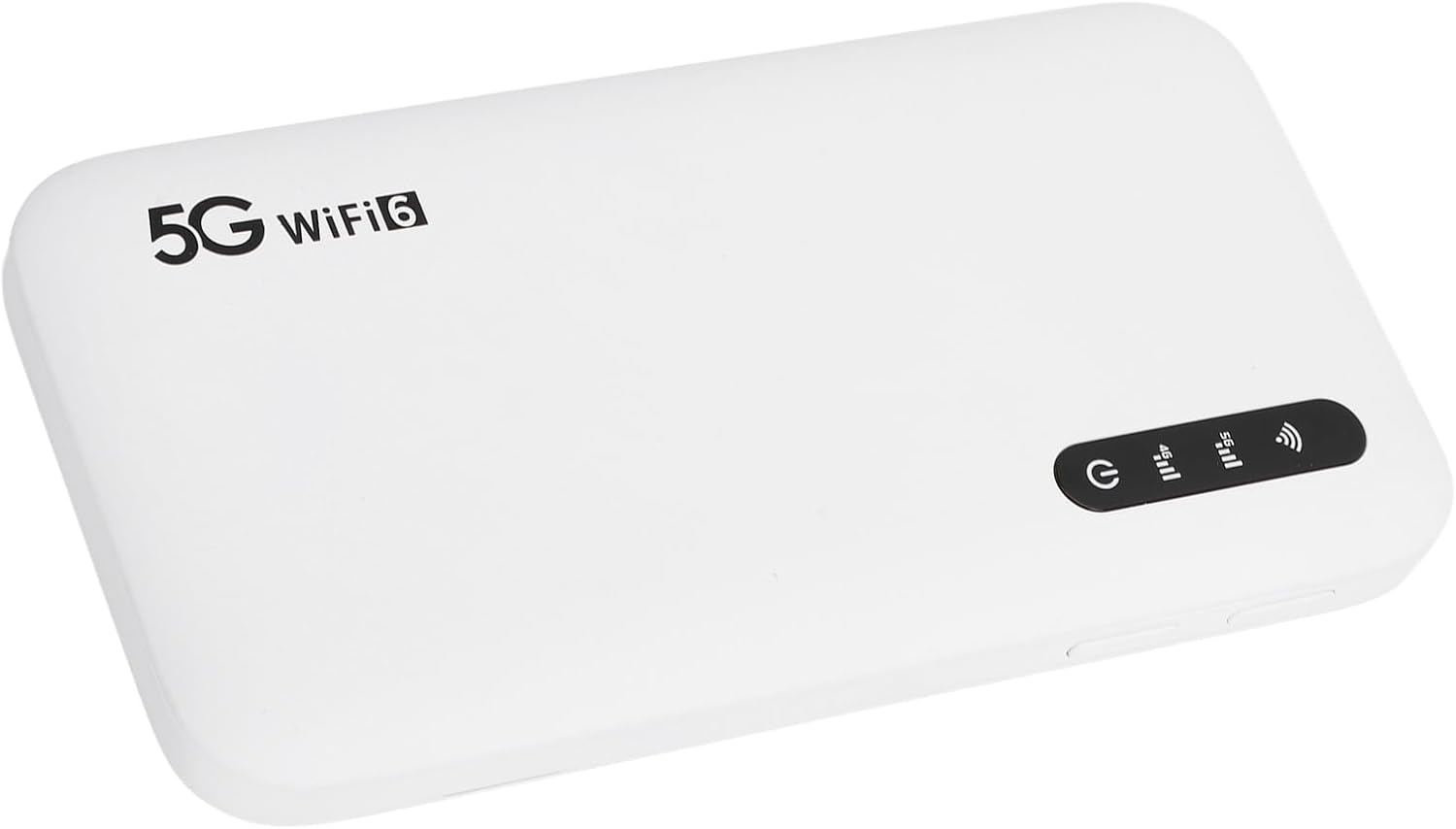
Image: The VBESTLIFE 5G WiFi 6 Mobile Hotspot, showcasing its sleek white design and front panel indicators.
Safety Information
- Do not expose the device to extreme temperatures or direct sunlight for prolonged periods.
- Use only the provided USB cable for charging.
- While the device is IP67 rated for water and dust resistance, avoid intentional submersion or exposure to high-pressure water jets.
- Keep the device away from children.
- Do not attempt to disassemble or repair the device yourself. Contact customer support for assistance.
2. Setup
2.1 Package Contents
- 1 x VBESTLIFE 5G WiFi 6 Mobile Hotspot
- 1 x USB Cable (Type-C)
- 1 x User Manual
2.2 Inserting the SIM Card
- Locate the SIM card slot on the back of the device.
- Gently open the SIM card tray.
- Insert a Nano SIM card into the tray with the gold contacts facing down and the notched corner aligned correctly.
- Carefully push the SIM card tray back into the slot until it clicks into place.

Image: The rear panel of the hotspot, indicating the Nano SIM card slot and labels for default SSID and Wi-Fi Key.
2.3 Charging the Device
- Connect the provided USB Type-C cable to the charging port on the device.
- Connect the other end of the USB cable to a compatible USB power adapter (not included) or a computer USB port.
- The battery indicator LED will show charging status. A full charge is indicated when the LED stops blinking or turns solid green (depending on model behavior).

Image: The hotspot shown with its USB charging cable, illustrating the charging setup.
2.4 Powering On/Off
- To Power On: Press and hold the Power button for approximately 3 seconds until the indicator lights illuminate.
- To Power Off: Press and hold the Power button for approximately 3 seconds until the indicator lights turn off.
3. Operating the Device
3.1 Connecting Devices to WiFi
The hotspot supports up to 16 simultaneous device connections via WiFi 6 (802.11ax) on both 2.4GHz and 5.8GHz bands.
- Ensure the hotspot is powered on.
- On your device (smartphone, tablet, laptop, etc.), open the WiFi settings.
- Look for the network name (SSID) of your hotspot. The default SSID and Wi-Fi Key are typically found on a label on the back of the device (e.g., "MiFi-780194-5G" or "MiFi-780194-2.4G").
- Select the appropriate SSID (e.g., for 5.8GHz or 2.4GHz) and enter the Wi-Fi Key when prompted.
- Your device should now be connected to the internet.
3.2 Understanding LED Indicators
The device features LED indicators to provide information on its status:
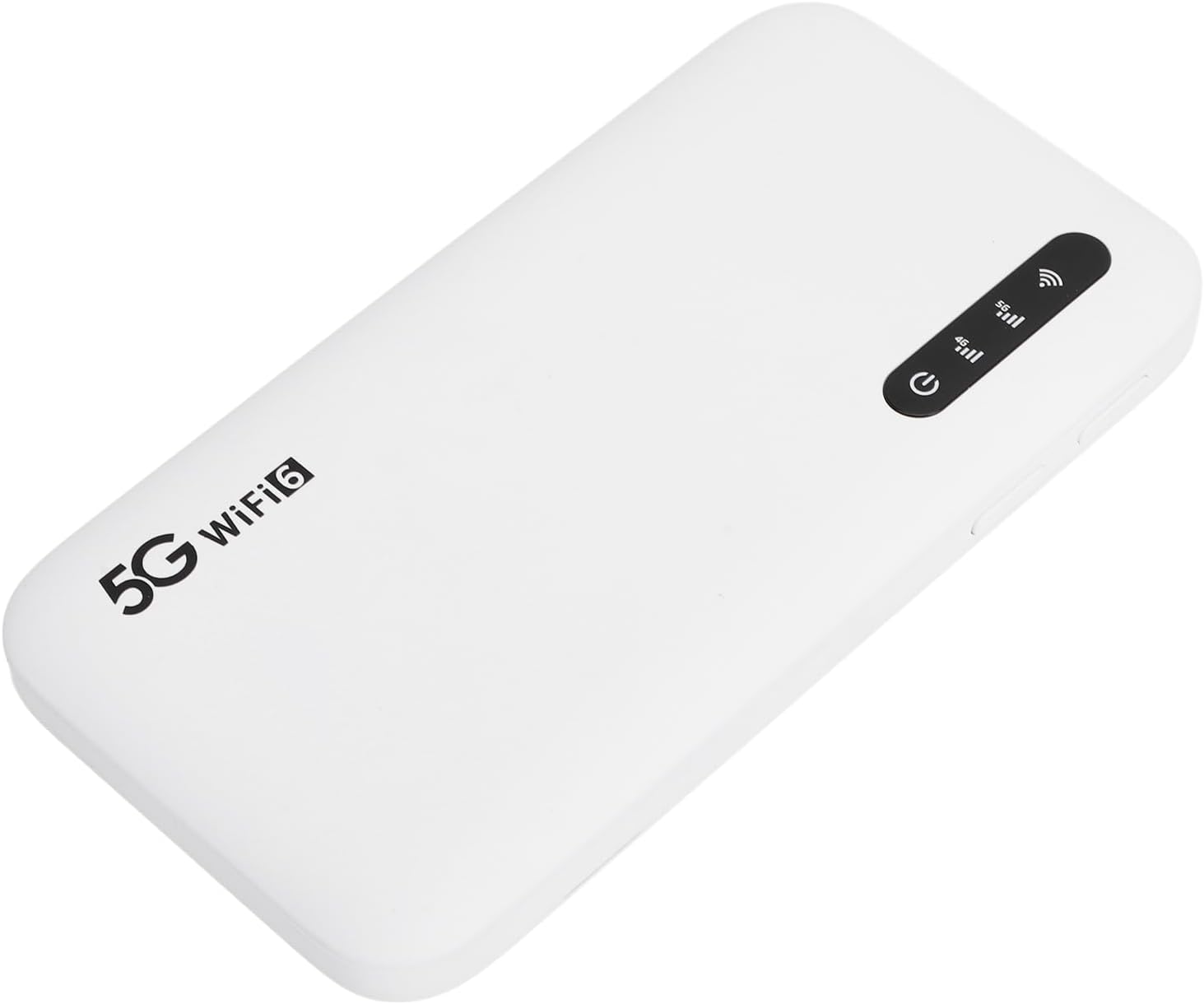
Image: Close-up of the hotspot's LED indicators, providing visual feedback on device status.
- Signal Strength Indicator: Displays the current cellular signal strength (e.g., multiple bars for strong signal).
- Network Type Indicator: Shows the active network type (e.g., 5G, 4G).
- WiFi Status Indicator: Indicates if WiFi is active and broadcasting.
- Battery Indicator: Shows the battery charge level and charging status.
3.3 Accessing the Admin Interface
For advanced settings, network configuration, and monitoring, you can access the hotspot's web-based administration interface:
- Ensure your device is connected to the hotspot's WiFi network.
- Open a web browser on your connected device.
- Enter the default IP address for the admin interface (usually 192.168.1.1 or 192.168.0.1) into the address bar and press Enter. Refer to the device's documentation or label for the exact IP.
- When prompted, enter the username and password. The default username and password are often admin for both. It is highly recommended to change these default credentials after your first login for security purposes.
4. Maintenance
4.1 Cleaning
Wipe the device with a soft, dry cloth. Do not use liquid cleaners or aerosols.
4.2 Battery Care
- To prolong battery life, avoid fully discharging the battery frequently.
- Store the device in a cool, dry place if not used for extended periods.
- The 6100 mAh battery is designed for long-lasting connectivity.
4.3 Software Updates
Periodically check the admin interface for available software updates. Keeping your device's firmware updated ensures optimal performance and security.
5. Troubleshooting
| Problem | Possible Cause | Solution |
|---|---|---|
| No internet connection | No SIM card, incorrect APN settings, no cellular signal, SIM card not activated. | Ensure SIM card is correctly inserted and activated. Check cellular signal strength. Access admin interface to verify APN settings. Restart the device. |
| Slow internet speed | Weak cellular signal, network congestion, too many connected devices, device overheating. | Move to an area with better signal. Disconnect unnecessary devices. Ensure device has proper ventilation. |
| Cannot connect to WiFi | Incorrect Wi-Fi Key, WiFi disabled, device too far from hotspot. | Verify Wi-Fi Key. Ensure WiFi is enabled on the hotspot and your connecting device. Move closer to the hotspot. |
| Device does not power on | Low battery, faulty charging cable/adapter. | Charge the device for at least 30 minutes. Try a different USB cable or power adapter. |
If you encounter issues not listed here, or if the suggested solutions do not resolve the problem, please refer to the online support resources or contact VBESTLIFE customer service.
6. Specifications
| Feature | Detail |
|---|---|
| Model | VBESTLIFEz0fho68m12 |
| Material | ABS |
| Color | White |
| Dimensions (Approx.) | 136 x 72 x 16 mm / 5.35 x 2.83 x 0.63 inches |
| Battery | 6100 mAh Lithium Polymer |
| Memory | LPDDR4X 4 GB RAM, NAND 2 GB ROM |
| Charging Port | Type-C |
| SIM Card Type | Nano SIM (not included) |
| Network Support | 3GPP Rel.15, 5G NR (SA/NSA), Sub 6G/LTE Category 18 |
| 5G NR Bands | FDD: N1/N3/N28; TDD: N41/N78 |
| 4G Bands | FDD: B1/B3/B5/B8; TDD: B34/38/39/40/41 |
| 3G Bands | B1 |
| WiFi Bands | 2.4GHz, 5.8GHz (Dual Band) |
| WiFi Protocol | 802.11 a/b/g/n/ac/ax (WiFi 6) |
| NR Speed (Max) | 2.77 Gbps (DL) / 1.25 Gbps (UL) |
| Max WiFi Connections | Up to 16 devices simultaneously |
| Water Resistance | IP67 |
| Operating System | Linux |
| Compatible Devices | Smartphone, Tablet, PC, Game Console, Smart TV, Printer, Security Camera, Smart Thermostat |
7. Warranty and Support
VBESTLIFE products are designed for reliability and performance. For warranty information, please refer to the warranty card included with your purchase or visit the official VBESTLIFE website. If you require technical assistance or have questions about your device, please contact VBESTLIFE customer support through their official channels.
For the latest information and support, please visit the VBESTLIFE brand store on Amazon: VBESTLIFE Amazon Store


