
Introduction
This user manual provides comprehensive instructions for the installation, operation, and maintenance of your Hikity Android 15 Car Radio. Designed specifically for a seamless fit in various VW and Skoda models, this advanced multimedia system offers wireless CarPlay, Android Auto, a vibrant 9-inch touch screen, integrated GPS, Wi-Fi, Bluetooth, and Mirror Link capabilities, enhancing your driving experience with smart connectivity and entertainment.
Vehicle Compatibility
This Hikity Android Car Radio is specifically designed to fit the following vehicle models:
- VW Golf 5
- VW Golf 6
- VW Passat
- VW Polo
- VW Tiguan
- VW Touran
- VW Caddy
- Skoda models (specific models may vary, please verify dashboard compatibility)
Please ensure your vehicle's dashboard matches the compatible configurations shown in the images below before installation.

Image: Examples of compatible and incompatible vehicle dashboards for installation.

Image: Visual guide indicating compatible (green check) and incompatible (red cross) dashboard types.
Key Features
High-Performance System
Equipped with the latest Android system, 4GB RAM, and 64GB ROM, this car radio ensures responsive and smooth operation without lag. It provides ample storage for all your favorite applications.

Image: Front view of the Hikity Android Car Radio displaying various app icons and system specifications.
Wireless CarPlay & Android Auto
Seamlessly connect your mobile phone via Bluetooth to utilize wireless CarPlay or Android Auto. Access navigation, video, music, and other popular applications directly from the car radio's screen for a smart driving experience.
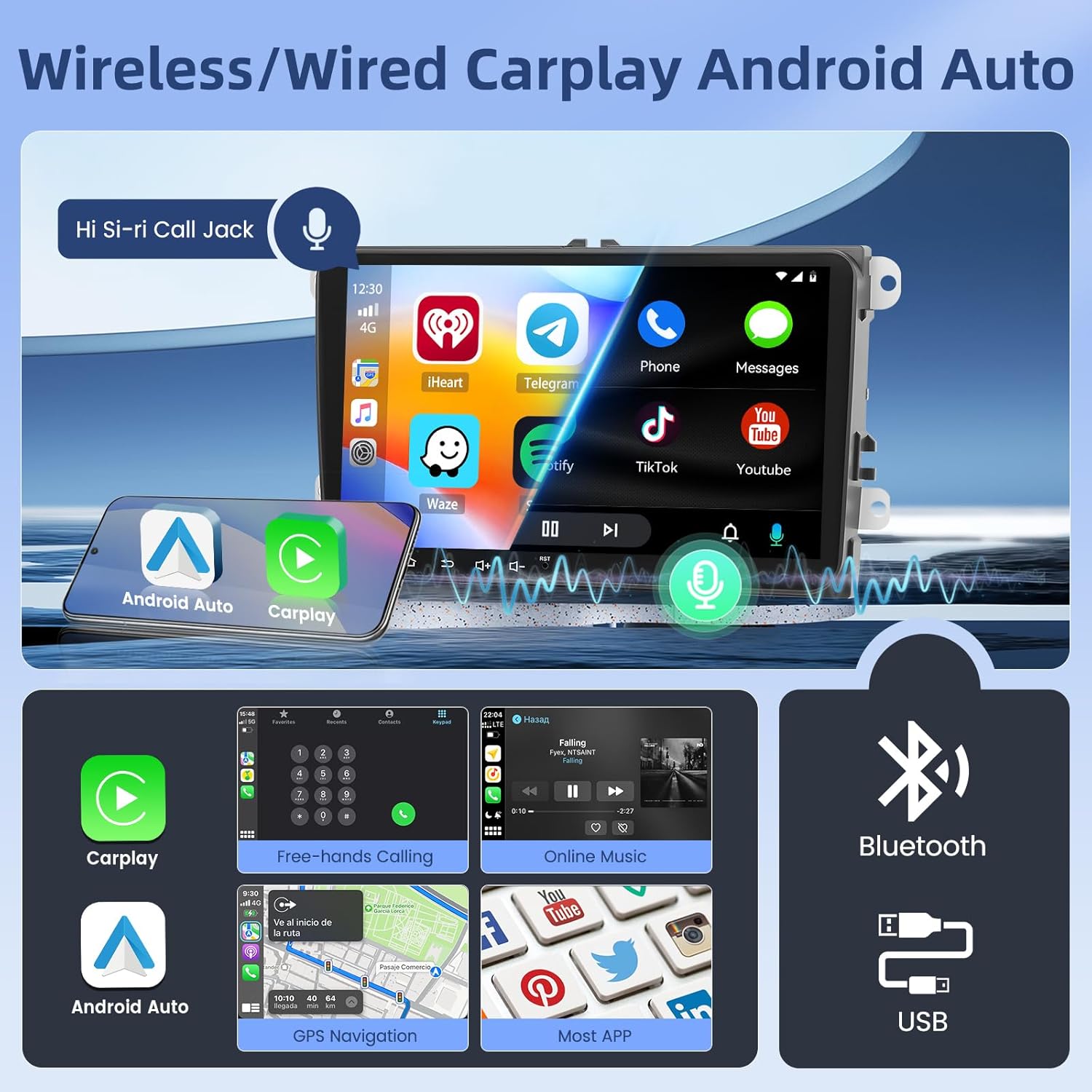
Image: Display showing wireless CarPlay and Android Auto functionality with various app integrations.

Image: Comprehensive overview of wireless CarPlay and Android Auto features, including voice control and app integration.
9-Inch HD IPS Touch Screen
Experience crystal-clear visuals on the 9-inch HD 1080P IPS touch screen. The high-definition display provides excellent clarity and wide viewing angles for an optimal user experience.

Image: Close-up of the 9-inch HD IPS touch screen showcasing its vibrant display quality.

Image: Comparison demonstrating the superior clarity and color of the IPS 1280x720 HD screen versus a general 800x480P screen.
Mirror Link Functionality
Connect your mobile phone's hotspot to the car radio and synchronize your phone screen directly to the car radio display, allowing you to mirror content from your smartphone.

Image: Illustration of the Mirror Link feature, showing how smartphone content is displayed on the car radio screen.
GPS Navigation & Wi-Fi Connectivity
The stereo supports Wi-Fi connection and mobile phone hotspot, enabling online navigation and access to any application from the app store. It also includes a built-in "Herewego" offline map, allowing you to view maps without an internet connection after downloading data.

Image: Display showing GPS navigation, FM radio, and Wi-Fi connectivity options.

Image: Visual representation of GPS navigation with both offline and online map capabilities, alongside Wi-Fi connection for app access.
AHD Backup Camera & Steering Wheel Control (SWC)
The screen supports AHD high-definition backup camera input for safe driving and parking. After learning the original steering wheel control buttons, you can easily control the touch screen without needing additional accessories.

Image: Illustration of the backup camera view on the car radio screen and the steering wheel control interface.

Image: Diagram showing the connection of the reverse camera input, highlighting night vision and waterproof features.

Image: Interface for setting up and customizing steering wheel controls.
Advanced Audio Features (DSP & EQ)
AI DSP (Digital Signal Processor) provides 8 main sound effects designed for car scenes, creating an ultimate listening experience such as 3D optimized, 5.1 Panorama, HiFi scene, etc. 32 EQ settings allow for amazing panoramic surround sound listening.

Image: Screenshots of the FM RDS radio interface and detailed EQ/DSP sound settings.
Bluetooth 5.0 Connectivity
Enjoy stable Bluetooth connectivity for music streaming, hands-free calls, and file transfer. The integrated Bluetooth 5.0 ensures a reliable and high-quality wireless connection.

Image: Visual representation of Bluetooth 5.0 capabilities, including hands-free calling and music streaming.
Split Screen Functionality
Utilize the split-screen feature to run two applications simultaneously, such as navigation and music, for enhanced multitasking while driving.

Image: Demonstration of the split-screen feature, showing two applications running side-by-side.
Package Contents
Upon opening the package, you should find the following items:
- Android Autoradio Unit
- GPS Antenna
- AHD Rear View Camera
- Microphone
- Power Cable
- USB Cable
- Camera Input Cable
- RCA Cable
- User Manual
- Canbus (if applicable for your vehicle model)

Image: Visual representation of the product dimensions and all included accessories in the package.

Image: Detailed view of the product dimensions and a list of all items included in the package.
Setup and Installation
Proper installation is crucial for optimal performance. It is highly recommended that installation be performed by a qualified professional. Always disconnect the vehicle's battery before beginning any electrical work.
Wiring Diagram
Refer to the following diagram for correct wiring connections. Ensure all cables are securely connected to their respective ports.

Image: Detailed wiring diagram showing connections for power, USB, RCA, camera input, radio antenna, and GPS antenna.
- Power Cable: Connect to the vehicle's power supply.
- RCA Cable: For audio/video output and input connections.
- USB Cable: For connecting USB devices and data transfer.
- Camera Input: For connecting the AHD rear view camera.
- Radio Antenna: For FM/AM radio reception.
- GPS Antenna: For accurate GPS positioning.
General Installation Steps (Overview)
- Preparation: Disconnect the vehicle's negative battery terminal. Remove the original car radio unit.
- Wiring: Connect the provided power cable, RCA cables, USB cables, and camera input cable to the new Hikity unit according to the wiring diagram.
- Antenna Connections: Connect the GPS antenna and radio antenna. Position the GPS antenna in a location with clear sky view (e.g., dashboard).
- Test Connections: Before fully mounting, temporarily connect the battery and test basic functions (power on, radio, touch screen responsiveness).
- Mounting: Securely mount the Hikity car radio into the dashboard opening. Ensure all cables are neatly tucked away and not pinched.
- Final Connection: Reconnect the vehicle's battery.
- Configuration: Power on the unit and proceed with initial setup, including steering wheel control learning and network configuration.
Operating Instructions
Basic Operation
- Power On/Off: Press and hold the power button on the unit or use the vehicle's ignition.
- Volume Control: Adjust using the on-screen controls or steering wheel buttons (if configured).
- Home Screen: Tap the Home icon to return to the main application interface.
- Navigation: Swipe left/right on the screen to access different app pages.
Wireless CarPlay / Android Auto
- Ensure Bluetooth is enabled on your smartphone and the car radio.
- Pair your smartphone with the car radio via Bluetooth.
- Once paired, the system should automatically prompt to launch CarPlay or Android Auto. Follow on-screen instructions to complete the setup.
- For optimal performance, ensure your phone's operating system is up to date.
GPS Navigation
- Online Navigation: Connect the unit to Wi-Fi or a mobile hotspot. Open a navigation app (e.g., Google Maps, Waze) and enter your destination.
- Offline Navigation: Use the pre-installed "Herewego" app. Ensure you have downloaded the necessary map data for your region in advance.
Bluetooth Functions
- Pairing: Go to Bluetooth settings on the car radio, enable Bluetooth, and search for available devices. Select your phone and confirm pairing.
- Hands-Free Calling: Once paired, you can make and receive calls directly from the car radio screen.
- Music Streaming: Play audio from your phone through the car speakers via Bluetooth.
FM Radio
- Select the "Radio" application from the main menu.
- Use the on-screen controls to scan for stations, manually tune, or select from saved presets.
- The RDS (Radio Data System) feature provides additional information like station name and song title where available.
Mirror Link
- Ensure your phone's hotspot is active.
- Connect the car radio to your phone's hotspot via Wi-Fi.
- Open the "Mirror Link" application on the car radio and follow the instructions to connect your smartphone.
Maintenance
- Cleaning: Use a soft, dry cloth to clean the screen and unit. Avoid abrasive cleaners or solvents.
- Software Updates: Periodically check for software updates to ensure optimal performance and access to new features. Updates can usually be found via the system settings or the manufacturer's website.
- Temperature: Avoid exposing the unit to extreme temperatures, direct sunlight for prolonged periods, or high humidity.
- Cable Connections: Periodically check all cable connections to ensure they are secure and free from damage.
Troubleshooting
| Problem | Possible Cause | Solution |
|---|---|---|
| Unit does not power on. | Loose power connection, blown fuse, vehicle battery issue. | Check power cable connections. Inspect vehicle fuses. Ensure vehicle battery is charged. |
| No sound. | Volume too low, mute enabled, speaker wiring issue, incorrect audio source. | Increase volume. Check if mute is active. Verify speaker connections. Select correct audio source. |
| CarPlay/Android Auto not connecting. | Bluetooth not enabled, phone not paired, software glitch, incompatible phone OS. | Ensure Bluetooth is on and phone is paired. Restart phone and car radio. Update phone OS. |
| GPS signal weak or inaccurate. | GPS antenna obstructed or improperly placed, environmental interference. | Ensure GPS antenna has a clear view of the sky. Check antenna connection. Move vehicle to an open area. |
| Touch screen unresponsive. | Temporary software freeze, dirty screen, hardware issue. | Restart the unit. Clean the screen. If issue persists, contact support. |
Specifications
| Feature | Detail |
|---|---|
| Brand | Hikity |
| Model Number | Hikity-A3852H1MI2EU26-C304 |
| Operating System | Android 15 |
| RAM | 4GB |
| ROM | 64GB |
| Screen Size | 9 Inches (23 cm) |
| Display Type | HD 1080P IPS Touch Screen |
| Connectivity Technology | Bluetooth 5.0, USB, Wi-Fi |
| Special Features | Android Auto, Built-in Bluetooth, GPS Navigation, FM Tuner, Wireless CarPlay, Mirror Link, Steering Wheel Control, AI DSP |
| Compatible Devices | Smartphone |
| USB Ports | 2 |
| Audio Output Mode | Stereo |
| Surround Sound Channels | 4 |
| Video Encoding Support | MKV, RMVB, AVI, MP4, MDV |
| Item Weight | 1.26 Kilograms |
Warranty and Support
Your Hikity Android Car Radio comes with a 12-month manufacturer's warranty. Hikity Electronic provides online assistance for inquiries and aims to respond within 24 hours for lifetime support.
For technical support, warranty claims, or any questions regarding your product, please contact Hikity Electronic directly through their official channels or the platform where you purchased the product.
Seller: Hikity Electronic
Return Policy: 30-day refund/replacement policy through Amazon.


