
MatataStudio MX2-A
MatataStudio MX2-A Handheld Digital Microscope User Manual
Model: MX2-A
1. Introduction
The MatataStudio MX2-A Handheld Digital Microscope is a versatile and portable educational tool designed for both kids and adults. It features a 4.3-inch 1080P LCD screen, offering digital magnification from 100X to 1600X. Its dual-model design allows for both handheld and stand-based observation, making it suitable for various indoor and outdoor exploration activities. The microscope supports real-time image preview, photo and video recording, and connectivity via USB-C or Wi-Fi to mobile devices and PCs.
This manual provides comprehensive instructions for setting up, operating, maintaining, and troubleshooting your MX2-A microscope to ensure optimal performance and a rich learning experience.
2. What's in the Box
Upon opening the package, please verify that all components are present and in good condition:
- MX2-A Handheld Microscope with Screen
- Observation Chamber (x2)
- Exploration Manual & User Guide
- 8GB Micro SD Card (built-in)
- Calibration Ruler
- USB-C Data Cable

3. Setup Guide
3.1 Charging the Microscope
The MX2-A microscope features a built-in 2600mAh battery. Before first use, fully charge the device using the provided USB-C cable. Connect the USB-C end to the microscope's charging port and the other end to a compatible USB power adapter (not included) or a computer USB port. The charging indicator will show the charging status.

3.2 Inserting the Micro SD Card
The 8GB micro SD card is typically pre-installed. If not, locate the micro SD card slot on the side of the microscope and gently insert the card until it clicks into place. This card is essential for saving photos and videos.
3.3 Assembling the Stand (Optional)
For stable observation, especially with prepared slides or stationary objects, attach the microscope to its stand. Align the microscope's base with the stand's mounting point and secure it firmly. The stand provides additional lighting options and precise focus adjustment.
4. Operating Instructions
4.1 Powering On/Off
Press and hold the power button located on the microscope to turn it on or off. The 4.3-inch LCD screen will illuminate, displaying the live view.
4.2 Adjusting Magnification and Focus
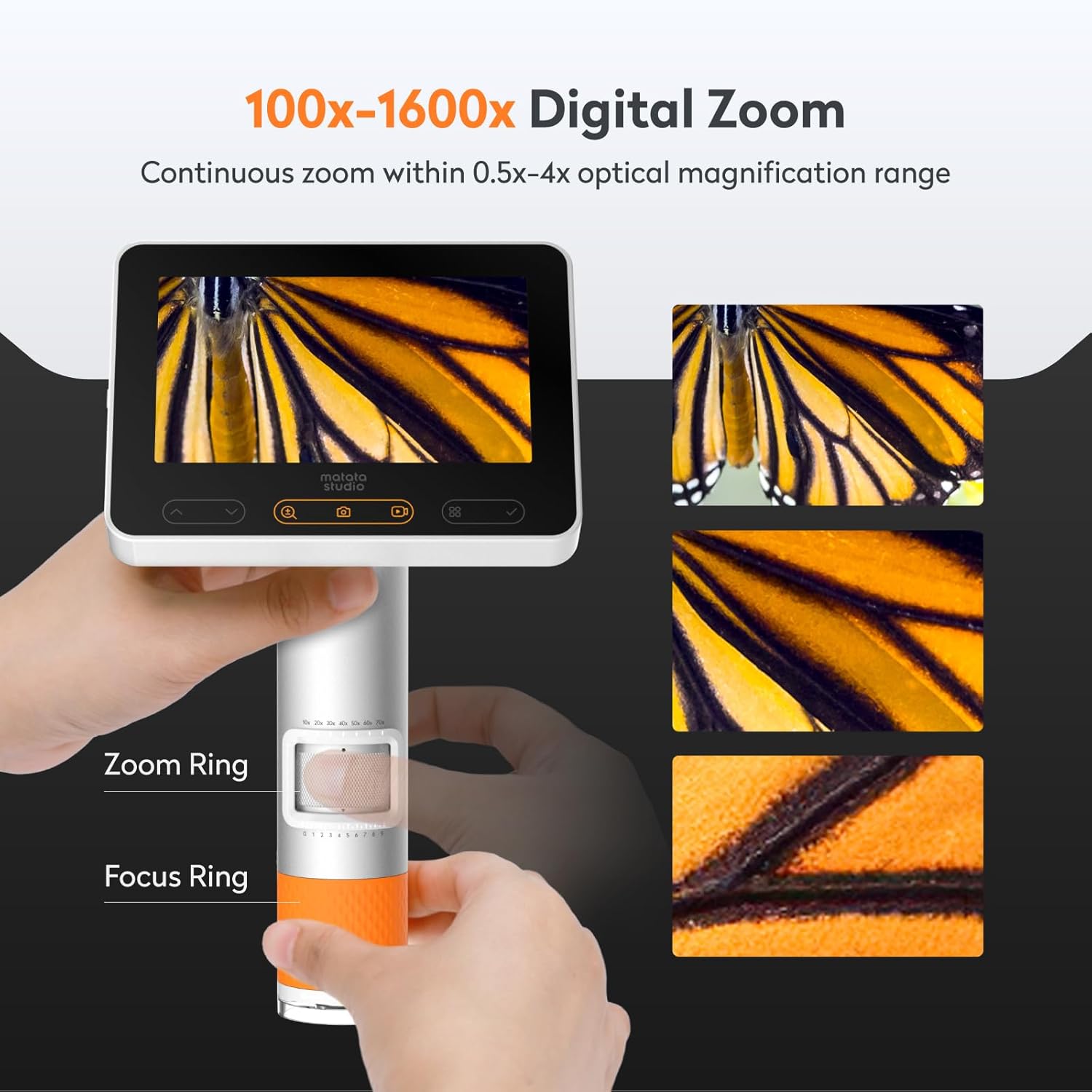
The MX2-A offers 100X-1600X digital magnification. Use the zoom ring on the microscope body to adjust the optical magnification (0.5X-4X range). For digital zoom, use the capacitive touch buttons on the screen. The focus ring allows for precise focusing on your specimen.
4.3 Lighting Control
The microscope features built-in 8 adjustable LED lights. These lights can be controlled via the touch buttons on the stand (when docked) or directly on the microscope. There are dual light sources: transmitted light (from below the specimen) and incident light (from above the specimen), allowing observation of both transparent and opaque samples. The stand also offers intelligent dyeing with 7 color options for enhanced viewing.

4.4 Capturing Photos and Videos
Use the dedicated photo and video buttons on the screen or stand to capture images and record footage. Captured media is saved directly to the built-in micro SD card.

4.5 Connectivity (USB-C/Wi-Fi)
The MX2-A supports real-time preview on external devices. Connect via USB-C to a PC or use Wi-Fi to connect to mobile phones or tablets via the MatataXplore app. This allows for a larger viewing experience and easier data transfer.
- Wi-Fi Connection: Download the MatataXplore app from your device's app store (Android, iOS) or for ChromeOS. Follow the in-app instructions to connect to the microscope's Wi-Fi network.
- USB-C Connection: Connect the microscope to your computer using the provided USB-C cable. The microscope should be recognized as an external device, allowing access to saved files.

5. Maintenance and Care
- Cleaning: Use a soft, dry cloth to clean the microscope body and screen. For the lens, use a specialized lens cleaning cloth and solution. Avoid abrasive materials or harsh chemicals.
- Storage: Store the microscope in a cool, dry place, away from direct sunlight and extreme temperatures. Use the provided storage bag to protect it from dust and scratches.
- Battery Care: To prolong battery life, avoid fully discharging the battery frequently. Charge the device regularly, even if not in use for extended periods.
- Handling: Handle the microscope with care. Avoid dropping it or subjecting it to strong impacts, as this may damage internal components.
6. Troubleshooting
| Problem | Possible Cause | Solution |
|---|---|---|
| Microscope does not power on. | Low battery; Power button not pressed correctly. | Charge the microscope fully. Press and hold the power button for a few seconds. |
| Image is blurry or out of focus. | Incorrect focus adjustment; Specimen not positioned correctly. | Adjust the focus ring. Ensure the specimen is flat and directly under the lens. |
| Cannot connect via Wi-Fi. | Wi-Fi is off; Incorrect app settings; Interference. | Ensure Wi-Fi is enabled on the microscope and your device. Restart both devices. Check app permissions. |
| Cannot save photos/videos. | Micro SD card full or not inserted; Card error. | Check if the micro SD card is properly inserted. Delete old files or replace the card. Format the card if necessary (this will erase all data). |
| Screen is dark or dim. | Lighting not adjusted; Screen brightness low. | Adjust the LED lights. Increase screen brightness in the settings. |
7. Specifications
| Feature | Detail |
|---|---|
| Model Name | Matatastudio MX2-A |
| Display | 4.3-inch 1080P LCD Screen |
| Magnification | 100X-1600X Digital Magnification (0.5X-4X Optical Range) |
| Light Source | Built-in 8 Adjustable LED Lights (Dual Light Source: Transmitted & Incident) |
| Battery | 2600mAh Lithium Polymer (approx. 3+ hours continuous use) |
| Connectivity | USB-C, Wi-Fi (MatataXplore App for Android, iOS, ChromeOS, Windows, macOS) |
| Storage | 8GB Micro SD Card (built-in) |
| Dimensions | 9.65 x 7.2 x 3.78 inches (Product) |
| Weight | 1.45 pounds (0.66 Kilograms) |
| Material | Aluminum Alloy Body, Metal, Plastic |
8. Warranty and Support
MatataStudio products are designed for durability and performance. For specific warranty information, please refer to the warranty card included in your product packaging or visit the official MatataStudio website. Keep your purchase receipt as proof of purchase for warranty claims.
For technical support, troubleshooting assistance beyond this manual, or inquiries about replacement parts, please contact MatataStudio customer service through their official website or the contact information provided in your product documentation.
Online Resources:
- MatataStudio Store: https://www.amazon.com/stores/MatataStudio-STEMRoboticsforkids/page/BB54E2F5-04A0-44F7-B72D-A7BF63E08E24
- MatataXplore App: Available on App Store, Google Play, ChromeOS, macOS, Windows.
Related Documents - MX2-A
 |
MatataStudio MT3-4 Digital Microscope User Manual Comprehensive user manual for the MatataStudio MT3-4 digital microscope. Covers installation, operation, WIFI and computer connectivity, technical specifications, precautions, and troubleshooting. |
 |
MX2-100 Manual Transaxle Service Specifications and Torque Values Comprehensive service specifications and torque values for the MX2-100 manual transaxle, covering gear clearances, bearing preloads, shim thicknesses, and component tightening torques. Essential data for automotive repair and maintenance. |
 |
ALOGIC MX2 USB-C Dual Display Docking Station with 100W Power Delivery - User Manual Explore the features and specifications of the ALOGIC MX2 USB-C Dual Display Docking Station. This guide details its 100W Power Delivery capabilities, connectivity options, and usage for enhanced productivity. |
 |
Benshaw RX2E Softstarters: Comprehensive Technical Overview and Features Detailed technical overview of the Benshaw RX2E series of enclosed combination soft starters, highlighting features, dual-redundant starting, motor protection, industrial applications, and benefits for heavy-duty motor control. |
 |
ALOGIC Product Catalogue: Docking Stations, Hubs, Cables, and Accessories Explore the comprehensive ALOGIC product catalog featuring a wide range of docking stations, USB-C hubs, monitors, webcams, charging solutions, cables, and laptop stands designed for enhanced productivity and connectivity. |
 |
HanYoung NUX Product Catalog by MELTAS A comprehensive catalog of HanYoung NUX industrial automation and electronic components, distributed by MELTAS. Features a wide range of products including timers, counters, sensors, switches, and control devices with model numbers. |
Ask a question about this manual
Ask about setup, troubleshooting, compatibility, parts, safety, or missing instructions. Manuals+ will review the question and use this page’s manual context to help answer it.