1. Introduction
This manual provides detailed instructions for the installation, operation, and maintenance of your ATOTOEXCEL A6PF 9-inch Android Double DIN Car Stereo. This device integrates advanced features such as Wireless CarPlay, Android Auto, AI DriveChat, DSP, and OBD2 diagnostics to enhance your in-car experience. Please read this manual thoroughly before use to ensure proper functionality and safety.

Image 1.1: Front view of the ATOTOEXCEL A6PF car stereo with its 9-inch display and included OBDII scanner.
2. Package Contents
Verify that all items listed below are present in your package:
- Car Stereo Unit (A6PF)
- Line Out Converter
- External Microphone
- GPS Antenna
- Bluetooth OBD Scanner (AC-4450)
- Power Cable
- Rear Camera Input Cable
- RCA Connector Cables
- Rear Audio Out Cable
- USB External Storage Cable
- USB Phone Link Cable
- Lavalier Microphone
- Double-DIN Brackets
- Mounting Brackets
- Adaptive Cage
- Mounting Screws
- Screen Protector

Image 2.1: Visual representation of the ATOTOEXCEL A6PF package contents.
3. Setup and Installation
Professional installation is recommended for optimal performance and to avoid damage to your vehicle or the stereo unit. Ensure the vehicle's power is disconnected before beginning installation.
3.1 Physical Installation
- Mounting: Use the provided double-DIN brackets, mounting brackets, and adaptive cage to secure the stereo unit into your vehicle's dashboard.
- Wiring: Connect the power cable, speaker wires, and other necessary input/output cables (e.g., rear camera, RCA connectors) according to your vehicle's wiring diagram and the stereo's labeled connections.
- External Components: Install the GPS antenna in a location with a clear view of the sky. Position the external microphone for optimal voice pickup.
3.2 Initial Power-Up and Configuration
- Power On: Reconnect the vehicle's power and turn on the stereo unit.
- Language and Time: Follow the on-screen prompts to set your preferred language and synchronize the time.
- Network Connection: Connect the unit to a Wi-Fi network (5G/2.4G) or use USB/Bluetooth tethering to enable internet access for app downloads and online services.

Image 3.1: Dimensional overview for proper installation into a double DIN slot.
4. Operating Instructions
4.1 Android System Overview
The A6PF operates on an Android system with an 8-core ARM processor, 2GB RAM, and 32GB storage. The 9-inch IPS touchscreen offers a 1280x720 HD resolution with a 178° viewing angle. You can download various applications from the Google Play Store or other sources.

Image 4.1: Key features of the A6PF Android system.
4.2 Wireless CarPlay & Android Auto
Connect your smartphone wirelessly for seamless integration of CarPlay or Android Auto. After the initial Bluetooth/Wi-Fi setup, the system will automatically connect when you enter your car. This allows access to navigation, music, calls, and messages directly from the stereo screen.
4.3 MirrorLink
For applications not compatible with CarPlay or Android Auto, MirrorLink allows you to mirror your smartphone's screen onto the A6PF display.
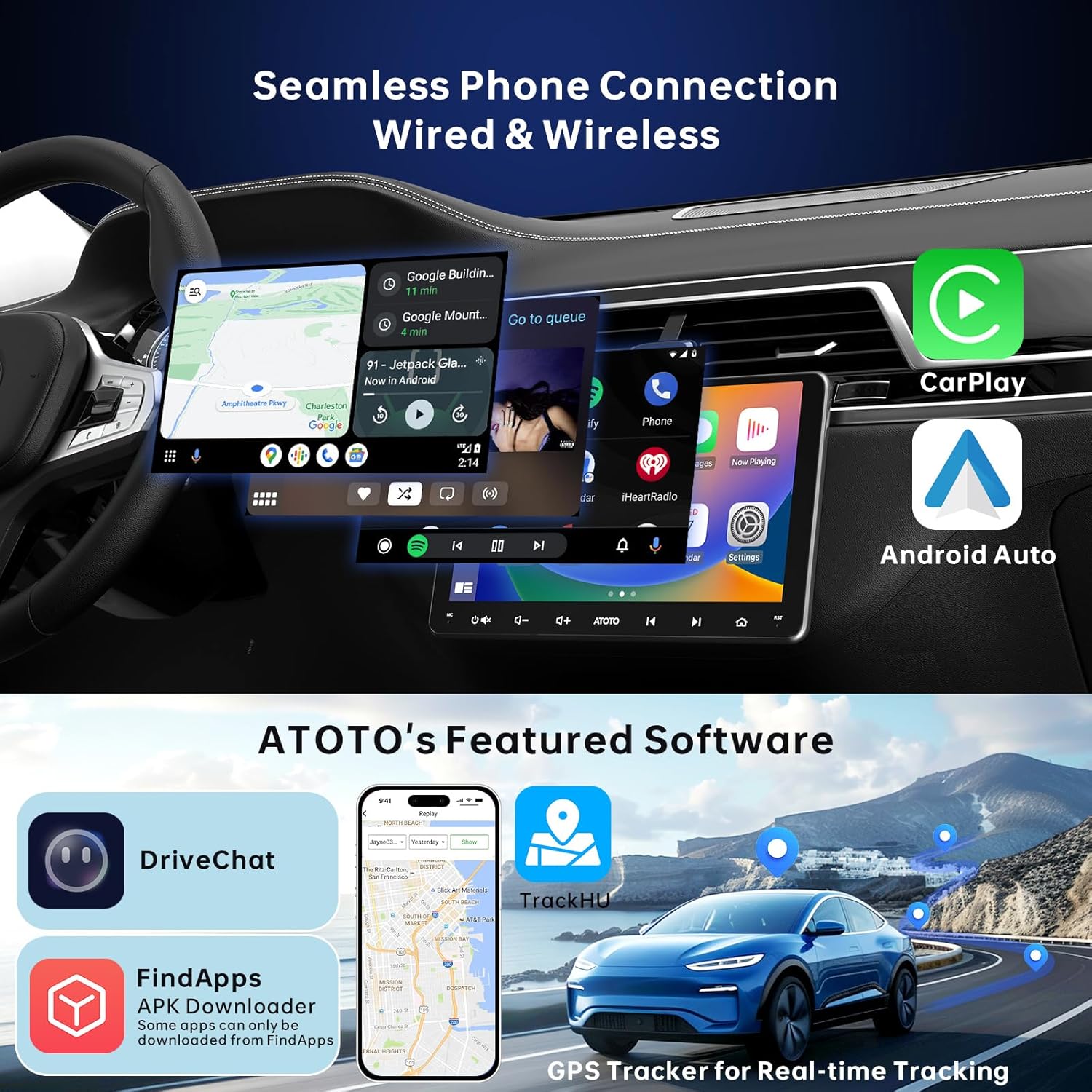
Image 4.2: Wireless CarPlay and Android Auto functionality.
4.4 Audio Customization (DSP & EQ)
The built-in Digital Signal Processor (DSP) and 36-band Equalizer (EQ) allow for extensive audio customization. Features include time alignment for optimal listening, customizable EQ settings, and Speed Compensated Volume Control (SCVC) to counteract external noise. The amplifier provides 4*45W maximum power and 4*24W RMS, with adjustable crossovers.

Image 4.3: DSP and 36-band EQ interface for audio tuning.
4.5 DriveChat - AI Driving Assistant
Based on the ChatGPT model, DriveChat is an AI-powered assistant designed to enhance driving safety and entertainment. Engage in voice commands for calls, music playback, and various interactions. Customize chatbot roles and wake-up words.
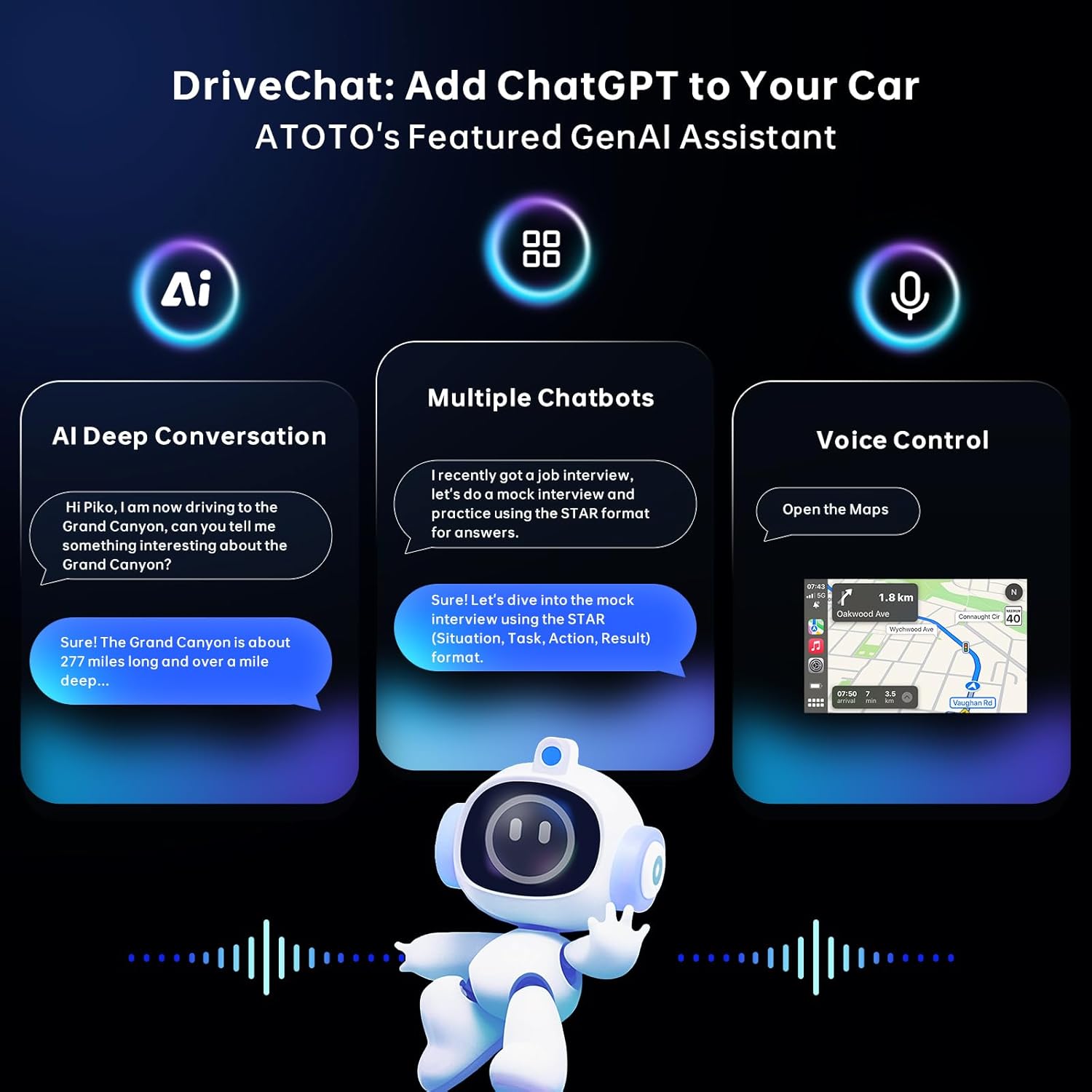
Image 4.4: DriveChat AI assistant features.
4.6 GPS Tracking (TrackHU)
The TrackHU app provides real-time GPS tracking with refresh rates as fast as every 5 seconds. It utilizes four satellite systems (GPS, Galileo, GLONASS, Beidou) for precise positioning. Features include speed-controlled track playback, detailed reports, and geofence alerts for online/offline status changes.
Video 4.1: Demonstration of the TrackHU GPS tracking app, showing its features and how to enable it on the ATOTOEXCEL car stereo.

Image 4.5: Overview of GPS-TrackHU features.
4.7 Dual Bluetooth
The A6PF features dual Bluetooth connectivity: BT1 for calls and audio streaming, and BT2 for pairing with multiple third-party Bluetooth devices. When connected to BT1, the stereo can automatically unlock when you enter the car and lock when you walk away.

Image 4.6: Dual Bluetooth functionality and applications.
4.8 OBDII Scanner (AC-4450)
The included AC-4450 Bluetooth OBDII scanner offers plug-and-play functionality. Use the pre-installed Torque APP to diagnose full vehicle systems, read and reset trouble codes, and monitor live data streams.

Image 4.7: On-Board Diagnostics (OBDII) with the AC-4450 scanner.
4.9 Dual Zone Video Out
Enhance in-car entertainment by connecting external monitors (not included) via USB to RCA (AC-AHV48) or USB to HDMI (AC-AHV68) adapters for dual-zone video output.

Image 4.8: Dual Zone Video Out capability.
5. Maintenance
To ensure the longevity and optimal performance of your ATOTOEXCEL A6PF car stereo, regular maintenance is recommended:
- Software Updates: Regularly check for and install software updates provided by ATOTOEXCEL to access new features and improvements. Updates are typically available via OTA (Over-The-Air) through the FindApps application.
- Screen Cleaning: Use a soft, lint-free cloth to clean the touchscreen. Avoid abrasive cleaners or harsh chemicals.
- Cable Connections: Periodically check all cable connections to ensure they are secure and free from damage.
6. Troubleshooting
If you encounter issues with your ATOTOEXCEL A6PF, refer to the following common troubleshooting tips:
- No Power: Check all power connections and ensure the vehicle's ignition is on. Verify the fuse is intact.
- No Sound: Check speaker connections, volume levels, and audio settings (EQ, DSP). Ensure the correct audio source is selected.
- Touchscreen Unresponsive: Perform a system reboot. If the issue persists, contact customer support.
- GPS Signal Issues: Ensure the GPS antenna has a clear view of the sky and is securely connected.
- CarPlay/Android Auto Connection Problems: Verify Bluetooth and Wi-Fi are enabled on both the stereo and your smartphone. Ensure your phone's software is up to date.
For more complex issues or persistent problems, please contact ATOTOEXCEL customer support.
7. Specifications
| Feature | Detail |
|---|---|
| Model Number | A6PF |
| Operating System | Android 10.0 |
| Processor | 8-Core ARM |
| RAM | 2GB |
| Internal Storage | 32GB |
| Screen Size | 9-inch IPS |
| Screen Resolution | 1280x720 HD |
| Connectivity | Bluetooth, USB, Wi-Fi (5G/2.4G) |
| Special Features | Wireless Apple CarPlay & Android Auto, Built-in DSP, 36-Band EQ, Dual Bluetooth, DriveChat (AI assistant), Live Rear-view, GPS Tracking (TrackHU APP), Bluetooth OBD Scanner included |
| Audio Output Mode | Stereo Mono |
| Surround Sound Channel Configuration | 4.1 |
| Amplifier Power | 4*45W (Max), 4*24W (RMS) |
| Item Weight | 4.21 pounds |
| Package Dimensions | 11.57 x 9.69 x 4.41 inches |
8. Warranty and Support
ATOTOEXCEL provides comprehensive support for your A6PF car stereo:
- Product Care: Enjoy 12+6 months of product care.
- Expert Services: Access expert pre-sale and post-sale services.
- Software Updates: Regular software updates are provided to enhance functionality.
- SBV Tool: Utilize the SBV (Search By Vehicle) tool for vehicle-specific information.
- Quick Response: Professional assistance and 24-hour quick response are available.
For support, please refer to the contact information provided with your product or visit the official ATOTOEXCEL website.

Image 8.1: Overview of ATOTOEXCEL product care and support options.