
Product Overview
This manual provides detailed instructions for the installation, operation, and maintenance of your Hodozzy 10.1 Inch Android Car Stereo. This advanced car stereo features an 8-core CPU, 4GB RAM, and 64GB ROM, running on Android 13, offering a fast and smooth user experience. Key functionalities include wireless CarPlay and Android Auto, GPS navigation, Bluetooth, DSP, FM RDS radio, and support for a rear view camera.

Image: Hodozzy 10.1 Inch Android Car Stereo with its main display and included accessories.
Package Contents
Before installation, please verify that all components are present in the package:
- Hodozzy 10.1 Inch Android Car Stereo Unit
- Power Cable
- RCA Cable
- Rear Camera Input Cable
- GPS Antenna
- USB Cable
- Mounting Bracket
- Microphone (MIC)
- Backup Camera
- User Manual (this document)

Image: Detailed view of the car stereo dimensions and all included accessories.
Setup and Installation
Installation of the car stereo requires basic automotive electrical knowledge. It is recommended to have the unit installed by a professional if you are unfamiliar with car audio wiring.
Wiring Connections
Refer to the wiring diagram provided with your unit and the image below for proper connections:
- Power Cable: Connect to the vehicle's power supply (ACC, B+, GND).
- RCA Input/Output: For external audio/video devices, amplifiers, or subwoofers.
- Reversing Camera Input: Connect the included backup camera for automatic display when reversing.
- USB Cable: For data transfer, charging, and wired CarPlay/Android Auto connections.
- GPS Antenna: Mount in a location with clear sky view for optimal GPS signal reception.
- Radio Antenna: Connect to the vehicle's FM/AM antenna.
Image: Rear view of the car stereo with labeled connection points.
Mounting
Use the provided mounting brackets to secure the unit in your vehicle's double DIN slot. Ensure the unit is firmly in place to prevent vibration and damage.
Operating Instructions
Wireless CarPlay and Android Auto
The unit supports both wireless and wired Apple CarPlay and Android Auto via the Zlink application. This allows seamless integration of your smartphone's features, including navigation, messaging, phone calls, and music streaming, directly on the 10.1-inch screen.
- Wireless Connection: Enable Bluetooth and Wi-Fi on your smartphone and connect to the car stereo's Bluetooth. Follow the on-screen prompts in the Zlink app to establish the wireless CarPlay or Android Auto connection.
- Wired Connection: Connect your smartphone to the stereo via a USB cable. The Zlink app should automatically launch.
Mirror Link (Airplay)
Mirror Link functionality allows you to display your smartphone's screen directly onto the car stereo. This is supported for both Android (wireless or USB) and iOS (wireless) devices.

Image: Wireless CarPlay, Android Auto, and Mirror Link features.
GPS Navigation and WiFi Hotspot
The car stereo comes with a pre-installed offline map for navigation. For real-time traffic updates and online map services, connect the unit to a Wi-Fi network or your smartphone's hotspot.
- Offline Maps: Access the pre-loaded navigation application for turn-by-turn directions without an internet connection.
- Online Maps & Apps: Connect to Wi-Fi to download additional map data, access online navigation services, and download various applications from the Google Play Store.
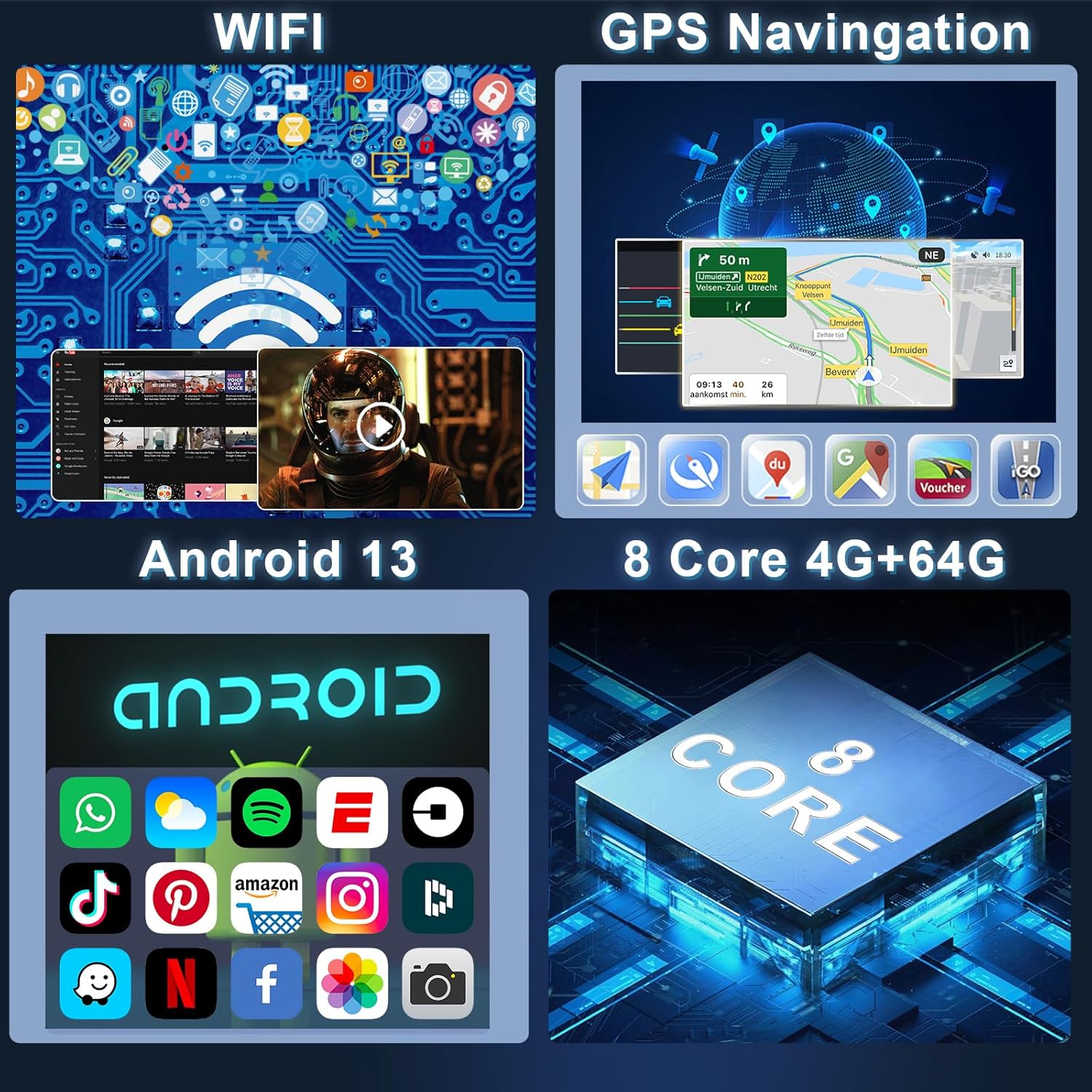
Image: WiFi and GPS Navigation capabilities.
Bluetooth, DSP, and FM Radio
- Bluetooth: Built-in Bluetooth with A2DP supports hands-free calling, phonebook synchronization, and audio streaming from your mobile device. Pair your phone via the Bluetooth settings menu.
- DSP (Digital Sound Processor): Utilize the 36-band EQ to customize your audio experience. Select from various preset styles (Rock, Pop, Jazz, Classic) or manually adjust frequencies to your preference. The built-in amplifier provides 4*50W output with a subwoofer port.
- FM Radio with RDS: The high-quality radio tuner provides clear FM/RDS reception. Scan for stations and save your favorites.

Image: Bluetooth, DSP, and FM Radio functionalities.
User Interface and Customization
The unit offers extensive customization options for its user interface:
- UI Themes & Wallpapers: Choose from 59 user interface themes and 19 wallpaper options to personalize the look of your stereo.
- App Display: Customize the home page to display your most frequently used applications.
- Split Screen: Utilize the split-screen feature to run two applications simultaneously, such as navigation and music playback.
- Brightness Adjustment: Adjust screen brightness for optimal visibility in various lighting conditions.

Image: User interface customization options.
Rear View Camera and Steering Wheel Control
- Rear View Camera: The included backup camera provides a clear view of the area behind your vehicle when reversing, enhancing safety. The display automatically switches to the camera feed when the vehicle is in reverse.
- Steering Wheel Control (SWC): Connect the SW1 (Key1) and SW2 (Key2) wires and manually learn your vehicle's steering wheel control buttons through the unit's settings. This allows you to control functions like volume, track skipping, and mode switching directly from your steering wheel.
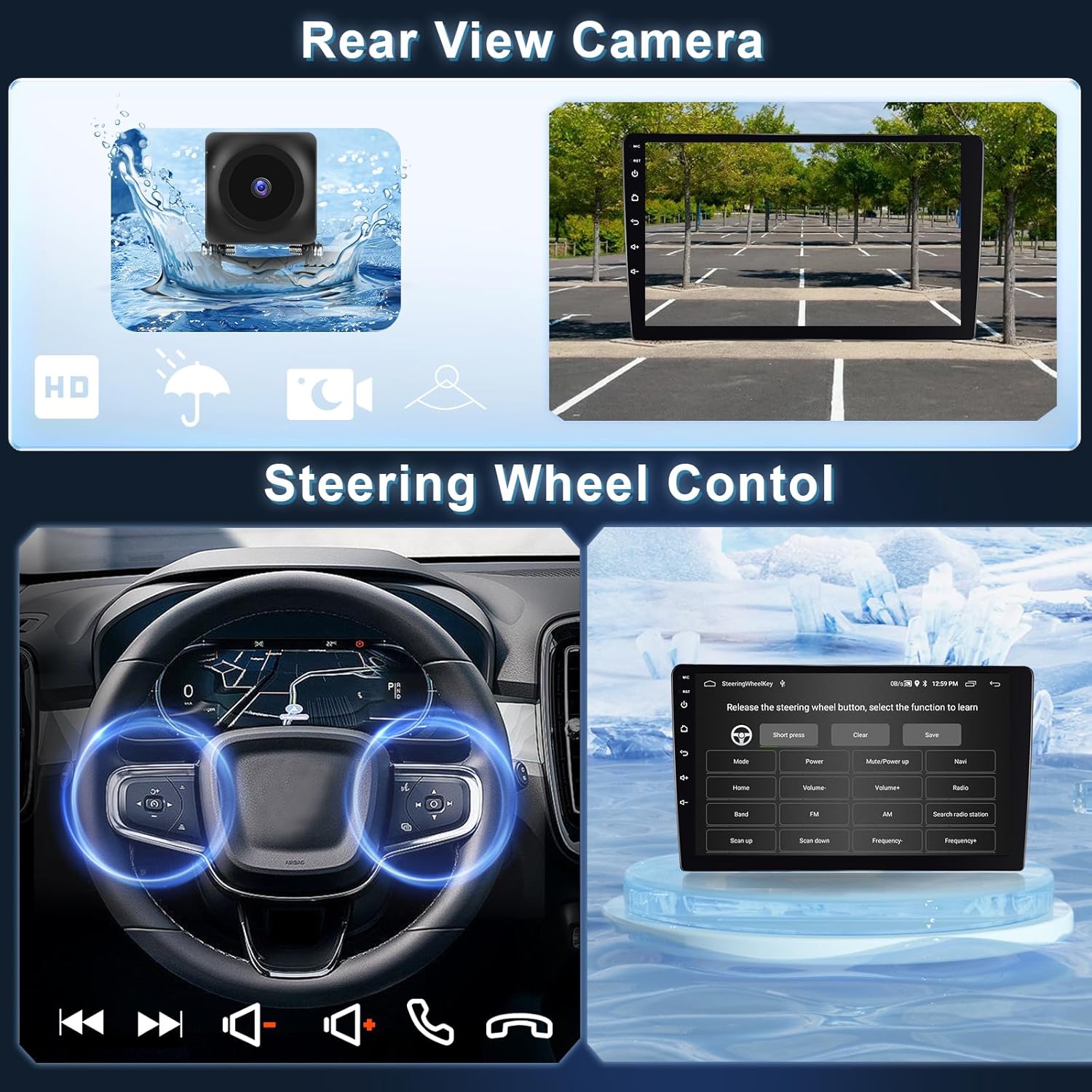
Image: Rear View Camera and Steering Wheel Control features.
Maintenance
- Screen Cleaning: Use a soft, lint-free cloth to clean the touch screen. For stubborn smudges, lightly dampen the cloth with a screen cleaner solution. Avoid abrasive materials or harsh chemicals.
- Software Updates: Periodically check for software updates through the system settings or the manufacturer's website to ensure optimal performance and access to new features.
- General Care: Keep the unit free from dust and debris. Ensure proper ventilation around the unit to prevent overheating.
Troubleshooting
| Problem | Possible Cause | Solution |
|---|---|---|
| Unit does not power on. | Incorrect wiring; Blown fuse; Vehicle battery issue. | Check power cable connections (ACC, B+, GND). Verify vehicle fuses and battery voltage. |
| No sound from speakers. | Speaker wiring incorrect; Volume too low; Mute enabled; DSP settings. | Check speaker connections. Increase volume. Disable mute. Adjust DSP equalizer settings. |
| GPS signal weak or lost. | GPS antenna improperly placed or disconnected. | Ensure GPS antenna is mounted in a clear, unobstructed location. Check antenna connection. |
| CarPlay/Android Auto not connecting. | Bluetooth/Wi-Fi off; Incorrect Zlink settings; Phone compatibility. | Ensure Bluetooth and Wi-Fi are enabled on both devices. Re-pair devices. Check Zlink app settings. Try a different USB cable for wired connection. |
| Rear view camera not displaying. | Camera wiring incorrect; Camera faulty; Reverse trigger not connected. | Verify camera input cable connection. Ensure reverse trigger wire is correctly connected to vehicle's reverse light signal. |
Specifications
| Feature | Detail |
|---|---|
| Model | 10.1 Inch Double Din Android Radio |
| Operating System | Android 13 |
| CPU | 8 Core Processor |
| RAM | 4GB |
| ROM | 64GB |
| Display Size | 10.1 Inches |
| Touch Screen Type | Capacitive |
| Connectivity | Bluetooth, WiFi |
| Special Features | Wireless CarPlay, Android Auto, Mirror Link, GPS Navigation, DSP (36-band EQ), FM RDS Radio, Steering Wheel Control, Rear View Camera Support |
| Amplifier Output | 4*50W |
| Item Weight | 3.36 pounds |
| Package Dimensions | 13.11 x 9.37 x 3.5 inches |
Warranty and Support
Hodozzy is committed to providing quality products and excellent customer service.
- Manufacturer Warranty: This product comes with a 2-year manufacturer warranty.
- Returns: Enjoy a 60-day return policy.
- Replacement: A 2-year replacement policy is available for eligible issues.
- Lifetime Support: Hodozzy offers lifetime technical support for this product.
- Customer Service Response: Expect a reply to inquiries within 18 hours.
For any questions, technical assistance, or warranty claims, please contact Hodozzy customer support:
Email: hodozzyofficial@163.com

Image: Hodozzy brand logo.