
cooboom GMJ
cooboom 22-Inch Portable Smart Display with Wheels (Model GMJ) User Manual
Your guide to setting up, operating, and maintaining your cooboom portable smart display.
1. Introduction
Thank you for choosing the cooboom 22-Inch Portable Smart Display with Wheels. This device combines a high-definition touch screen monitor with the versatility of a portable Android system, designed for various uses from entertainment to productivity. This manual provides essential information for safe and efficient operation.
Key features include:
- 22-inch 1080p Full HD touch screen with 10-point touch.
- Android 13 operating system with 6GB RAM and 128GB internal storage.
- Built-in 13MP camera for video calls and interactive applications.
- Full swivel and tilt rotation for flexible viewing angles.
- Integrated wheels and a built-in battery (6-8 hours) for portability.
- Wireless screen casting compatibility (iOS and Android).
2. Product Components
Verify that all components are present in the packaging before proceeding with assembly.
- Screen Panel (22-inch)
- Stand
- Round Base
- Installation Tool (e.g., screwdriver)
- User Manual
- Power Adapter (GaN charger)
- Screw Bag
- Various connection cables (e.g., HDMI, USB, Type-C)

Figure 2.1: Included Accessories and Device Ports. This image illustrates the main components included in the package and highlights the various input/output ports on the back of the screen, such as HDMI, USB, and Type-C, along with the power indicator and speakers.
3. Setup Instructions
3.1 Assembly
- Attach Stand to Base: Securely connect the stand pole to the round base using the provided screws and installation tool.
- Attach Screen Panel to Stand: Carefully align the screen panel with the top of the stand and secure it using the designated attachment points and screws. Ensure the screen is firmly attached.
- Power Connection: Connect the power adapter to the device's power input port and then to a wall outlet.
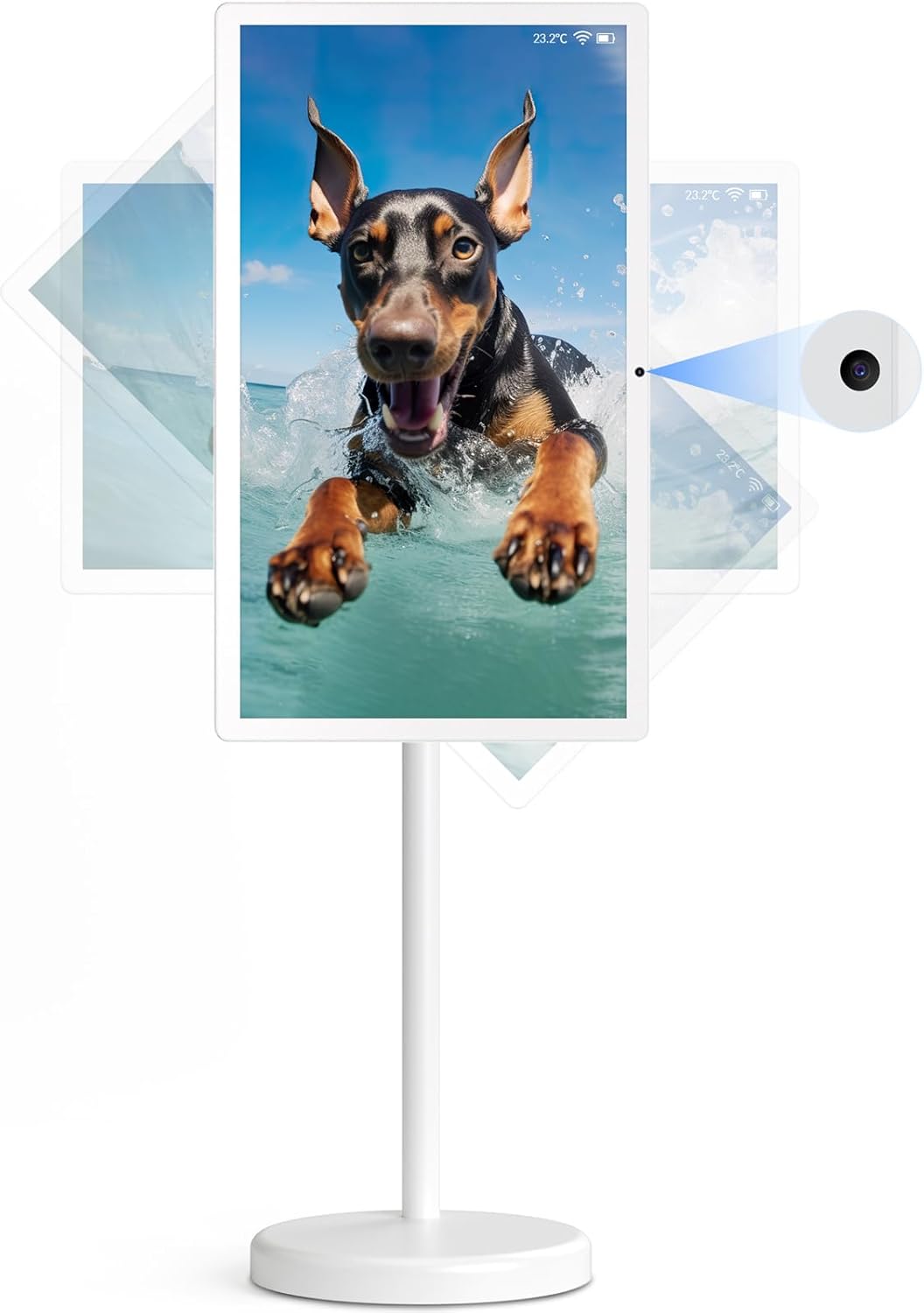
Figure 3.1: Fully Assembled Device. This image displays the cooboom portable smart display fully assembled, showcasing its sleek design and the ability to rotate the screen vertically. A small camera lens is visible at the top of the screen.
3.2 Initial Power On
- Press and hold the power button (located on the back of the screen, near the ports) until the screen illuminates.
- Follow the on-screen prompts to complete the initial Android 13 setup, including language selection, Wi-Fi connection, and Google account login.
4. Operating Instructions
4.1 Touch Screen and Android OS
The device features a 10-point multi-touch screen. Navigate the Android 13 interface by tapping, swiping, and pinching gestures similar to a tablet or smartphone. Access the Google Play Store to download and install applications.

Figure 4.1: Touch Screen Interface. This image demonstrates the interactive touch screen functionality, highlighting its 22-inch size and 1080p resolution, along with features like anti-glare and anti-fingerprint coatings.

Figure 4.2: Android 13 Operating System. This image shows the device running Android 13, with a variety of popular applications accessible from the home screen, demonstrating its smart TV capabilities.
4.2 Screen Rotation and Tilt
The display supports full swivel rotation (up to ±180°) and tilt (±15°). Gently adjust the screen to your desired viewing angle. This allows for both horizontal and vertical screen orientations.

Figure 4.3: Screen Rotation and Tilt. This image illustrates the flexibility of the display, showing it tilted for comfortable viewing while seated and rotated vertically for activities like yoga or browsing social media.
4.3 Portability and Battery Life
The device is equipped with five discrete wheels on its base for easy movement. The built-in battery provides approximately 6-8 hours of operation, allowing for use in various locations without constant power connection.

Figure 4.4: Rolling Design and Portability. This image demonstrates the ease of moving the display thanks to its five quiet wheels. An inset highlights the wheel mechanism on the base, emphasizing its mobility and battery life.
4.4 Built-in 13MP Camera
The integrated 13-megapixel camera supports video calls, photo capture, and motion-sensing games. Ensure adequate lighting for optimal camera performance.

Figure 4.5: Built-in Camera Functionality. This image shows the device being used for a video conference, highlighting the utility of its built-in 13MP camera, microphone, and 20W speakers for communication.
4.5 Wireless Screen Casting
Mirror content from your iOS or Android devices to the smart display using AirPlay or AirScreen protocols. This allows for seamless sharing of photos, videos, and presentations.

Figure 4.6: Wireless Screen Casting. This image illustrates the device's capability to wirelessly mirror content from other devices, such as laptops and smartphones, using AirPlay and AirScreen for presentations or media sharing.
5. Maintenance
- Cleaning the Screen: Use a soft, lint-free cloth specifically designed for electronics. For stubborn smudges, lightly dampen the cloth with water or a screen-cleaning solution. Avoid harsh chemicals or abrasive materials.
- Cleaning the Body: Wipe the stand and base with a soft, dry cloth.
- Battery Care: To prolong battery life, avoid fully discharging the battery frequently. Store the device in a cool, dry place if not used for extended periods. Charge the battery periodically if stored.
- Software Updates: Regularly check for and install system updates to ensure optimal performance and security.
6. Troubleshooting
| Problem | Possible Cause | Solution |
|---|---|---|
| Device does not power on. | Low battery or power adapter not connected. | Connect the power adapter and charge the device. Ensure the power button is pressed firmly. |
| Touch screen is unresponsive. | Software glitch or screen calibration issue. | Restart the device. If the issue persists, check for system updates. |
| Cannot connect to Wi-Fi. | Incorrect password, out of range, or router issue. | Verify Wi-Fi password. Move closer to the router. Restart the router and the device. |
| Screen casting not working. | Devices not on the same network or casting app issue. | Ensure both devices are connected to the same Wi-Fi network. Restart the casting app on both devices. |
| Camera not functioning. | App permissions or software issue. | Check camera permissions in Android settings for the app. Restart the device. |
7. Specifications
- Model: GMJ
- Screen Size: 22 Inches
- Display Technology: LCD
- Resolution: 1920x1080p Full HD
- Refresh Rate: 60 Hz
- Operating System: Android 13
- RAM: 6GB
- Internal Storage: 128GB
- Camera: Built-in 13MP
- Battery: Lithium Ion (included), 6-8 hours runtime
- Connectivity: Wi-Fi
- Special Features: Touch Screen, Full Swivel Rotation, Tilt Adjustment, Built-in Wheels
- Product Dimensions: 13.3"D x 19.6"W x 45.2"H
- Item Weight: 31.8 pounds
- Manufacturer: cooboom
8. Warranty and Customer Support
cooboom offers a worry-free warranty for this product. For any issues, questions, or technical assistance, please contact our customer service team. We are committed to providing 24-hour customer support.
Please refer to the warranty card included in your package for specific terms and conditions.
Contact Information: Refer to the contact details provided in your product packaging or on the official cooboom website.
Ask a question about this manual
Ask about setup, troubleshooting, compatibility, parts, safety, or missing instructions. Manuals+ will review the question and use this page’s manual context to help answer it.