
Introduction
This manual provides detailed instructions for the setup, operation, maintenance, and troubleshooting of your Snpurdiri 60% Wired RGB Gaming Keyboard. Please read this manual thoroughly before using the product to ensure optimal performance and longevity.

The Snpurdiri 60% Wired RGB Gaming Keyboard in Iron Grey, showcasing its compact layout and RGB backlighting.
Setup
1. Package Contents
- Snpurdiri 60% Wired RGB Gaming Keyboard
- USB Type-C to USB Cable
- User Manual
2. Connecting the Keyboard
- Locate the USB Type-C port on the back of the keyboard.
- Connect the smaller end of the provided USB Type-C cable to the keyboard.
- Connect the larger USB-A end of the cable to an available USB port on your PC or Mac.
- The keyboard will automatically power on and the RGB backlighting will illuminate. No additional drivers are required for basic functionality.
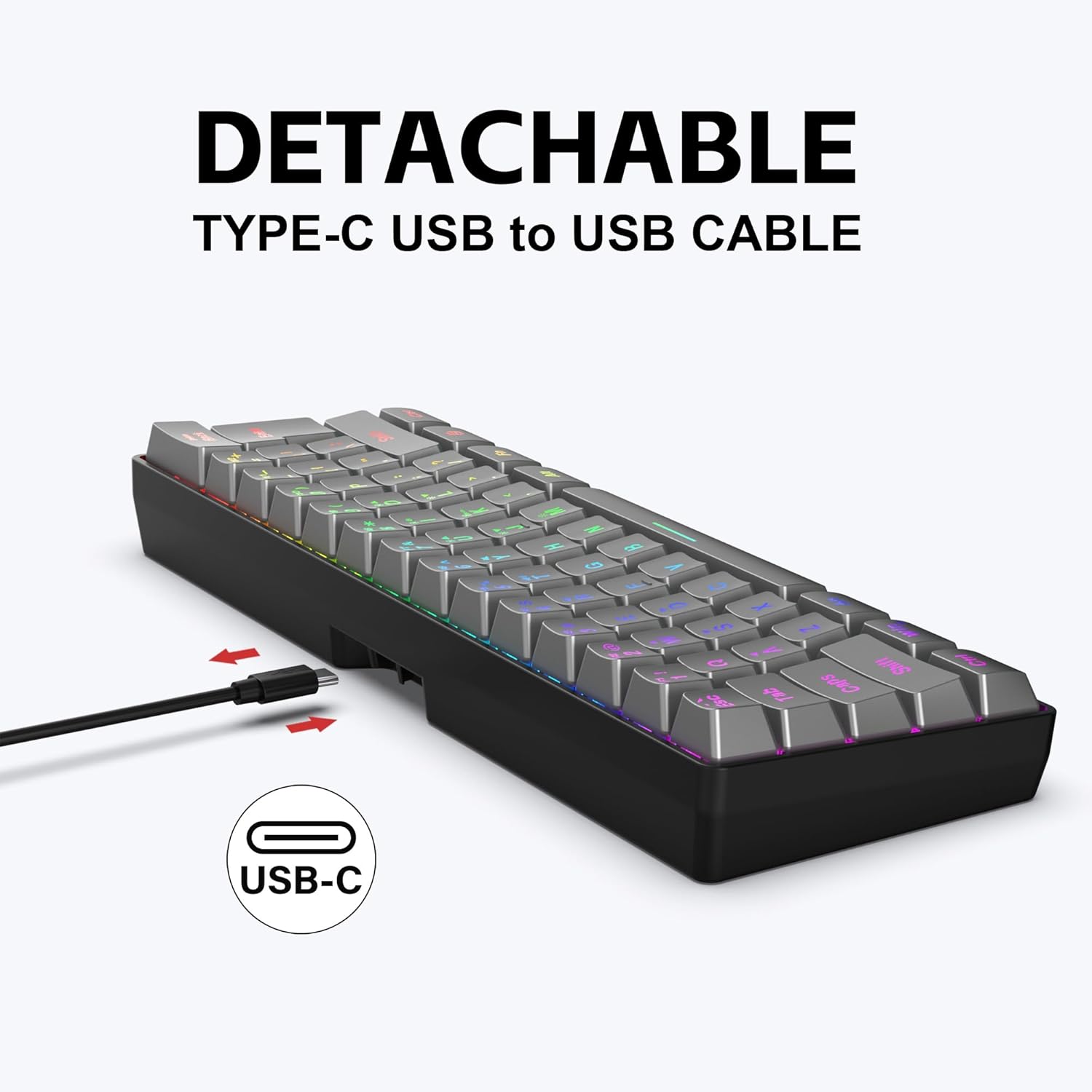
A close-up image showing the detachable USB Type-C port, emphasizing its convenience for portability and stable connection.
Official product video demonstrating the Snpurdiri 60% Wired Gaming Keyboard in Iron Grey, showcasing its features and design.
Operating Instructions
1. Compact 60% Layout
The Snpurdiri 60% keyboard features an ultra-compact 61-key layout, providing more desk space for mouse movement. Many functions are accessed via the Fn (Function) key in combination with other keys.
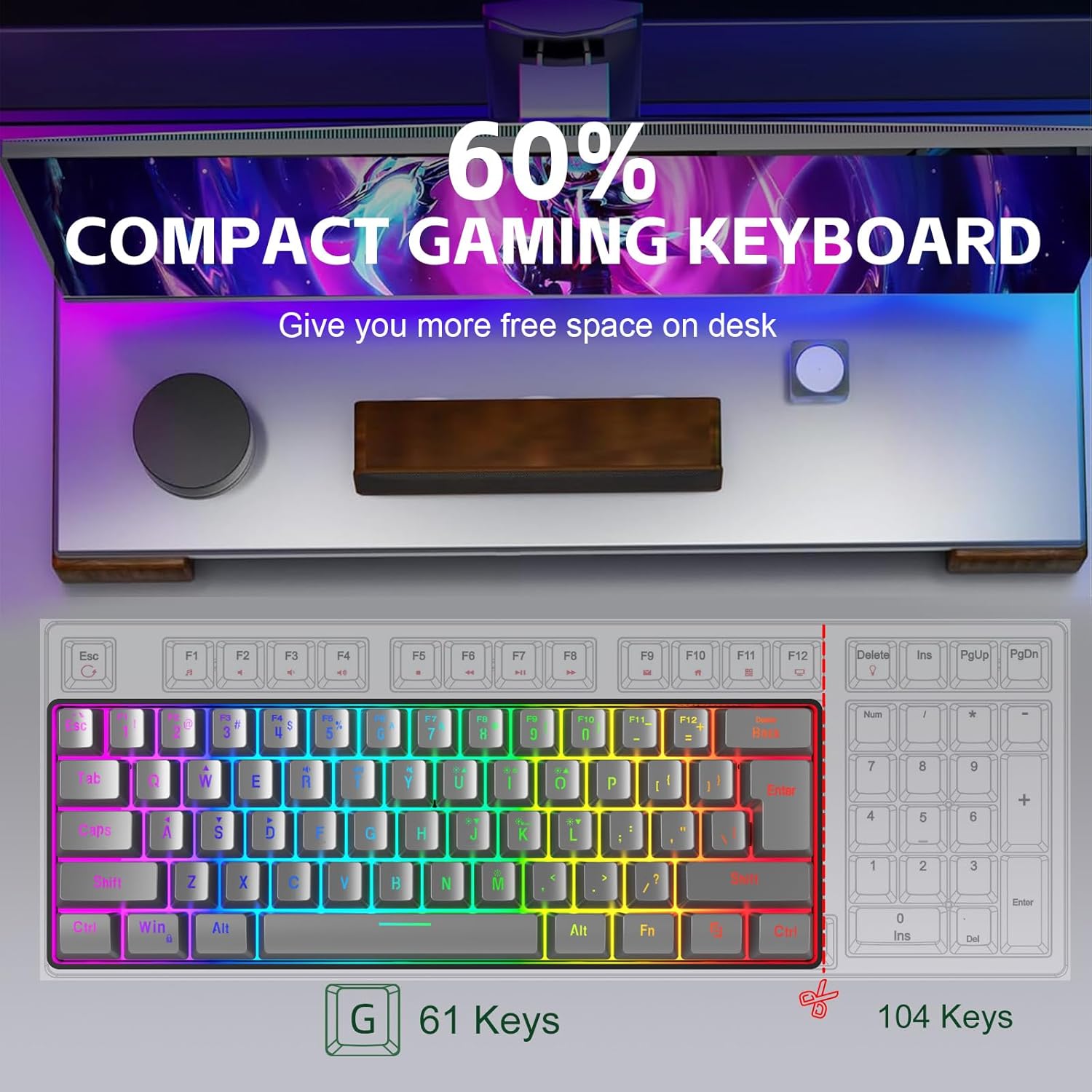
A visual comparison highlighting the compact size of the 60% gaming keyboard, demonstrating how it saves desk space compared to a standard 104-key keyboard.
2. Function (Fn) Key Combinations
Utilize the Fn key to access secondary functions printed on the keycaps:
- Fn + W/A/S/D: Switches the W/A/S/D keys to act as arrow keys for gaming.
- Fn + R: Decreases volume.
- Fn + T: Increases volume.
- Fn + Y: Mutes audio.
- Fn + Win: Locks the Windows key to prevent accidental presses during gaming.

A visual guide to the compound function key switches, explaining how to access game arrow keys, volume controls, and mute functions using the Fn key.
3. RGB Backlighting Control
The keyboard features customizable RGB backlighting with multiple effects and colors:
- Fn + O / L: Adjusts backlight brightness (5 levels).
- Fn + U / J: Adjusts backlight speed (5 gear speeds).
- Fn + K: Switches between streamer light modes (6 effects).
- Fn + I: Toggles backlight on/off.
- Fn + M: Switches between 8 backlight colors.

An illustration detailing the various RGB backlight effects, brightness, speed, and color switching options available on the keyboard.
4. Ergonomic Design
The keyboard features an ergonomic streamed layout, designed to protect your wrist and provide a comfortable typing experience with a mechanical feel, despite being a membrane keyboard.

A side profile view of the keyboard, illustrating its ergonomic streamed layout designed for comfortable typing and a mechanical feel.
Maintenance
1. Cleaning
- Disconnect the keyboard from your computer before cleaning.
- Use a soft, lint-free cloth slightly dampened with water or a mild cleaning solution to wipe the keycaps and surface.
- Avoid excessive moisture. Do not spray cleaners directly onto the keyboard.
- Use compressed air to remove dust and debris from between the keys.
2. Water Resistance
The keyboard is designed with a waterproof rating, offering protection against accidental spills. However, it is not recommended to submerge the keyboard in water. In case of a spill, disconnect immediately and allow it to dry completely before reconnecting.
3. Storage
When not in use, store the keyboard in a cool, dry place away from direct sunlight and extreme temperatures. The detachable USB-C cable makes it easy to store and transport.
Troubleshooting
- Keyboard not responding: Ensure the USB-C cable is securely connected to both the keyboard and the computer. Try a different USB port on your computer.
- Backlighting not working: Check if the backlighting is turned off using Fn + I. Adjust brightness with Fn + O / L.
- Keys not functioning correctly: Disconnect and reconnect the keyboard. If the issue persists, try connecting it to another computer to rule out a system-specific problem.
- Windows key locked: Press Fn + Win to toggle the Windows key lock.
- Arrow keys not working as expected: If W/A/S/D are acting as arrow keys, press Fn + W/A/S/D again to switch back to standard W/A/S/D functionality.
Specifications
| Feature | Detail |
|---|---|
| Brand | Snpurdiri |
| Model | B0DR7RNW16 |
| Color | Iron Grey |
| Compatible Devices | PC |
| Connectivity Technology | USB-C (Wired) |
| Keyboard Description | Membrane (with mechanical feel) |
| Recommended Uses | Gaming |
| Special Feature | RGB Backlit |
| Keyboard Layout | QWERTY |
| Number of Keys | 61 |
| Product Dimensions | 14"L x 11"W x 1.6"H |
| Water Resistance Level | Waterproof |
| Material | Acrylic |
Warranty and Support
1. Warranty Information
The product comes with a manufacturer's warranty. Please refer to the product packaging or contact Snpurdiri customer service for specific warranty terms and conditions.
2. Customer Support
For any questions, technical assistance, or support inquiries, please visit the official Snpurdiri website or contact their customer service department. Contact details can typically be found on the product packaging or the brand's online store.