
USonline911 64G 10000+
User Manual: 2025 NEW Video Game Stick Lite 4K Console
Brand: USonline911 | Model: 64G 10000+
Introduction
Welcome to the world of retro gaming with the 2025 NEW Video Game Stick Lite 4K Console. This compact and powerful gaming system offers a vast library of over 10,000 built-in games from various classic emulators, including PS1, Atari, MAME, SFC, FC, GBA, GB, GBC, and MD. Designed for ease of use and immersive gameplay, it comes with wireless controllers for a comfortable and untethered gaming experience. This manual provides detailed instructions for setting up, operating, and maintaining your new game console.
Package Contents
Please verify that all items listed below are included in your package:
- 2 × Wireless Game Handles (Controllers)
- 1 × Game Console Stick
- 1 × Wireless Signal Receiver
- 1 × USB Charging Data Cable
- 1 × HD Cable (HDMI)
- 1 × English Manual

Figure 1: All components included in the package.
Product Overview
Game Console Stick
The main console unit is a compact stick designed to plug directly into your TV's HDMI port. It houses the operating system and game library.

Figure 2: Game Console Stick Ports and Features.
- HDMI: Connects to your TV's HDMI input.
- TF Card Slot: For the pre-installed game storage card.
- USB Port/Power Input: Connects the USB charging data cable for power.
- Receiver Jack: Connects the wireless signal receiver.
Wireless Controllers
The console comes with two wireless controllers, providing freedom of movement during gameplay. Each controller features standard gaming buttons and joysticks.

Figure 3: Wireless Controller Layout.
- Directional Pad: For movement and menu navigation.
- Left/Right Rocker (Analog Sticks): For precise movement in games.
- Function Buttons (A, B, X, Y): Primary action buttons.
- Start Button: To start games or confirm selections.
- Select Button: For in-game options or menu selections.
- Mode Button: May switch controller modes or access system functions.
- Coin/Set Up: Specific function button, possibly for in-game currency or setup.
- Switch Left/Right: Shoulder buttons for additional in-game actions.
- Collect/Cancel Collection: Used for managing game favorites.
Setup Instructions
Follow these steps to set up your game console for the first time:
- Connect the Game Console: Plug the Game Console Stick directly into an available HDMI port on your television.
- Connect the Wireless Signal Receiver: Insert the Wireless Signal Receiver into the Receiver Jack on the Game Console Stick.
- Provide Power: Connect one end of the USB Charging Data Cable to the USB Port/Power Input on the Game Console Stick and the other end to a USB power source (e.g., a TV USB port or a USB wall adapter, not included).
- Power On TV and Select Input: Turn on your television and use your TV remote to select the corresponding HDMI input channel where the game console is connected.
- Display Game List: The game list screen should now be displayed on your TV, indicating successful setup.
- Insert Batteries into Controllers: Open the battery compartment on the back of each wireless controller and insert the required batteries (batteries not included, typically AAA).
- Pair Controllers: The controllers should automatically pair with the console once powered on. If not, refer to the troubleshooting section.

Figure 4: Console connected to TV with wireless controllers.
Operating Instructions
Navigating Menus
Use the directional pad and function buttons on your wireless controller to navigate through the console's interface.
- Game List: Browse through the extensive library of over 10,000 games, categorized by emulator (PS1, Atari, MAME, SFC, FC, GBA, GB, GBC, MD).
- Game History: Access a list of recently played games, ordered by entry time.
- Game Collection: Add or remove your favorite games from a personalized collection by pressing the START button for three seconds while on a game title.
- Game Search: Utilize the search function to find specific games. You can search based on complete English game titles or by the first Chinese letter of a keyword.
- Game Settings: Access various system settings, including key tone settings, viewing local files, restoring default settings, system information, and output settings.
Playing Games
Once you have selected a game from the list, press the appropriate button (usually 'A' or 'Start') to launch it. The wireless controllers provide a comfortable gaming experience, even during extended play sessions.
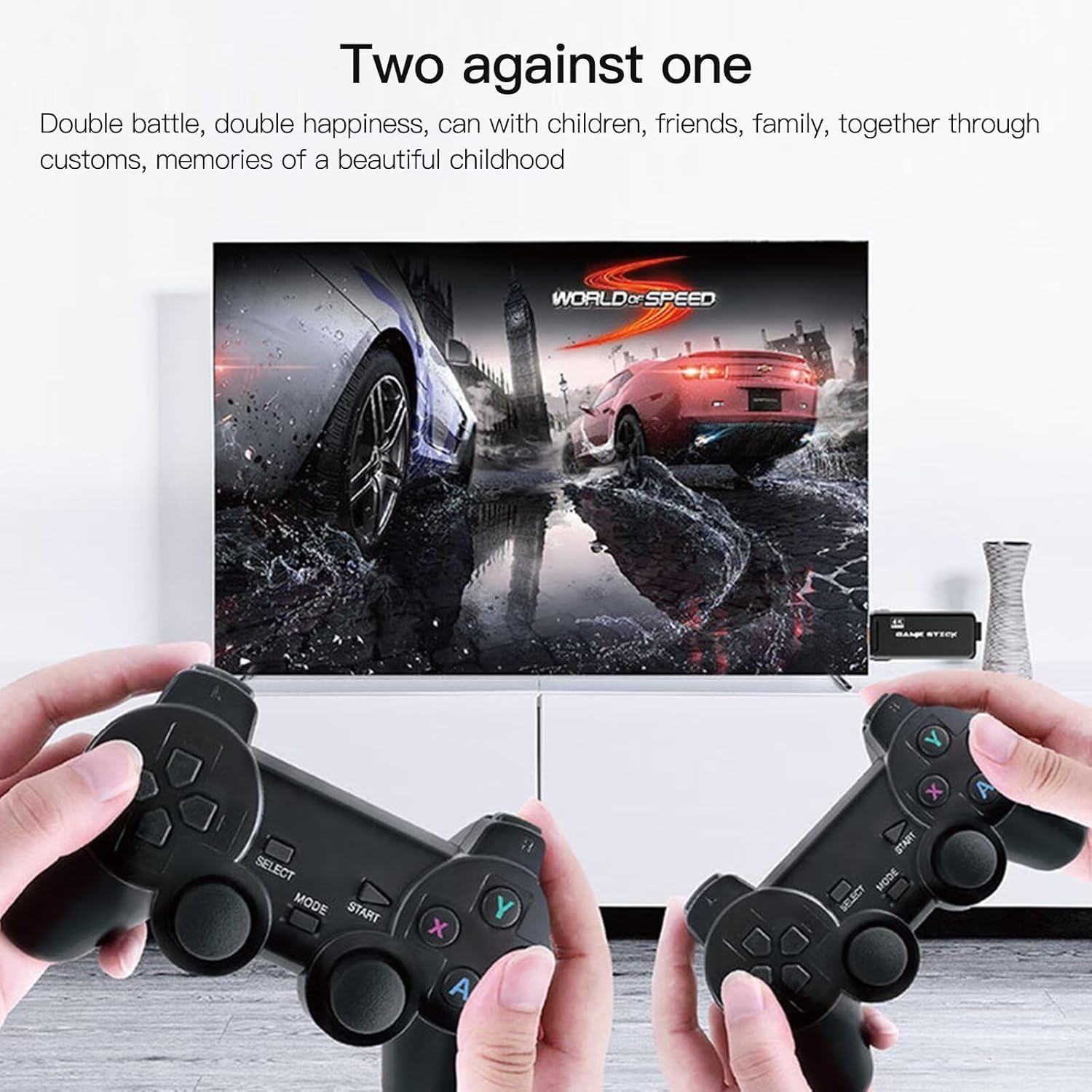
Figure 5: Enjoying multiplayer gaming with the console.
Language Settings
The console supports 10 languages: Chinese, Traditional Chinese, English, Portuguese, Spanish, French, German, Italian, Russian, and Thai. You can change the system language through the Game Settings menu.
Specifications
| Feature | Detail |
|---|---|
| Operation System | Linux Retroarchiopen Source System |
| Supported Languages | Chinese, Traditional Chinese, English, Portuguese, Spanish, French, German, Italian, Russian, Thai (10 languages) |
| Supported Emulators | MAME, FC, GB, GBA, GBC, PS1, MD, SFC, ATARI (9 Emulators) |
| CPU | RK3066 |
| Interface | HDMI |
| Game Capacity (64G version) | 10000+ games |
| Product Weight | 380g |
| Product Size | 7 x 11.7 x 9.2 CM |
| Controller Type | Wireless Gamepad |
| Connectivity Technology | USB (for power/receiver) |
Troubleshooting
If you encounter any issues with your game console, please refer to the following common solutions:
- No Display on TV:
- Ensure the Game Console Stick is fully inserted into the TV's HDMI port.
- Verify that the USB power cable is securely connected and receiving power.
- Check that your TV is set to the correct HDMI input channel.
- Try a different HDMI port on your TV.
- Controllers Not Responding:
- Ensure fresh batteries are correctly inserted into both controllers.
- Verify the Wireless Signal Receiver is securely plugged into the console stick.
- Move closer to the console stick to ensure a clear wireless signal.
- Restart the console by unplugging and re-plugging the USB power cable.
- Game Freezes or Crashes:
- Restart the console.
- Ensure the TF card is properly inserted into its slot.
- If the issue persists with a specific game, it might be a compatibility issue with that particular game ROM.
- Cannot Find a Specific Game:
- Use the "Game Search" function with the exact English title or relevant keywords.
- Ensure you are browsing the correct emulator category if you know the game's original platform.
Maintenance
Proper care and maintenance will extend the life of your game console:
- Cleaning: Use a soft, dry cloth to wipe down the console and controllers. Do not use liquid cleaners or abrasive materials.
- Storage: Store the console and accessories in a cool, dry place away from direct sunlight and extreme temperatures.
- Handling: Avoid dropping the console or controllers, as this can cause internal damage.
- Power: Always disconnect the power cable when the console is not in use for extended periods.
Warranty and Support
For warranty information or technical support, please refer to the documentation provided with your purchase or visit the official USonline911 website.
Manufacturer: USonline911