
1. Introduction
The Huacaoe HC049 is a WiFi Smart Single Phase Energy Monitor designed to provide real-time electricity consumption data for your home or specific appliances. This device helps you track voltage, current, power factor, and frequency, enabling better energy management and cost savings. It supports two-way energy monitoring, making it suitable for homes with solar PV systems. The monitor integrates with the Tuya app for convenient remote access and control.
2. Product Overview
Key Features:
- Energy Monitoring: Track real power, voltage, current, and power factor in real-time.
- Wide Usage: Comes with a 80A current transformer (CT) sensor to monitor various appliances like air conditioners, furnaces, water heaters, washers, and dryers.
- Precise Measurement: Accurately reveals consumption from 0.2A to 80A.
- Two-Way Energy Monitoring: Ideal for homes with solar PV systems, monitoring both generated power and consumed energy from the grid.
- Tuya App Integration: Seamlessly connects with the Tuya Smart or Smart Life app for remote monitoring and control.
- Safe Installation: Designed for safe installation with clear instructions for wiring.
Product Parameters:
- Input Voltage: AC 85V~250V
- Output: Dry contact
- Measuring Range: 0.2-80A
- Wi-Fi Standard: Wi-Fi 2.4GHz b/g/n + Bluetooth
- Working Temperature: -20°C~70°C
- Size: 73*46*29mm
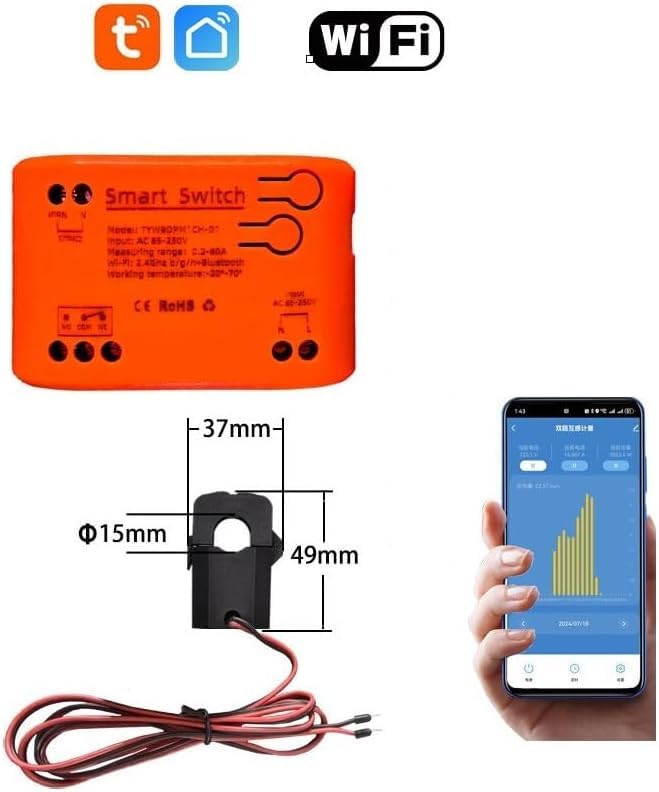
Figure 1: Huacaoe HC049 Smart Energy Monitor with 80A CT clamp and a preview of the Tuya app interface.

Figure 2: Detailed user guide information including parameters and a checklist for device usage.
3. Safety Information
WARNING: Installation of this device involves working with high voltage electricity. Improper installation can lead to serious injury or death. It is highly recommended that installation be performed by a qualified electrician.
- Always turn off all power supply to the equipment before beginning installation or maintenance.
- Do not touch the terminals of the device during testing or operation.
- Ensure the main power breaker is OFF and verified before opening the electrical panel.
- Provide an alternate light source before beginning installation procedures, as power will be off.
- Do not begin installation until all power is completely removed from the equipment, including any alternate power sources.
- Verify local electrical codes and regulations are followed during installation.
4. Setup and Installation
4.1. App Download and Registration
- Download the Tuya Smart or Smart Life app from your device's app store (App Store for iOS, Google Play for Android) or scan the QR code below.
- Register for a Tuya Smart account. If you already have an account, simply log in.
Scan this QR code to download the Tuya Smart app. Alternatively, visit http://smart.tuya.com/download.
4.2. Wiring the Energy Monitor
Before wiring, ensure all power to the electrical panel is OFF. The installation process involves connecting the voltage take-off wires and the current transformer (CT) clamps to the main power lines.
- Connect Voltage Take-off Wires: Insert the black and red voltage take-off wires into the pluggable terminal of the SDM02 device. The black wire connects to the neutral (N) terminal and the red wire connects to the live (L) terminal.
- Connect CT Clamps: Insert the wires from the Split-core CTs into the pluggable terminal. Ensure correct polarity as indicated on the CT clamps (I1 and I2).
- Install CT Clamps: Open the CT clamps and place them around the main live wires (L and N) in your electrical panel. Ensure the arrow on the CT clamp points in the direction of power flow (from the grid to your home).

Figure 3: Wiring diagram for 0.2-10A current monitoring. Connect the device to the main live (L) and neutral (N) lines, and clamp the CT around the live wire to the load.
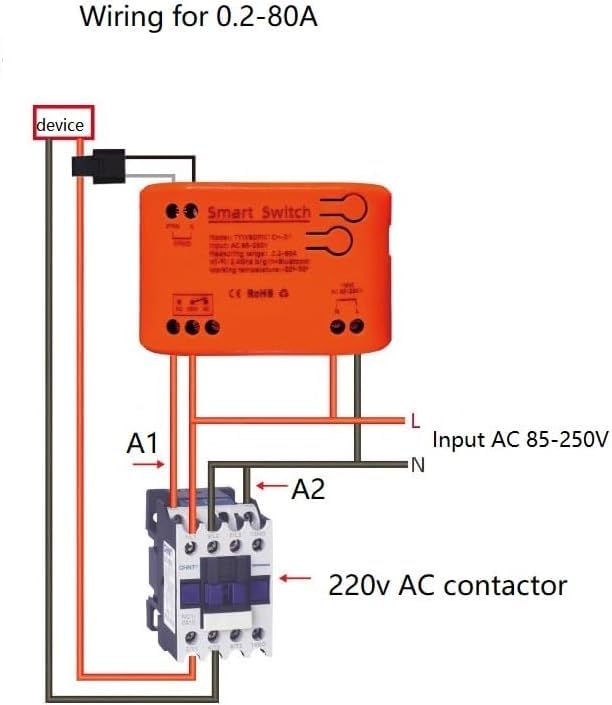
Figure 4: Wiring diagram for 0.2-80A current monitoring using a 220V AC contactor. This setup allows for higher current measurement by integrating the contactor into the circuit.
4.3. Device Pairing with Tuya App
- Power On: After completing the wiring and securing the electrical panel cover, turn on the main power. The network indicator on the device should start blinking fast (0.5s/time). If not, proceed to the next step to reset.
- Reset Device (if needed): Hold down the Reset button for 5 seconds until the network indicator (red light) blinks fast (0.5s/time).
- Add Device in App: Open the Tuya Smart app. Click the "+" icon in the top right corner. The app will search for nearby devices.
- Confirm Device: After a few seconds, the app should find the "Single channel metering" device. Click to add it.
- Connect to Wi-Fi: Select your 2.4GHz Wi-Fi network and enter the password, then click "Next".
- Name Device: Once successfully added, name your device for easy identification.

Figure 5: Visual guide for adding the device to the Tuya app and a simplified wiring diagram for a single load.
4.4. Installation Video Guide
For a visual demonstration of the installation process, please refer to the video below. This video provides a step-by-step guide to ensure correct and safe setup.
Video 1: Smart Home Energy Monitor Installation Guide. This video demonstrates the physical installation of a similar smart energy monitor, including wiring and placement of CT clamps within an electrical panel. It highlights safety precautions and proper connection techniques.
5. Operating Instructions
Once installed and paired, the Huacaoe HC049 energy monitor provides comprehensive data through the Tuya Smart app.
5.1. App Functions Overview
The Tuya app interface allows you to monitor various electrical parameters and manage device settings.
- Home Screen: Displays an overview of your connected devices. Tap on the energy monitor to enter the full function operation interface.
- Real-Time Data: View current voltage, current, and active power.
- Total Energy: Track total energy consumption in kWh over day, month, or year.
- Settings: Access options to rename, share, create groups, remove the device, set alarms, schedules, and relay status.

Figure 6: Tuya app interface illustrating various functions such as renaming, sharing, group creation, and alarm settings. It also shows the troubleshooting entry point.
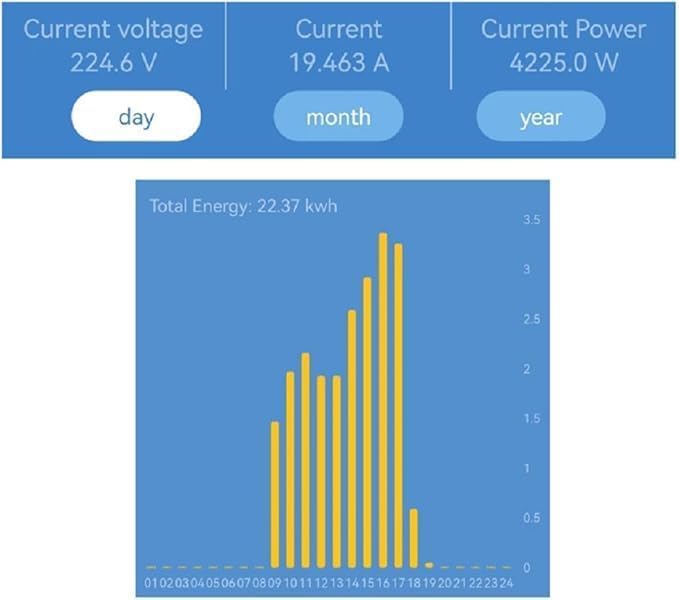
Figure 7: A detailed view of the Tuya app's monitoring screen, showing real-time voltage, current, power, and a historical graph of total energy consumption.
5.2. Real-Time Monitoring
The app provides instant updates on your electricity usage. You can see:
- Current (A): The instantaneous electrical current being drawn.
- Active Power (kW): The real power consumed by your connected load.
- Voltage (V): The current voltage of your electrical supply.
- Frequency (Hz): The frequency of the AC power supply.
- Power Factor: An indicator of how effectively electrical power is being used.
5.3. Alarm Settings
Configure custom alarms within the app to be notified of unusual power consumption patterns:
- Set thresholds for overcurrent or overpower to prevent potential issues or excessive energy use.
- Receive notifications directly on your smartphone.
5.4. Historical Data
Review past energy consumption data to identify trends and optimize usage:
- Access daily, monthly, and yearly energy consumption statistics.
- Analyze graphs to understand peak usage times and make informed decisions about energy conservation.
6. Troubleshooting
If you encounter issues with product matching or the device going offline, follow these steps:
- Check Wi-Fi Connection: Ensure your Wi-Fi network (2.4GHz) is stable and the device is within range.
- Reset Device: If the device is offline, try resetting it by holding the reset button for 5 seconds until the network indicator blinks rapidly. Then attempt to re-pair it with the app.
- App Troubleshooting: In the Tuya Smart app, navigate to the homepage. Click the icon in the lower right corner of the interface to enter the troubleshooting section. Look for "FAQ & Feedback" or "More Services" for additional assistance.
- Power Supply: Verify that the device is receiving continuous power (AC 85V~250V).
- Wiring: Double-check all wiring connections according to the diagrams in Section 4.2 to ensure they are secure and correct.
7. Maintenance
To ensure optimal performance and longevity of your Huacaoe HC049 energy monitor:
- Keep the device clean and free from dust. Use a dry, soft cloth for cleaning.
- Avoid exposing the device to extreme temperatures or humidity outside its specified operating range (-20°C~70°C).
- Regularly check the Tuya Smart app for firmware updates to ensure you have the latest features and security enhancements.
- Periodically inspect the wiring connections for any signs of wear or damage. Always turn off power before inspection.
8. Specifications
| Specification | Value |
|---|---|
| Manufacturer | Huacaoe Technologies Ltd |
| Part Number | TYWBDPM1CH-D1 |
| Item Model Number | HC049 |
| Product Dimensions | 7.11 x 4.57 x 3.56 cm |
| Item Weight | 5.09 g (0.18 Ounces) |
| Color | Orange |
| Power Source Type | Corded Electric |
| Measurement Accuracy | 0.1 |
| Specifications Met | FCC |
| Included Components | WIFI Energy Monitor Meter and 1pcs 80A Current Transformer Clamp |
| Batteries Included? | No |
| Batteries Required? | No |
| Country of Origin | China |
9. Warranty and Support
For warranty information and technical support, please refer to the documentation provided with your purchase or contact Huacaoe customer service directly. Keep your purchase receipt as proof of purchase for any warranty claims.