
CarVision C500Pro Car Android System User Manual
Model: C500 Pro
1. Introduction
Welcome to the user manual for your CarVision C500Pro Car Android System. This state-of-the-art multimedia system is engineered to elevate your driving experience by seamlessly integrating entertainment, navigation, and advanced connectivity features. To ensure proper installation, optimal operation, and effective maintenance of your device, please read this manual thoroughly.
Key Features:
- Advanced Multimedia Interface: Intuitive 10.1-inch touchscreen for seamless navigation, video playback, and access to popular applications.
- Comprehensive Connectivity: Built-in Bluetooth 5.0, Wi-Fi, and radio capabilities for streaming music, hands-free calls, and online content access.
- Customisable Dashboard: Personalise your interface with widgets displaying real-time information such as navigation, music, and vehicle diagnostics.
- Seamless Integration: Designed for universal compatibility, allowing for easy integration into most vehicles for a modern and feature-rich upgrade.
- Premium Audio Quality: High-fidelity sound output with a Digital Signal Processor (DSP) for crystal-clear music playback and voice communication.
2. Setup
Package Contents:
- CarVision C500Pro Main Unit
- GPS Antenna
- USB Cables
- Power Harness
- Rear View Camera (if included)
- User Manual (this document)
Installation Guidelines:
2.1. Safety Precautions:
- Always ensure the vehicle's ignition is off and the battery is disconnected before beginning any installation work.
- If you are uncertain about any installation steps, it is highly recommended to consult a qualified professional.
- Do not obstruct airbags or other safety features of the vehicle during the installation process.
2.2. Wiring Connections:
- Connect the main power harness to your vehicle's wiring system, strictly following the provided wiring diagram.
- Attach the GPS antenna and position it in an area that allows for optimal signal reception, typically on the dashboard with a clear view of the sky.
- Connect any necessary USB cables for external devices such as USB drives or smartphones.
- If a rear view camera is being installed, connect its video input cable to the designated port on the C500Pro unit.
2.3. Mounting the Unit:
- Securely mount the CarVision C500Pro unit within the designated dashboard opening of your vehicle.
- Ensure all cables are properly routed and secured to prevent any interference, pinching, or damage during vehicle operation.

Figure 1: CarVision C500Pro Main Unit. This image displays the sleek design of the C500Pro unit, highlighting its 10.1-inch display and compact form factor, ready for dashboard integration.
3. Operating Instructions
3.1. Power On/Off:
The CarVision C500Pro typically powers on automatically when the vehicle's ignition is turned on. To manually power off the unit, locate and press the designated power button (if available) or access the software shutdown option within the system settings menu.
3.2. Touchscreen Navigation:
The C500Pro features a highly responsive 10.1-inch 2.5D HD touchscreen. You can navigate through menus, applications, and settings using standard touch gestures such as tapping, swiping, and pinching, similar to operating a modern smartphone or tablet.
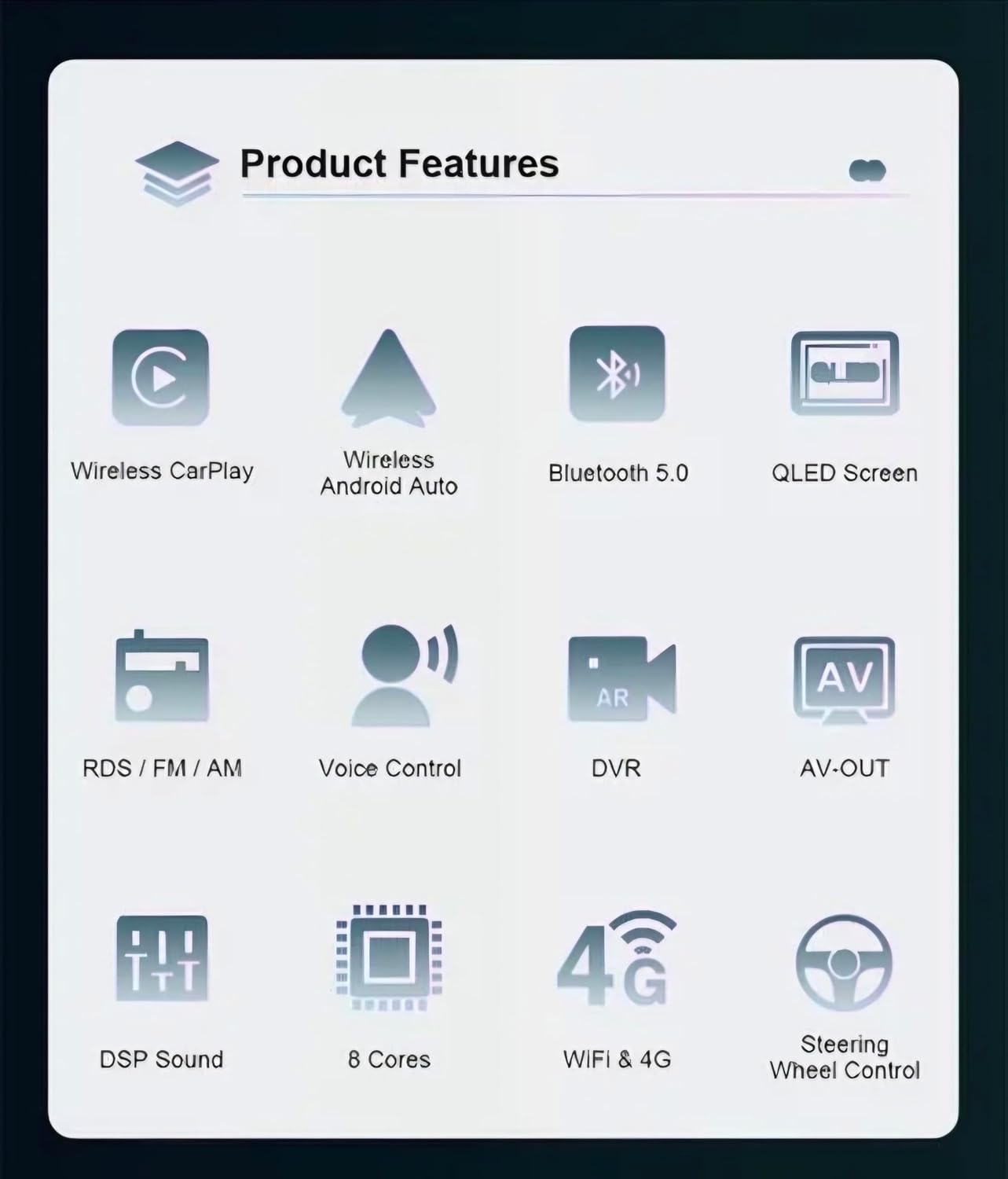
Figure 2: 2.5D HD Screen Features. This diagram highlights the advanced display technologies of the C500Pro, including IPS, QLED, and 2K resolution, ensuring a clear and vibrant visual experience.
3.3. Bluetooth Connectivity (BT Ver5.0+EDR):
Pair your smartphone or other Bluetooth-enabled devices with the C500Pro to enable hands-free calling (HFP), audio streaming (A2DP), and phonebook access (PBAP).
- Access the Bluetooth settings menu on the C500Pro unit.
- Enable Bluetooth on your mobile device and initiate a search for available devices.
- Select "CarVision C500Pro" from the list of found devices and confirm the pairing code if prompted.
3.4. Wi-Fi Connection (802.11b/g/n):
Connect the C500Pro unit to a Wi-Fi hotspot (e.g., from your smartphone or a dedicated in-car hotspot) to access online features, download application updates, and browse the internet.
- Navigate to the Wi-Fi settings within the system menu.
- Select your desired Wi-Fi network from the list and enter the password if required to establish a connection.
3.5. GPS Navigation:
The CarVision C500Pro supports a variety of navigation applications, including Google Maps, iGo, Sygic, and Waze. For accurate positioning and reliable navigation, ensure that the GPS antenna is properly installed and has a clear view of the sky.
Launch your preferred navigation application from the main screen and input your desired destination to begin route guidance.
3.6. Radio (FM/AM with RDS):
Access the built-in radio tuner to listen to your favorite FM and AM stations. The integrated RDS (Radio Data System) feature provides additional information such as station names, song titles, and traffic announcements (TA) where available.
Utilise the on-screen controls to scan for available stations, save your preferred stations as presets, and switch between FM and AM frequency bands.
3.7. Wireless CarPlay & Android Auto:
Connect your iPhone or Android smartphone wirelessly to the C500Pro to seamlessly access compatible applications, navigation, music, and voice assistants directly on the unit's display, enhancing convenience and safety while driving.

Figure 3: Product Features Overview. This image illustrates the comprehensive capabilities of the C500Pro, including wireless CarPlay and Android Auto, Bluetooth 5.0, QLED display, and advanced audio processing.
3.8. Digital Signal Processor (DSP) GE8322:
The integrated GE8322 Digital Signal Processor provides advanced audio tuning capabilities, including a 36-segment EQ for precise sound customisation. It supports optical fiber and coaxial digital signal output, along with 5.1 channels, for an immersive audio experience. Features like Time Correction and Speed Compensated Volume further enhance sound quality based on driving conditions.

Figure 4: Digital Signal Processor (DSP) Features. This diagram details the audio processing capabilities of the GE8322 DSP, including its 36-segment equalizer, time correction, and speed-compensated volume for an optimized listening experience.
4. Maintenance
4.1. Cleaning the Display:
To clean the touchscreen, use a soft, lint-free cloth. For more persistent smudges, you may slightly dampen the cloth with a screen cleaner solution specifically designed for electronic displays. Avoid using abrasive materials, harsh chemicals, or excessive liquid, as these can damage the screen surface.
4.2. Software Updates:
It is recommended to periodically check for and install software updates to your CarVision C500Pro. Updates often include performance enhancements, bug fixes, and new features. Updates can typically be performed via a Wi-Fi connection through the system settings menu.
4.3. General Care:
- Avoid exposing the unit to extreme temperatures, such as prolonged direct sunlight or freezing conditions.
- Ensure there is adequate ventilation around the unit to prevent overheating, especially during extended periods of use.
5. Troubleshooting
5.1. No Power:
- Verify all power connections to the unit and check the vehicle's fuses related to the stereo system.
- Ensure the vehicle's ignition is in the ACC or ON position.
5.2. No Sound:
- Check that the volume is not muted or set to a very low level.
- Inspect all speaker connections to ensure they are secure and correctly wired.
- Confirm that the correct audio source (e.g., Radio, Bluetooth, USB) is selected.
5.3. GPS Signal Lost:
- Ensure the GPS antenna is securely connected to the unit and positioned with a clear, unobstructed view of the sky.
- Move the vehicle to an open area away from tall buildings, dense foliage, or tunnels that may block satellite signals.
5.4. Bluetooth Pairing Issues:
- Verify that Bluetooth is enabled on both the CarVision C500Pro and your mobile device.
- Delete any previous pairings from both devices and attempt to reconnect.
- Restart both the C500Pro unit and your mobile device.
5.5. Touchscreen Unresponsive:
- Perform a soft reset of the unit. Refer to the system settings for the specific reset option.
- Ensure the screen surface is clean and free of any debris, dust, or moisture.
6. Specifications
| Feature | Detail |
|---|---|
| Model Number | C500 Pro |
| Operating System | Android 14 |
| CPU | Bx Cortex-TM A55 up to 16GHZ |
| GPU | PowerVR Fentale GE8322 UP to 550MHz |
| RAM | LPDDR4 3G/4G/6G |
| ROM | 32G/64/128 ROM |
| Display Size | 10.1 Inches |
| Display Resolution | 1280x720P IPS LCD (Supports 2K Resolution) |
| Touchscreen Type | 2.5D Touch screen |
| Bluetooth Version | BT Ver5.0+EDR |
| Wi-Fi Standard | 802.11b/g/n |
| Radio Tuner | Built-in NXP radio modules, RDS (Radio Data System) |
| Max Power Output | 4 x 25 Watt (Total Max output power: 100 Watt) |
| Connectivity | Bluetooth, Wi-Fi, USB2.0, 4G LTE Full Band |
| Special Features | Wireless Carplay, Android Auto, GPS Navigation, Rear View Camera Support, Steering Wheel Control, DSP Sound, 8 Cores |
| Product Dimensions | 28 x 42 x 25 cm; 600 g |
| Manufacturer | Carvision |
7. Warranty and Support
For detailed warranty information and technical support, please refer to the contact details provided with your original purchase documentation or visit the official CarVision website. It is important to retain your proof of purchase for any warranty claims.
For additional assistance with your CarVision C500Pro, you may also contact your retailer or the manufacturer directly.