
NOVIC 317675495
Digital Weighing Display Unit Instruction Manual
Brand: NOVIC
Model: 317675495
1. Introduction
This NOVIC electronic weighing display unit is designed for precise and reliable weight measurement in various applications, including weighing stations, truck scales, and with load cells. It offers stable performance, high weighing strength, and accurate readings, making it an ideal solution for industrial and commercial weighing needs. Its user-friendly design ensures quick setup and convenient maintenance.

Figure 1: Front view of the Digital Weighing Display Unit.
2. Safety Information
To ensure safe operation and prolong the lifespan of your weighing display unit, please observe the following safety guidelines:
- Storage: Store the scale in a cool, dry place. Avoid storing it in high-temperature environments or direct sunlight.
- Cleanliness: Keep the scale clean and free from dust, debris, and moisture. Ensure no insects can infest the unit, as this may affect performance.
- Handling: Avoid collision with other items. Do not drop or subject the unit to excessive shock.
- Overload Prevention: Do not load objects that exceed the maximum capacity of the connected scale. Overloading can cause permanent damage to the load cell and display unit.
- Power Supply: Use only the specified power adapter. Ensure the power source is stable and matches the unit's requirements.
- Maintenance: If the scale is not used for an extended period, clean it thoroughly and store it properly to prevent damage.
3. Setup
Follow these steps to set up your NOVIC Digital Weighing Display Unit:
- Unpacking: Carefully remove the display unit and all accessories from the packaging. Inspect for any visible damage.
- Placement: Place the display unit on a stable, level, and vibration-free surface. Ensure there is adequate ventilation around the unit.
- Connect Load Cell/Scale Platform: Connect the cable from your load cell or scale platform to the designated input port on the rear of the display unit. Ensure the connection is secure.
- Power Connection: Plug the power adapter into the DC input port on the display unit, then plug the other end into a suitable electrical outlet.
- Initial Power On: Press the power button to turn on the unit. The display should light up.
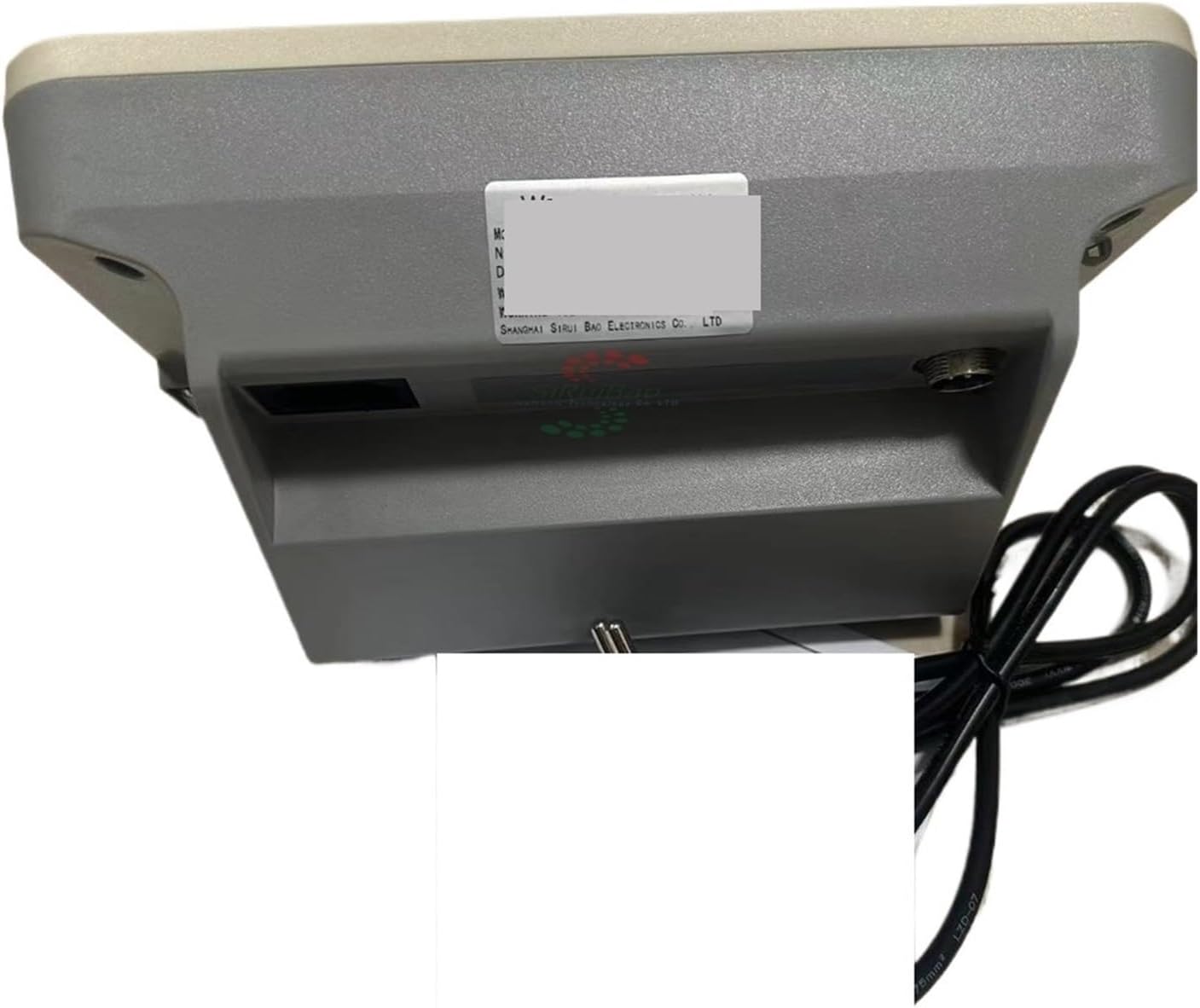
Figure 2: Rear view with connection ports.
4. Operating Instructions
This section details the basic operation of your weighing display unit.
4.1. Display Overview

Figure 3: Display and Control Panel.
The unit features a 6-digit LED digital tube display for clear weight readings and 6 status indicators:
- LOW: Indicates low battery or power.
- STABLE: Illuminates when the weight reading is stable.
- lb/g: Indicates the current unit of measurement (pounds or grams).
- Net: Illuminates when the display shows net weight (after taring).
- Zero: Illuminates when the display is at zero.
- AC: Indicates the unit is powered by AC (mains) electricity.
4.2. Button Functions
The control panel includes several buttons for various functions:
| Button Icon/Label | Function | Description |
|---|---|---|
| Σ (Accumulate) | Accumulation | Adds the current stable weight to a running total. |
| CE (Clear) | Clear/Cancel | Clears accumulated values or cancels an operation. |
| ↑ (Preset/Set) | Preset/Set | Used for setting parameters or preset values. |
| →0← (Zero) | Zero | Sets the current weight to zero. Use when the scale is empty. |
| ↔ (Unit Conversion) | Unit Conversion | Switches between different weighing units (e.g., kg, lb, g). |
| ↓ (Tare) | Tare | Subtracts the weight of a container or packaging to display only the net weight of the contents. |
4.3. Basic Weighing Operation
- Power On: Press the power button (if available, otherwise it powers on when connected).
- Zeroing: Ensure the scale platform is empty. If the display does not show zero, press the Zero button.
- Taring (Optional): If using a container, place the empty container on the scale. Once the weight is stable, press the Tare button. The display will show zero, indicating the container's weight has been subtracted.
- Weighing: Place the item(s) to be weighed on the scale. Wait for the STABLE indicator to light up. Read the weight displayed.
- Unit Conversion: If you need to change the unit of measurement, press the Unit Conversion button until the desired unit (e.g., kg, lb, g) is displayed.
- Power Off: When finished, press and hold the power button (if applicable) or disconnect the power.
5. Maintenance and Care
Proper maintenance ensures the longevity and accuracy of your weighing display unit.
- Cleaning: Regularly wipe the display unit and scale platform with a soft, damp cloth. Do not use abrasive cleaners, solvents, or immerse the unit in water.
- Pest Control: Keep the area around the scale clean to prevent insect infestation, which can interfere with internal components.
- Storage: When not in use for extended periods, clean the unit thoroughly and store it in a cool, dry, and dust-free environment.
- Calibration: While the unit is designed for high accuracy, periodic professional calibration may be required to maintain optimal precision, especially after prolonged use or significant environmental changes.
6. Troubleshooting
If you encounter issues with your weighing display unit, refer to the following common problems and solutions:
| Problem | Possible Cause | Solution |
|---|---|---|
| No Display/Unit Not Turning On | No power, faulty power adapter, loose connection. | Check power cable connection. Ensure power outlet is working. Try a different power adapter if available. |
| Inaccurate Readings | Unstable surface, scale not zeroed, overload, damaged load cell. | Place unit on a stable surface. Zero the scale before weighing. Ensure load is within capacity. Inspect load cell for damage. |
| "LOW" Indicator On | Low battery or insufficient power. | Connect the unit to AC power. If battery-operated, recharge or replace batteries. |
| "OVERLOAD" or "Err" Message | Weight exceeds maximum capacity. | Remove excess weight immediately. Do not exceed the scale's maximum capacity. |
If the problem persists after trying these solutions, please contact customer support for further assistance.
7. Specifications
| Feature | Specification |
|---|---|
| Brand | NOVIC |
| Product Model Number | 317675495 |
| Package Dimensions | 2.54 x 2.54 x 2.54 cm |
| Item Weight | 2 Kilograms |
| Color | One Color |
| Quantity | 1 |
| Display Mode | 6-digit LED Digital Tube with 6 Status Indicators |
| ASIN | B0DR2SV6G8 |
| First Available Date (Amazon.co.jp) | 2024/12/20 |
Ask a question about this manual
Ask about setup, troubleshooting, compatibility, parts, safety, or missing instructions. Manuals+ will review the question and use this page’s manual context to help answer it.