
MAXLEGEN KSM01
MAXLEGEN Tablet 10 inch User Manual
Model: KSM01 | Brand: MAXLEGEN
Introduction
This manual provides comprehensive instructions for the setup, operation, and maintenance of your MAXLEGEN Tablet 10 inch. Please read this manual thoroughly before using the device to ensure optimal performance and longevity.
The MAXLEGEN Tablet is designed to offer an exceptional user experience with its powerful Octa-Core processor and advanced features, making it ideal for work, study, and entertainment.
What's in the Box
Verify that all items listed below are included in your package:
- 1 x 10.1 inch Android 14 Tablet
- 1 x Protective Case
- 1 x Bluetooth Keyboard
- 1 pair of Headphones
- 1 x Mouse
- 1 x Pen
- 3 x Multilingual keyboard decals (including French)
- 1 x Charger
- 1 x USB-C cable
- 1 x User Manual

Image: MAXLEGEN Tablet with all included accessories, including the tablet itself, protective case, Bluetooth keyboard, headphones, mouse, pen, charger, and USB-C cable.
Product Overview and Key Features
The MAXLEGEN Tablet is equipped with advanced features for a versatile digital experience.
High Performance and Memory
The tablet runs on Android 14 with an Octa-Core 2.0GHz processor, ensuring fast and efficient performance. It features 36GB RAM (12GB integrated + 24GB virtual memory) and 128GB internal storage, expandable up to 2TB via microSD card.

Image: Visual representation of key features: 10.1-inch IPS screen, Bluetooth 5.0, 3.5mm headphone jack, 8000mAh battery, Octa-Core 2.0GHz processor, 36GB RAM, 128GB ROM, 2TB Micro SD support, 5MP+8MP Dual camera, Child protection mode, and 5G+2.4GHz Dual band Wi-Fi.

Image: Diagram illustrating the tablet's memory specifications: 36GB RAM (12GB actual + 24GB virtual), 128GB ROM, and 2TB expandable storage. The image also shows various apps on the tablet screen.
Display and Audio
The tablet features a 10.1-inch HD Touch Screen with a resolution of 1280 x 800 IPS. It includes built-in dual speakers for an immersive audio experience.

Image: A person riding a bike on the tablet screen, highlighting the 10.1-inch IPS HD display (1280x800) and built-in dual speakers.
Connectivity
Supports 2.4G/5G WiFi 6 for stable and fast internet connection, and Bluetooth 5.0 for connecting peripherals.

Image: A person using the tablet with a keyboard and mouse, illustrating AC Wi-Fi 6 (5G+2.4GHz) and Bluetooth 5.0 connectivity, along with a 3.5mm headphone jack.
Cameras and Battery
Equipped with a 5.0MP front camera and an 8.0MP rear camera. The 8000mAh built-in battery provides extended usage time.
Android 14 System and Google GMS Certified
The tablet runs on the latest Android 14 system, offering fast application launches and increased fluidity. It is Google GMS certified, ensuring access to Google Play and millions of apps.
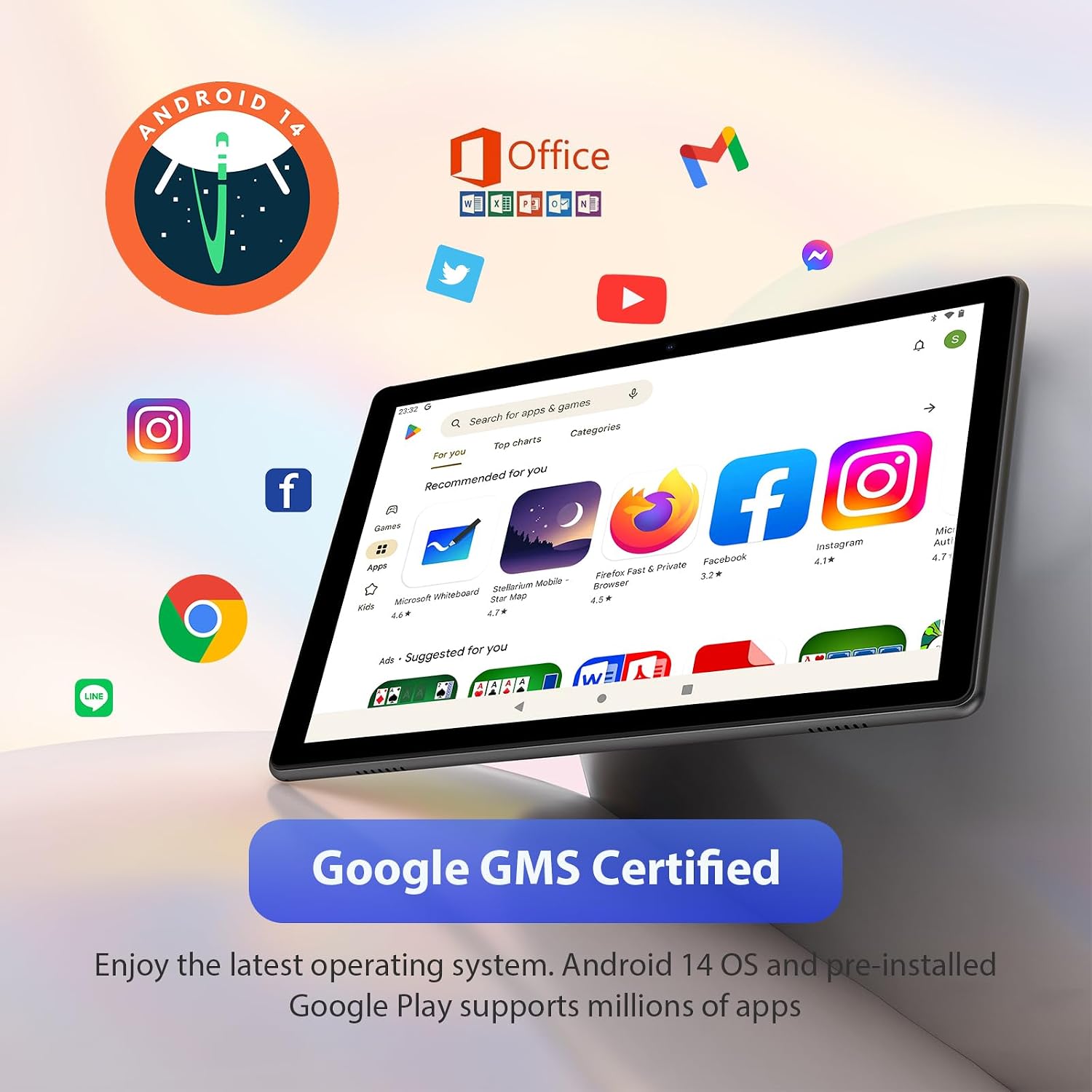
Image: The tablet screen displaying various Google apps and the Google Play Store, with a banner indicating "Google GMS Certified" and "Android 14".
Setup
Charging the Tablet
- Connect the USB-C cable to the tablet's USB-C port.
- Connect the other end of the USB-C cable to the provided charger.
- Plug the charger into a power outlet.
- Allow 3-4 hours for a full charge (DC 5V 2A). The battery indicator on the screen will show charging status.
Powering On/Off
- To Power On: Press and hold the Power button until the MAXLEGEN logo appears on the screen.
- To Power Off: Press and hold the Power button until the power options menu appears, then select "Power off".
- To Sleep/Wake: Briefly press the Power button to put the tablet into sleep mode or wake it up.
Connecting Accessories
- Bluetooth Keyboard/Mouse:
- Ensure the keyboard/mouse is charged and in pairing mode.
- On the tablet, go to Settings > Connected devices > Bluetooth.
- Turn on Bluetooth and select the accessory from the list of available devices to pair.
- Headphones: Plug the 3.5mm headphone jack into the tablet's headphone port.
- Protective Case: Carefully insert the tablet into the protective case. The case can be folded to act as a stand.
Operating Instructions
Initial Setup (Android 14)
Upon first power-on, follow the on-screen prompts to complete the initial setup, including:
- Language selection
- Wi-Fi network connection
- Google account sign-in (for Google Play Store access)
- Date and time settings
Wi-Fi Connection
- Go to Settings > Network & internet > Internet.
- Turn on Wi-Fi.
- Select your desired Wi-Fi network from the list.
- Enter the password if prompted, then tap Connect.
Using the Cameras
- Open the Camera application from the home screen or app drawer.
- Tap the shutter button to take a photo.
- Switch between front and rear cameras using the camera switch icon.
- Select video mode to record videos.

Image: Collage showing the tablet being used in different settings: a child learning, a person reading, a family taking a photo, and a group video call, demonstrating its versatility.
Memory Expansion (MicroSD)
To expand storage up to 2TB:
- Locate the microSD card slot on the tablet.
- Gently insert a compatible microSD card into the slot until it clicks into place.
- The tablet will recognize the new storage. You may be prompted to format it for internal or portable storage.
Maintenance
- Cleaning: Use a soft, lint-free cloth to clean the screen and body of the tablet. Do not use abrasive cleaners or solvents.
- Storage: Store the tablet in a cool, dry place away from direct sunlight and extreme temperatures.
- Battery Care: Avoid fully discharging the battery frequently. For long-term storage, charge the battery to about 50% and power off the device.
- Software Updates: Regularly check for and install system updates to ensure optimal performance and security. Go to Settings > System > System update.
Troubleshooting
| Problem | Possible Solution |
|---|---|
| Tablet does not turn on. | Ensure the tablet is fully charged. Press and hold the Power button for 10-15 seconds to force a restart. |
| Wi-Fi connection issues. | Restart the tablet and your Wi-Fi router. Forget the network in Wi-Fi settings and reconnect. Ensure you are within range. |
| Apps are running slowly or crashing. | Close unnecessary background apps. Clear app cache (Settings > Apps > select app > Storage & cache > Clear cache). Restart the tablet. |
| Bluetooth device not pairing. | Ensure the Bluetooth device is in pairing mode and fully charged. Turn Bluetooth off and on again on the tablet. Restart both devices. |
| Screen is unresponsive. | Force restart the tablet by holding the Power button. If the issue persists, contact customer support. |
Specifications
| Feature | Detail |
|---|---|
| System | Android 14 |
| Processor | Octa-Core 2.0GHz (Rockchip) |
| Display | 10.1" HD Touch Screen, 1280 x 800 IPS |
| RAM | 36GB (12GB Real + 24GB Virtual Memory) |
| ROM | 128GB |
| Maximum Extension | 2TB (SD card not included) |
| Front Camera | 5.0MP |
| Rear Camera | 8.0MP |
| Speakers | Two Speakers |
| WLAN Standard | 802.11 b/g/n/ac (Wi-Fi 6), 2.4GHz/5GHz Dual Band |
| Bluetooth | 5.0 |
| Battery Capacity | Built-in 8000mAh |
| Charging Time | 3-4 hours (DC 5V 2A) |
| Input/Output Ports | 1 x USB-C, 1 x 3.5mm headphone jack, 1 x microSD slot |
| Product Dimensions | 24.6 x 16.3 x 0.98 cm |
| Item Weight | 1.26 kg |
| Model Number | KSM01 |
| Colour | all grey |
Warranty and Support
The MAXLEGEN Tablet comes with a one-year warranty. Additionally, lifetime technical support is provided.
If you have any questions or require assistance, please contact our customer service. We are committed to providing prompt and effective support.
For support, please refer to the contact information provided on the product packaging or the official MAXLEGEN website.
Ask a question about this manual
Ask about setup, troubleshooting, compatibility, parts, safety, or missing instructions. Manuals+ will review the question and use this page’s manual context to help answer it.