
TOUISEDGI D35
TOUISEDGI AIMO D35 Mini Thermal Label Printer User Manual
Model: D35
Introduction
The TOUISEDGI AIMO D35 Mini Thermal Label Printer is a portable, multifunctional device designed for creating various labels for home storage, office organization, journal making, and study purposes. This manual provides detailed instructions on how to set up, operate, and maintain your label printer to ensure optimal performance and longevity.
Package Contents
Please verify that all items listed below are included in your package. If any items are missing or damaged, please contact customer support.
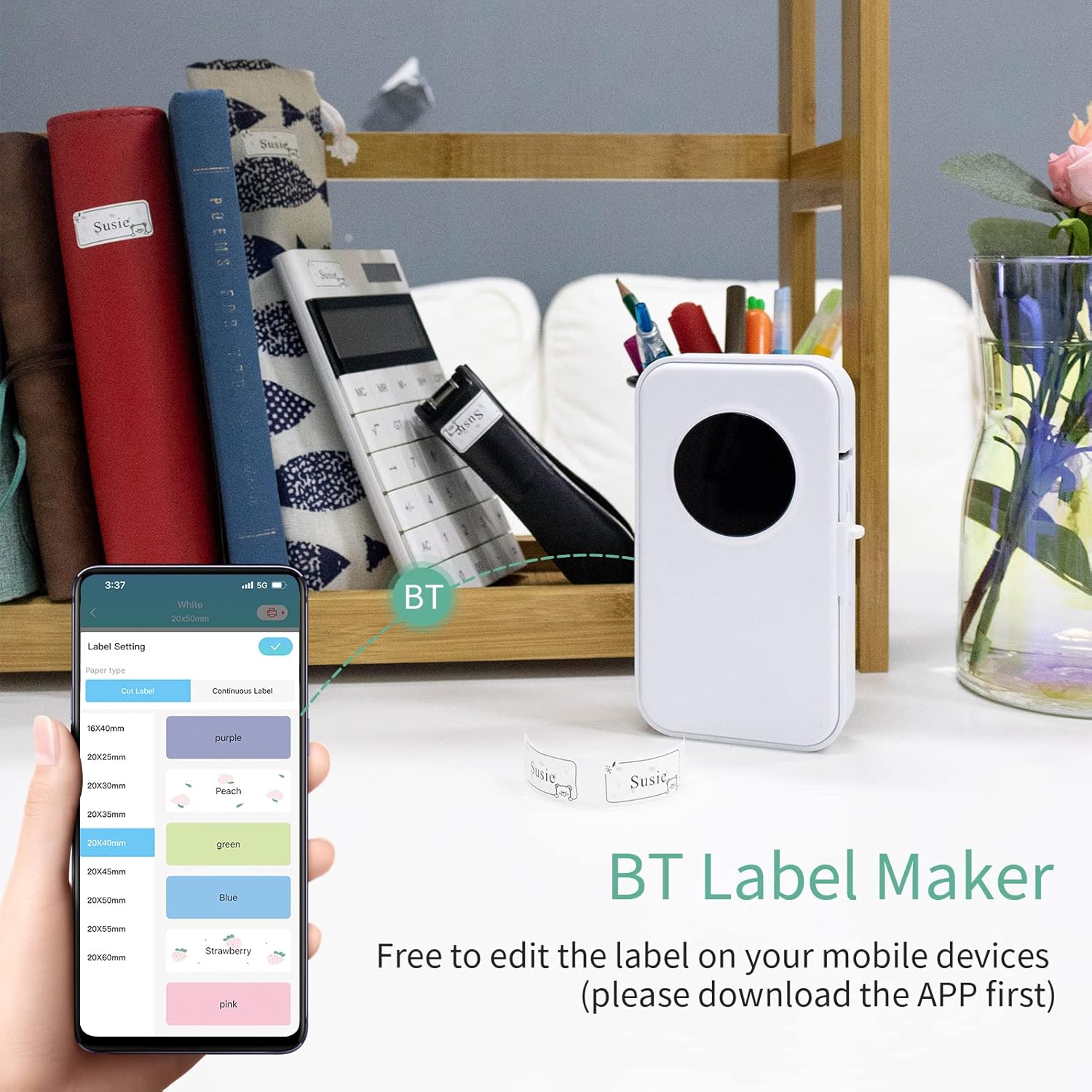
Image: Contents of the TOUISEDGI AIMO D35 package, showing the label printer, label rolls, and a USB charging cable.
- 1 x AIMO D35 Label Maker
- 3 x Label Rolls (Quantity may vary based on specific package)
- 1 x USB Cable
- 1 x Instruction Manual (This document)
Specifications
The following are the technical specifications for the AIMO D35 Mini Thermal Label Printer:

Image: Technical specifications and dimensions of the AIMO D35 printer.
| Feature | Detail |
|---|---|
| Model | D35 |
| Color | White |
| Product Dimensions (L*W*H) | 135 x 79.6 x 29.2 mm |
| Net Weight | 164.8 g |
| Printing Method | Thermal printing |
| Printing Resolution | 203 dpi |
| Printing Speed | 20 mm/s |
| Label Size Compatibility | 6/12/14/15 mm width |
| Printing Width | 12 mm |
| Print Head Lifespan | 50 km |
| Interface | Bluetooth (BT) |
| Operating System | Android/iOS |
| Work Environment Temperature | 5°C ~ 45°C |
| Storage Temperature | -20°C ~ 60°C |
| Work Humidity | 20% ~ 85% |
| Storage Humidity | 5% ~ 95% |
| Power Input | 5V 2A |
| Battery Capacity | 1200mAh |
| Charging Time | 2-3 hours |
| Standby Time | 30 hours |
Setup Guide
Charging the Printer
Before first use, fully charge the printer. Connect the provided USB cable to the printer's charging port and a 5V 2A power adapter (not included). The charging indicator light will show the charging status.
Loading Label Rolls
Open the printer cover. Insert the label roll into the compartment, ensuring the printing side of the label faces upwards and the leading edge extends slightly out of the printer's output slot. Close the cover firmly.

Image: The AIMO D35 printer with label rolls and USB cable, illustrating the components for setup.
Downloading the App
The AIMO D35 printer operates via a mobile application. Please download the "Print Master" app from your device's app store:
- For iOS devices: Search "Print Master" in the Apple App Store.
- For Android devices: Search "Print Master" in the Google Play Store.

Image: Instructions for downloading the "Print Master" app.
You can also find the official instruction manual and app download links by scanning the QR code provided in the package or by visiting this link: Official Instruction Manual & App Link
Connecting via Bluetooth
Ensure Bluetooth is enabled on your mobile device. Open the "Print Master" app. The app will guide you through connecting to the D35 printer. Select "D35" from the list of available devices to pair.
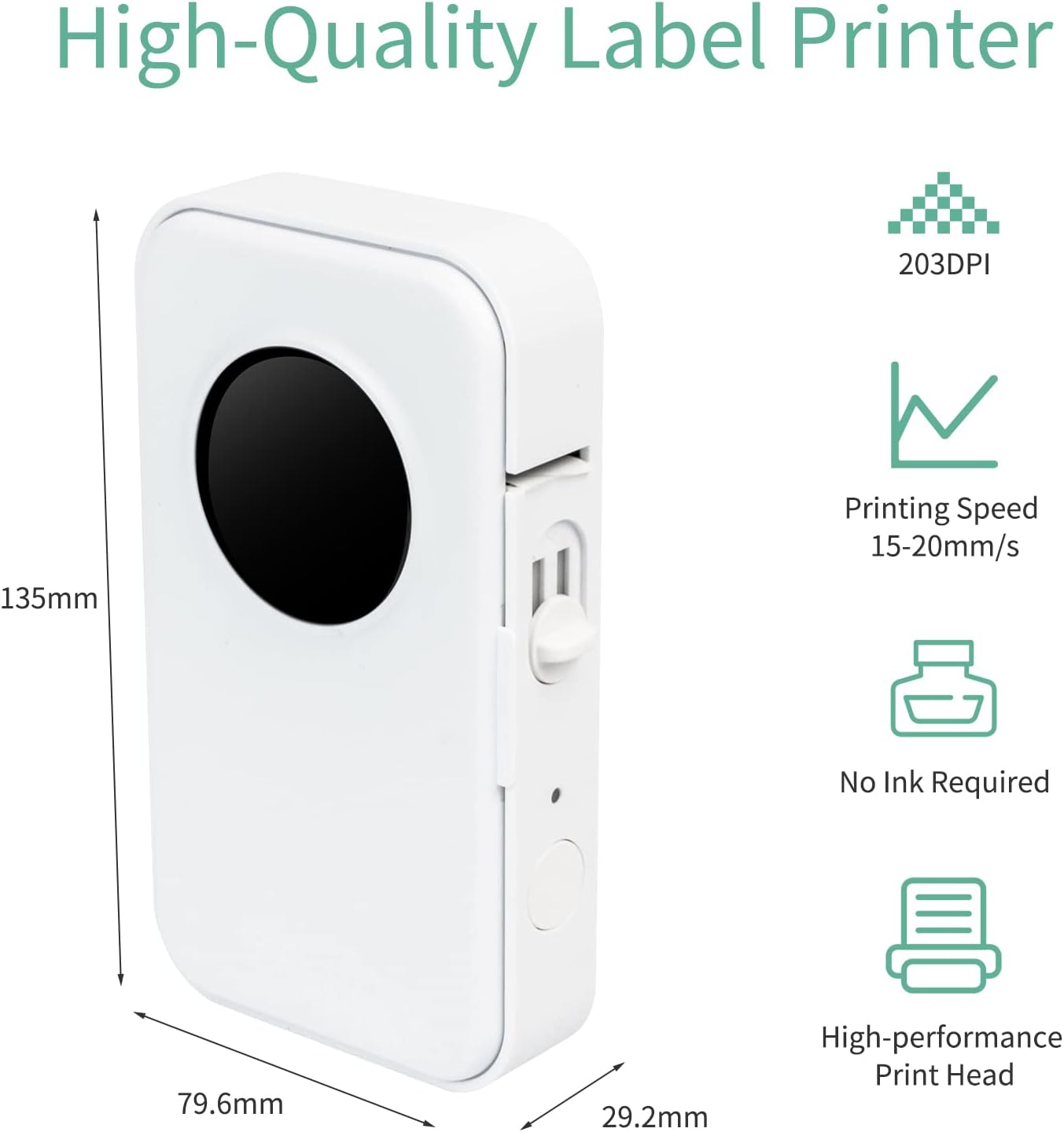
Image: The AIMO D35 printer connected via Bluetooth to a mobile device running the Print Master app.
Operating Instructions
Once connected, you can start designing and printing labels using the "Print Master" app.
Designing Labels
The app provides a user-friendly interface for label creation. You can add various elements:
- Text: Type and format text with different fonts, sizes, and styles.
- Icons: Choose from a library of pre-designed icons.
- QR Code/Barcode: Generate QR codes or 1D barcodes for various purposes.
- Templates: Utilize pre-designed templates for common labeling needs.
- Images: Insert images from your device.

Image: The "Print Master" app interface displaying various design tools and templates.
Selecting Label Size
The AIMO D35 supports various label sizes with widths of 6mm, 12mm, 14mm, and 15mm. Ensure you select the correct label size in the app to match the physical label roll you are using.

Image: The AIMO D35 printer demonstrating compatibility with various label sizes.
Printing Labels
After designing your label, tap the "Print Label" button in the app. The printer will automatically feed and print the label. Tear off the printed label along the serrated edge.
Common Applications
The AIMO D35 is versatile for various labeling needs:
- Switch Identification: Label light switches or power outlets for easy identification.
- Name Labels: Create personalized name labels for items, books, or containers.
- Cable Labels: Organize and identify cables for electronics or network setups.
- Journaling & Crafting: Add decorative or informational labels to journals, scrapbooks, or craft projects.
- Home & Office Organization: Label storage bins, files, shelves, and more.

Image: Examples of practical applications for labels printed with the AIMO D35.
Maintenance
Proper maintenance ensures the longevity and optimal performance of your label printer.
- Cleaning the Printer: Use a soft, dry cloth to wipe the exterior of the printer. Do not use abrasive cleaners or solvents.
- Cleaning the Print Head: If print quality degrades, gently wipe the thermal print head with a cotton swab lightly dampened with isopropyl alcohol. Ensure the printer is turned off and completely dry before use.
- Battery Care: To preserve battery life, avoid fully discharging the battery frequently. Charge the printer regularly, even if not in constant use. Store the printer in a cool, dry place when not in use for extended periods.
- Label Storage: Store label rolls in a cool, dry place away from direct sunlight and excessive heat to prevent degradation of the thermal paper.
Troubleshooting
If you encounter issues with your AIMO D35 printer, refer to the following common problems and solutions:
| Problem | Possible Cause | Solution |
|---|---|---|
| Printer does not turn on. | Low battery; Power button not pressed correctly. | Charge the printer for 2-3 hours. Press and hold the power button for a few seconds. |
| Cannot connect via Bluetooth. | Bluetooth off; Printer not in pairing mode; App issue. | Ensure Bluetooth is on. Restart printer and app. Forget device in phone's Bluetooth settings and re-pair. |
| Poor print quality (faint, lines, blank). | Print head dirty; Incorrect label orientation; Low battery. | Clean the print head. Ensure label is loaded with printing side up. Charge the printer. |
| Labels not feeding or jamming. | Label roll improperly loaded; Obstruction in paper path. | Re-load the label roll correctly. Check for any debris or torn labels inside the printer. |
| App crashes or freezes. | Outdated app version; Software conflict. | Update the "Print Master" app. Restart your mobile device. Reinstall the app if necessary. |
Warranty and Support
For warranty information, technical support, or further assistance, please refer to the official TOUISEDGI website or contact their customer service directly. Keep your purchase receipt as proof of purchase for warranty claims.
Additional resources and the latest version of the instruction manual can be found at: https://h5.aimotech.cn/#/instructions?bizType=0&versionName=PrintMaster
Ask a question about this manual
Ask about setup, troubleshooting, compatibility, parts, safety, or missing instructions. Manuals+ will review the question and use this page’s manual context to help answer it.