
1. Introduction
This manual provides detailed instructions for the setup, operation, and maintenance of your TOUISEDGI VINSA T906 Graphics Drawing Tablet. Please read this manual thoroughly before using the device to ensure proper functionality and to maximize your creative experience.
2. Product Overview
2.1 Key Features
- Professional Active Area: The VINSA T906 offers a 250x156mm (9.8''x 6.1'') active drawing area, providing ample space for digital creation.
- High Pressure Sensitivity: Features 8192 levels of pen pressure sensitivity, allowing for precise control over line thickness and opacity.
- Fast Report Rate: A 330 PPS (Points Per Second) report rate ensures smooth and responsive pen tracking.
- Battery-Free Stylus: The included stylus utilizes passive technology, eliminating the need for charging or battery replacement.
- Customizable Shortcut Keys: Equipped with 6 physical shortcut keys on the tablet and two custom buttons on the stylus for enhanced workflow efficiency.
- Broad Compatibility: Supports Windows, macOS, and Android operating systems.
2.2 Components
The VINSA T906 Graphics Drawing Tablet package includes:
- VINSA T906 Graphics Drawing Tablet
- Battery-Free Stylus
- USB-C Cable
- Quick Start Guide (refer to this manual for full details)
2.3 Physical Overview
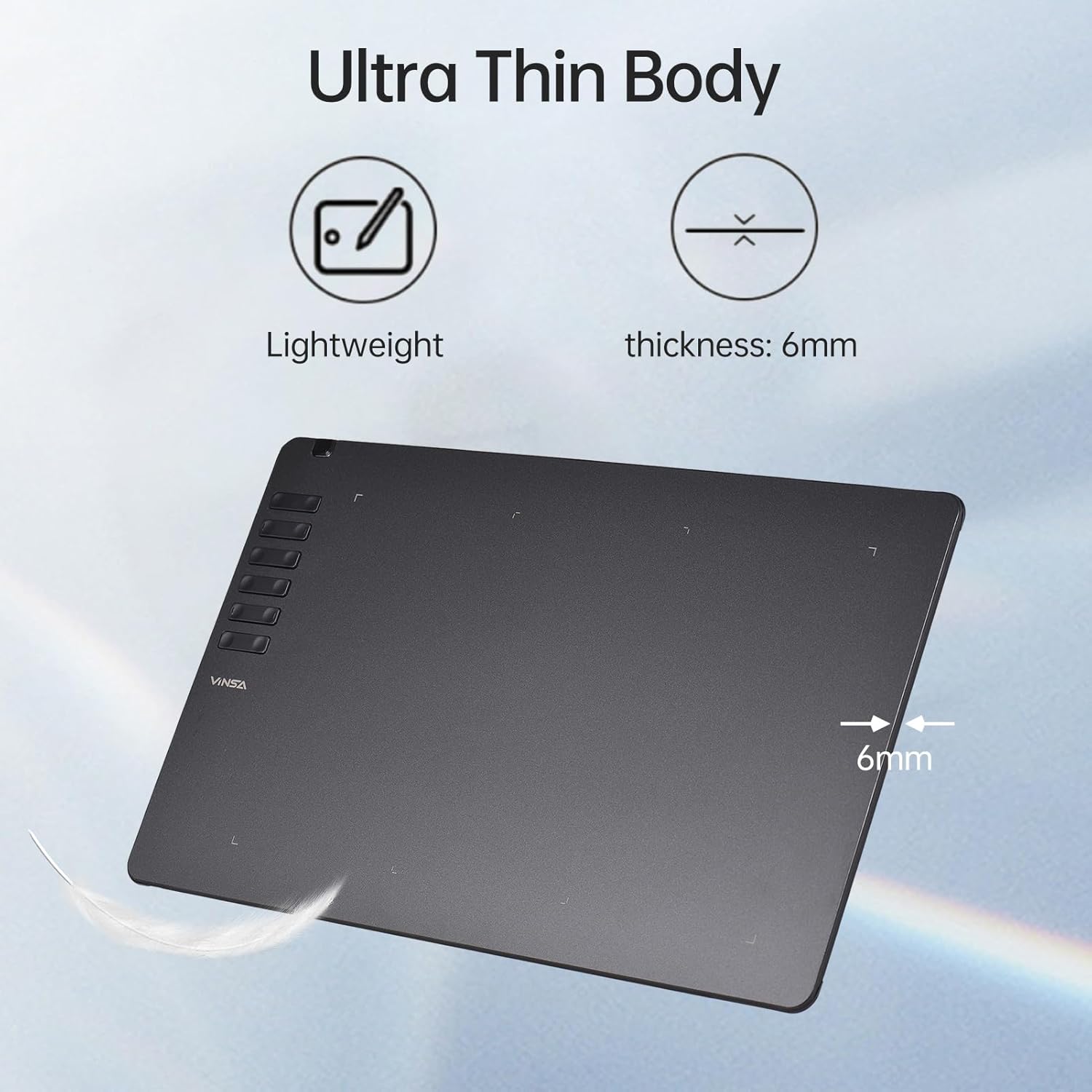
Figure 1: Ultra Thin Body Design. This image displays the VINSA T906 tablet, highlighting its slim profile with a thickness of 6mm and lightweight construction.

Figure 2: Battery-Free Stylus. This image illustrates the included battery-free pen, detailing its 8192 pressure levels, 330 PPS read rate, precise positioning, and two customizable side buttons. The pen tip functions as the default left mouse button, the first button as the default right mouse button, and the second button for custom shortcuts.

Figure 3: Tablet Shortcut Keys. This image shows the six physical shortcut keys located on the upper left side of the tablet. Default functions are indicated as: 1 (Ctrl -), 2 (Ctrl +), 3 ([), 4 (]), 5 (Tab), and 6 (Space). These keys can be customized in Windows OS.
3. Setup
3.1 Connecting to a Computer (Windows/macOS)
- Connect the VINSA T906 tablet to your computer using the provided USB-C cable.
- Visit the official TOUISEDGI website to download and install the latest driver for your operating system. Follow the on-screen instructions for installation.
- Restart your computer if prompted.
- After installation, you can configure the tablet settings, including pen pressure and shortcut keys, through the driver interface.
3.2 Connecting to an Android Device
To connect the VINSA T906 to an Android mobile phone or tablet, ensure your Android device supports OTG (On-The-Go) functionality.
- Use an OTG adapter (not included) to connect the tablet's USB-C cable to your Android device.
- The tablet should be recognized automatically. No driver installation is typically required for basic functionality on Android.
- Ensure your Android device's screen orientation is set to landscape for optimal use with the tablet.

Figure 4: Android Device Connection. This image demonstrates how to connect the VINSA T906 graphics tablet to an Android smartphone using a USB-C to USB-A adapter and an OTG cable, enabling plug-and-play functionality.
4. Operating Instructions
4.1 Using the Battery-Free Stylus
- Drawing and Writing: Hold the stylus like a regular pen. The tablet's active area maps to your screen. Move the pen across the tablet surface to control the cursor.
- Pressure Sensitivity: The 8192 pressure levels allow you to vary line thickness and opacity by applying more or less pressure to the pen tip.
- Custom Buttons: The two side buttons on the stylus can be customized via the driver software to perform various functions, such as right-click, undo, or zoom.

Figure 5: 8192 Levels Pen Pressure. This image visually represents the effect of 8192 pressure levels, showing how varying pressure on the stylus can create different line weights and artistic effects on the tablet surface.
4.2 Utilizing Shortcut Keys
The 6 physical shortcut keys on the tablet can be programmed to execute frequently used commands, enhancing your workflow. Refer to the driver software for customization options. Default functions include zoom in/out, bracket keys, Tab, and Space.
4.3 Software Compatibility
The VINSA T906 is compatible with a wide range of creative software applications across different operating systems.

Figure 6: Supported Software and Applications. This image displays a grid of logos for various software applications compatible with the VINSA T906 tablet, including Adobe Photoshop, Illustrator, Premiere, After Effects, Clip Studio Paint, SAI, Sketchbook, and more, across macOS, Windows, and Android platforms. Note: iPhones and iPads are not currently supported.

Figure 7: Wide Application. This image illustrates various professional and creative applications for the VINSA T906 tablet, including video editing, post-toning, industrial design, interior design, game modeling, post-photographic work, online classes, graphic design, and hand-drawn illustration.
5. Compatibility
The VINSA T906 Graphics Drawing Tablet is compatible with the following operating systems:
- Windows OS (XP-11)
- macOS (11.0 and above)
- Android OS (5.0 and above, requires OTG function on the device)
6. Maintenance
6.1 Cleaning
To clean the tablet surface and stylus:
- Use a soft, dry, lint-free cloth.
- For stubborn marks, lightly dampen the cloth with water or a mild, non-abrasive cleaner. Avoid harsh chemicals.
- Do not spray cleaning solutions directly onto the tablet or stylus.
6.2 Storage
When not in use, store the tablet and stylus in a cool, dry place away from direct sunlight and extreme temperatures. Avoid placing heavy objects on the tablet surface.
7. Troubleshooting
If you encounter issues with your VINSA T906 tablet, refer to the following common solutions:
- No Pen Input:
- Ensure the tablet is properly connected to your device.
- Verify that the driver is correctly installed and running (for Windows/macOS).
- Test the pen on different areas of the tablet.
- Driver Issues:
- Uninstall any previous tablet drivers before installing the VINSA T906 driver.
- Download the latest driver from the official TOUISEDGI website.
- Temporarily disable antivirus software during driver installation.
- Android Connection Problems:
- Confirm your Android device supports OTG functionality.
- Ensure the OTG adapter and cable are functioning correctly.
- Check if the Android device's OTG setting is enabled (if applicable).
- Inaccurate Cursor Movement:
- Recalibrate the tablet in the driver settings.
- Ensure there are no electromagnetic interferences nearby.
If problems persist, contact customer support for further assistance.
8. Specifications
| Feature | Specification |
|---|---|
| Model | VINSA T906 |
| Active Area | 250 x 156 mm (9.8 x 6.1 inches) |
| Product Dimensions | 327 x 200 x 6 mm |
| Net Weight | 324 g |
| Pressure Levels | 8192 |
| Report Rate | 330 PPS |
| Reading Resolution | 5080 LPI |
| Pen Reading Height | 15 mm |
| Interface Type | USB-C |
| Shortcut Keys | 6 physical, customizable |
| OS Compatibility | Windows XP-11, macOS 11.0+, Android 5.0+ (with OTG) |
9. Warranty and Support
For warranty information and technical support, please refer to the documentation provided with your purchase or visit the official TOUISEDGI website. Keep your proof of purchase for warranty claims.