
1. Introduction
Welcome to the user manual for your TOUISEDGI VINSA T906 Ultra-Thin Graphics Drawing Tablet. This manual provides essential information on setting up, operating, maintaining, and troubleshooting your device to ensure optimal performance and a seamless creative experience. Please read this manual thoroughly before using the tablet.
2. Product Overview
2.1 Key Features
- Professional Graphics Tablet: 250x156mm (9.8''x 6.1'') active area with tilting balance system and 330PPS report rate for smooth drawing.
- 8192 Levels Pen Pressure: Allows for precise control over line thickness and opacity.
- Battery-Free Pen: Advanced passive technology eliminates the need for charging or batteries. Features 15mm reading height and two customizable buttons.
- 10 Customizable Shortcut Keys: Enhance productivity with quick access to frequently used functions.
- Strong Compatibility: Supports Windows OS (XP-11), Mac OS (11.0 and above), and Android OS (5.0 and above with OTG function).
- Ultra-Thin Design: Lightweight and only 6mm thick for portability and comfort.
- Paper Feel Film Technology: Provides excellent damping and handling, mimicking the natural smoothness of paper.
2.2 Package Contents
Verify that all items listed below are included in your package:
- VINSA Graphics Tablet
- Battery-free EMR Pen
- USB-A to USB-C Cable
- USB-C OTG Adapter
- Nib Tweezers
- Pen Holder
- User Guide (this manual)
- Replacement Nibs (8 pieces)

Figure 2.2.1: Contents of the VINSA T906 Graphics Tablet package.
3. Setup
3.1 Connecting to a Computer (Windows/Mac)
- Connect one end of the provided USB-A to USB-C cable to the USB-C port on the graphics tablet.
- Connect the other end (USB-A) to an available USB port on your computer.
- The tablet should be recognized by your operating system. For full functionality, it is recommended to download and install the latest drivers from the official TOUISEDGI website.
3.2 Connecting to an Android Device
To connect the tablet to an Android mobile phone or tablet, the device must support the OTG (On-The-Go) function.
- Connect one end of the provided USB-A to USB-C cable to the USB-C port on the graphics tablet.
- Attach the USB-C OTG adapter to the USB-A end of the cable.
- Plug the USB-C OTG adapter into the USB-C port of your Android phone or tablet.
- The tablet should be automatically detected. No additional drivers are typically required for basic functionality on Android.

Figure 3.2.1: Connecting the tablet to an Android device using the OTG adapter.
4. Operating Instructions
4.1 Using the Battery-Free Pen
The VINSA T906 comes with a battery-free EMR (Electro-Magnetic Resonance) pen, eliminating the need for charging. It features 8192 levels of pressure sensitivity and a 15mm reading height for precise control.
- Pressure Sensitivity: Apply varying pressure to the pen to create lines of different thickness and opacity in your drawing software.
- Customizable Buttons: The two buttons on the side of the pen can be customized through the tablet driver software (on Windows/Mac) to perform various functions, such as right-click, scroll, or undo.

Figure 4.1.1: Demonstrating 8192 levels of pen pressure for varied line effects.
4.2 Using the Shortcut Keys
The tablet features 10 physical shortcut keys located on the left side. These keys can be customized to perform specific actions within your creative applications, significantly improving workflow efficiency.
- Customization: On Windows and Mac OS, you can customize the functions of these keys using the tablet's driver software. Common functions include zoom in/out, undo, redo, brush size adjustment, and more.
- Default Functions (Example): While customizable, some common default assignments might include: E (Eraser), B (Brush), Ctrl+, Ctrl-, [, ], Tab, Space, Ctrl, Alt. Refer to your driver software for specific default settings and customization options.
![Close-up image of the VINSA T906 graphics tablet showing the 10 physical shortcut keys on the left side, numbered 1 through 10, with corresponding example functions like E, B, Ctrl+, Ctrl-, [, ], Tab, Space, Ctrl, Alt.](https://m.media-amazon.com/images/I/71f+I6JxShL._AC_SL1500_.jpg)
Figure 4.2.1: The 10 customizable shortcut keys on the VINSA T906 tablet.
4.3 Software Compatibility
The VINSA T906 is compatible with a wide range of art and design software. It works well with applications such as:
- Windows/Mac: Photoshop, SAI, Clipstudio, Sketchbook, Artrage, CAD, Adobe Illustrator, Painter, Flash, C4D, and more.
- Android: Various drawing and note-taking applications that support pen input.
Note: iPhones and iPads are not currently supported.

Figure 4.3.1: Software and application compatibility for the VINSA T906 tablet.
5. Maintenance
5.1 Cleaning the Tablet
- Always disconnect the tablet from your computer or device before cleaning.
- Use a soft, damp cloth to gently wipe the surface of the tablet. Avoid using harsh chemicals, abrasive cleaners, or solvents.
- Ensure no liquid enters the ports or seams of the tablet.
5.2 Replacing Pen Nibs
Over time, the pen nib may wear down. Replace it when it becomes too short or sharp to ensure optimal drawing performance.
- Use the provided nib tweezers to carefully pull out the old nib from the pen.
- Insert a new replacement nib firmly into the pen until it clicks into place.
- Test the pen on the tablet to ensure proper function.
5.3 General Care
- Avoid dropping the tablet or pen, as this can cause damage.
- Do not expose the tablet to extreme temperatures, direct sunlight, or high humidity.
- Store the tablet and pen in a safe place when not in use, preferably in the pen holder provided.
6. Troubleshooting
If you encounter issues with your VINSA T906 Graphics Drawing Tablet, please refer to the following common solutions:
- Tablet Not Responding:
- Ensure the USB cable is securely connected to both the tablet and your computer/device.
- Try connecting the tablet to a different USB port.
- Restart your computer or device.
- If on Windows/Mac, ensure the tablet driver is correctly installed and updated.
- Pen Not Working:
- Check if the pen nib is properly inserted or needs replacement.
- Ensure the tablet is powered on and connected.
- If the pen has customizable buttons, ensure they are not stuck.
- Pressure Sensitivity Not Working:
- Verify that the tablet driver is installed and functioning correctly.
- Check the settings within your drawing software to ensure pressure sensitivity is enabled.
- Recalibrate the pen pressure settings in the tablet driver.
- Android Device Not Recognizing Tablet:
- Confirm that your Android device supports OTG functionality.
- Ensure the USB-C OTG adapter is correctly connected.
- Try a different OTG adapter or cable if available.
If these steps do not resolve your issue, please contact customer support for further assistance.
7. Specifications
| Feature | Specification |
|---|---|
| Model | VINSA T906 |
| Active Area | 250 x 156 mm (9.8 x 6.1 inches) |
| Product Dimensions | 327 x 200 x 6 mm (12.8 x 7.8 x 0.24 inches) |
| Net Weight | 324 g |
| Interface Type | USB-C |
| Pen Technology | Battery-Free EMR |
| Pen Pressure Levels | 8192 |
| Reading Resolution | 5080 LPI (Lines Per Inch) |
| Report Rate | 330 PPS (Points Per Second) |
| Reading Height | 15 mm |
| Shortcut Keys | 10 physical (customizable) |
| Compatibility | Windows XP-11, Mac OS 11.0+, Android 5.0+ (OTG required) |
| Origin | China |

Figure 7.1.1: Physical dimensions and active area of the VINSA T906 tablet.
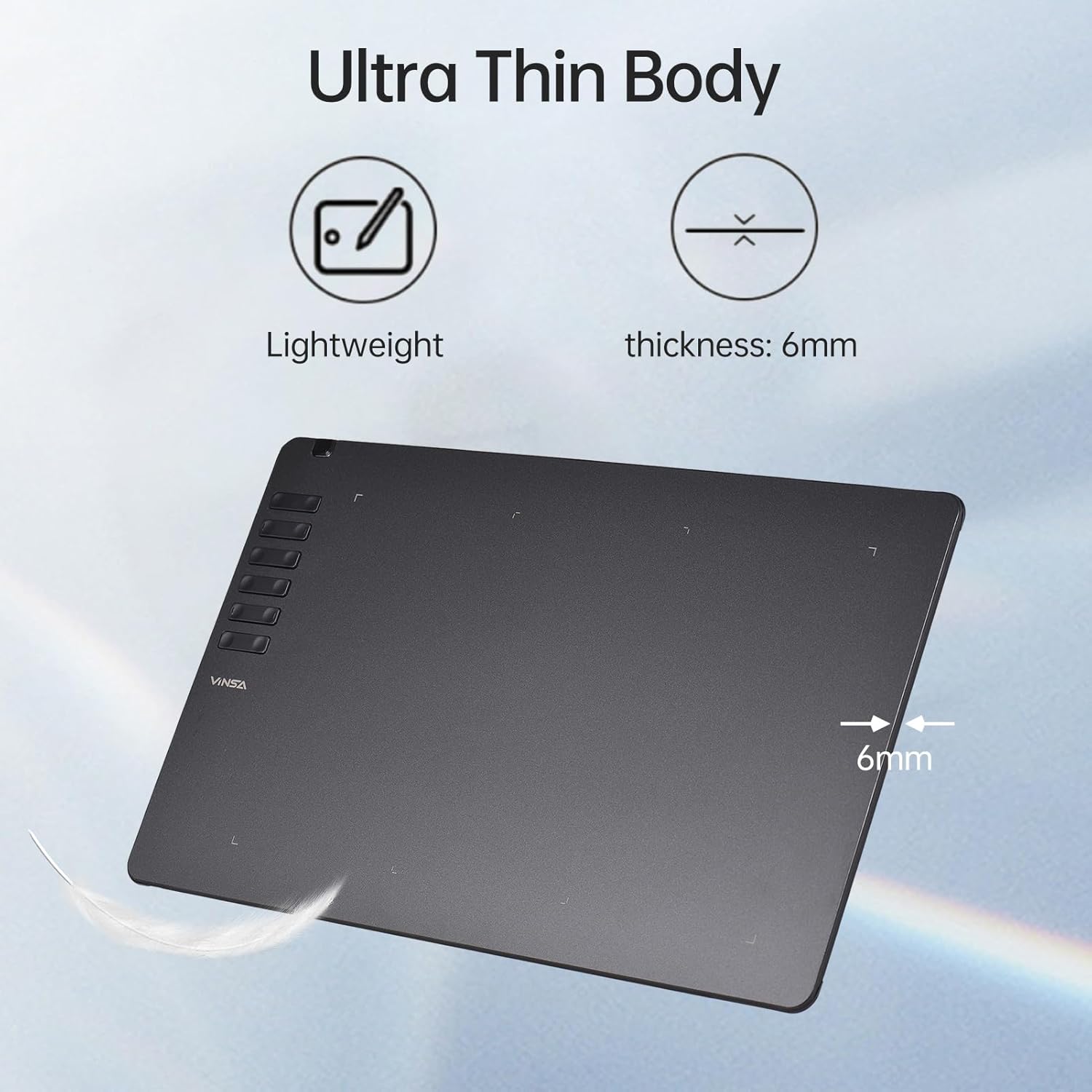
Figure 7.1.2: The ultra-thin design of the VINSA T906 tablet, measuring 6mm in thickness.

Figure 7.1.3: The paper-feel film technology on the tablet surface.
8. Warranty and Support
For information regarding product warranty, returns, or technical support, please refer to the warranty card included in your product packaging or visit the official TOUISEDGI website. You may also contact the retailer from whom you purchased the product for assistance.