
Introduction
This manual provides detailed instructions for the MAXLEGEN N40 Android 14 Tablet. Please read this guide thoroughly before using your device to ensure proper operation and to maximize its features. Keep this manual for future reference.

Image: Overview of MAXLEGEN N40 Tablet features, including display, connectivity, battery, and performance.
Package Contents
Verify that all items listed below are included in your package:
- 1x MAXLEGEN N40 10.1-inch Android 14 Tablet
- 1x Protective Case
- 1x Bluetooth Keyboard
- 1x Pair of Earphones
- 1x Mouse
- 1x Stylus
- 3x Multilingual Keyboard Stickers (including French)
- 1x Charger
- 1x USB-C Cable
- 1x User Manual
Setup
1. Initial Power On and Charging
- Connect the tablet to the charger using the provided USB-C cable.
- Plug the charger into a power outlet.
- Press and hold the power button until the MAXLEGEN logo appears.
- Follow the on-screen instructions to complete the initial setup, including language selection and Google account login.
It is recommended to fully charge the tablet before first use. Charging time is approximately 3-4 hours (DC 5V 2A).
2. Connecting to Wi-Fi
- Go to Settings > Network & internet > Wi-Fi.
- Toggle Wi-Fi On.
- Select your desired Wi-Fi network from the list.
- Enter the network password if prompted and tap Connect.

Image: Demonstrating tablet connectivity options including Wi-Fi and Bluetooth.
3. Pairing Bluetooth Accessories (Keyboard, Mouse)
- Ensure the Bluetooth keyboard and mouse are powered on and in pairing mode.
- On your tablet, go to Settings > Connected devices > Bluetooth.
- Toggle Bluetooth On.
- Tap Pair new device.
- Select your keyboard or mouse from the list of available devices and follow any on-screen prompts to complete pairing.
4. Inserting a MicroSD Card
The tablet supports MicroSD cards up to 2TB for expanded storage.
- Locate the MicroSD card slot on the side of the tablet.
- Gently insert the MicroSD card into the slot until it clicks into place.
- The tablet will detect the card, and you may be prompted to format it for use.
Operating Instructions
1. Android 14 Operating System
The MAXLEGEN N40 runs on Android 14, offering a user-friendly interface and enhanced performance. It is Google GMS Certified, ensuring access to the Google Play Store and a wide range of applications.
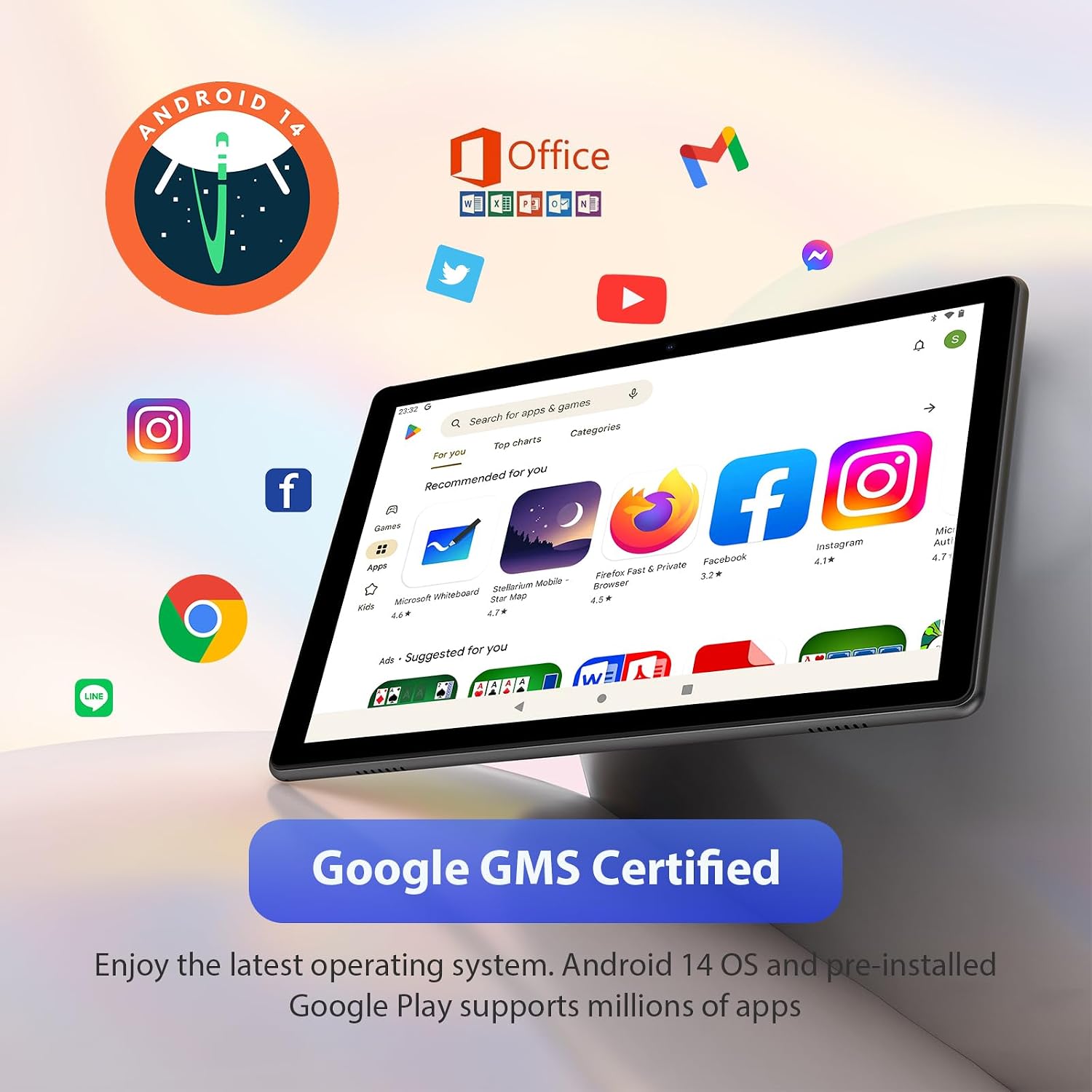
Image: Android 14 interface with Google Play Store apps.
2. Display and Audio
The tablet features a 10.1-inch IPS HD display with a resolution of 1280 x 800 pixels, providing clear visuals. Dual speakers deliver stereo sound for media consumption and video calls. A 3.5mm headphone jack is available for private listening.

Image: Tablet display quality and dual speaker feature.
3. Performance and Storage
Powered by an Octa-Core 2.0GHz processor, the tablet ensures smooth application performance. It comes with 36GB of RAM (12GB physical + 24GB virtual) and 128GB of internal storage, expandable up to 2TB via MicroSD card.

Image: Tablet's memory and storage capabilities.
4. Camera Functions
The tablet is equipped with an 8MP rear camera and a 5MP front camera, suitable for capturing photos, videos, and participating in video calls.
5. Battery Management
The 8000mAh battery provides up to 8 hours of continuous use. To optimize battery life, adjust screen brightness, close unused applications, and disable Wi-Fi or Bluetooth when not in use.
6. Special Features
- Screen Projection: Cast your tablet's screen to compatible external displays.
- Privacy Permissions: Manage app permissions to control access to your data.
- Eye Comfort Mode: Reduces blue light emission to minimize eye strain during prolonged use.
- 2-in-1 Functionality: Transform your tablet into a laptop-like device using the included Bluetooth keyboard and mouse.

Image: Various usage scenarios of the tablet, including with accessories.
Maintenance
1. Cleaning the Tablet
Use a soft, lint-free cloth to clean the screen and body of the tablet. Avoid using harsh chemicals or abrasive materials, as they may damage the device.
2. Software Updates
Periodically check for system updates to ensure your tablet has the latest features and security patches. Go to Settings > System > System update to check for and install available updates.
3. Storage Management
Regularly clear unnecessary files and applications to maintain optimal performance. You can manage storage in Settings > Storage.
Troubleshooting
Tablet Not Turning On
- Ensure the tablet is sufficiently charged. Connect it to the charger for at least 30 minutes before attempting to power it on again.
- Press and hold the power button for 10-15 seconds to perform a forced restart.
Slow Performance or Freezing
- Close unused applications running in the background.
- Clear cache data for frequently used apps.
- Ensure sufficient free storage space. Uninstall unnecessary apps or move large files to the MicroSD card.
- Restart the tablet.
Wi-Fi Connectivity Issues
- Ensure Wi-Fi is enabled on the tablet.
- Restart your Wi-Fi router.
- Forget the network and reconnect by re-entering the password.
Accessories Not Connecting
- Ensure Bluetooth is enabled on the tablet and the accessory.
- Make sure the accessory is in pairing mode.
- Try unpairing and re-pairing the accessory.
- Check the battery level of the accessory.
Specifications
| Feature | Detail |
|---|---|
| Model Number | N40 |
| Operating System | Android 14 |
| Processor | Octa-Core 2.0 GHz (Rockchip) |
| Display | 10.1-inch IPS HD Touch Screen, 1280 x 800 Pixels (16:9 aspect ratio) |
| RAM | 36 GB (12 GB physical + 24 GB virtual) |
| Internal Storage (ROM) | 128 GB |
| Expandable Storage | Up to 2 TB (MicroSD card, not included) |
| Rear Camera | 8 MP |
| Front Camera | 5 MP |
| Audio | Dual Speakers, 3.5mm Headphone Jack |
| Connectivity | Wi-Fi (802.11 b/g/n, 2.4 GHz & 5 GHz), Wi-Fi 6, Bluetooth 5.0 |
| Battery | 8000 mAh Lithium-Polymer |
| Battery Life | Up to 8 hours |
| Charging Port | USB-C |
| Dimensions (L x W x H) | 25 x 16.3 x 0.9 cm |
| Weight | 1.29 kg |
| Special Features | Fast Charging, USB OTG Support, Expandable Storage, GMS Certified |
Warranty and Support
The MAXLEGEN N40 Tablet comes with a one-year limited warranty. Lifetime technical support is also provided.
For any questions, technical assistance, or warranty claims, please contact MAXLEGEN customer service. Refer to the contact information provided with your purchase documentation or on the official MAXLEGEN website.