
Anmite 10.5-inch Portable Monitor (Model A105W01) User Manual
Comprehensive guide for setup, operation, and maintenance.
Introduction
Welcome to the user manual for your Anmite 10.5-inch Portable Monitor. This guide provides essential information for setting up, operating, and maintaining your monitor. Please read these instructions carefully before use to ensure optimal performance and safety.
Package Contents
Your Anmite Portable Monitor package should include the following items:
- Anmite Portable Monitor x 1
- Mini-HDMI to HDMI cable x 1
- Type-C to Type-C cable x 1
- Type-C to USB-A cable x 1
- User Guide x 1
Product Features
The Anmite 10.5-inch Portable Monitor offers a range of features designed for versatility and performance:
- Display: 10.5-inch IPS FHD LED screen with 1920x1280 resolution and 60Hz refresh rate.
- Color: 16.7M display colors, 100% color gamut, 420cd/m² brightness, 1000:1 contrast ratio.
- Connectivity: Equipped with Type-C (full function) and Mini HDMI ports for high-definition video signal transmission.
- Audio: Built-in dual 1W speakers and a 3.5mm audio output interface.
- Design: Ultrathin and lightweight metal enclosure, weighing approximately 0.26kg (0.573 pounds), making it highly portable.
- Versatility: Suitable for use as an extended screen for laptops, a gaming display for consoles (Xbox, PS4), or an external display for compatible smartphones.

Image: The monitor screen highlighting its key technical specifications.
Product Overview Video
Video: An official overview of the Anmite 10.5-inch portable monitor, demonstrating its features and functionality.
Setup Instructions
Follow these steps to set up your Anmite portable monitor:
- Unpacking: Carefully remove all components from the packaging.
- Placement: Place the monitor on a stable, flat surface. The monitor includes a built-in stand for adjustable viewing angles.
- Power Connection: Connect the monitor to a power source using the provided Type-C to USB-A cable and a compatible power adapter (not included) to the DC 5V port, or via a full-function Type-C cable from a compatible device.
- Device Connection: Connect your device (laptop, smartphone, gaming console) to the monitor using either the Type-C to Type-C cable or the Mini-HDMI to HDMI cable, depending on your device's output ports.
- Power On: Press the power button on the monitor to turn it on.
Connecting to Devices
The Anmite portable monitor supports various connection methods:
1. Connecting to a Laptop/PC (Full-Function Type-C)
If your laptop has a full-function USB-C port that supports video output (DisplayPort Alternate Mode) and power delivery:
- Connect one end of the provided Type-C to Type-C cable to your laptop's full-function USB-C port.
- Connect the other end of the Type-C to Type-C cable to the monitor's full-function Type-C port.
- The monitor should automatically detect the signal and display your laptop's screen. Power will also be supplied via this connection.

Image: The Anmite portable monitor connected to a laptop, demonstrating screen extension. A single Type-C cable handles both video and power.
2. Connecting to a Laptop/PC (HDMI & USB-A for Power)
If your laptop has an HDMI port but not a full-function USB-C port:
- Connect one end of the provided Mini-HDMI to HDMI cable to the monitor's Mini-HDMI port.
- Connect the other end of the Mini-HDMI to HDMI cable to your laptop's HDMI port.
- Connect the provided Type-C to USB-A cable to the monitor's DC 5V Type-C port and the USB-A end to a USB power adapter (5V/2A or higher recommended) or a USB port on your laptop for power.
- The monitor should display your laptop's screen.

Image: The Anmite portable monitor used as an extended screen for office work, connected to a laptop.
3. Connecting to a Smartphone (Full-Function Type-C)
If your smartphone has a full-function USB-C port that supports video output (DisplayPort Alternate Mode) and power delivery:
- Connect one end of the provided Type-C to Type-C cable to your smartphone's full-function USB-C port.
- Connect the other end of the Type-C to Type-C cable to the monitor's full-function Type-C port.
- The monitor should automatically detect the signal and display your smartphone's screen. Power will also be supplied via this connection.

Image: A smartphone connected to the Anmite portable monitor, enabling a larger display for mobile content.
4. Connecting to Gaming Consoles (HDMI)
For gaming consoles like Xbox or PS4:
- Connect one end of the provided Mini-HDMI to HDMI cable to the monitor's Mini-HDMI port.
- Connect the other end of the Mini-HDMI to HDMI cable to your gaming console's HDMI output port.
- Connect the provided Type-C to USB-A cable to the monitor's DC 5V Type-C port and the USB-A end to a USB power adapter (5V/2A or higher recommended) for power.
- The monitor will display the gaming console's output.
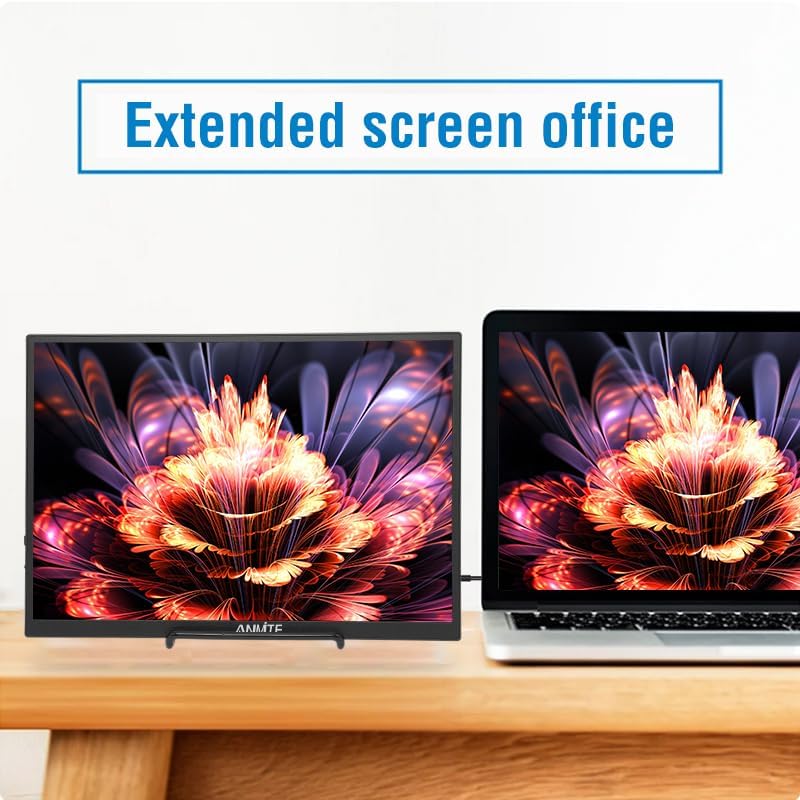
Image: The monitor demonstrating its versatility across different applications, including gaming.
Operating the Monitor
The monitor features a menu button and a power button for control.

Image: Rear view of the monitor highlighting the input ports and control buttons.
Menu Navigation
Use the MENU button/scroll wheel to access and navigate the On-Screen Display (OSD) menu:
- Press the MENU button to open the OSD menu.
- Use the scroll wheel to move up or down through menu options.
- Press the MENU button again to select an option.
- To exit the menu, navigate to the 'Exit' option or wait for the menu to time out.
Power On/Off
Press and hold the Power button to turn the monitor on or off. A short press may put the monitor into standby mode.
Specifications
| Feature | Specification |
|---|---|
| Model Number | A105W01 |
| Screen Size | 10.5 inches |
| Panel Type | IPS |
| Resolution | 1920x1280 FHD |
| Aspect Ratio | 15:10 |
| Refresh Rate | 60Hz |
| Display Color | 16.7M |
| Brightness | 420cd/m² |
| Contrast Ratio | 1000:1 |
| Visual Angle | H:178° V:178° |
| Input Interface | Mini-HDMI, Type-C (Full Function), Type-C (Power Only) |
| Output Interface | 3.5mm Audio Jack |
| Speakers | Built-in (1W*2) |
| Net Weight | 0.26kg (0.573 lbs) |
| Dimensions | 232 x 162 x 10 mm (9.13 x 6.38 x 0.39 inches) |

Image: Diagram illustrating the physical dimensions of the portable monitor.
Troubleshooting
If you encounter issues with your Anmite portable monitor, refer to the following common problems and solutions:
- No Signal:
- Ensure all cables (Type-C or HDMI) are securely connected to both the monitor and your device.
- Verify that your device's Type-C port supports full-function video output (DisplayPort Alternate Mode). If not, use the HDMI connection.
- Check if the monitor is receiving power. Connect the Type-C to USB-A cable to a power adapter if using HDMI.
- Try restarting your connected device.
- No Power:
- Ensure the power cable is properly connected to the DC 5V port and a working power source.
- If using a full-function Type-C cable, ensure your device provides sufficient power.
- Try a different power adapter or USB port.
- Flickering Screen:
- Check cable connections for looseness.
- Ensure the resolution and refresh rate settings on your connected device are compatible with the monitor (1920x1280 at 60Hz).
- Try a different cable.
- No Sound from Speakers:
- Check the volume settings on both the monitor and your connected device.
- Ensure the audio output is directed to the monitor on your device's sound settings.
- If using the 3.5mm audio jack, ensure external speakers/headphones are properly connected.
Maintenance
To ensure the longevity and optimal performance of your Anmite portable monitor, follow these maintenance guidelines:
- Cleaning the Screen: Use a soft, lint-free cloth slightly dampened with water or a screen-cleaning solution. Do not use harsh chemicals or abrasive materials.
- Cleaning the Casing: Wipe the monitor casing with a soft, dry cloth.
- Storage: When not in use, store the monitor in a cool, dry place, away from direct sunlight and extreme temperatures.
- Handling: Avoid dropping or subjecting the monitor to strong impacts. Do not place heavy objects on the monitor.
- Ventilation: Ensure the ventilation holes on the monitor are not blocked to prevent overheating.
Warranty and Support
Anmite products are designed for reliability and performance. For warranty information, technical support, or service inquiries, please refer to the warranty card included in your package or visit the official Anmite website. Please have your model number (A105W01) and purchase details ready when contacting support.


