

Introduction
This user manual provides comprehensive instructions for the setup, operation, and maintenance of your ATTACK SHARK X68 HE 8KHZ Rapid Trigger Keyboard. Designed for high-performance gaming and efficient typing, this keyboard features magnetic switches, customizable actuation points, and vibrant RGB lighting. Please read this manual carefully to ensure optimal use and longevity of your device.
Package Contents
Before proceeding with the setup, please verify that all items listed below are included in your package:
- ATTACK SHARK X68 HE Gaming Keyboard
- Keycap Puller
- USB Cable (Coiled)
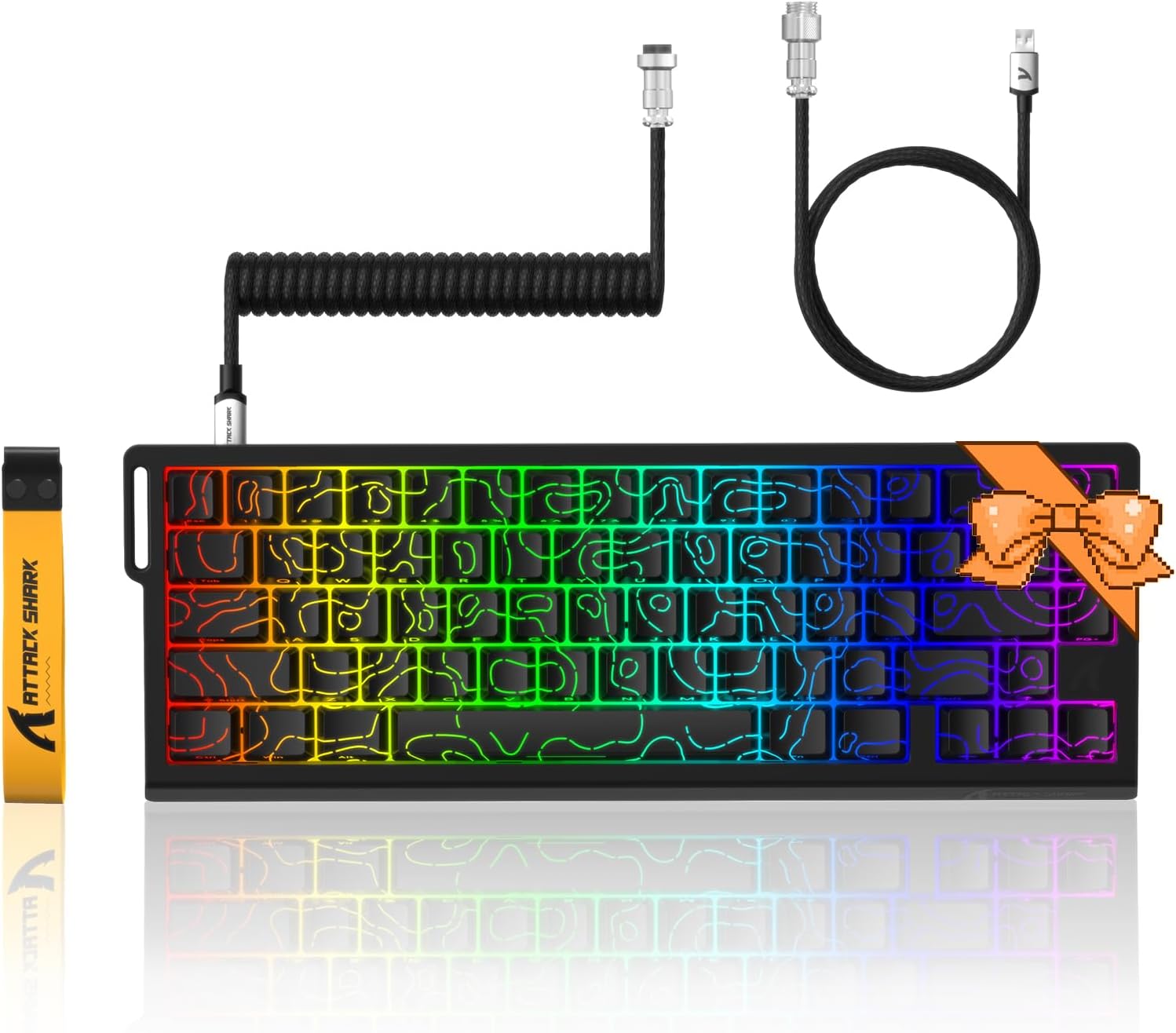
Image: The ATTACK SHARK X68 HE keyboard, coiled USB cable, and keycap puller.
Setup
Connecting the Keyboard
- Locate the USB-C port on the back of the ATTACK SHARK X68 HE keyboard.
- Connect the USB-C end of the provided coiled cable to the keyboard's USB-C port.
- Connect the USB-A end of the coiled cable to an available USB port on your computer (PC or Mac).
- The keyboard will automatically be recognized by your operating system. Drivers will install if necessary.
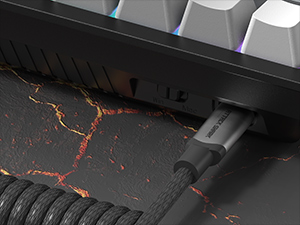
Image: Detail of the detachable USB-C cable connection point on the keyboard.
Operating Instructions
Key Features
Magnetic Switches and Rapid Trigger
The X68 HE keyboard utilizes Hall Effect magnetic switches, enabling rapid trigger functionality. This allows for ultra-fast key response and precise control, particularly beneficial in gaming scenarios where quick, repeated inputs are critical.

Image: Visual representation of the optimal Hall Magnetic Linear Switch technology and its settings.

Image: Illustrates the performance difference between a regular switch and a rapid trigger switch in gaming, highlighting faster response.
Customizable Actuation Points
Each magnetic switch on the X68 HE keyboard supports adjustable actuation points, ranging from 0.1mm to 3.4mm with 0.01mm accuracy. This allows users to fine-tune the sensitivity of each key to their preference, providing a personalized tactile experience for both typing and gaming.
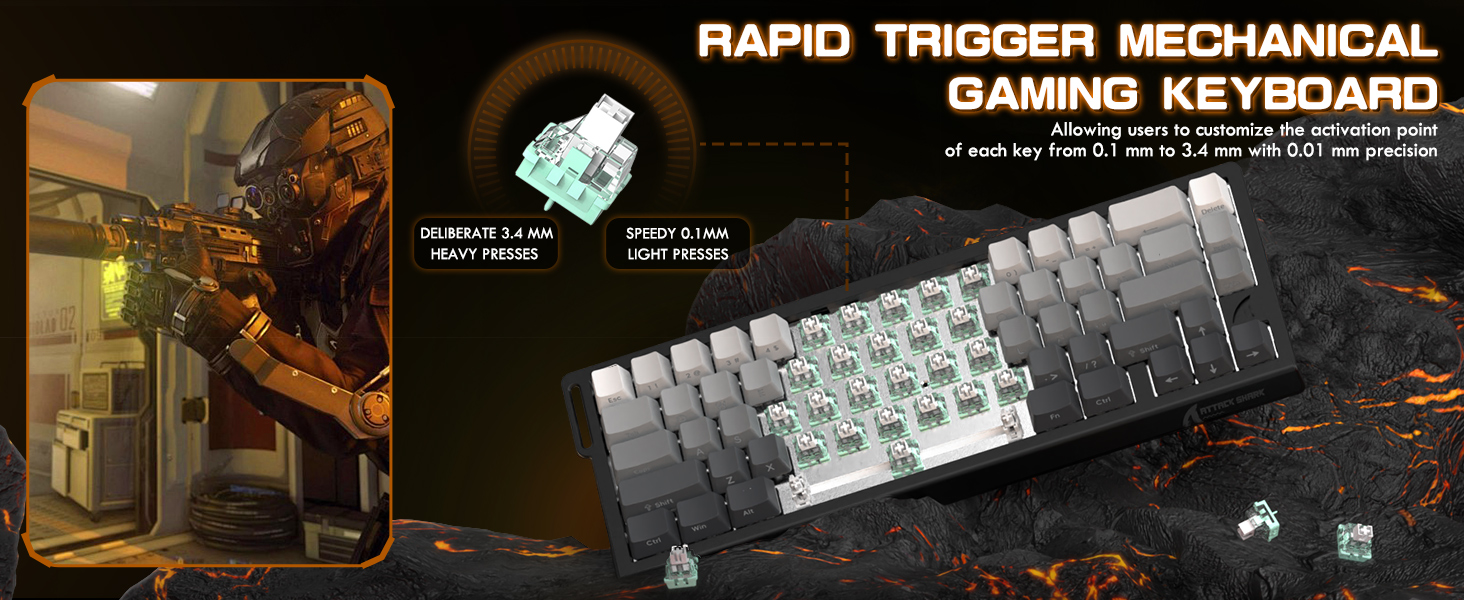
Image: Visual explanation of the rapid trigger mechanical gaming keyboard's adjustable actuation points, from light presses to heavy presses.
RGB Backlighting
The keyboard features 16 million-color RGB backlighting with multiple dynamic modes. Users can customize lighting effects to enhance their gaming atmosphere or match their setup. Refer to the 'Basic Keyboard Functions' section for common lighting controls.
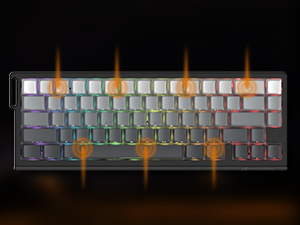
Image: Close-up view of the keyboard highlighting its customizable RGB lighting zones.
Web Driver Software
For advanced customization, the ATTACK SHARK X68 HE keyboard is supported by a professional web-based software. This software allows users to customize DKS (Dynamic Keystrokes), key combinations, macros, key remapping, and RGB lighting settings on both Windows and Mac operating systems.

Image: Screenshot of the keyboard's web driver interface, showing options for key settings, macros, and lighting.
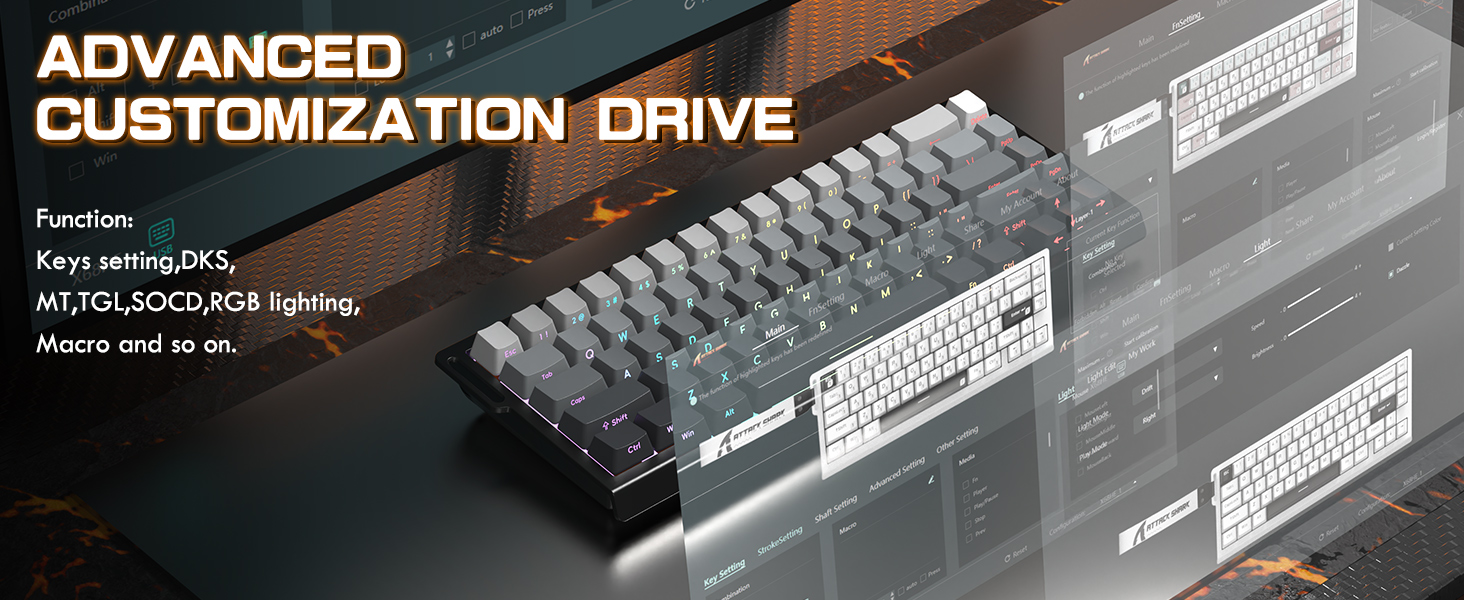
Image: Overview of the advanced customization drive software, detailing functions like key settings, DKS, MT, TGL, SOCD, RGB lighting, and macros.
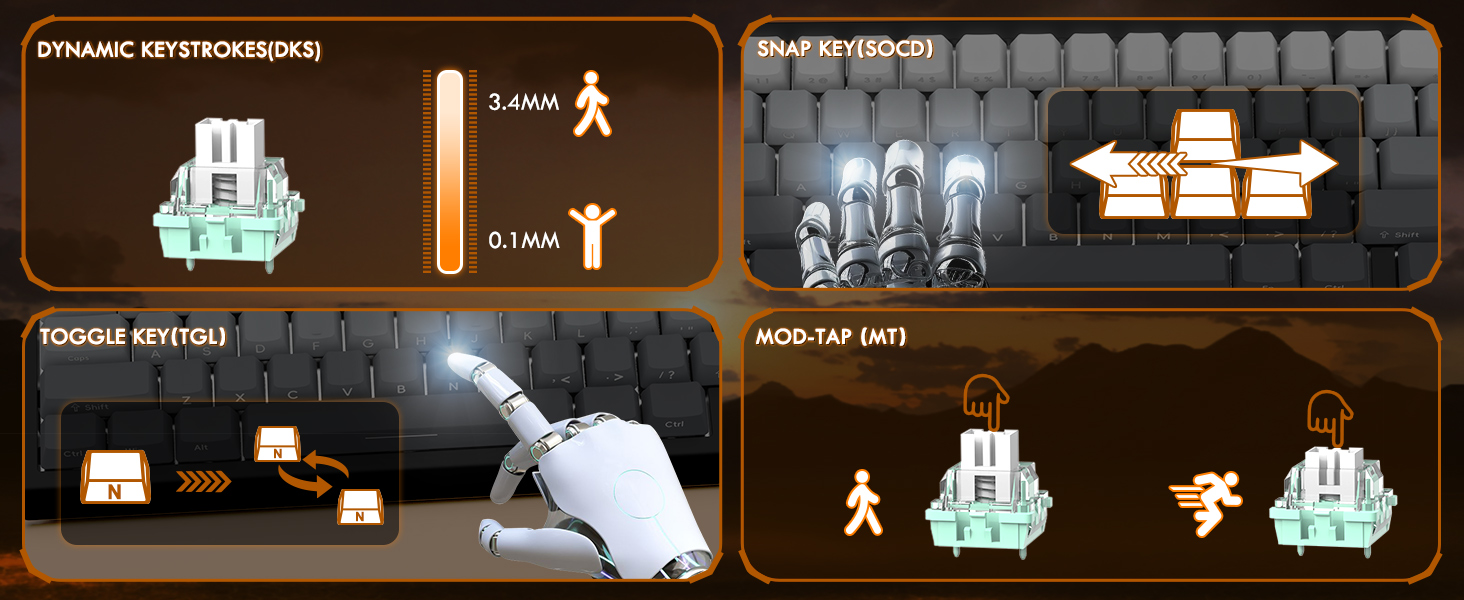
Image: Explanations of advanced key functions: Dynamic Keystrokes (DKS), Snap Key (SOCD), Toggle Key (TGL), and Mod-Tap (MT).
Hot-Swap Switches
The X68 HE keyboard features a hot-swappable design, allowing users to easily remove and replace switches without soldering. This provides flexibility for personalizing the typing feel and maintaining the keyboard.

Image: A keycap and switch being removed from the keyboard, demonstrating its hot-swap capability.

Image: A keycap puller tool shown with a keycap and a magnetic switch, illustrating the components.
Basic Keyboard Functions
The keyboard includes function key combinations for quick adjustments:
- Fn + ↑ / ↓: Adjust Backlit Brightness
- Fn + Enter: Switch Light Color
- Fn + ← / →: Adjust Backlit Brightness (alternative)
- Fn + Backspace: Light On/Off
- Fn + \|: Switch Light Mode

Image: Displays the keyboard's dimensions and outlines the function key combinations for controlling backlight brightness and modes.
Maintenance
To ensure the longevity and optimal performance of your ATTACK SHARK X68 HE keyboard, follow these maintenance guidelines:
- Cleaning Keycaps: Use a soft, damp cloth to wipe down the keycaps. For deeper cleaning, you can remove the PBT keycaps using the provided keycap puller and wash them with mild soap and water. Ensure they are completely dry before reattaching.
- Cleaning the Keyboard Body: Use a soft, dry, lint-free cloth to wipe the keyboard body. Avoid using harsh chemicals or abrasive materials.
- Dust Removal: Use compressed air to remove dust and debris from between the keycaps and switches regularly.
- Cable Care: Handle the coiled USB cable with care. Avoid sharp bends or excessive pulling to prevent damage.
Troubleshooting
If you encounter issues with your keyboard, please refer to the following common problems and their solutions:
| Problem | Possible Cause | Solution |
|---|---|---|
| Keyboard not responding | Loose cable connection, incorrect USB port, driver issue. | Ensure the USB cable is securely connected to both the keyboard and the computer. Try a different USB port. Restart your computer. |
| RGB lighting not working or incorrect | Lighting disabled, software settings. | Press Fn + Backspace to toggle lighting. Use the web driver software to adjust lighting settings. |
| Keys not registering or double-typing | Dust/debris under keycap, actuation point setting, software glitch. | Remove keycap and clean switch area with compressed air. Adjust actuation points via the web driver software. Restart the keyboard by unplugging and replugging. |
| Web driver software not detecting keyboard | Browser compatibility, cable issue, firewall. | Ensure you are using a compatible web browser. Check cable connection. Temporarily disable firewall/antivirus if it interferes. |
Specifications
| Feature | Detail |
|---|---|
| Model Number | X68 HE |
| Connectivity Technology | USB-C (Wired) |
| Keyboard Description | Mechanical Gaming Keyboard |
| Switch Type | Magnetic (Hall Effect) |
| Polling Rate | 8000Hz |
| Response Time | 0.125ms |
| Actuation Accuracy | 0.01mm |
| Adjustable Actuation Range | 0.1mm to 3.4mm |
| Keycaps | PBT Keycaps (Contour Line 3.0) |
| Backlighting | RGB (16 million colors) |
| Anti-Ghosting | Full Key Anti-Ghosting (NKRO) |
| Compatible Devices | Laptop, PC, Tablet |
| Operating Systems | Windows, Mac |
| Product Dimensions | 14.25 x 6.18 x 1.93 inches |
| Item Weight | 1.96 pounds |
| Number of Keys | 66 |
Warranty and Support
The ATTACK SHARK X68 HE keyboard comes with a standard manufacturer's warranty. For detailed warranty information, including terms and conditions, please refer to the warranty card included in your product packaging or visit the official ATTACK SHARK website.
For technical support, troubleshooting assistance, or any inquiries regarding your product, please contact ATTACK SHARK customer service through their official support channels. Keep your purchase receipt or proof of purchase handy when contacting support.


