
Product Overview
The Pastigio Digital Picture Frame (Model M15R5-White Clay) is a 15.6-inch Wi-Fi enabled frame designed to display photos and videos. It features a 1920x1080 IPS FHD touchscreen, 32GB of built-in memory, and supports both tabletop and wall-mounted installations. This frame allows for instant sharing of media via the Frameo application, offering a convenient way to share memories with family and friends.

Image: The Pastigio 15.6-inch Digital Picture Frame displaying a family photo, alongside a smartphone screen showing the Frameo application interface for sharing.
Setup Guide
1. Unboxing and Initial Placement
Carefully remove all components from the packaging. The frame can be placed on a tabletop using its integrated stand or mounted on a wall. Ensure the placement allows for easy access to the power outlet and a stable surface if tabletop mounted.

Image: The Pastigio Digital Picture Frame positioned on a wooden side table, demonstrating its tabletop placement.
2. Connecting Power
Locate the DC Port on the back of the frame. Connect the provided power adapter to the DC Port and then plug the adapter into a standard electrical outlet. The frame will power on automatically or can be turned on using the power button.
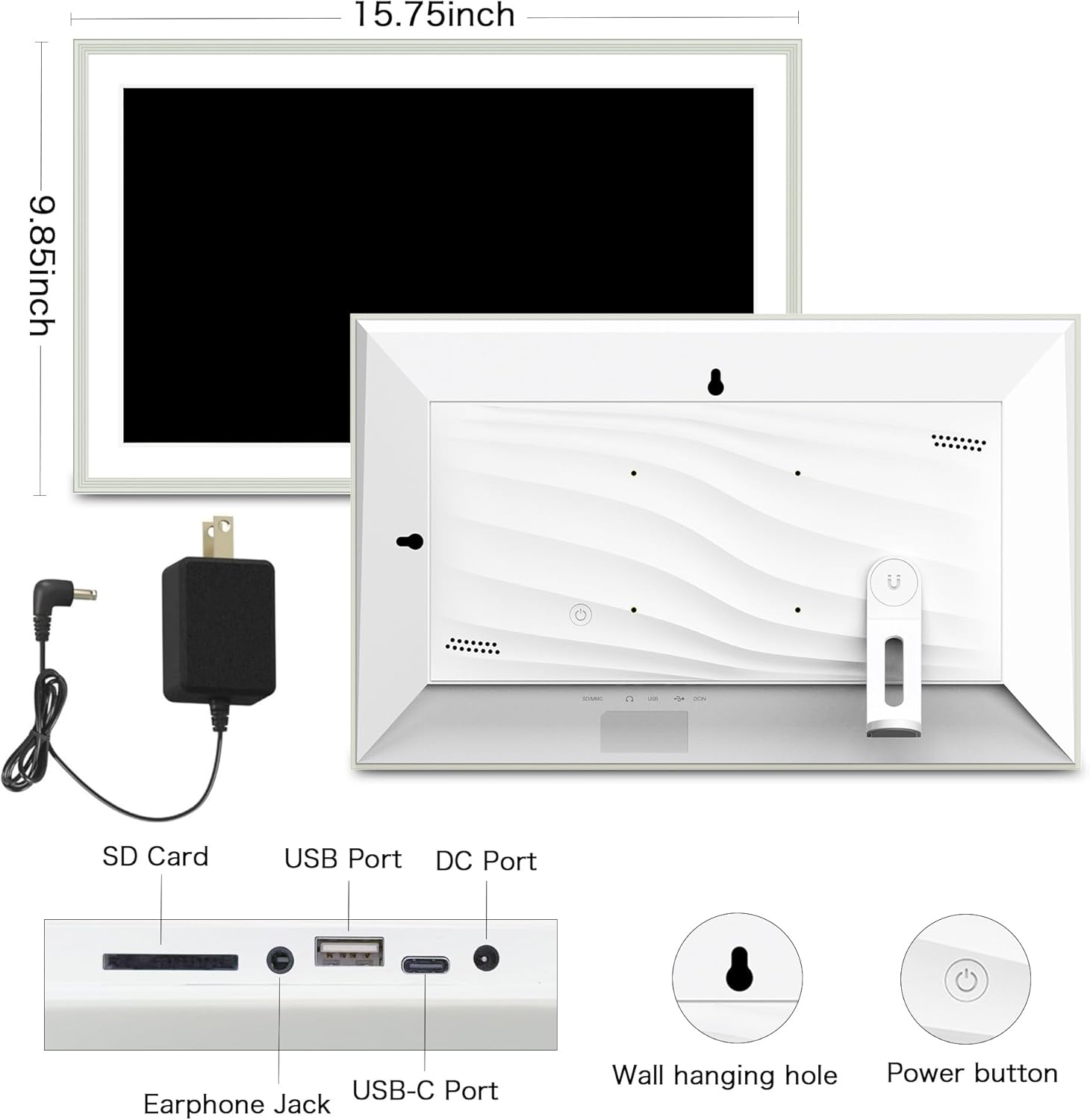
Image: A detailed diagram illustrating the various ports on the back of the digital picture frame, including the SD Card slot, USB Port, DC Port, Earphone Jack, and USB-C Port, along with overall dimensions and wall hanging hole.
3. Wall Mounting (Optional)
The frame includes a wall hanging hole for mounting. Use appropriate wall anchors and screws (not included) suitable for your wall type. Ensure the frame is securely mounted before releasing it.

Image: The digital picture frame mounted vertically on a wall, showcasing its wall-mount support design.
4. Wi-Fi Connection and Frameo App Setup
- On the frame's touchscreen, navigate to the settings menu.
- Select "Wi-Fi" and choose your network from the list. Enter the password if prompted.
- Once connected, download the "Frameo" app from your smartphone's app store (iOS or Android).
- Open the Frameo app and follow the on-screen instructions to create an account and connect it to your digital picture frame. You will typically receive a unique code on your frame to enter into the app for pairing.
Operating Instructions
Sharing Photos and Videos via Frameo App
The primary method for sharing media is through the Frameo app. Once your frame is connected to Wi-Fi and paired with the app, you can instantly send photos and videos (up to 15 seconds in length) from your smartphone to the frame from anywhere in the world.
- Open the Frameo app on your smartphone.
- Select the photos or videos you wish to send.
- Choose the recipient frame(s) and tap "Send".
- You can add captions to your photos before sending.

Image: A visual representation of instant photo sharing to the digital frame using the Frameo mobile application, highlighting the Wi-Fi connection.
Non-Wi-Fi Transmission
For situations without Wi-Fi access, or for transferring a large number of files, the frame supports direct media transfer:
- Via SD Card or USB Drive: Insert a FAT32 formatted SD card or USB drive (up to 32GB) containing your photos and videos into the respective port on the frame. The frame will detect the media, and you can import files directly.
- Via PC/Laptop: Connect the frame to a computer using a USB-C cable (for Windows systems only). The frame will appear as a removable storage device, allowing you to drag and drop files.

Image: An illustration showing alternative methods for transferring media to the digital frame, including via SD card/USB drive and direct connection to a PC/laptop.
Touchscreen Operation
The 15.6-inch IPS FHD touchscreen allows for intuitive navigation and interaction with the frame's features. Tap to select, swipe to browse photos, and pinch to zoom.

Image: A hand touching the screen of the digital picture frame, demonstrating its touchscreen functionality.
Automatic Rotation
The frame features an auto-rotate function, automatically adjusting the display orientation (landscape or portrait) based on how the frame is positioned.

Image: Two digital picture frames, one in landscape and one in portrait orientation, illustrating the automatic rotation feature.
Sleep Mode
To conserve energy, the frame can be set to enter sleep mode during specified hours. This feature is customizable through the frame's settings.

Image: A digital picture frame on a bedside table, with one image showing it active and another showing it in sleep mode, indicating energy-saving functionality.
Multi-User Sharing
The Frameo app allows multiple users to connect to a single frame, enabling various family members or friends to share their photos and videos to the same device.

Image: An illustration demonstrating how multiple users can share photos to a single digital picture frame via the Frameo app.
Additional Functions
Explore more features within the Frameo app and on the frame itself:
- Weather & Time Display: Show real-time weather updates and the current time on the frame.
- Adjust Photo: Adjust the position of photos vertically to optimize display.
- Add a Caption: Make photos more meaningful with text captions.
- React: Add emojis to photos to express feelings.
- Greetings: Send personalized greetings for various occasions directly to the frame.

Image: A graphic detailing additional features of the digital picture frame, including weather and time display, photo adjustment, captioning, and reactions.

Image: A demonstration of the Frameo Greetings feature, allowing users to send personalized messages and designs for various occasions.
Maintenance
To ensure the longevity and optimal performance of your digital picture frame, follow these maintenance guidelines:
- Cleaning the Screen: Use a soft, lint-free cloth specifically designed for electronics screens. Gently wipe the screen to remove dust and fingerprints. Avoid using abrasive cleaners or sprays directly on the screen.
- Cleaning the Frame: Wipe the frame's exterior with a soft, dry cloth. Do not use harsh chemicals or solvents.
- Storage: If storing the frame for an extended period, disconnect it from power and store it in a cool, dry place away from direct sunlight and extreme temperatures.
- Software Updates: Periodically check for and install software updates through the frame's settings menu to ensure you have the latest features and bug fixes.
Troubleshooting
This section addresses common issues you might encounter with your digital picture frame.
| Problem | Possible Solution |
|---|---|
| Frame does not power on. |
|
| Cannot connect to Wi-Fi. |
|
| Photos/Videos not appearing on frame. |
|
| Touchscreen is unresponsive. |
|
Specifications
| Feature | Detail |
|---|---|
| Brand | Pastigio |
| Model Number | M15R5-White Clay |
| Screen Size | 15.6 Inches |
| Resolution | 1920 x 1080 (FHD) |
| Display Type | IPS Touchscreen |
| Internal Storage | 32GB |
| External Storage Support | Up to 32GB (SD Card, USB Drive - FAT32 format only) |
| Connectivity | Wi-Fi, USB, USB-C, SD Card |
| Color | White Clay |
| Product Dimensions | 24.99 x 40.01 x 2.51 cm |
| Item Weight | 1.6 kg |
| Compatible Devices | Personal Computer, Smartphone |
Warranty and Support
This product is subject to a return policy of 30 days from the date of purchase, allowing for a refund or replacement. For specific warranty details, technical support, or further assistance, please refer to the documentation included with your product or contact Pastigio customer service directly. Contact information can typically be found on the manufacturer's official website or through your point of purchase.


