
TYPONOS D820
TYPONOS D820 Portable Thermal Printer User Manual
Model: D820
Brand: TYPONOS
1. Introduction
Welcome to the user manual for your TYPONOS D820 Portable Thermal Printer. This document provides essential information for setting up, operating, and maintaining your device. Please read this manual thoroughly before using the printer to ensure proper function and to maximize its lifespan.
Safety Information
- Keep the printer away from water and high humidity.
- Do not expose the printer to direct sunlight or high temperatures.
- Use only the specified power adapter and USB cable.
- Avoid disassembling or modifying the printer, as this will void the warranty.
- Keep out of reach of children.
2. Package Contents
Please check the package contents upon unboxing. If any items are missing or damaged, contact customer support.
- TYPONOS D820 Portable Thermal Printer
- USB-C Charging Cable
- Thermal Paper Roll (pre-installed or included)
- Quick Start Guide
3. Product Overview
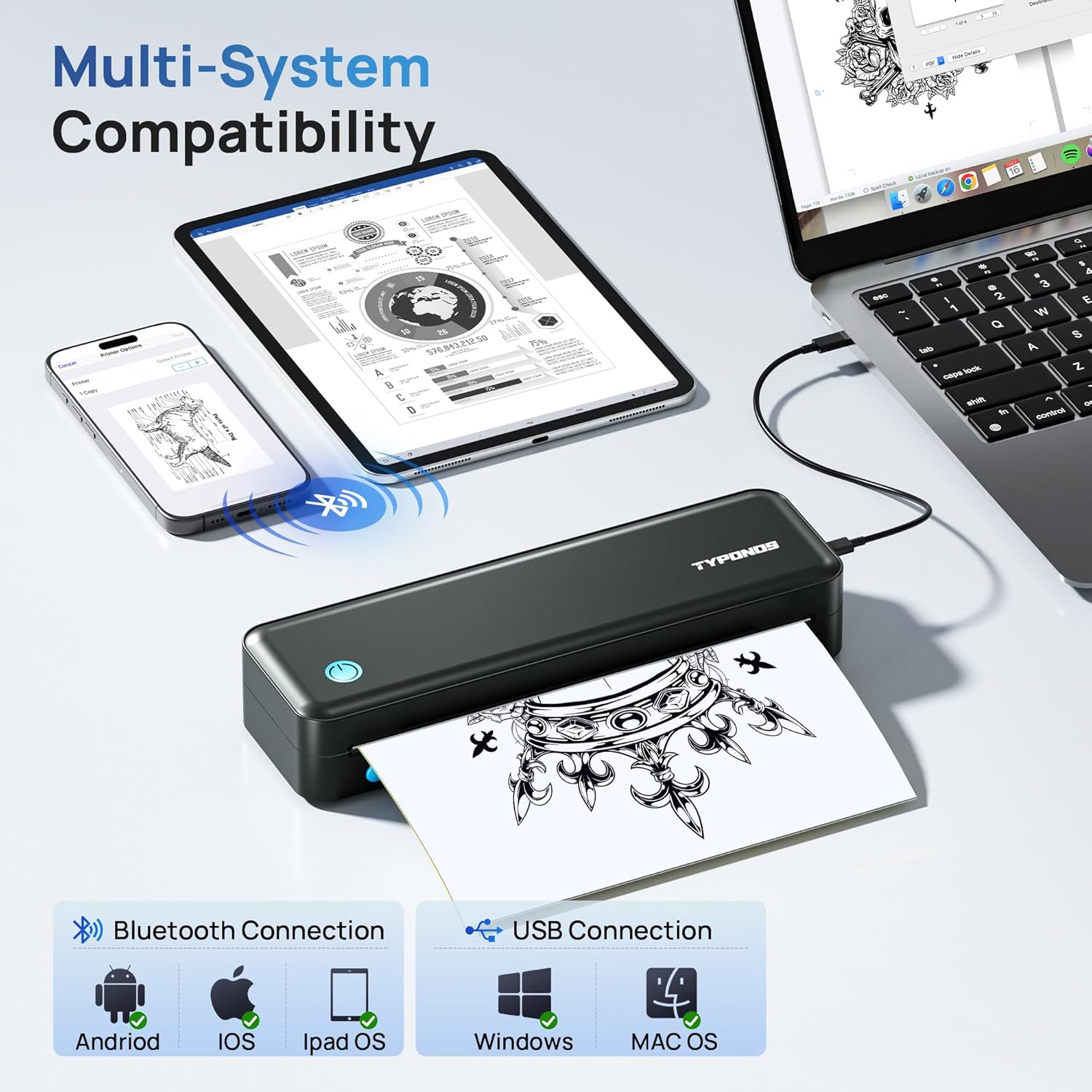
The TYPONOS D820 is a compact, inkless thermal printer designed for portability and versatility. It supports various paper sizes and types, connecting wirelessly via Bluetooth to mobile devices or via USB to computers.

Key Features:
- Ink-Free Thermal Printing: Eliminates the need for ink cartridges or ribbons.
- High Compatibility: Supports Bluetooth for smartphones (Android, iOS, iPad OS) and USB for computers (Windows, Mac OS).
- Portable Design: Compact and lightweight (688g / 1.5 lbs), ideal for travel and on-the-go printing.
- Versatile Paper Support: Accommodates thermal paper from 50mm to 216mm (2" to 8.5") width, including standard 8.5" x 11" and A4 sizes, roll paper, folded sheets, and tattoo transfer paper.
- Multi-Format Printing: Capable of printing PDF, Word (.doc), Excel (.xls), TXT, and JPG files.
- Durable Battery: Built-in 2600mAh battery supports up to 160 sheets on a full charge, with USB-C charging.
4. Setup
4.1 Charging the Printer
Before initial use, fully charge the printer. Connect the provided USB-C cable to the printer's charging port and the other end to a compatible USB power adapter (not included) or a computer's USB port. The indicator light will show charging status.

4.2 Loading Paper
The D820 printer supports various thermal paper types, including single sheets and rolls. Ensure you use thermal paper, as regular paper will not print.
Loading Single Sheets:
- Press the dual-button release on both sides of the printer to open the printer cover.
- Note the non-printing side of the thermal paper, which typically has a black mark or is less glossy.
- Insert the paper parallel into the paper inlet with the printing side facing up.
- Gently push the paper until it is automatically sucked in and cannot be pulled out.

Loading Roll Paper:
- Press the dual-button release on both sides of the printer to open the printer cover.
- Load the roll paper into the compartment with the printing side facing up.
- Adjust the paper guides to properly hold the roll, ensuring the paper edge covers the printer's sensor.
- Press and close the top cover firmly until it clicks into place.

4.3 Software Installation
For Mobile Devices (Smartphone & Tablet):
Download the "Labelnize" app from your device's app store (App Store for iOS/iPad OS, Google Play Store for Android). You can also scan the QR code below.

For Computers (Windows & Mac OS):
Download and install the printer driver from the official TYPONOS website. Visit labelnize.com/pages/software-driver-download?D820 to get the latest driver for your operating system.

5. Operating Instructions
5.1 Connecting the Printer
Connecting to a Mobile Device (Bluetooth):
- Ensure the printer is powered on.
- Open the "Labelnize" app on your smartphone or tablet.
- Enable Bluetooth on your mobile device.
- Within the Labelnize app, search for and select the D820 printer to establish a connection.
- Once connected, the app will indicate that the printer is ready for use.

Connecting to a Computer (USB):
- Ensure the printer is powered on.
- Connect the printer to your computer using the provided USB-C cable.
- After installing the driver (refer to Section 4.3), your computer should recognize the printer.
- When printing from an application, select the TYPONOS D820 from the list of available printers.
5.2 Printing from the App (Mobile Devices)
- Ensure your printer is connected to the Labelnize app via Bluetooth.
- On the app's home page, select "Document Printing" or "Picture" based on your content.
- Click "Open local file" to browse and select the file you wish to print.
- Before printing, verify that the paper size setting in the app matches the paper currently loaded in the printer.
- Adjust print settings such as density, number of copies, print range, and print mode (e.g., Pictures or Text).
- Confirm settings and tap "Print" to start printing.

5.3 Printing from a Computer (Windows/Mac OS)
- Ensure the printer is connected to your computer via USB and the driver is installed.
- Open the document or image you wish to print in its respective application (e.g., Microsoft Word, Adobe Reader, image viewer).
- Go to "File" > "Print" (or use the shortcut Ctrl+P/Cmd+P).
- In the print dialog box, select "TYPONOS D820" as your printer.
- Adjust any necessary print settings such as paper size, orientation, and print quality.
- Click "Print".
5.4 Supported File Types
The TYPONOS D820 printer is compatible with a variety of file formats, allowing for diverse printing needs.
- Documents: PDF, Microsoft Word (.doc, .docx), Microsoft Excel (.xls, .xlsx), Text (.txt)
- Images: JPG

5.5 Supported Paper Types and Sizes
The printer supports thermal paper with widths ranging from 50mm (2 inches) to 216mm (8.5 inches). This includes standard US Letter (8.5" x 11") and A4 sizes, as well as roll paper, folded sheets, single sheets, and tattoo transfer paper.


6. Maintenance
6.1 Cleaning the Printer
Regular cleaning helps maintain print quality and extends the printer's lifespan.
- Exterior: Wipe the exterior with a soft, dry cloth. Do not use abrasive cleaners or solvents.
- Print Head: If print quality degrades, gently clean the thermal print head with an alcohol swab. Ensure the printer is off and cooled down before cleaning.
- Paper Path: Remove any paper dust or debris from the paper path using a soft brush or compressed air.
6.2 Storage
When not in use for extended periods, store the printer in a cool, dry place, away from direct sunlight and extreme temperatures. Remove any paper from the paper compartment.
7. Troubleshooting
If you encounter issues with your TYPONOS D820 printer, refer to the following common problems and solutions.
| Problem | Possible Cause | Solution |
|---|---|---|
| Printer does not power on | Low battery; Power cable not connected | Charge the printer; Ensure USB-C cable is securely connected. |
| No print output | No thermal paper loaded; Incorrect paper type; Print head issue | Load thermal paper correctly; Ensure thermal paper is used; Clean the print head. |
| Poor print quality (faint, blurry) | Low battery; Print head dirty; Old/poor quality thermal paper | Charge the printer; Clean the print head; Use fresh, high-quality thermal paper. |
| Cannot connect via Bluetooth | Bluetooth off; App not open; Printer not discoverable; Interference | Ensure Bluetooth is enabled on device; Open Labelnize app; Restart printer and device; Move closer to printer. |
| Cannot print from PC via USB | Driver not installed; USB cable faulty; Incorrect printer selected | Install the correct driver from labelnize.com; Try a different USB cable; Select TYPONOS D820 in print dialog. |
| Paper jam | Improper paper loading; Foreign object | Open cover, carefully remove jammed paper; Ensure paper is loaded straight and correctly. |
8. Specifications
Detailed technical specifications for the TYPONOS D820 Portable Thermal Printer.
| Feature | Detail |
|---|---|
| Brand | TYPONOS |
| Model Name | D820 |
| Printing Technology | Thermal |
| Connectivity Technology | Wireless (Bluetooth), USB |
| Printer Output | Monochrome |
| Maximum Black and White Print Resolution | 203 DPI |
| Maximum Print Speed (Monochrome) | 4 ppm |
| Maximum Media Size | 8.5 inches (width) |
| Supported Paper Width | 50mm to 216mm (2" to 8.5") |
| Battery | 2600mAh (rechargeable, included) |
| Charging Interface | USB-C |
| Product Dimensions | 10.98 x 4.13 x 2.7 inches |
| Item Weight | 2.24 pounds (approx. 688g) |
| Color | Light Black |
9. Warranty and Support
For warranty information, technical support, or customer service inquiries, please refer to the warranty card included with your product or visit the official TYPONOS website. You can also contact the seller directly through the platform where you purchased the product.
For additional resources and product information, visit the TYPONOS Store on Amazon.
Related Documents - D820
 |
Mitsubishi Electric FR-D800 Series Inverter: Connection Manual Comprehensive guide for installing and wiring Mitsubishi Electric FR-D800 series inverters, covering safety, specifications, peripheral devices, and optional unit connections. |
 |
Raycon The Everyday Headphones User Manual and Guide Comprehensive user manual for Raycon The Everyday Headphones, covering setup, features, troubleshooting, and specifications. Learn how to pair, use ANC, sound profiles, and more. |
 |
Socket Mobile DuraScan 800 Series User Guide: D800, D820, D840, D860 Comprehensive user guide for Socket Mobile's DuraScan 800 Series barcode scanners (models D800, D820, D840, D860), covering setup, operation, connectivity, and troubleshooting. |
 |
Dell Latitude D820 User's Guide Comprehensive user guide for the Dell Latitude D820 laptop, covering setup, features, operation, maintenance, troubleshooting, and specifications. Learn how to use your Dell Latitude D820 effectively. |
 |
Raycon Everyday Headphones User Manual and Product Guide Comprehensive user manual for Raycon Everyday Headphones, covering features, setup, troubleshooting, safety guidelines, and product specifications. Learn how to connect, charge, and use your headphones effectively. |
 |
Mitsubishi Electric FR-D800 Series Inverters: Selection Guide Explore the Mitsubishi Electric FR-D800 Series inverters, offering cost-effective, reliable, and eco-friendly solutions for motor control. This guide details features, specifications, and model options for induction and PM motor applications. |