
HAOVM G12-14
HAOVM Android 14 Tablet G12-14 User Manual
Model: G12-14 | Brand: HAOVM
1. Introduction
Welcome to the user manual for your new HAOVM Android 14 Tablet G12-14. This guide provides essential information for setting up, operating, maintaining, and troubleshooting your device. Please read this manual thoroughly to ensure optimal performance and longevity of your tablet.

Image: The HAOVM G12-14 Android 14 Tablet, showcasing its 10.1-inch IPS display, WiFi+4G LTE Cellular capabilities, MediaTek Processor, and detachable protective case, alongside its charging cable and power adapter.
Safety Information
- Do not expose the tablet to extreme temperatures, direct sunlight, or high humidity.
- Avoid dropping or subjecting the tablet to strong impacts.
- Use only approved chargers and accessories to prevent damage and ensure safety.
- Keep the tablet away from water and other liquids.
- Do not attempt to disassemble or repair the tablet yourself. Contact customer support for assistance.
2. Package Contents
Verify that all items are present in your product package:
- Tablet computer host (1)
- Tablet computer protective case (1)
- Power Adapter (1)
- Charging Cable (1)
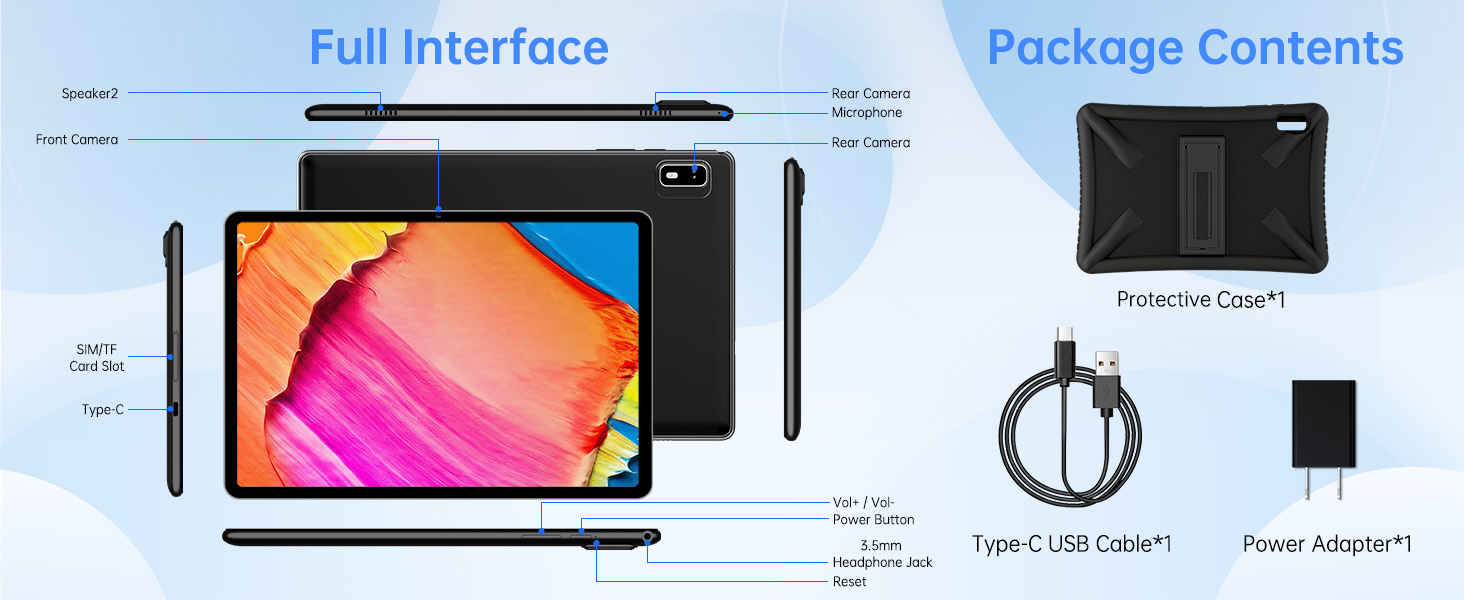
Image: Diagram showing the tablet's interface with labeled ports and buttons, alongside the items included in the package: tablet, protective case, power adapter, and charging cable.
Video: An unboxing demonstration of the HAOVM G12-14 tablet, displaying the tablet and its accessories as they appear inside the product box.
3. Product Overview
The HAOVM G12-14 is a 10.1-inch Android 14 tablet designed for versatile use. It features a MediaTek Quad-Core CPU, 3GB RAM, 32GB internal storage (expandable via TF card), IPS display, 4G LTE connectivity, 5G WiFi, Bluetooth 5.0, dual cameras, and GPS.
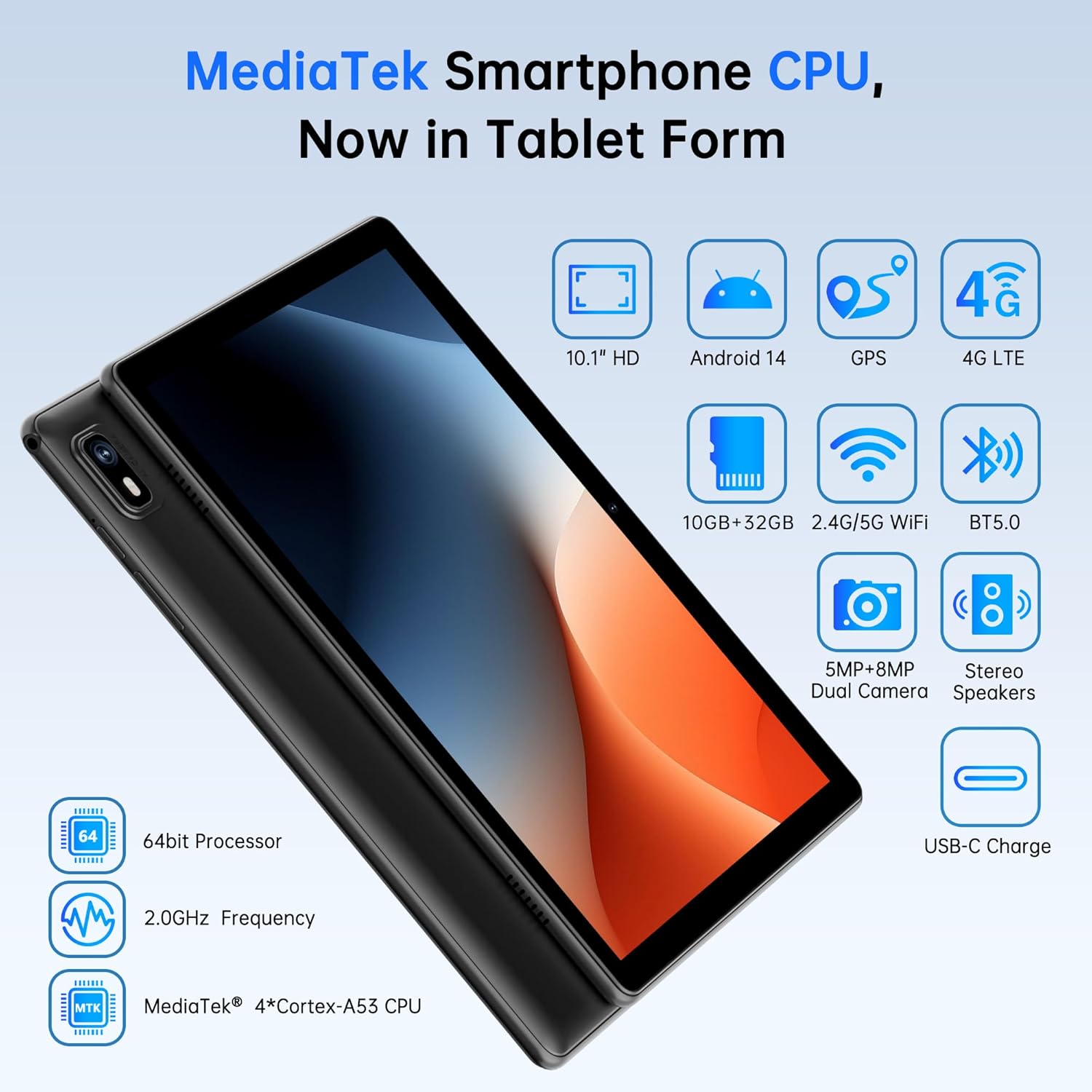
Image: Visual representation of the tablet's key features including 10.1" HD IPS display, Android 14, GPS, 4G LTE, 10GB+32GB storage, 2.4G/5G WiFi, BT5.0, 5MP+8MP Dual Camera, Stereo Speakers, and USB-C Charge.
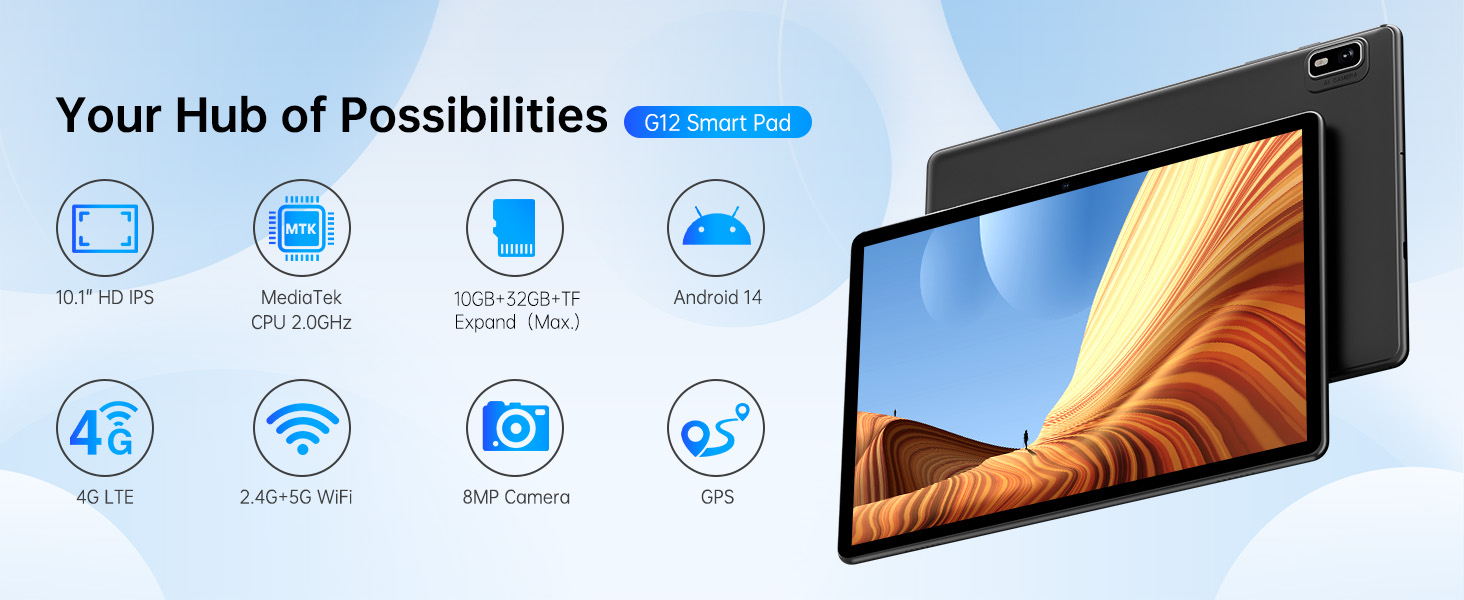
Image: An illustration highlighting the tablet as a "Hub of Possibilities" with icons for 10.1" HD IPS, MediaTek CPU 2.0GHz, 10GB+32GB+TF Expand, Android 14, 4G LTE, 2.4G+5G WiFi, 8MP Camera, and GPS.
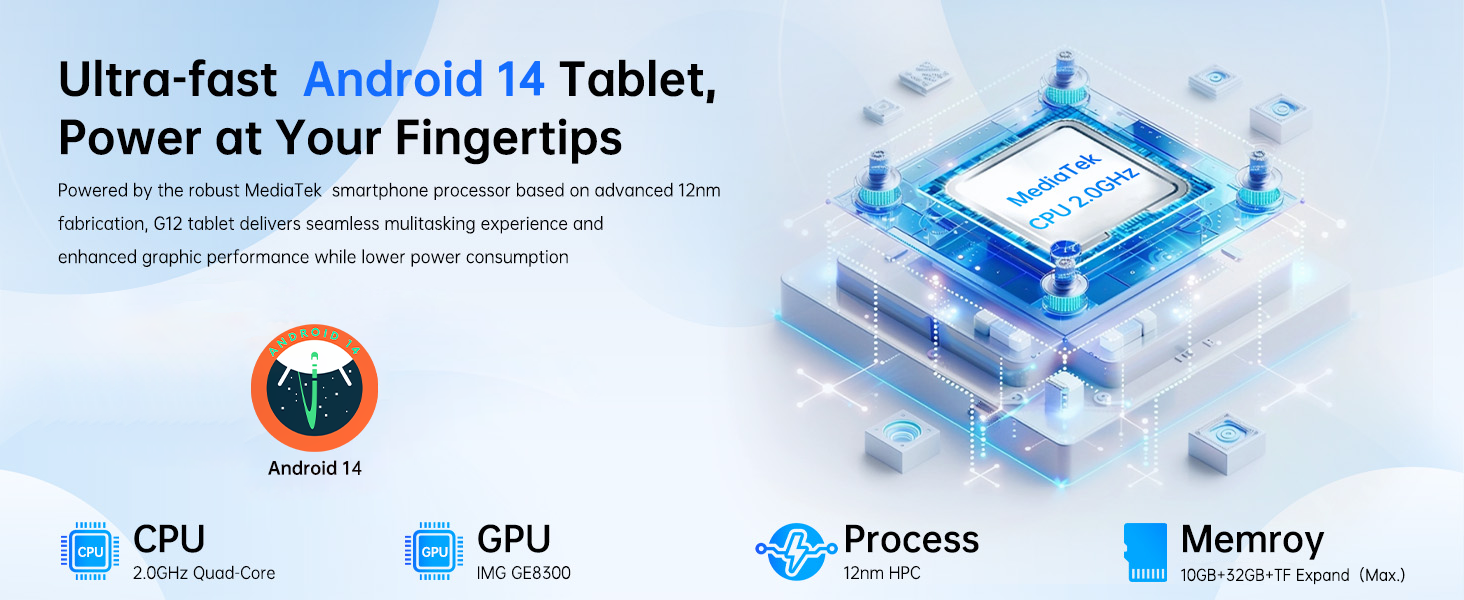
Image: Graphic emphasizing the tablet's performance with an "Ultra-fast Android 14 Tablet, Power at Your Fingertips" headline, showcasing the 2.0GHz Quad-Core CPU, IMG GE8300 GPU, 12nm process, and 10GB+32GB+TF Expandable memory.
4. Setup
4.1 Charging the Tablet
Before first use, fully charge your tablet using the provided power adapter and charging cable. Connect the USB-C cable to the tablet's USB-C port and the adapter to a power outlet. The battery indicator on the screen will show charging status.
4.2 Powering On/Off
- To Power On: Press and hold the Power button until the HAOVM logo appears on the screen.
- To Power Off: Press and hold the Power button until the power options appear. Select "Power off" and confirm.
- To Restart: Press and hold the Power button until the power options appear. Select "Restart" and confirm.
4.3 Inserting SIM/TF Card
The tablet supports 4G SIM cards for cellular data and TF (microSD) cards for expandable storage. The SIM card slot is only suitable for Micro SIM cards (card size: 15mm*12mm).
- Locate the SIM/TF card slot on the side of the tablet.
- Carefully insert the SIM card and/or TF card into the designated trays. Ensure correct orientation as indicated on the tray.
- Push the tray back into the slot until it clicks into place.

Image: A close-up view of the tablet's side, showing the SIM card and TF card being inserted into their respective slots.
Video: A demonstration of the G12 Tablet's startup process and basic function, including inserting a SIM card and navigating the settings menu to show 4G connectivity.
4.4 Initial Setup Wizard
Upon first power-on, the tablet will guide you through an initial setup process. Follow the on-screen instructions to:
- Select your language.
- Connect to a Wi-Fi network.
- Set up your Google account.
- Configure date and time.
- Set up screen lock (PIN, pattern, or password).
5. Operating the Tablet
Video: A detailed explanation of the G12 Tablet's various functions and features, demonstrating its user interface and capabilities.
5.1 Basic Navigation
The HAOVM G12-14 uses standard Android touch gestures:
- Tap: Select an item or open an app.
- Swipe: Scroll through screens or lists.
- Pinch: Zoom in or out on images and web pages.
- Long Press: Access contextual menus or move icons.
5.2 Connecting to Wi-Fi
To connect to a Wi-Fi network:
- Go to Settings > Network & internet > Internet.
- Toggle Wi-Fi On.
- Select your desired network from the list and enter the password if required.
- The tablet supports 2.4G and 5G dual-band Wi-Fi.

Image: Illustrates the tablet's 2.4G+5G Dual-band WiFi capability and wireless screen projection feature, showing the tablet casting content to a larger screen.
5.3 Connecting to 4G Cellular Network
If you have inserted a 4G SIM card, you can enable mobile data:
- Go to Settings > Network & internet > Mobile network.
- Toggle Mobile data On.
- Ensure your SIM card is active and has a data plan.
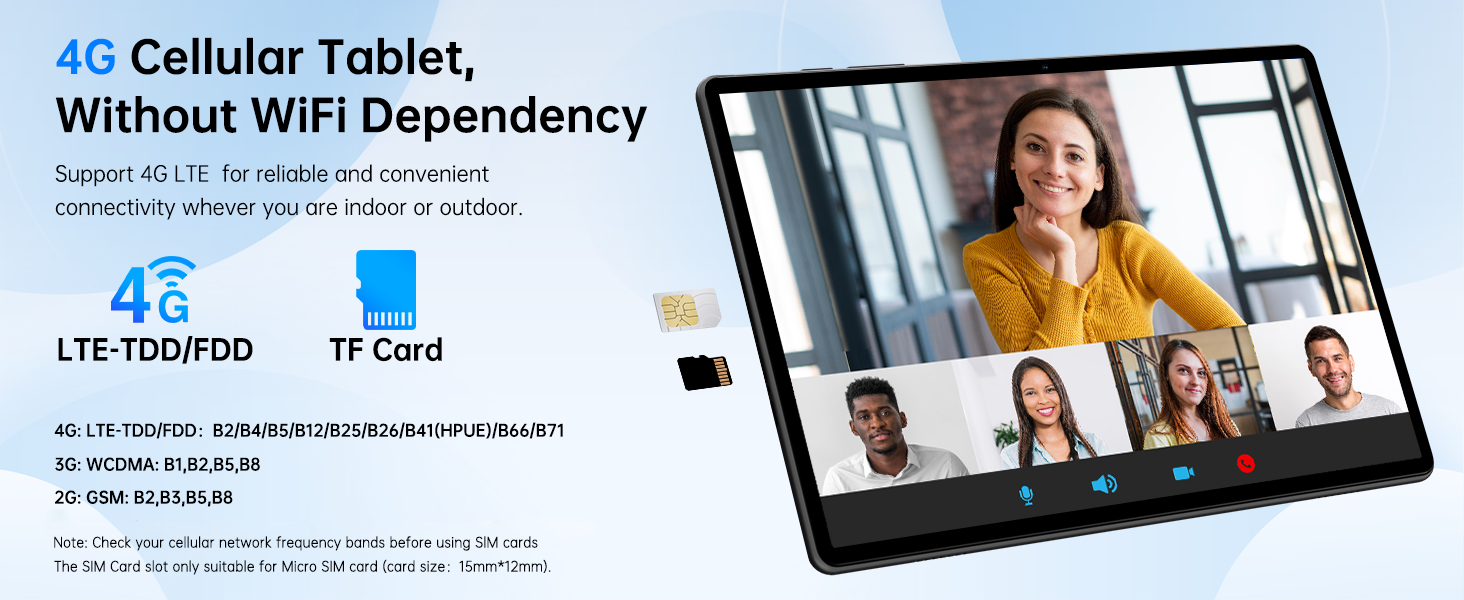
Image: Shows the tablet's 4G LTE-TDD/FDD and TF Card support, emphasizing connectivity without WiFi dependency, with a video call on screen.
5.4 Bluetooth Pairing
To connect Bluetooth devices (e.g., headphones, speakers):
- Go to Settings > Connected devices > Connection preferences > Bluetooth.
- Toggle Bluetooth On.
- Select "Pair new device" and choose your device from the list.
- Follow any on-screen prompts to complete pairing.
5.5 Using GPS
The tablet supports four global navigation systems (GPS, Galileo, Beidou, Glonass). To use GPS:
- Ensure Location services are enabled in Settings > Location.
- Open a navigation app (e.g., Google Maps) to utilize the GPS functionality.

Image: Depicts the tablet being used for GPS navigation in a car and by a person wearing Bluetooth headphones, highlighting its GPS and Bluetooth 5.0 features.

Image: Illustrates the tablet's 4-mode global navigation system (GPS, Glonass, Galileo, Beidou) and 4G LTE cellular network for effortless navigation, shown with a car dashboard and map.
5.6 Camera Functions
The tablet is equipped with 5MP front and 8MP rear cameras. Open the Camera app to capture photos and videos.
- Tap the shutter button to take a photo.
- Switch to video mode to record.
- Use the front camera for video calls and selfies.

Image: Shows the tablet being used for an online meeting with its 5MP front camera and capturing a landscape with its 8MP rear camera.

Image: Highlights the 5MP front camera for video calls and the 8MP rear camera for capturing various moments, including family photos and travel scenes.
5.7 Google Kids Space & Parental Controls
The tablet includes Google Kids Space and YouTube Kids, offering a safe and engaging environment for children. Parental controls can be managed via Family Link.
- Set screen time limits.
- Manage app access and content filters.
- Monitor activity to promote healthy digital habits.

Image: Displays the Android 14 interface with Google Kids Space and YouTube Kids icons, along with features like Privacy Protection and Parental Control.

Image: Shows children using the tablet, emphasizing Google Kids Space, YouTube Kids, Time Management, Digital Wellbeing, Family Link, and Parental Control features.
5.8 Media Consumption & Gaming
The 10.1-inch 1280x800 HD IPS screen and stereo speakers provide an immersive experience for videos, e-books, and games. The MediaTek CPU ensures smooth performance for various applications.

Image: Highlights the tablet's vivid 10.1" IPS color display with 16.7M colors, 178° wide view angle, 16:10 golden ratio, and stereo speakers, shown with various movie posters.

Image: Features the tablet's 16.7M Colors, 178° Wide View Angle, Immersive Stereo Speakers, and 3.5mm Headphone Jack, with a vibrant gaming scene on screen.
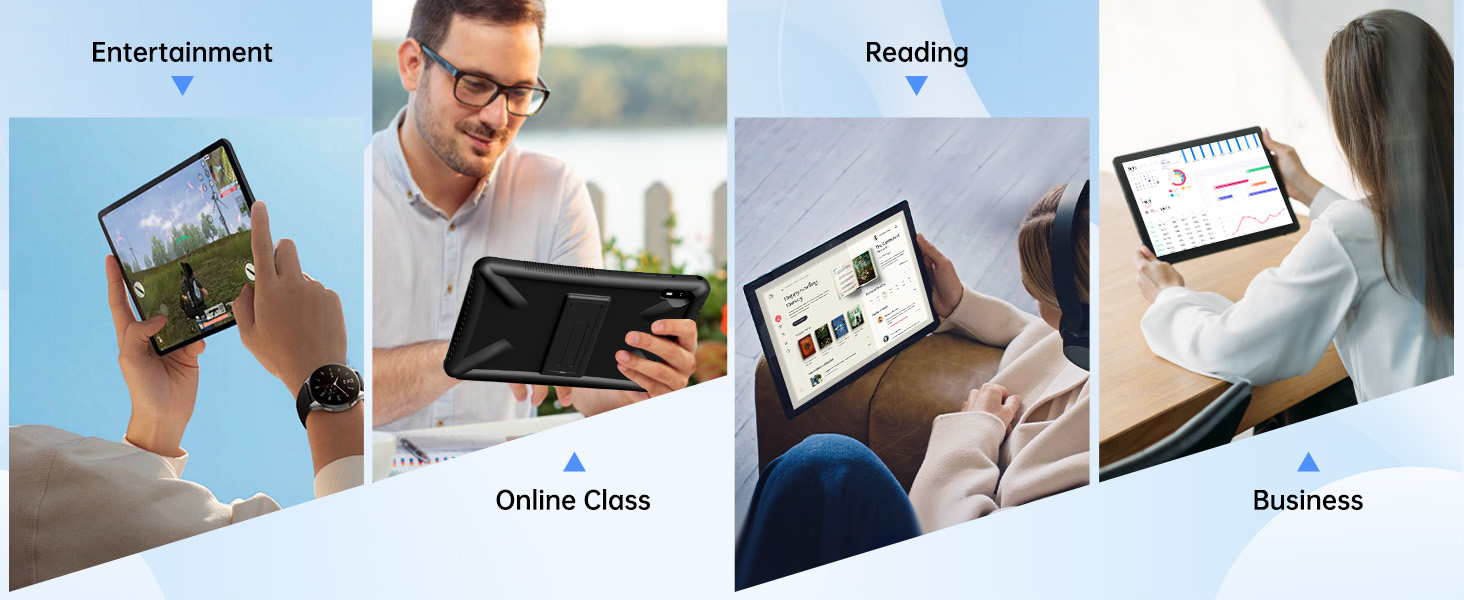
Image: Displays the tablet being used in various scenarios: Entertainment (gaming), Reading, Online Class, and Business, illustrating its versatility.
5.9 Split Screen Function
The split-screen function allows you to use two apps simultaneously on one screen, enhancing multitasking capabilities.

Image: Demonstrates the split-screen function, showing two applications open side-by-side on the tablet screen, along with icons for Eye Protection Mode, Reading Mode, and Dark Theme Mode.
5.10 Wireless Screen Casting
Wirelessly cast your tablet's screen to a compatible display for a larger viewing experience.
- Ensure your tablet and the target display are connected to the same Wi-Fi network.
- Go to Settings > Connected devices > Connection preferences > Cast.
- Select your display device from the list to begin casting.
6. Maintenance
6.1 Cleaning
- Use a soft, lint-free cloth to clean the screen and body of the tablet.
- Avoid using harsh chemicals, abrasive cleaners, or aerosol sprays.
- For stubborn smudges, slightly dampen the cloth with water or a screen cleaner.

Image: A tablet protected by a shockproof rugged case, shown in a child-friendly environment, emphasizing durability and protection against damage.
6.2 Battery Care
- To prolong battery life, avoid fully discharging the battery frequently.
- Charge the tablet regularly, ideally keeping the charge between 20% and 80%.
- Do not expose the tablet to extreme heat, as this can degrade battery performance.
6.3 Storage Management
Regularly manage your tablet's storage to maintain optimal performance:
- Delete unnecessary apps and files.
- Clear cache data for apps in Settings > Apps > [App Name] > Storage & cache.
- Utilize the TF card slot for additional storage of media files.
6.4 Software Updates
Keep your tablet's software up to date to benefit from the latest features, security patches, and performance improvements.
- Go to Settings > System > System update.
- Check for available updates and follow the on-screen instructions to install them.
7. Troubleshooting
| Problem | Solution |
|---|---|
| Tablet does not power on. | Ensure the battery is charged. Connect the charger and wait a few minutes before attempting to power on again. |
| Cannot connect to Wi-Fi. | Check if Wi-Fi is enabled in settings. Restart the tablet and your Wi-Fi router. Ensure you are entering the correct password. |
| 4G cellular data not working. | Verify the SIM card is correctly inserted and active. Check mobile data settings and ensure your plan has data. Restart the tablet. |
| Apps are running slowly or crashing. | Close unused apps. Clear app cache. Check for system updates. Consider freeing up storage space. |
| Screen is unresponsive. | Restart the tablet by holding the power button. If unresponsive, perform a forced restart (refer to device-specific instructions if available, usually holding power for 10-15 seconds). |
8. Specifications
| Feature | Detail |
|---|---|
| Model | G12-14 |
| Operating System | Android 14 |
| Processor | MediaTek Quad-Core CPU, 2.0 GHz |
| Display | 10.1-inch IPS, 1280 x 800 pixels |
| RAM | 3GB |
| Internal Storage | 32GB |
| Expandable Storage | TF card slot (up to 128GB, check product page for exact max) |
| Cameras | Front: 5MP, Rear: 8MP |
| Battery | 5000mAh (Up to 10 hours usage) |
| Connectivity | 4G LTE (SIM Unlocked), 2.4G+5G WiFi, Bluetooth 5.0 |
| Navigation | GPS, Galileo, Beidou, Glonass |
| Ports | USB-C, 3.5mm Headphone Jack |
| Dimensions | 9.68 x 6.4 x 0.4 inches |
| Weight | 1.15 pounds |
9. Warranty and Support
HAOVM is committed to providing excellent customer service. Your HAOVM G12-14 tablet comes with the following support:
- 365-Day Worry-Free Warranty: Covers manufacturing defects and ensures product reliability.
- 30-Day Money-Back Guarantee: If you are not satisfied with your purchase, you may return it within 30 days for a full refund.
- 24-Hour Quick Reply: Customer support is available to answer your inquiries within 24 hours.
For technical assistance, warranty claims, or any other inquiries, please contact HAOVM customer support through the platform where you purchased the device or visit the official HAOVM website for contact information.
Image: Graphic detailing HAOVM's customer support: 24-hour quick reply, 30-day money-back guarantee, and 365-day worry-free warranty.
Ask a question about this manual
Ask about setup, troubleshooting, compatibility, parts, safety, or missing instructions. Manuals+ will review the question and use this page’s manual context to help answer it.